> ## Documentation Index
> Fetch the complete documentation index at: https://docs.foundable.com/llms.txt
> Use this file to discover all available pages before exploring further.
# Connect your apps
> Connect Gmail, Google Calendar, Slack and other tools you use, so Ted can work in them for you. Changes he drafts wait for your OK.
An [integration](/help/glossary#integration) connects a tool you already use, like Gmail, Google Calendar or Slack, to your foundable. Once it’s connected, Ted can use it in any chat: find an email, check your calendar, update a spreadsheet or post in a channel.
You connect apps in **Settings** › **Integrations**. A connection belongs to your foundable, so Ted can use it for everyone who works in it with you.
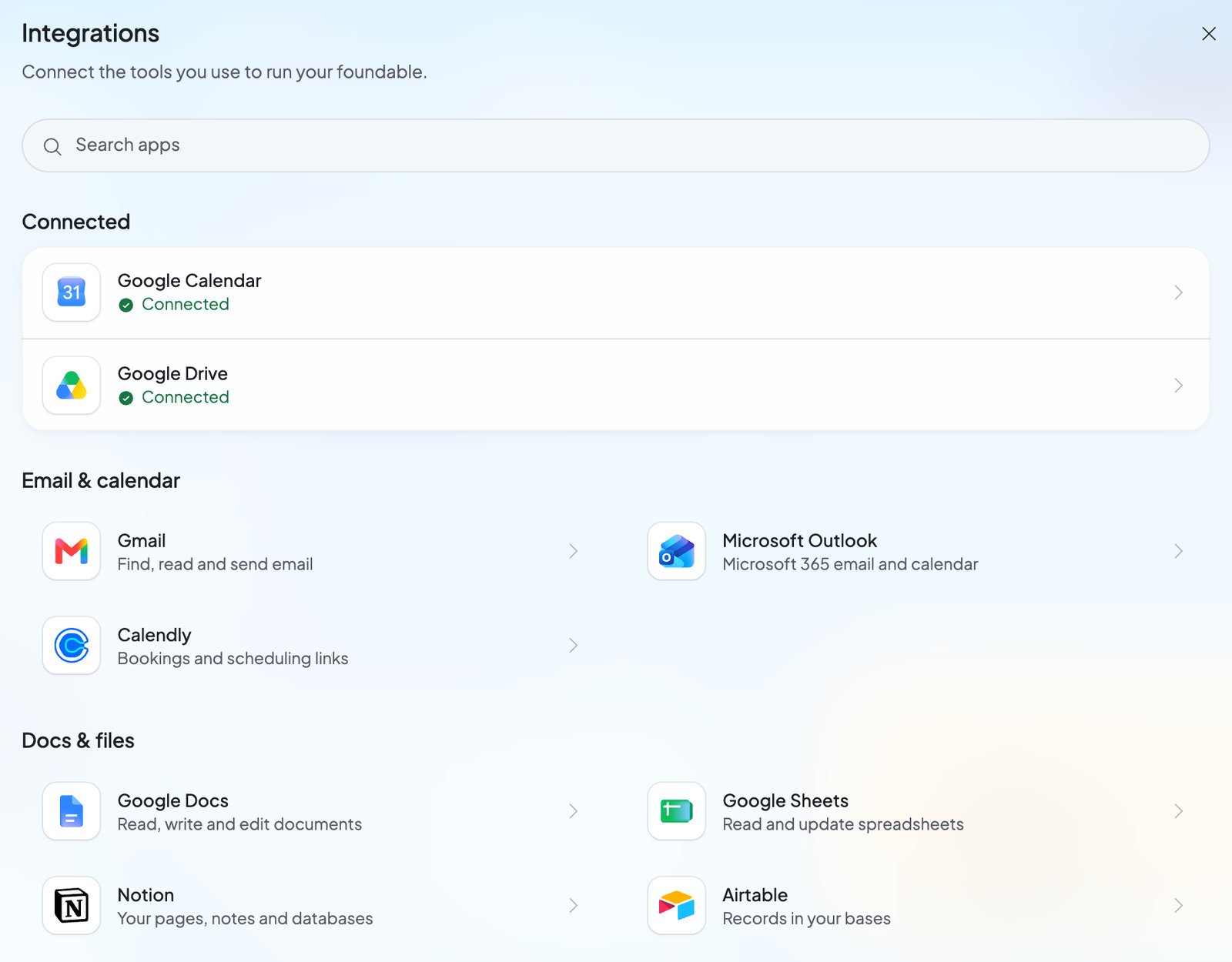 Open the account menu, choose **Settings**, then **Integrations**. Or press **+** in Ted’s message box and choose **Connect apps**.
Type in “Search apps”, or look through the shelves, like **Email & calendar** and **Docs & files**.
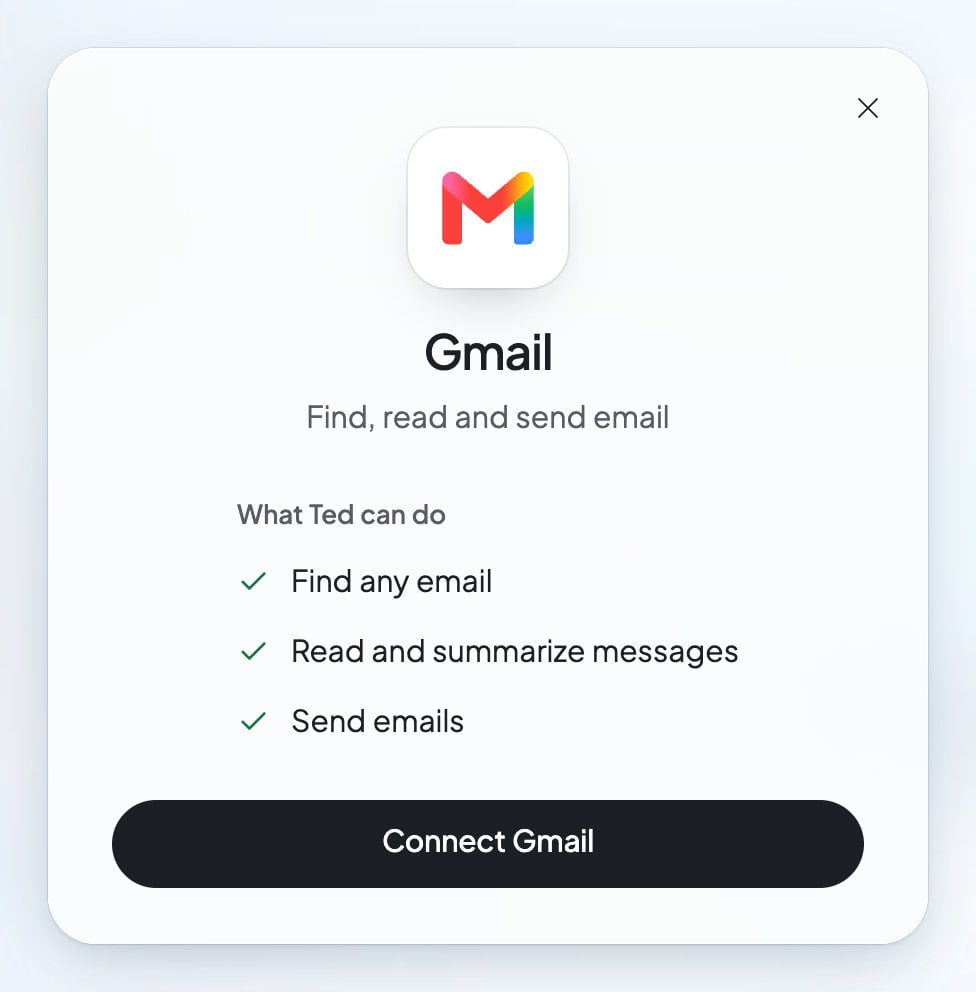
Press the app. Its card lists **What Ted can do** there.
Press **Connect** and the app’s name, like **Connect Gmail**. You leave Foundable for a secure sign-in page, where you sign in to the app and allow access.
You return to the app’s card: “Gmail is connected”, “Ted can use it in any chat now.” The app moves to **Connected** at the top.
Open the account menu, choose **Settings**, then **Integrations**. Or press **+** in Ted’s message box and choose **Connect apps**.
Type in “Search apps”, or look through the shelves, like **Email & calendar** and **Docs & files**.
Press the app. Its card lists **What Ted can do** there.
Press **Connect** and the app’s name, like **Connect Gmail**. You leave Foundable for a secure sign-in page, where you sign in to the app and allow access.
You return to the app’s card: “Gmail is connected”, “Ted can use it in any chat now.” The app moves to **Connected** at the top.
 ## Apps you can connect
| Shelf | Apps |
| - | - |
| **Email & calendar** | **Gmail**: Find, read and send email
## Apps you can connect
| Shelf | Apps |
| - | - |
| **Email & calendar** | **Gmail**: Find, read and send email
**Google Calendar**: See and plan your schedule
**Microsoft Outlook**: Microsoft 365 email and calendar
**Calendly**: Bookings and scheduling links |
| **Docs & files** | **Google Drive**: Find, save and organize files
**Google Docs**: Read, write and edit documents
**Google Sheets**: Read and update spreadsheets
**Notion**: Your pages, notes and databases
**Airtable**: Records in your bases
**Microsoft OneDrive**: Your Microsoft files and folders
**Microsoft Excel**: Workbooks in OneDrive or SharePoint |
| **Team chat** | **Slack**: Read channels and post replies
**Microsoft Teams**: Read chats and post in channels |
| **Customers & projects** | **HubSpot**: Contacts, deals and follow-ups
**Linear**: Issues, projects and comments |
| **Marketing & analytics** | **Mailchimp**: Newsletters, audiences and campaigns
**Canva**: Your designs and uploads
**Google Analytics**: Visitors to your websites
**Google Search Console**: How people find you on Google |
| **Accounting** | **QuickBooks**: Invoices, customers and your books |
Microsoft Excel and Microsoft Teams need a Microsoft 365 work or school account. Only the apps in this list can be connected.
Looking for Instagram, LinkedIn or TikTok? “Social accounts connect in Run.” See [Connect your social accounts](/run/social-accounts).
## What Ted can do in an app
Each app’s card lists **What Ted can do** there. For example:
* **Gmail**: “Find any email”, “Read and summarize messages”, “Send emails”.
* **Google Calendar**: “See your upcoming events”, “Create, update and move events”, “Delete events you no longer need”.
Ted looks things up and reads in your connected apps whenever your work needs it. When the owner or an admin asks him to do something there, like send an email, he can do it. This works in the chat and [by text](/ted/text-ted). For other changes, he drafts the change first, and it waits for an owner’s or admin’s OK.
When Ted works in Run, how much he does in your apps without asking follows the mode you choose for Run. See [Ask first or Runs on its own](/run/ask-first-or-on-its-own).
## Approve a change Ted drafted
A drafted change shows as a card in the chat, “Gmail change Ted drafted”, and waits for you on [Home](/get-started/home) under **From Ted** too. A change that removes something says so: “Approving this deletes something in Gmail.”
It shows what Ted wants to change, and in which app.
Press **Approve** to run it, or **Decline** to stop it. You can also answer in the chat. The card then says “Approved from your reply.” or “Declined in your reply. It won’t run.”
An approved change runs once, and the card shows how it went:
| What you see | What it means |
| - | - |
| “Needs approval” | Waiting for an owner’s or admin’s OK. |
| “Running” | The app is making the change. |
| “Done” | The change is made. |
| “Failed” | The app didn’t make it. The card says why, like “Gmail said: …”. |
| “Not run” | It didn’t run: “It was refused before it ran.”, or “This changed since Ted drafted it, so it didn’t run.” |
| “Unconfirmed” | Foundable couldn’t confirm whether it ran. “This may have run. Check Gmail.” |
| “Declined” | Someone declined it. |
| “Replaced” | “Ted drafted a newer version of this change.” |
See [Approve Ted’s work](/ted/approvals) for everything else Ted asks you to approve.
## When Ted needs an app you haven’t connected
If Ted needs an app for your request, he asks on a card in the chat, “Gmail connection Ted asked for”, with **Connect Gmail**. Press it and sign in. When you come back, the chat tells Ted it’s connected, and he carries on.
When Ted needs an app while he works in Run, he asks under **Ted needs you** in Run instead. See [Decisions and website changes](/run/decisions).
## Start a scheduled task from an app
A connected app can also start one of your [scheduled tasks](/schedule/overview) when something happens there. When you set up a task, choose “Something happens in an app”, then pick the **App** and its **Event**. Only connected apps that offer events show.
## Disconnect an app
In **Settings** › **Integrations**, press the app under **Connected**.
Foundable asks “Disconnect Gmail?”, and says Ted stops using it for everyone in your foundable. “You can connect it again any time.”
Press **Disconnect**, or **Keep it** to change your mind. You see “Gmail is disconnected.”
Each app connects one account. Connecting an app again replaces the account connected before.
## Your sign-in stays with the app
When you press **Connect**, you sign in on the app’s own pages, through Composio, the service Foundable uses to connect apps. Composio keeps the connection’s keys. Foundable never sees your password and keeps no key to your account.
## Who can connect
Everyone in your foundable can see which apps are connected. Only the owner and admins can connect or disconnect an app, and approve or decline Ted’s changes. Others see “Only an owner or admin can connect Gmail.”
## What you’ll see
| What you see | What to do |
| - | - |
| “That connection took too long to come back. Connect it again.” | Press **Connect** again and finish signing in. |
| “That connection couldn’t be finished. Connect it again.” | Press **Connect** again. |
| “That connection couldn’t be finished here. Connect it again.” | Start again from **Settings** › **Integrations** in this tab. |
| “Gmail couldn’t be reached.” | Try again later. |
| “Gmail can’t be connected here any more.” | The app is no longer offered. |
| “Disconnecting didn’t finish” | Press **Disconnect** again. |
| “Couldn’t approve this. Try again.” | Press **Approve** again. |
## FAQ
He reads them when your work needs it. He makes a change when the owner or an admin asks him to in the chat. Other changes he drafts first, and a draft runs only after an owner or admin approves it, and only once.
Yes. A connection belongs to the foundable, so when you disconnect it, “Ted stops using it for everyone” in your foundable.
No. You sign in on the app’s own pages, and Composio keeps the connection. Foundable keeps no key to your account.
No. Each app connects one account. Connecting it again replaces the one before.
They aren’t integrations. GitHub connects in **Settings** › **Git** (see [GitHub](/build/github)), Stripe through [Payments](/payments/overview), and Instagram, LinkedIn or TikTok in Run (see [Connect your social accounts](/run/social-accounts)).
## Related
Drafts and changes that wait for your OK.
Instagram, LinkedIn, TikTok and more, in Run.
Everything in Settings, section by section.
Ask Ted to work in your apps.
This documentation is built and hosted on [Mintlify](https://mintlify.com), a developer documentation platform.