> ## Documentation Index
> Fetch the complete documentation index at: https://docs.foundable.com/llms.txt
> Use this file to discover all available pages before exploring further.
# Invite your team
> Bring people into your foundable to work with you and Ted. Send email invites or an invite link, pick each person’s role and manage your team.
Bring in the people who help you run your business. They work with you and Ted in your foundable, and each person has a role that sets what they can do. Everyone on your team uses your [credits](/help/glossary#credit), so they don’t need a plan of their own to work in your foundable.
## Before you start
* **A paid plan.** Inviting people needs one, and every paid plan includes it. See [Plans and credits](/account/plans-and-credits).
* **The right role.** The owner and admins can invite people. Admins can invite members and viewers; only the owner can invite admins.
## Invite people by email
Open **Settings**, then **Team**. Or press your foundable’s name at the top left, then **Invite people**.
It’s at the top of Team, beside **Invite link**.
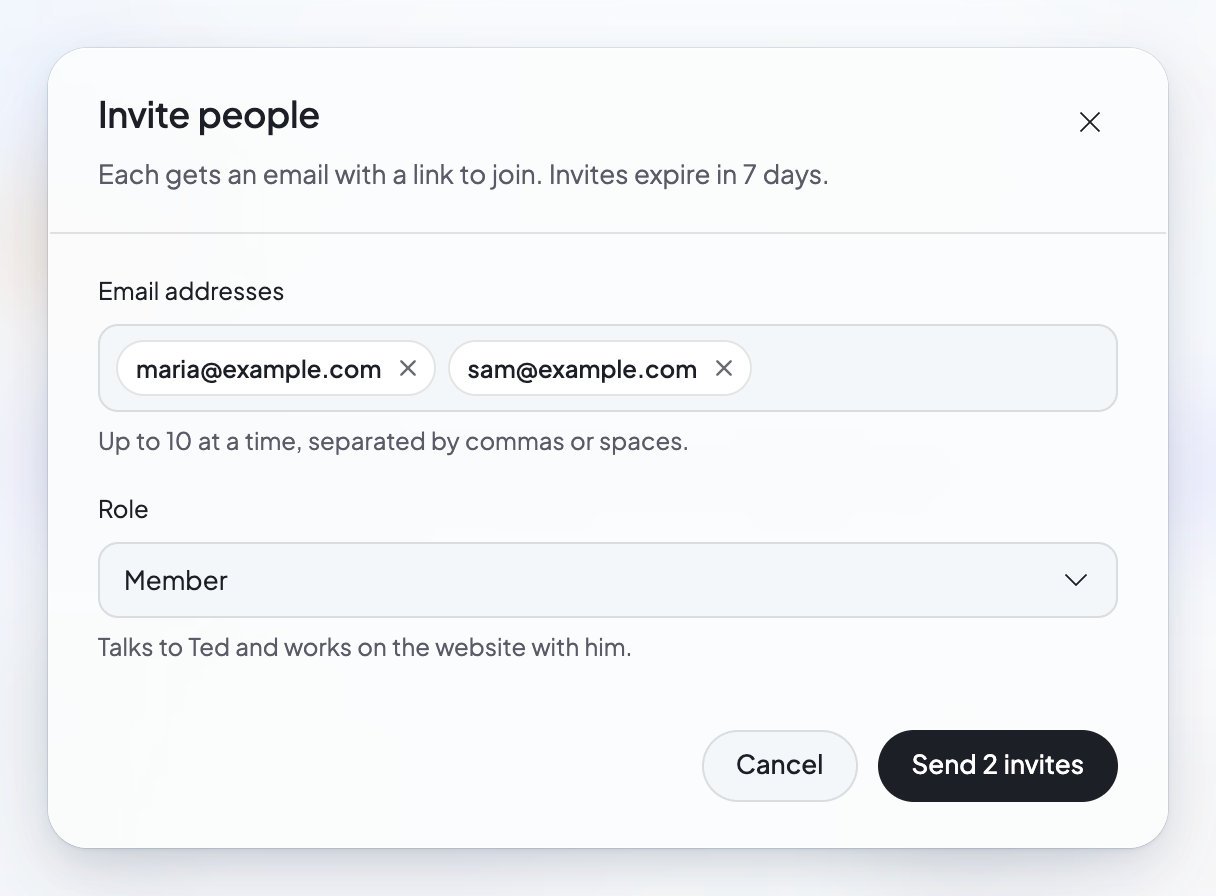
Type them under **Email addresses**: “Up to 10 at a time, separated by commas or spaces.”
Choose their **Role**. A new invitation starts on Member. See [Roles](#roles).
Press **Send invite**. With several addresses, the button counts the invites for you. You’ll see “Invitation sent to” and their addresses.
“Each gets an email with a link to join. Invites expire in 7 days.” Sending a new invitation to the same address replaces the one that was waiting.
 ## Share an invite link
An invite link is handy when you’d rather send a message than an email. “Anyone who opens it can join this foundable with the role you pick, so you can send it in a chat or by text.”
It’s at the top of Team.
Each role has its own link.
Press **Create invite link**. “Make one to send in a chat. It works for 7 days.”
Press **Copy link**, or **Share** on a phone, and send it in a chat or a text.
The link shows “Works until” and the date it stops. Press **New link** to replace it (“New link ready. The one before no longer works.”), or **Delete link** to stop it now (“Invite link deleted. It no longer works.”). Once a link has lapsed, press **Make a new link**.
Anyone who opens a live invite link can join with its role. Send it only to people you want on your team.
## Roles
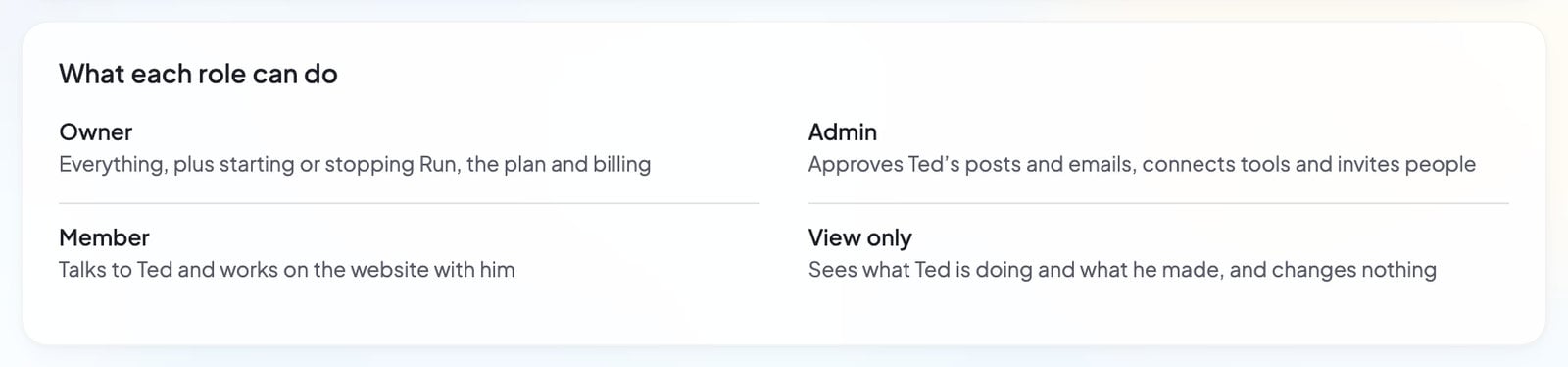
Team lists what each role can do under **What each role can do**:
## Share an invite link
An invite link is handy when you’d rather send a message than an email. “Anyone who opens it can join this foundable with the role you pick, so you can send it in a chat or by text.”
It’s at the top of Team.
Each role has its own link.
Press **Create invite link**. “Make one to send in a chat. It works for 7 days.”
Press **Copy link**, or **Share** on a phone, and send it in a chat or a text.
The link shows “Works until” and the date it stops. Press **New link** to replace it (“New link ready. The one before no longer works.”), or **Delete link** to stop it now (“Invite link deleted. It no longer works.”). Once a link has lapsed, press **Make a new link**.
Anyone who opens a live invite link can join with its role. Send it only to people you want on your team.
## Roles
Team lists what each role can do under **What each role can do**:
 | Role | What they can do |
| - | - |
| **Owner** | “Everything, plus starting or stopping Run, the plan and billing.” The owner’s credits pay for everyone’s work. Only the owner can change roles, invite admins, change the foundable’s time zone or delete it. |
| **Admin** | “Approves Ted’s posts and emails, connects tools and invites people.” Admins can invite, remove and resend invites for members and viewers. |
| **Member** | “Talks to Ted and works on the website with him.” Members ask Ted for work, which uses the owner’s credits. |
| **View only** | “Sees what Ted is doing and what he made, and changes nothing.” They can read chats with Ted but can’t send them, and they see “View only” after the foundable’s name. |
Ted leads the list, as your “Employee” with the tag “AI”: “Runs this foundable with you.” For what each role can do in Build, see [Build your website](/build/overview#who-can-do-what).
## What your teammate sees
**An email invite.** Its subject says that you invited them to your foundable on Foundable. The email has an **Accept invite** button and asks them to log in with their address to accept. “The invite expires in 7 days.” It works only for the email address you sent it to.
**The join page.** The invite opens a page that says “You’re invited”.
* If they aren’t logged in, they press **Log in** or **Create an account**. “If your invite came by email, use that address.”
* Once they’re logged in, the page says which role they’ll join with, like “You’ll join as a member”. They press the **Join** button, which names your foundable, and the foundable opens.
An invite link works the same way for anyone who’s logged in, as long as the link still works and your foundable has room.
## Manage your team
Everyone in the foundable shows in Team, after Ted. Use **Search people** to find someone. An invitation that’s waiting reads “Invited · expires in” and the time left, or “Invited · expired”.
Press **…** at the end of a row for:
* **Resend invite**: sends the invitation again.
* **Cancel invite…**: asks “Cancel invite?” first, then stops the invitation.
* **Remove from foundable…**: asks “Remove from foundable?” first. The person loses access at once. “Their own chats, texts and files in it are deleted; the work they saved stays.” Any invite links stop working too, so they can’t rejoin with one.
* **Leave foundable…**: on your own row. See [Leave a foundable](#leave-a-foundable).
### Change someone’s role
Only the owner can change roles. Pick a new one in the person’s **Role** list, and Team confirms it, for example “… is now an admin.”
Making someone view-only asks first. They’ll still see the foundable, but they “can’t change anything or ask Ted for work. Their phone stops texting Ted, and invite links for members and admins stop working, so they can’t rejoin with more.” Press **Make view-only** to go ahead.
### Leave a foundable
If you’re on someone else’s team, open **Settings**, then **Team**, and press **…** on your own row. Choose **Leave foundable…**. “You’ll lose access to this foundable at once. Your own chats, texts and files in it are deleted; the work you saved stays.” The owner can’t leave their own foundable.
## Credits and your team
Your teammates spend your credits. There are no separate budgets. As the owner, you see each person’s **Credits this month** in Team. Under **This month**, you also see where the month’s credits went: **Asked by your team**, **Ted on his own**, and **Domains and apps**.
Ted can also invite people and make invite links for you, with the same rules as everyone else.
If your paid plan ends, your team ends with it: after a grace period, teammates are removed, and invitations and links are cancelled.
## If something goes wrong
| What you see | What it means | What to do |
| - | - | - |
| “Inviting people needs a paid plan” | The owner isn’t on a paid plan. | The owner presses **See plans** and picks one. |
| “This foundable is full” | “It holds up to 50 people beside its owner, counting invites waiting.” | Remove someone or cancel an invite to make room. |
| “The email to … wasn’t sent.” | The invitation was made, but its email didn’t go out. | Copy the link it shows and send it yourself. “It works for 7 days, only for the address it was sent to.” |
| “Enter a valid email address.” | An address looks wrong. | Check it for typos. |
| “… isn’t an email address Foundable can send to.” | Foundable can’t send email to that address. | Ask your teammate for another address. |
| “This foundable has sent too many invitations for now. Try again later.” | You’ve sent a lot of invitations in a short time. | Wait a while, then try again. |
| “Your role in this foundable can’t do that.” | Your role doesn’t include this. | Ask the owner or an admin. |
## FAQ
No. They need a Foundable account to log in, but the work they ask Ted for uses the owner’s credits.
There are no per-person budgets. As the owner, you can see what each person used this month in Team, under **Credits this month**.
Up to 50 people beside the owner, counting invitations that are still waiting. When you reach it, Team says “This foundable is full”.
Press **…** on the invitation, then **Cancel invite…**. Then invite the right address.
An email invite works only for the address it was sent to. They should log in with that address. The join page shows which address they’re logged in with, and a “Not you?” link to switch.
No. Admins can invite and remove members and viewers. Only the owner can invite admins or change anyone’s role.
## Related
Every paid plan lets you invite your team.
What the owner and admins approve before it goes out.
Switch between foundables, or leave one you don’t own.
Who can change what in Settings.
This documentation is built and hosted on [Mintlify](https://mintlify.com), a developer documentation platform.
| Role | What they can do |
| - | - |
| **Owner** | “Everything, plus starting or stopping Run, the plan and billing.” The owner’s credits pay for everyone’s work. Only the owner can change roles, invite admins, change the foundable’s time zone or delete it. |
| **Admin** | “Approves Ted’s posts and emails, connects tools and invites people.” Admins can invite, remove and resend invites for members and viewers. |
| **Member** | “Talks to Ted and works on the website with him.” Members ask Ted for work, which uses the owner’s credits. |
| **View only** | “Sees what Ted is doing and what he made, and changes nothing.” They can read chats with Ted but can’t send them, and they see “View only” after the foundable’s name. |
Ted leads the list, as your “Employee” with the tag “AI”: “Runs this foundable with you.” For what each role can do in Build, see [Build your website](/build/overview#who-can-do-what).
## What your teammate sees
**An email invite.** Its subject says that you invited them to your foundable on Foundable. The email has an **Accept invite** button and asks them to log in with their address to accept. “The invite expires in 7 days.” It works only for the email address you sent it to.
**The join page.** The invite opens a page that says “You’re invited”.
* If they aren’t logged in, they press **Log in** or **Create an account**. “If your invite came by email, use that address.”
* Once they’re logged in, the page says which role they’ll join with, like “You’ll join as a member”. They press the **Join** button, which names your foundable, and the foundable opens.
An invite link works the same way for anyone who’s logged in, as long as the link still works and your foundable has room.
## Manage your team
Everyone in the foundable shows in Team, after Ted. Use **Search people** to find someone. An invitation that’s waiting reads “Invited · expires in” and the time left, or “Invited · expired”.
Press **…** at the end of a row for:
* **Resend invite**: sends the invitation again.
* **Cancel invite…**: asks “Cancel invite?” first, then stops the invitation.
* **Remove from foundable…**: asks “Remove from foundable?” first. The person loses access at once. “Their own chats, texts and files in it are deleted; the work they saved stays.” Any invite links stop working too, so they can’t rejoin with one.
* **Leave foundable…**: on your own row. See [Leave a foundable](#leave-a-foundable).
### Change someone’s role
Only the owner can change roles. Pick a new one in the person’s **Role** list, and Team confirms it, for example “… is now an admin.”
Making someone view-only asks first. They’ll still see the foundable, but they “can’t change anything or ask Ted for work. Their phone stops texting Ted, and invite links for members and admins stop working, so they can’t rejoin with more.” Press **Make view-only** to go ahead.
### Leave a foundable
If you’re on someone else’s team, open **Settings**, then **Team**, and press **…** on your own row. Choose **Leave foundable…**. “You’ll lose access to this foundable at once. Your own chats, texts and files in it are deleted; the work you saved stays.” The owner can’t leave their own foundable.
## Credits and your team
Your teammates spend your credits. There are no separate budgets. As the owner, you see each person’s **Credits this month** in Team. Under **This month**, you also see where the month’s credits went: **Asked by your team**, **Ted on his own**, and **Domains and apps**.
Ted can also invite people and make invite links for you, with the same rules as everyone else.
If your paid plan ends, your team ends with it: after a grace period, teammates are removed, and invitations and links are cancelled.
## If something goes wrong
| What you see | What it means | What to do |
| - | - | - |
| “Inviting people needs a paid plan” | The owner isn’t on a paid plan. | The owner presses **See plans** and picks one. |
| “This foundable is full” | “It holds up to 50 people beside its owner, counting invites waiting.” | Remove someone or cancel an invite to make room. |
| “The email to … wasn’t sent.” | The invitation was made, but its email didn’t go out. | Copy the link it shows and send it yourself. “It works for 7 days, only for the address it was sent to.” |
| “Enter a valid email address.” | An address looks wrong. | Check it for typos. |
| “… isn’t an email address Foundable can send to.” | Foundable can’t send email to that address. | Ask your teammate for another address. |
| “This foundable has sent too many invitations for now. Try again later.” | You’ve sent a lot of invitations in a short time. | Wait a while, then try again. |
| “Your role in this foundable can’t do that.” | Your role doesn’t include this. | Ask the owner or an admin. |
## FAQ
No. They need a Foundable account to log in, but the work they ask Ted for uses the owner’s credits.
There are no per-person budgets. As the owner, you can see what each person used this month in Team, under **Credits this month**.
Up to 50 people beside the owner, counting invitations that are still waiting. When you reach it, Team says “This foundable is full”.
Press **…** on the invitation, then **Cancel invite…**. Then invite the right address.
An email invite works only for the address it was sent to. They should log in with that address. The join page shows which address they’re logged in with, and a “Not you?” link to switch.
No. Admins can invite and remove members and viewers. Only the owner can invite admins or change anyone’s role.
## Related
Every paid plan lets you invite your team.
What the owner and admins approve before it goes out.
Switch between foundables, or leave one you don’t own.
Who can change what in Settings.
This documentation is built and hosted on [Mintlify](https://mintlify.com), a developer documentation platform.