> ## Documentation Index
> Fetch the complete documentation index at: https://docs.foundable.com/llms.txt
> Use this file to discover all available pages before exploring further.
# Keep your website’s code in GitHub
> Connect GitHub to keep your website’s code in a private repository you own, synced both ways with Foundable.
GitHub is a website where people keep code and work on it together. You don’t need it: Ted builds and changes your website in Foundable either way. Connect GitHub if you want a copy of your website’s code that you own, or if a developer works on your website with you.
When you connect a website, Foundable makes a new private repository for it: a place on GitHub that holds the website’s code. From then on, every version Ted saves goes to GitHub, and changes someone pushes to GitHub come back into Foundable as new versions.
 ## Before you start
* A GitHub account, for you or your business. You can make one at github.com.
* The owner or admin [role](/account/team) in your foundable.
* A website that Ted has saved at least once.
## Connect your GitHub account
You connect a GitHub account or organization once. Then any of your websites can sync with it.
Open the account menu, choose **Settings**, then **Git**. Press **Add connection**.
Under **Select installation**, press **Connect** beside your account in **Available installations**. If it isn’t listed, press **Add account** under **Install on new account**. An organization that doesn’t have the app yet shows under **Organizations without app installed**, with **Install**.
If GitHub opens in a small window, sign in if it asks, and approve or install the Foundable app on the account.
Back in Foundable, you see “GitHub app connected!”, and the account appears in the list.
## Connect a website
In Build, press **Tools**, then **GitHub**. Pick the website at the top if it isn’t the one you want.
Under **Connect to GitHub**, “Foundable makes a new private repository for this website. It’s yours.” Press **Connect** beside the GitHub account to use. No account listed yet? Press **Add GitHub account**.
A message says “Syncing … with GitHub”, then “… synced”, with **View on GitHub**.
You can also ask Ted in the chat, or press **+** in the message box and choose **GitHub**. When Ted can connect a website, he shows a card with **Connect repository**.
Foundable always makes a new repository named after the website. It can’t connect a repository you already have.
## How syncing works
* **From Foundable to GitHub**: each version Ted saves becomes one commit on GitHub, pushed by Foundable’s GitHub app.
* **From GitHub to Foundable**: a change pushed to the synced branch on GitHub comes back as a new version of your website. If its code doesn’t build, Build says “Build errors need fixing” and offers **Try to fix** where **Publish** usually is.
* **Files that stay on GitHub**: some files never come into Foundable, like `.env` files (keep secrets in [Secrets](/build/security#secrets) instead), credential files, links, submodules and `node_modules`. The GitHub tool lists them: “Kept on GitHub only, not in Foundable: …”.
## Sync status
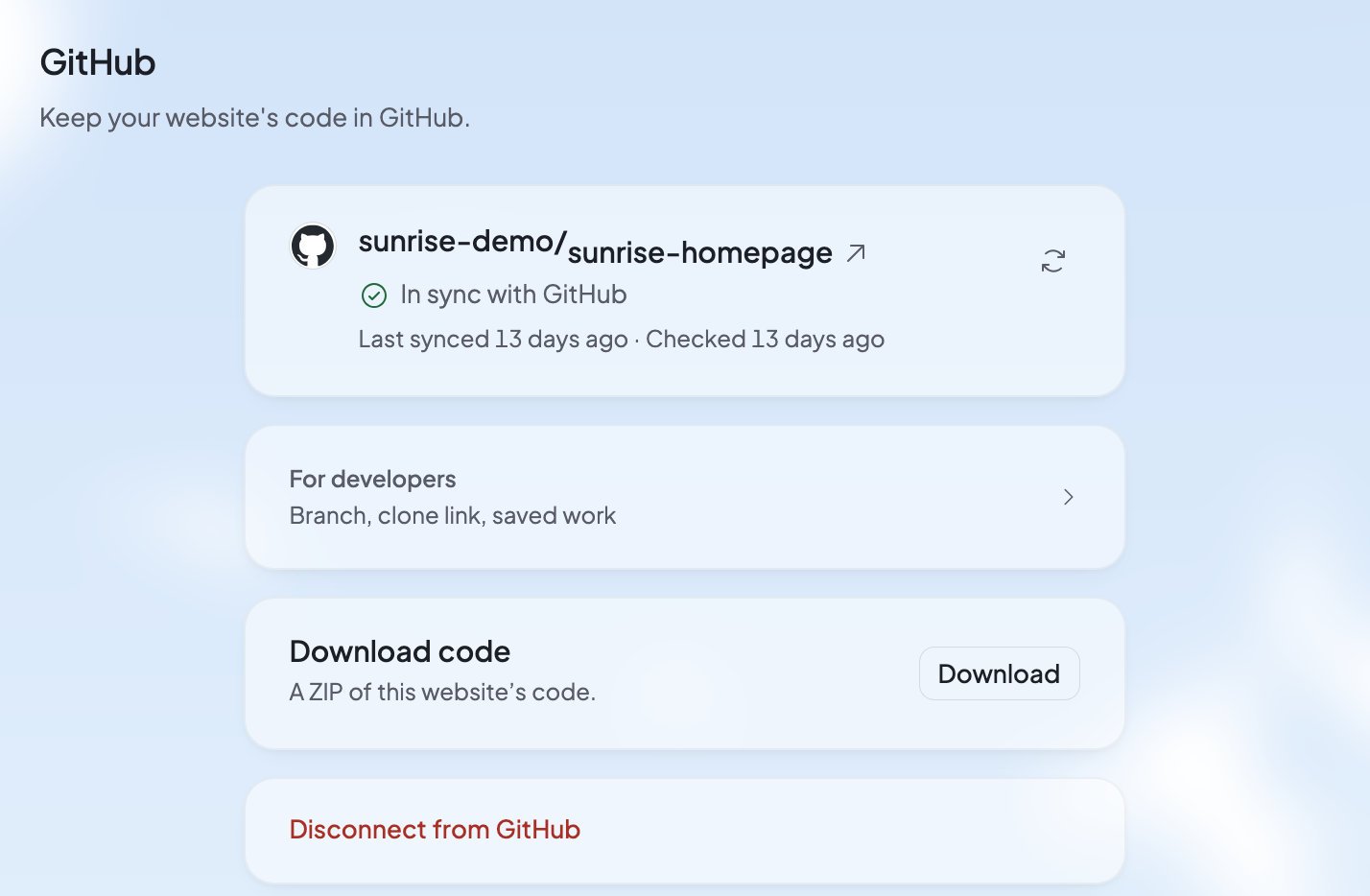
The GitHub tool shows the repository’s name, how the sync stands, and when it last synced and checked. Press the Re-check button beside it to check again.
| What you see | What it means |
| - | - |
| “In sync with GitHub” | Foundable and GitHub have the same code. |
| “Foundable is … ahead of GitHub” | “These changes will be pushed to GitHub on the next sync.” |
| “GitHub is … ahead of Foundable” | “Commits on GitHub haven’t been pulled into Foundable yet.” |
| “Foundable and GitHub have diverged” | Each side has changes the other doesn’t. |
| “Couldn’t check GitHub right now” | The check didn’t get an answer. Press Re-check later. |
| “Sync state couldn’t be determined” | Foundable can’t tell how the two compare. |
## When GitHub refuses your changes
Sometimes GitHub won’t take your latest versions: a rule protects the synced branch, or someone pushed newer changes that can’t be combined with yours. Then your versions go to a branch named `foundable-sync` instead. You see “Your latest changes could not be pushed to the synced branch”, with why:
* “GitHub refused changes to main, which a rule on GitHub protects.”
* “Newer commits on main and your changes couldn’t be combined automatically.”
To bring the changes in, merge `foundable-sync` into your synced branch on GitHub.
## If a push to GitHub replaced your work
If someone pushes to GitHub in a way that replaces work saved in Foundable, Foundable keeps your earlier work in a backup. You see “A repository push replaced your Foundable work” with **Review restore**. Then choose:
* **Restore Foundable work** to bring your earlier work back.
* **Keep repository version** to keep what’s on GitHub. Your earlier work stays in the backup.
* **Decide later**.
After a restore, Foundable syncs your work back to GitHub. If the repository has newer changes, your work goes to a separate sync branch. Merge that branch into your main branch on GitHub (**Merge on GitHub**), or your next push can replace your work again. Only the owner can restore. Other teammates see “Ask the owner to restore your work.”
## For developers
Open **For developers** (“Branch, clone link, saved work”) in the GitHub tool:
* **Branch**: “Choose the GitHub branch you want to sync with Foundable”. Search with “Find a branch...”, or press **Create branch** and type a **Branch name**.
* **Clone**: copy the address for **HTTPS**, **SSH** or **GitHub CLI**.
You can’t switch branches while Ted is changing the website: “Cannot switch branches while Ted is editing this website”.
## Download your code
**Download code** saves “A ZIP of this website’s code.” Press **Download**. It works with or without GitHub connected. Download code needs a paid plan; on Free, the card doesn’t show.
## Disconnect a website
It’s the last card in the GitHub tool.
Foundable asks “Disconnect from GitHub?”: “Your code will remain in both Foundable and GitHub, but changes will no longer be synchronized.” Type the repository’s name and press **Disconnect**.
You see “Website disconnected from GitHub”. Deleting a website in Build also leaves its repository on GitHub.
## Manage your GitHub connections
**Settings** › **Git** lists your connections with **Name**, **Websites**, **Owner** and **Updated**. Press one to open it:
* **Configure on GitHub** opens the app’s settings on GitHub.
* **Linked websites** lists the websites that sync with it. Tick some, then press **Unlink** (it shows how many) to stop them syncing.
* **Delete this connection**: “This will permanently delete the connection and disconnect all linked websites.” Press **Delete** and type its name to confirm. The repositories on GitHub aren’t deleted.
A connection marked **Suspended** or **Uninstalled** means the Foundable app was suspended or uninstalled on GitHub. Press **Reconnect** to set it up again.
## Who can do what
| Role | What they can do |
| - | - |
| Owner | Everything, including restoring work a push replaced. |
| Admin | Add and delete connections, and connect or disconnect websites. |
| Member | Use the GitHub tool, switch branches and download code. To connect a repository they see “You need admin access to connect this repository”. |
| View only | They don’t see the GitHub tool. |
## What you’ll see
| What you see | What to do |
| - | - |
| “Save a version of this website first, then connect it.” | Ask Ted to finish and save the website, then connect. |
| “That GitHub account already has repositories with this website’s name. Rename the website, then connect again.” | Rename the website in Build, then press **Connect** again. |
| “GitHub doesn’t list that account for you. Install Foundable on it, then try connecting again.” | Install the Foundable app on the account, then connect again. |
| “That GitHub authorization expired. Try connecting again.” | Connect again. |
| “Your organization’s owner needs to approve Foundable on GitHub. Add the connection again once it’s approved.” | Ask your organization’s owner on GitHub to approve it. |
| “Ted is currently editing this website. Try again when it’s done.” | Wait for Ted to finish. |
| “This repository is archived on GitHub, so it can’t take new commits. Unarchive it on GitHub, then Re-check.” | Unarchive the repository on GitHub, then press Re-check. |
| “Connection lost to …” | Foundable can’t reach the repository. Reconnect, or disconnect the website and connect it again, which makes a new repository. |
## FAQ
No. Your website lives in Foundable, and Ted works on it there. GitHub is for keeping a copy of the code you own, or for working with a developer.
No. Foundable always makes a new private repository for each website, named after it.
Yes. A push to the synced branch comes back as a new version of your website. Nothing goes live until you [publish](/build/publish).
**Select installation** lists only organizations where you show your membership publicly on GitHub, and GitHub keeps it private by default. Press **Add account** instead, which lists every account you can install the app on.
It stays on GitHub. Deleting a website, disconnecting it or deleting a connection never deletes a repository.
## Related
Every version Ted saves, and going back to one.
Keep keys in Secrets, not in your code.
Everything that runs behind your website.
Let Ted work in the other tools you use.
This documentation is built and hosted on [Mintlify](https://mintlify.com), a developer documentation platform.
## Before you start
* A GitHub account, for you or your business. You can make one at github.com.
* The owner or admin [role](/account/team) in your foundable.
* A website that Ted has saved at least once.
## Connect your GitHub account
You connect a GitHub account or organization once. Then any of your websites can sync with it.
Open the account menu, choose **Settings**, then **Git**. Press **Add connection**.
Under **Select installation**, press **Connect** beside your account in **Available installations**. If it isn’t listed, press **Add account** under **Install on new account**. An organization that doesn’t have the app yet shows under **Organizations without app installed**, with **Install**.
If GitHub opens in a small window, sign in if it asks, and approve or install the Foundable app on the account.
Back in Foundable, you see “GitHub app connected!”, and the account appears in the list.
## Connect a website
In Build, press **Tools**, then **GitHub**. Pick the website at the top if it isn’t the one you want.
Under **Connect to GitHub**, “Foundable makes a new private repository for this website. It’s yours.” Press **Connect** beside the GitHub account to use. No account listed yet? Press **Add GitHub account**.
A message says “Syncing … with GitHub”, then “… synced”, with **View on GitHub**.
You can also ask Ted in the chat, or press **+** in the message box and choose **GitHub**. When Ted can connect a website, he shows a card with **Connect repository**.
Foundable always makes a new repository named after the website. It can’t connect a repository you already have.
## How syncing works
* **From Foundable to GitHub**: each version Ted saves becomes one commit on GitHub, pushed by Foundable’s GitHub app.
* **From GitHub to Foundable**: a change pushed to the synced branch on GitHub comes back as a new version of your website. If its code doesn’t build, Build says “Build errors need fixing” and offers **Try to fix** where **Publish** usually is.
* **Files that stay on GitHub**: some files never come into Foundable, like `.env` files (keep secrets in [Secrets](/build/security#secrets) instead), credential files, links, submodules and `node_modules`. The GitHub tool lists them: “Kept on GitHub only, not in Foundable: …”.
## Sync status
The GitHub tool shows the repository’s name, how the sync stands, and when it last synced and checked. Press the Re-check button beside it to check again.
| What you see | What it means |
| - | - |
| “In sync with GitHub” | Foundable and GitHub have the same code. |
| “Foundable is … ahead of GitHub” | “These changes will be pushed to GitHub on the next sync.” |
| “GitHub is … ahead of Foundable” | “Commits on GitHub haven’t been pulled into Foundable yet.” |
| “Foundable and GitHub have diverged” | Each side has changes the other doesn’t. |
| “Couldn’t check GitHub right now” | The check didn’t get an answer. Press Re-check later. |
| “Sync state couldn’t be determined” | Foundable can’t tell how the two compare. |
## When GitHub refuses your changes
Sometimes GitHub won’t take your latest versions: a rule protects the synced branch, or someone pushed newer changes that can’t be combined with yours. Then your versions go to a branch named `foundable-sync` instead. You see “Your latest changes could not be pushed to the synced branch”, with why:
* “GitHub refused changes to main, which a rule on GitHub protects.”
* “Newer commits on main and your changes couldn’t be combined automatically.”
To bring the changes in, merge `foundable-sync` into your synced branch on GitHub.
## If a push to GitHub replaced your work
If someone pushes to GitHub in a way that replaces work saved in Foundable, Foundable keeps your earlier work in a backup. You see “A repository push replaced your Foundable work” with **Review restore**. Then choose:
* **Restore Foundable work** to bring your earlier work back.
* **Keep repository version** to keep what’s on GitHub. Your earlier work stays in the backup.
* **Decide later**.
After a restore, Foundable syncs your work back to GitHub. If the repository has newer changes, your work goes to a separate sync branch. Merge that branch into your main branch on GitHub (**Merge on GitHub**), or your next push can replace your work again. Only the owner can restore. Other teammates see “Ask the owner to restore your work.”
## For developers
Open **For developers** (“Branch, clone link, saved work”) in the GitHub tool:
* **Branch**: “Choose the GitHub branch you want to sync with Foundable”. Search with “Find a branch...”, or press **Create branch** and type a **Branch name**.
* **Clone**: copy the address for **HTTPS**, **SSH** or **GitHub CLI**.
You can’t switch branches while Ted is changing the website: “Cannot switch branches while Ted is editing this website”.
## Download your code
**Download code** saves “A ZIP of this website’s code.” Press **Download**. It works with or without GitHub connected. Download code needs a paid plan; on Free, the card doesn’t show.
## Disconnect a website
It’s the last card in the GitHub tool.
Foundable asks “Disconnect from GitHub?”: “Your code will remain in both Foundable and GitHub, but changes will no longer be synchronized.” Type the repository’s name and press **Disconnect**.
You see “Website disconnected from GitHub”. Deleting a website in Build also leaves its repository on GitHub.
## Manage your GitHub connections
**Settings** › **Git** lists your connections with **Name**, **Websites**, **Owner** and **Updated**. Press one to open it:
* **Configure on GitHub** opens the app’s settings on GitHub.
* **Linked websites** lists the websites that sync with it. Tick some, then press **Unlink** (it shows how many) to stop them syncing.
* **Delete this connection**: “This will permanently delete the connection and disconnect all linked websites.” Press **Delete** and type its name to confirm. The repositories on GitHub aren’t deleted.
A connection marked **Suspended** or **Uninstalled** means the Foundable app was suspended or uninstalled on GitHub. Press **Reconnect** to set it up again.
## Who can do what
| Role | What they can do |
| - | - |
| Owner | Everything, including restoring work a push replaced. |
| Admin | Add and delete connections, and connect or disconnect websites. |
| Member | Use the GitHub tool, switch branches and download code. To connect a repository they see “You need admin access to connect this repository”. |
| View only | They don’t see the GitHub tool. |
## What you’ll see
| What you see | What to do |
| - | - |
| “Save a version of this website first, then connect it.” | Ask Ted to finish and save the website, then connect. |
| “That GitHub account already has repositories with this website’s name. Rename the website, then connect again.” | Rename the website in Build, then press **Connect** again. |
| “GitHub doesn’t list that account for you. Install Foundable on it, then try connecting again.” | Install the Foundable app on the account, then connect again. |
| “That GitHub authorization expired. Try connecting again.” | Connect again. |
| “Your organization’s owner needs to approve Foundable on GitHub. Add the connection again once it’s approved.” | Ask your organization’s owner on GitHub to approve it. |
| “Ted is currently editing this website. Try again when it’s done.” | Wait for Ted to finish. |
| “This repository is archived on GitHub, so it can’t take new commits. Unarchive it on GitHub, then Re-check.” | Unarchive the repository on GitHub, then press Re-check. |
| “Connection lost to …” | Foundable can’t reach the repository. Reconnect, or disconnect the website and connect it again, which makes a new repository. |
## FAQ
No. Your website lives in Foundable, and Ted works on it there. GitHub is for keeping a copy of the code you own, or for working with a developer.
No. Foundable always makes a new private repository for each website, named after it.
Yes. A push to the synced branch comes back as a new version of your website. Nothing goes live until you [publish](/build/publish).
**Select installation** lists only organizations where you show your membership publicly on GitHub, and GitHub keeps it private by default. Press **Add account** instead, which lists every account you can install the app on.
It stays on GitHub. Deleting a website, disconnecting it or deleting a connection never deletes a repository.
## Related
Every version Ted saves, and going back to one.
Keep keys in Secrets, not in your code.
Everything that runs behind your website.
Let Ted work in the other tools you use.
This documentation is built and hosted on [Mintlify](https://mintlify.com), a developer documentation platform.