> ## Documentation Index
> Fetch the complete documentation index at: https://docs.foundable.com/llms.txt
> Use this file to discover all available pages before exploring further.
# Preview and change your website
> See your website page by page on a computer, tablet or phone. Point Ted at the part to change, type new words in place or swap a photo.
The preview shows your website the way visitors will see it, page by page. Visitors can’t see it until you [publish](/build/publish), so you can check every change first.
You can also change your website right from the preview: point Ted at the exact part you mean, type new words on the page, or swap a photo.
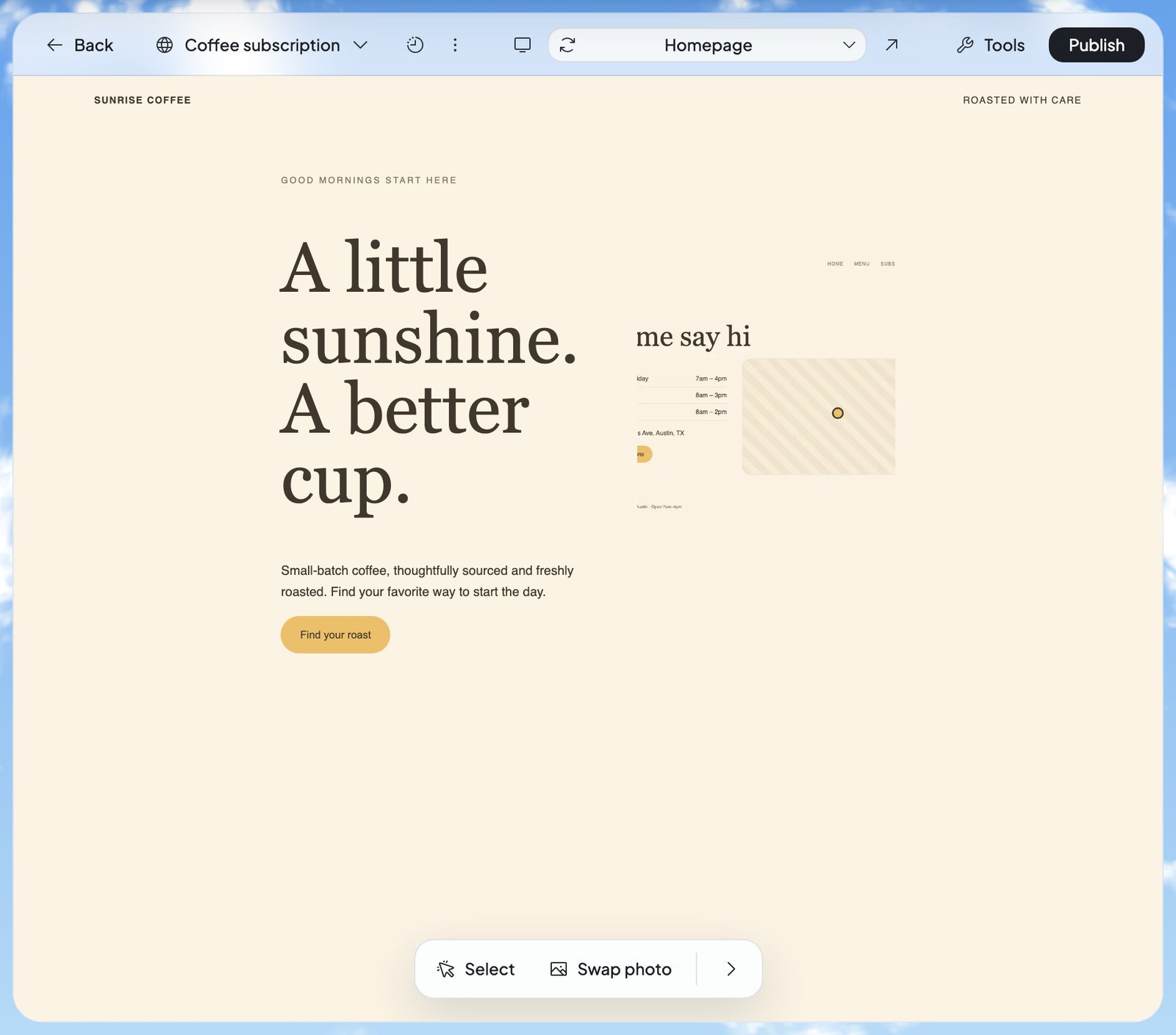 On the **Build** board, press **Edit** under a website, or click its picture.
Press the page name at the top, like “Homepage”, and pick a page from **Pages**.
Press the device button, left of the page name, to switch between desktop, tablet and phone sizes.
Press **Select**, click the part you want changed, then tell Ted what to do in the chat and send.
Press **Publish** at the top right. See [Publish your website](/build/publish).
## What’s at the top of the preview
| Control | What it does |
| - | - |
| **Back** | Takes you back to the board. |
| The website’s name | Switches to another of your websites. |
| Clock (**Show history**) | Opens [Version history](/build/version-history). |
| ⋮ (**Website actions**) | **Viewing as**, **Open full screen**, **Rename**, **Duplicate** and **Delete**. See [Rename, duplicate or delete a website](/build/overview#rename-duplicate-or-delete-a-website). |
| Device button | Switches between desktop, tablet and phone sizes. |
| **Refresh preview** | Reloads the page you’re on. |
| Page name | Shows the page you’re on. Press it to go to another page. |
| **Open in new tab** | Opens the preview in its own browser tab. |
| **Tools** | Payments, your database and more. See [Tools](/build/tools). |
| **Publish** | Puts your website online. It says **Update** when you have changes to publish. |
When the window is narrow, controls that don’t fit move into **More actions**. On a phone, the controls sit in a bar at the bottom: **Back**, **Chat**, **More actions** and **Publish**.
## Go to another page
Press the page name to see your website’s **Pages**. Type in “Find page or enter path” to find a page by name. You can also type the end of a page’s address, like `/menu`, to go straight there.
Each page in the list has a **Social & search** icon. Hover over it (on a phone, tap it) to see how the page looks when someone shares its link or finds it in a search. “No title set” or “No social image set” means the page doesn’t have one yet. Press **Ask Ted to edit** to put the request in your message to Ted. Nothing changes until you send it.
## Check it on a phone or tablet
Press the device button, left of the page name, to switch the preview between a desktop, tablet and phone screen. Each press moves to the next size. The size you pick stays with that website while you work.
* A website Ted made for phones opens on the phone screen.
* On a small window, a desktop page shrinks to fit instead of rearranging, so you always see it as designed.
* On a phone-size screen, the device button is hidden.
## Change your website from the preview
**Website tools**, along the bottom of the preview, gives you three ways to work on the page in front of you: [Select](#select-a-part) a part for Ted, [Edit text](#edit-text) yourself, or [Swap a photo](#swap-a-photo). Press a tool to start and **Done** to stop. To get the toolbar out of the way, press **Minimize toolbar**. **Show website tools** brings it back.
### Select a part
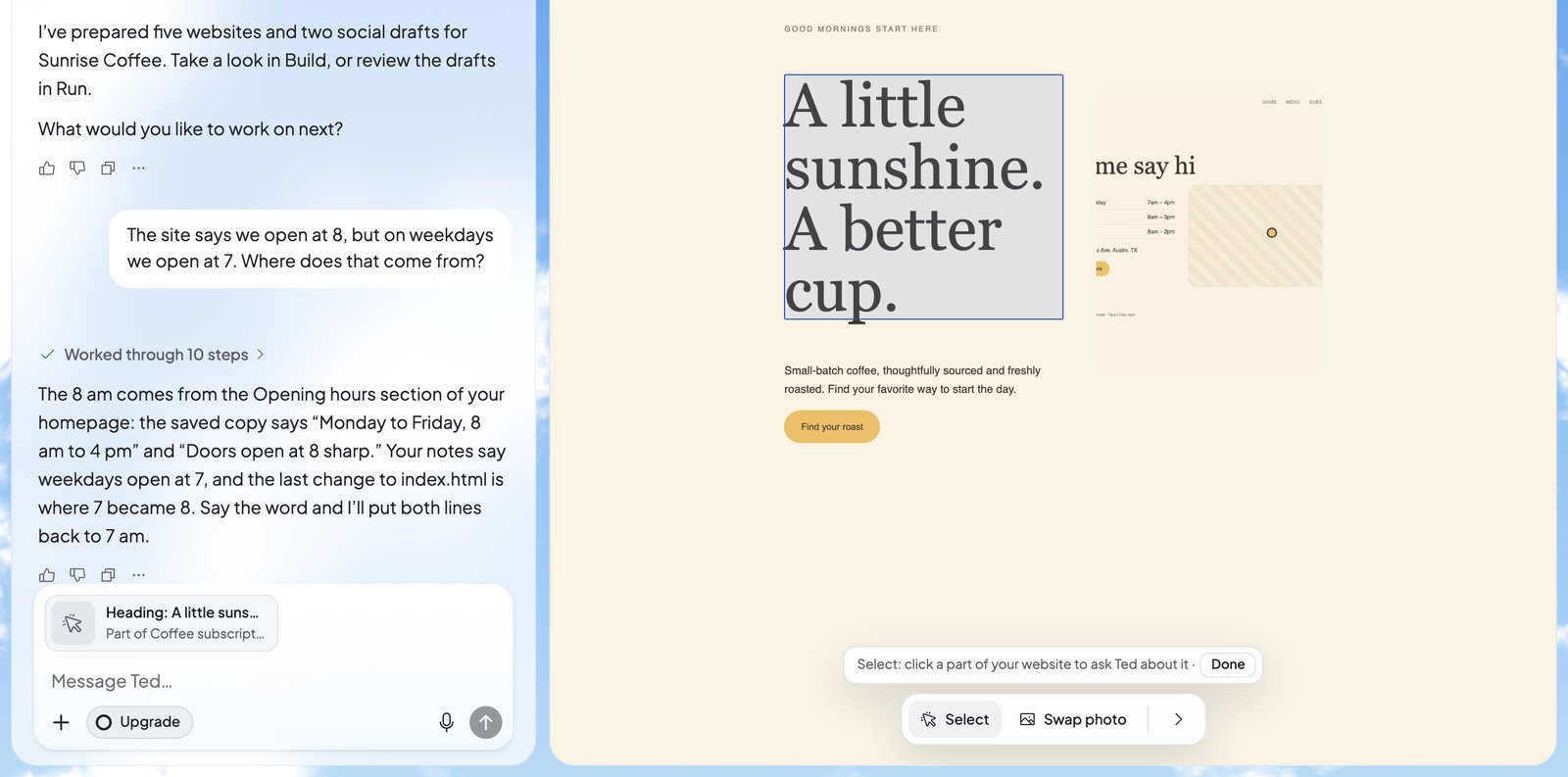
1. Press **Select**. The preview says “Select: click a part of your website to ask Ted about it”.
2. Click the part you mean, like a heading, a button or a photo. It joins your message to Ted as a chip that names it, like “Heading”, with its words.
3. Pick more parts if you like. Then write what you want in the chat, like “Make this shorter and friendlier”, and send it.
Press **Done**, press **Select** again or press Esc to stop picking.
On the **Build** board, press **Edit** under a website, or click its picture.
Press the page name at the top, like “Homepage”, and pick a page from **Pages**.
Press the device button, left of the page name, to switch between desktop, tablet and phone sizes.
Press **Select**, click the part you want changed, then tell Ted what to do in the chat and send.
Press **Publish** at the top right. See [Publish your website](/build/publish).
## What’s at the top of the preview
| Control | What it does |
| - | - |
| **Back** | Takes you back to the board. |
| The website’s name | Switches to another of your websites. |
| Clock (**Show history**) | Opens [Version history](/build/version-history). |
| ⋮ (**Website actions**) | **Viewing as**, **Open full screen**, **Rename**, **Duplicate** and **Delete**. See [Rename, duplicate or delete a website](/build/overview#rename-duplicate-or-delete-a-website). |
| Device button | Switches between desktop, tablet and phone sizes. |
| **Refresh preview** | Reloads the page you’re on. |
| Page name | Shows the page you’re on. Press it to go to another page. |
| **Open in new tab** | Opens the preview in its own browser tab. |
| **Tools** | Payments, your database and more. See [Tools](/build/tools). |
| **Publish** | Puts your website online. It says **Update** when you have changes to publish. |
When the window is narrow, controls that don’t fit move into **More actions**. On a phone, the controls sit in a bar at the bottom: **Back**, **Chat**, **More actions** and **Publish**.
## Go to another page
Press the page name to see your website’s **Pages**. Type in “Find page or enter path” to find a page by name. You can also type the end of a page’s address, like `/menu`, to go straight there.
Each page in the list has a **Social & search** icon. Hover over it (on a phone, tap it) to see how the page looks when someone shares its link or finds it in a search. “No title set” or “No social image set” means the page doesn’t have one yet. Press **Ask Ted to edit** to put the request in your message to Ted. Nothing changes until you send it.
## Check it on a phone or tablet
Press the device button, left of the page name, to switch the preview between a desktop, tablet and phone screen. Each press moves to the next size. The size you pick stays with that website while you work.
* A website Ted made for phones opens on the phone screen.
* On a small window, a desktop page shrinks to fit instead of rearranging, so you always see it as designed.
* On a phone-size screen, the device button is hidden.
## Change your website from the preview
**Website tools**, along the bottom of the preview, gives you three ways to work on the page in front of you: [Select](#select-a-part) a part for Ted, [Edit text](#edit-text) yourself, or [Swap a photo](#swap-a-photo). Press a tool to start and **Done** to stop. To get the toolbar out of the way, press **Minimize toolbar**. **Show website tools** brings it back.
### Select a part
1. Press **Select**. The preview says “Select: click a part of your website to ask Ted about it”.
2. Click the part you mean, like a heading, a button or a photo. It joins your message to Ted as a chip that names it, like “Heading”, with its words.
3. Pick more parts if you like. Then write what you want in the chat, like “Make this shorter and friendlier”, and send it.
Press **Done**, press **Select** again or press Esc to stop picking.
 ### Edit text
1. Press **Edit text**. Parts you can type in show a dashed outline.
2. Click into the words and type.
3. Press **Send** in the bar at the bottom. The bar counts your changes, like “1 text change”.
### Edit text
1. Press **Edit text**. Parts you can type in show a dashed outline.
2. Click into the words and type.
3. Press **Send** in the bar at the bottom. The bar counts your changes, like “1 text change”.
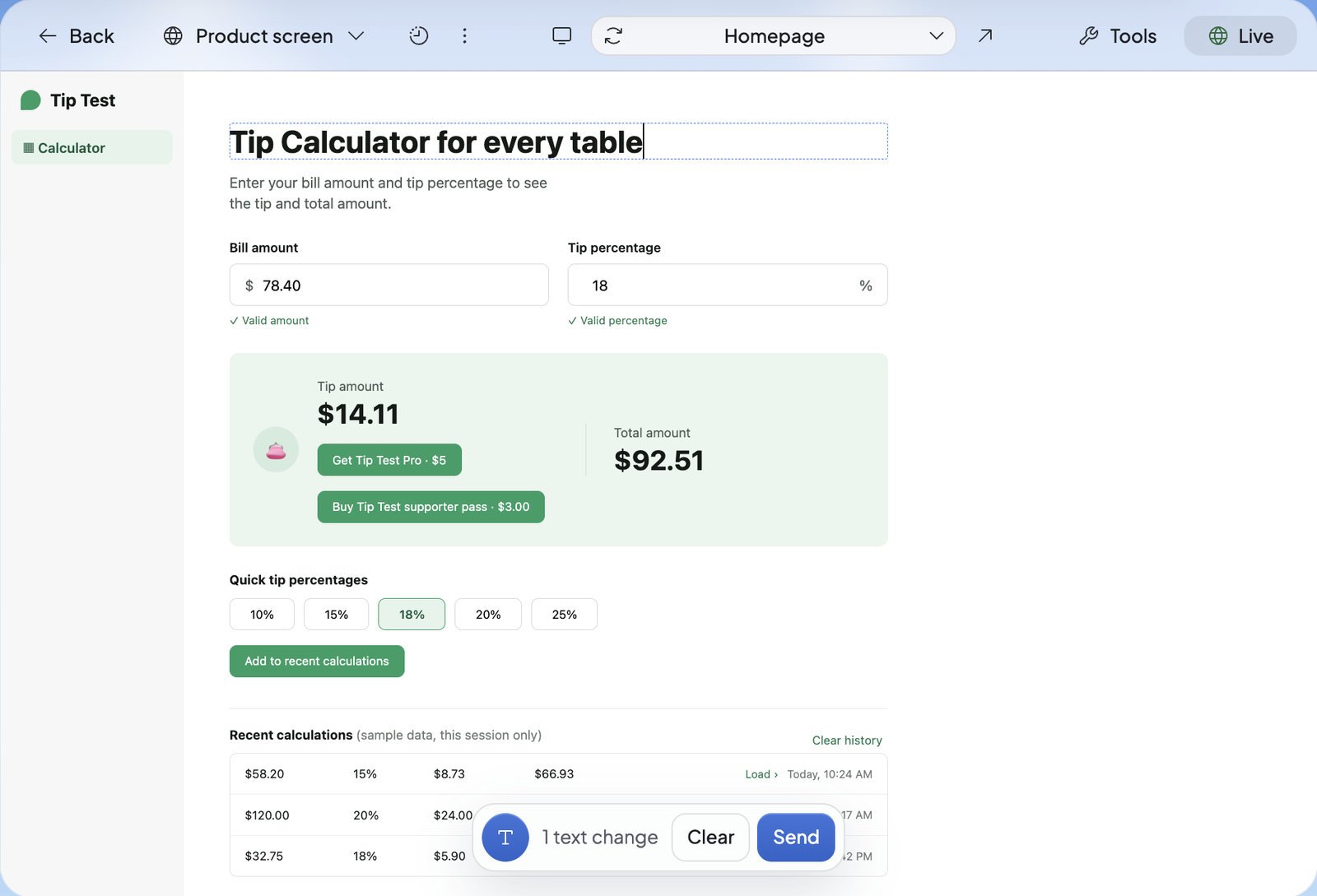 Already using **Select**? Double-click words to start typing there. Your words are saved as a new version called “Visual edit” in [Version history](/build/version-history). If Ted is busy building, your change waits and says “Runs after the current task”. Press **Clear** to remove what you typed before you send it.
If you try to leave with words you haven’t sent, Build asks first: “Unsaved changes”. Choose **Keep editing**, **Discard changes** or **Send**.
| What you see | What it means | What to do |
| - | - | - |
| “Changes sent successfully” | Your words are saved. | Press **Undo** to take them back. |
| “Couldn’t send changes.” | Your words didn’t go through. They’re still there. | Press **Retry**. |
| “This text can’t be edited here.” | This part can’t be changed by typing. | Press **Ask Ted** to hand the change to Ted. |
| “A text change was undone” | “The website couldn’t build it, so its old words are back.” | Press **Ask Ted** to hand the change to Ted. |
### Swap a photo
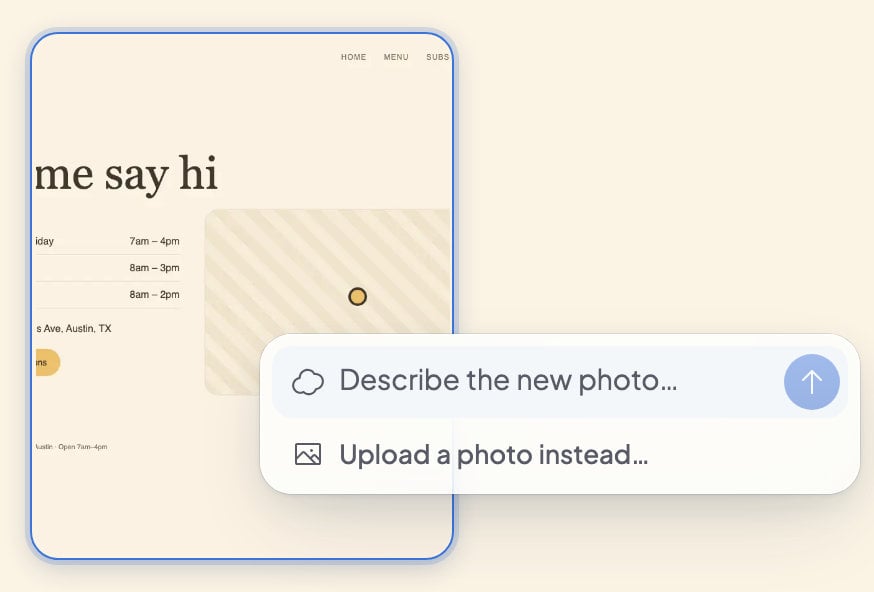
1. Press **Swap photo**, then click a photo on the page. It says “Photo picked · click another to change it”.
2. In the box beside the photo, describe the photo you want where it says “Describe the new photo…”, then press the arrow (**Generate with Ted**). Or press **Upload a photo instead…** to add one of your own to your message to Ted, then send it.
3. Keep working while Ted makes it. You’ll see “Ted is making your photo…”, then “Your new photo is in”.
If you see “Ted couldn’t make this photo”, try describing it another way.
Already using **Select**? Double-click words to start typing there. Your words are saved as a new version called “Visual edit” in [Version history](/build/version-history). If Ted is busy building, your change waits and says “Runs after the current task”. Press **Clear** to remove what you typed before you send it.
If you try to leave with words you haven’t sent, Build asks first: “Unsaved changes”. Choose **Keep editing**, **Discard changes** or **Send**.
| What you see | What it means | What to do |
| - | - | - |
| “Changes sent successfully” | Your words are saved. | Press **Undo** to take them back. |
| “Couldn’t send changes.” | Your words didn’t go through. They’re still there. | Press **Retry**. |
| “This text can’t be edited here.” | This part can’t be changed by typing. | Press **Ask Ted** to hand the change to Ted. |
| “A text change was undone” | “The website couldn’t build it, so its old words are back.” | Press **Ask Ted** to hand the change to Ted. |
### Swap a photo
1. Press **Swap photo**, then click a photo on the page. It says “Photo picked · click another to change it”.
2. In the box beside the photo, describe the photo you want where it says “Describe the new photo…”, then press the arrow (**Generate with Ted**). Or press **Upload a photo instead…** to add one of your own to your message to Ted, then send it.
3. Keep working while Ted makes it. You’ll see “Ted is making your photo…”, then “Your new photo is in”.
If you see “Ted couldn’t make this photo”, try describing it another way.
 ## See your website signed in
If people can sign in to your website, you can check what they see. Open ⋮ (**Website actions**). Its first row says how the preview shows your website, like “Viewing as: Signed out”. Press it to choose:
* **Signed out** (“As visitors see it”), the way it starts.
* **Signed in as you**, with your own account.
* One of your **Test users**: made-up accounts for testing. **Add test user** makes a new one and signs the preview in as them. See [Database](/build/database).
Build remembers your choice for each website in this browser. If you press your website’s Google sign-in button in the preview, Build asks “Sign in to this preview as you?”: press **Sign in as me** or **Stay signed out**.
## When the preview won’t load
| What you see | What it means | What to do |
| - | - | - |
| “Loading preview…” or “Still loading preview…” | The page is opening. | Wait a moment. |
| “This preview couldn’t load” | “Something in this browser may be blocking it.” | Press **Try again** or **Open preview in new tab**. If it keeps happening, try a private window or another browser. |
| “Preview paused while Ted builds. It will reload when ready.” | Ted is changing your website. | Wait. It reloads by itself. |
| “Starting your server…” | Your website’s live preview (below) is taking a while to start. | Wait. You’ll see “Server ready. Reloading…”. |
| “Server couldn’t start. Your next change retries.” | The live preview didn’t start. | Ask Ted for your next change. Build tries again then. |
| “Database couldn’t be set up.” | Your website’s database isn’t ready. | Press **Try to fix**, and Ted sets it up again. |
| “Live preview couldn’t start.” or “Live preview stopped responding.” | The live preview stopped working. | Press **Try again**. |
| “Build errors need fixing” | This version’s code doesn’t build, so it can’t be previewed. | Press **Try to fix**. Ted gets the errors and fixes them. |
| “The website encountered an error” | Something on this page went wrong. | Press **Fix error** to send it to Ted, or **Show logs** to see the details. |
Most of the time, the preview shows your newest saved version. The live preview is your website running on its own server while you work on it. It starts when you work on your website, like when you send Ted a message or press **Edit text**, never when you only open Build.
## Who can do it
The owner, admins and members can use **Select**, **Edit text** and **Swap photo**. A teammate with view-only access can look at every page, but gets no website tools. Only the owner and admins can use **Viewing as**.
## FAQ
Visitors can’t. They see only what you publish. Your team can open it in Build. **Open in new tab** opens the preview at its own address, and anyone you give that address to can view it.
**Edit text** shows on wider screens, so it isn’t there on a phone. It also doesn’t show while you look at an older version from Version history, or for a teammate with view-only access.
Yes. The preview shows your newest saved version. Visitors keep seeing your published website until you [publish an update](/build/publish#update-your-live-website).
It can be free. Foundable gives you some free fixes for **Try to fix** and **Fix error**. When a fix is free, the receipt under Ted’s reply reads “Free”. See [Plans and credits](/account/plans-and-credits).
## Related
Put your website online and update it.
Look at earlier versions and go back.
How to describe a change clearly.
Your website’s data, sign-ups and test users.
This documentation is built and hosted on [Mintlify](https://mintlify.com), a developer documentation platform.
## See your website signed in
If people can sign in to your website, you can check what they see. Open ⋮ (**Website actions**). Its first row says how the preview shows your website, like “Viewing as: Signed out”. Press it to choose:
* **Signed out** (“As visitors see it”), the way it starts.
* **Signed in as you**, with your own account.
* One of your **Test users**: made-up accounts for testing. **Add test user** makes a new one and signs the preview in as them. See [Database](/build/database).
Build remembers your choice for each website in this browser. If you press your website’s Google sign-in button in the preview, Build asks “Sign in to this preview as you?”: press **Sign in as me** or **Stay signed out**.
## When the preview won’t load
| What you see | What it means | What to do |
| - | - | - |
| “Loading preview…” or “Still loading preview…” | The page is opening. | Wait a moment. |
| “This preview couldn’t load” | “Something in this browser may be blocking it.” | Press **Try again** or **Open preview in new tab**. If it keeps happening, try a private window or another browser. |
| “Preview paused while Ted builds. It will reload when ready.” | Ted is changing your website. | Wait. It reloads by itself. |
| “Starting your server…” | Your website’s live preview (below) is taking a while to start. | Wait. You’ll see “Server ready. Reloading…”. |
| “Server couldn’t start. Your next change retries.” | The live preview didn’t start. | Ask Ted for your next change. Build tries again then. |
| “Database couldn’t be set up.” | Your website’s database isn’t ready. | Press **Try to fix**, and Ted sets it up again. |
| “Live preview couldn’t start.” or “Live preview stopped responding.” | The live preview stopped working. | Press **Try again**. |
| “Build errors need fixing” | This version’s code doesn’t build, so it can’t be previewed. | Press **Try to fix**. Ted gets the errors and fixes them. |
| “The website encountered an error” | Something on this page went wrong. | Press **Fix error** to send it to Ted, or **Show logs** to see the details. |
Most of the time, the preview shows your newest saved version. The live preview is your website running on its own server while you work on it. It starts when you work on your website, like when you send Ted a message or press **Edit text**, never when you only open Build.
## Who can do it
The owner, admins and members can use **Select**, **Edit text** and **Swap photo**. A teammate with view-only access can look at every page, but gets no website tools. Only the owner and admins can use **Viewing as**.
## FAQ
Visitors can’t. They see only what you publish. Your team can open it in Build. **Open in new tab** opens the preview at its own address, and anyone you give that address to can view it.
**Edit text** shows on wider screens, so it isn’t there on a phone. It also doesn’t show while you look at an older version from Version history, or for a teammate with view-only access.
Yes. The preview shows your newest saved version. Visitors keep seeing your published website until you [publish an update](/build/publish#update-your-live-website).
It can be free. Foundable gives you some free fixes for **Try to fix** and **Fix error**. When a fix is free, the receipt under Ted’s reply reads “Free”. See [Plans and credits](/account/plans-and-credits).
## Related
Put your website online and update it.
Look at earlier versions and go back.
How to describe a change clearly.
Your website’s data, sign-ups and test users.
This documentation is built and hosted on [Mintlify](https://mintlify.com), a developer documentation platform.