> ## Documentation Index
> Fetch the complete documentation index at: https://docs.foundable.com/llms.txt
> Use this file to discover all available pages before exploring further.
# Publish your website
> Put your website online at its own address so anyone can visit it. Send new changes live when you’re ready, or take it offline.
Publishing puts your website online at its own web address, so anyone can visit it. Visitors see only what you publish. You can keep working in Build, and your changes wait until you publish an update.
You don’t need a paid plan to publish.
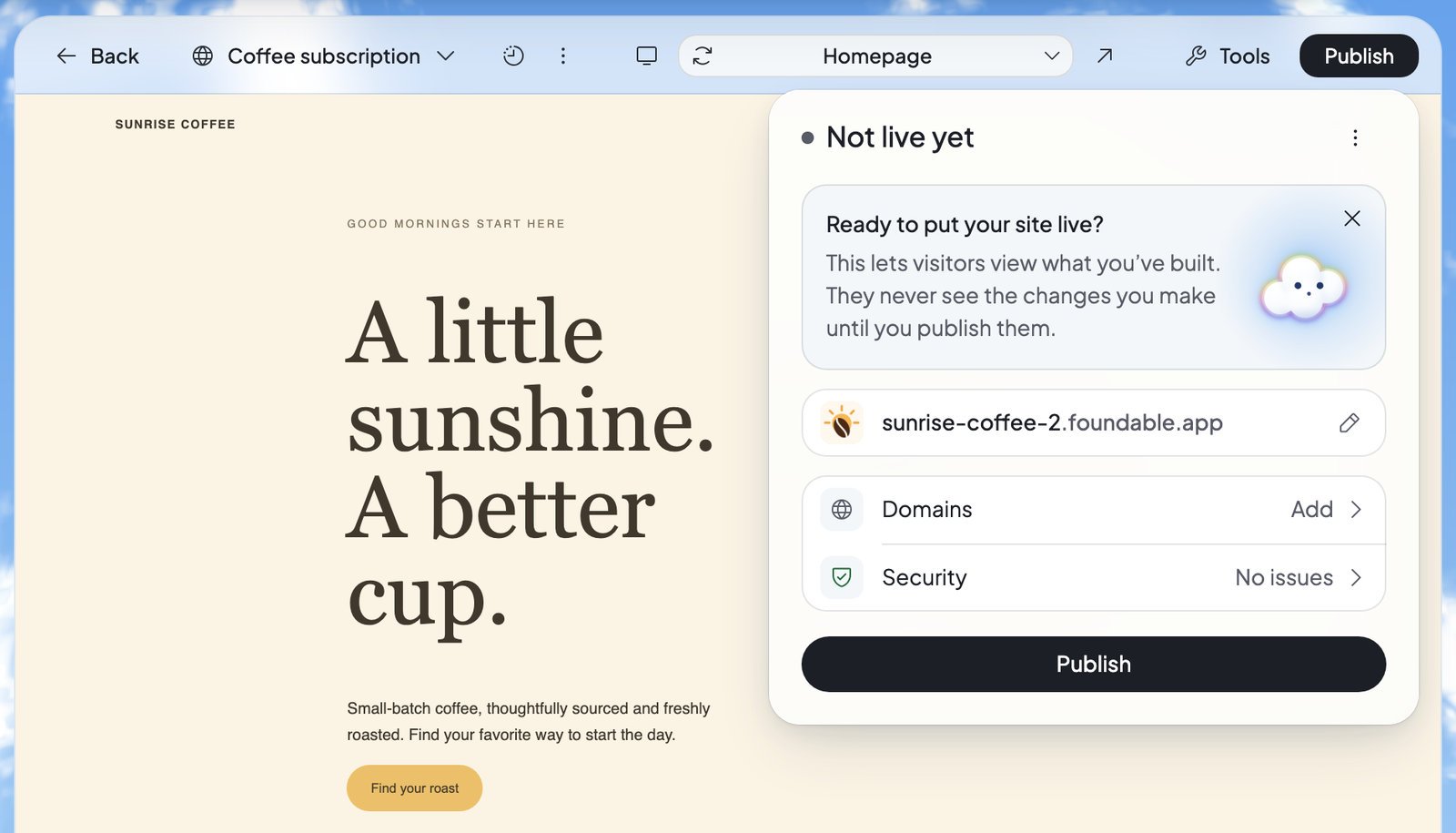 On the **Build** board, press **Edit** under the website you want to put online.
Press **Publish** at the top right. The Publish panel opens.
Foundable suggests an address. To choose another, press it, type a new name and press **Save**. See [Your web address](#your-web-address).
Press **Publish** at the bottom of the panel. You can close the panel and keep chatting while it works.
When you see “Your website is live”, press **Copy link** or **Visit site**, or share it from the panel.
## Ask Ted to publish
You can also ask Ted in the chat, like “Publish my website”. The **Publish your first site** step on [Home](/get-started/home) asks him for you. While he works, you’ll see “Ted is publishing your website…”. If he can’t publish, he says why, like “This version has build errors. Fix them, then ask again.”
Ted publishes only when you ask. While Run is on, he never publishes by himself. See [Decisions and website changes](/run/decisions).
## What the Publish button says
| What you see | What it means |
| - | - |
| **Publish** | Your website isn’t online yet. |
| “Publishing…” | It’s going live now. |
| “Live” | Visitors see your newest version. |
| **Update**, with a dot | You have changes visitors can’t see yet. See [Update your live website](#update-your-live-website). |
| “Updating” | Your changes are going live now. |
## The Publish panel
The panel’s top line says where your website stands, like “Not live yet” or “Live”. Under your address, it has these rows:
* **Domains**: press **Add** to use a domain of your own, like yourbusiness.com. It says “Setting up” while a domain gets ready, and shows **Upgrade** if your plan doesn’t include your own domain. See [Use your own domain](/domains/overview).
* **Security**: every publish runs a quick security scan. The scan never stops you from publishing. The row says “Not scanned”, “Scanning”, “No issues” or how many issues it found. Press it to see them in [Security](/build/security).
* **Visitors**, once you’re live: your visits this week. Press it to see more on Home.
## Your web address
Your website’s address looks like `yourname.foundable.app`. Before your first publish, Foundable suggests one from your foundable’s name, and adds a number if that name is taken. To choose your own, press the address, type a new name and press **Save**.
A name can have 3 to 63 lowercase letters, numbers and hyphens. It can’t start or end with a hyphen or have two hyphens in a row. If a name breaks the rule, the panel says “Use 3 to 63 lowercase letters, numbers and hyphens.” If you see “That address is taken or reserved. Try another name.”, choose a different name.
Once you’re live, press **Copy URL** next to the address to copy it.
### Change your address later
Press the pencil (**Edit URL**) next to your address, type a new name and press **Save**. You can do this as often as you like. Your website moves to the new address, and the old one stops working. The old address stays yours, so no one else can take it.
Links to your old address stop working when you change it. Update any links you’ve shared, like on social media or printed cards.
## Update your live website
After you publish, keep working as usual. When you have changes visitors can’t see yet, the button says **Update** and the panel says “You’ve made changes to your website”. Press **Update**, then **Publish changes**. You’ll see “Your website was updated”.
## One live website at a time
Each foundable has one live website. If another of your websites is live, the panel’s button says **Replace live site** and names the website it replaces. Publishing takes that one offline. The addresses of your other websites then lead visitors to the live one.
## After you publish
The panel shows “Your website is live”, with ways to share it: **Share on X**, **Share on LinkedIn**, **Share on Reddit** and **Share on Discord** (which copies your address to paste there). If your device has a share menu, **More ways to share** opens it. **Copy link** copies your address, and **Visit site** opens your website.
The panel also shows how your website looks in search results. Press **Edit** beside it to ask Ted to change your title, description and icon. On the board, your website’s card now says “Live” and has **Visit site**.
### The Made with Foundable badge
Every page of your live website shows a small “Made with Foundable” badge at the bottom right, linking to foundable.com. To hide it, open ⋮ (**Published site actions**) in the panel and turn on **Hide Foundable badge**. Hiding the badge needs a paid plan. If your plan ends, the badge comes back the next time you publish.
### Visitor analytics
Foundable counts visits to your published website on every plan. You’ll see them on [Home](/get-started/home) and in the panel’s **Visitors** row. Only your published website is counted, never your preview. To stop counting, open ⋮ (**Published site actions**) and turn off **Visitor analytics**.
## Take your website offline
Open ⋮ (**Published site actions**) in the Publish panel and choose **Unpublish**. Build asks first: “Your published site will go offline and the URL won’t work anymore. You can republish anytime.” Press **Unpublish** to confirm. Your website stays in Build, and you can publish it again whenever you like.
## If publishing doesn’t work
| What you see | What it means | What to do |
| - | - | - |
| “Build errors need fixing” | This version’s code doesn’t build, so it can’t go live. | Press **Try to fix**. Ted gets the errors and fixes them. Then publish again. |
| “Setting up your database…” or “Finishing the build…” | Publishing starts as soon as that’s done. | Nothing. You can close the panel and keep chatting. |
| “This version is still building. Publish again in a moment.” | Your newest version isn’t ready yet. | Wait a moment, then press **Publish** again. |
| “Your website’s database is taking longer than usual to set up. Publish again in a minute, or ask Ted to.” | The database needs more time. | Wait a minute, then publish again or ask Ted. |
| “Publishing paused. Retry to continue the same release.” | Publishing stopped partway. | Press **Retry publishing**. |
| “Too many changes just now. Try again in a minute.” | You changed your address many times in a row. | Wait a minute, then try again. |
| “You have view-only access, so you can’t publish this website.” | Your role can look but not publish. | Ask the owner or an admin. |
## Who can publish
The owner, admins and members can publish, update and unpublish. A teammate with view-only access can’t. Publishing works on every plan. A paid plan adds your own domain and lets you hide the badge.
## FAQ
Usually about a minute. You don’t have to wait: close the panel and keep chatting, and publishing carries on.
No. Ted publishes only when you ask him. While Run is on, he never publishes by himself. A change he makes to your live website waits until you press **Approve** or **Deny**.
No. Visitors see your website as it was when you last published. Your changes go live when you press **Update**, then **Publish changes**.
**Unpublish** takes your live website offline, and the website stays in Build. **Delete** (in ⋮ **Website actions**) removes the website from Build, and its live site goes offline too.
Yes. Every publish runs a quick security scan for things like leaked keys. It never blocks your publish. Check the **Security** row and fix what it finds in [Security](/build/security).
## Related
Give your website an address like yourbusiness.com.
Look at earlier versions and go back.
See what the security scan found.
Check every page before you publish.
This documentation is built and hosted on [Mintlify](https://mintlify.com), a developer documentation platform.
On the **Build** board, press **Edit** under the website you want to put online.
Press **Publish** at the top right. The Publish panel opens.
Foundable suggests an address. To choose another, press it, type a new name and press **Save**. See [Your web address](#your-web-address).
Press **Publish** at the bottom of the panel. You can close the panel and keep chatting while it works.
When you see “Your website is live”, press **Copy link** or **Visit site**, or share it from the panel.
## Ask Ted to publish
You can also ask Ted in the chat, like “Publish my website”. The **Publish your first site** step on [Home](/get-started/home) asks him for you. While he works, you’ll see “Ted is publishing your website…”. If he can’t publish, he says why, like “This version has build errors. Fix them, then ask again.”
Ted publishes only when you ask. While Run is on, he never publishes by himself. See [Decisions and website changes](/run/decisions).
## What the Publish button says
| What you see | What it means |
| - | - |
| **Publish** | Your website isn’t online yet. |
| “Publishing…” | It’s going live now. |
| “Live” | Visitors see your newest version. |
| **Update**, with a dot | You have changes visitors can’t see yet. See [Update your live website](#update-your-live-website). |
| “Updating” | Your changes are going live now. |
## The Publish panel
The panel’s top line says where your website stands, like “Not live yet” or “Live”. Under your address, it has these rows:
* **Domains**: press **Add** to use a domain of your own, like yourbusiness.com. It says “Setting up” while a domain gets ready, and shows **Upgrade** if your plan doesn’t include your own domain. See [Use your own domain](/domains/overview).
* **Security**: every publish runs a quick security scan. The scan never stops you from publishing. The row says “Not scanned”, “Scanning”, “No issues” or how many issues it found. Press it to see them in [Security](/build/security).
* **Visitors**, once you’re live: your visits this week. Press it to see more on Home.
## Your web address
Your website’s address looks like `yourname.foundable.app`. Before your first publish, Foundable suggests one from your foundable’s name, and adds a number if that name is taken. To choose your own, press the address, type a new name and press **Save**.
A name can have 3 to 63 lowercase letters, numbers and hyphens. It can’t start or end with a hyphen or have two hyphens in a row. If a name breaks the rule, the panel says “Use 3 to 63 lowercase letters, numbers and hyphens.” If you see “That address is taken or reserved. Try another name.”, choose a different name.
Once you’re live, press **Copy URL** next to the address to copy it.
### Change your address later
Press the pencil (**Edit URL**) next to your address, type a new name and press **Save**. You can do this as often as you like. Your website moves to the new address, and the old one stops working. The old address stays yours, so no one else can take it.
Links to your old address stop working when you change it. Update any links you’ve shared, like on social media or printed cards.
## Update your live website
After you publish, keep working as usual. When you have changes visitors can’t see yet, the button says **Update** and the panel says “You’ve made changes to your website”. Press **Update**, then **Publish changes**. You’ll see “Your website was updated”.
## One live website at a time
Each foundable has one live website. If another of your websites is live, the panel’s button says **Replace live site** and names the website it replaces. Publishing takes that one offline. The addresses of your other websites then lead visitors to the live one.
## After you publish
The panel shows “Your website is live”, with ways to share it: **Share on X**, **Share on LinkedIn**, **Share on Reddit** and **Share on Discord** (which copies your address to paste there). If your device has a share menu, **More ways to share** opens it. **Copy link** copies your address, and **Visit site** opens your website.
The panel also shows how your website looks in search results. Press **Edit** beside it to ask Ted to change your title, description and icon. On the board, your website’s card now says “Live” and has **Visit site**.
### The Made with Foundable badge
Every page of your live website shows a small “Made with Foundable” badge at the bottom right, linking to foundable.com. To hide it, open ⋮ (**Published site actions**) in the panel and turn on **Hide Foundable badge**. Hiding the badge needs a paid plan. If your plan ends, the badge comes back the next time you publish.
### Visitor analytics
Foundable counts visits to your published website on every plan. You’ll see them on [Home](/get-started/home) and in the panel’s **Visitors** row. Only your published website is counted, never your preview. To stop counting, open ⋮ (**Published site actions**) and turn off **Visitor analytics**.
## Take your website offline
Open ⋮ (**Published site actions**) in the Publish panel and choose **Unpublish**. Build asks first: “Your published site will go offline and the URL won’t work anymore. You can republish anytime.” Press **Unpublish** to confirm. Your website stays in Build, and you can publish it again whenever you like.
## If publishing doesn’t work
| What you see | What it means | What to do |
| - | - | - |
| “Build errors need fixing” | This version’s code doesn’t build, so it can’t go live. | Press **Try to fix**. Ted gets the errors and fixes them. Then publish again. |
| “Setting up your database…” or “Finishing the build…” | Publishing starts as soon as that’s done. | Nothing. You can close the panel and keep chatting. |
| “This version is still building. Publish again in a moment.” | Your newest version isn’t ready yet. | Wait a moment, then press **Publish** again. |
| “Your website’s database is taking longer than usual to set up. Publish again in a minute, or ask Ted to.” | The database needs more time. | Wait a minute, then publish again or ask Ted. |
| “Publishing paused. Retry to continue the same release.” | Publishing stopped partway. | Press **Retry publishing**. |
| “Too many changes just now. Try again in a minute.” | You changed your address many times in a row. | Wait a minute, then try again. |
| “You have view-only access, so you can’t publish this website.” | Your role can look but not publish. | Ask the owner or an admin. |
## Who can publish
The owner, admins and members can publish, update and unpublish. A teammate with view-only access can’t. Publishing works on every plan. A paid plan adds your own domain and lets you hide the badge.
## FAQ
Usually about a minute. You don’t have to wait: close the panel and keep chatting, and publishing carries on.
No. Ted publishes only when you ask him. While Run is on, he never publishes by himself. A change he makes to your live website waits until you press **Approve** or **Deny**.
No. Visitors see your website as it was when you last published. Your changes go live when you press **Update**, then **Publish changes**.
**Unpublish** takes your live website offline, and the website stays in Build. **Delete** (in ⋮ **Website actions**) removes the website from Build, and its live site goes offline too.
Yes. Every publish runs a quick security scan for things like leaked keys. It never blocks your publish. Check the **Security** row and fix what it finds in [Security](/build/security).
## Related
Give your website an address like yourbusiness.com.
Look at earlier versions and go back.
See what the security scan found.
Check every page before you publish.
This documentation is built and hosted on [Mintlify](https://mintlify.com), a developer documentation platform.