> ## Documentation Index
> Fetch the complete documentation index at: https://docs.foundable.com/llms.txt
> Use this file to discover all available pages before exploring further.
# Your website’s AI
> Your website can use AI with no key of its own, paid from your credits. See what it answered and spent, set a daily limit and pick its model.
Ted can give your website an AI feature, like a chat that answers visitors’ questions. It runs on [Foundable AI](/help/glossary#foundable-ai), which needs no account or key of its own. Each answer is paid from your [credits](/help/glossary#credit).
**AI**, in [Tools](/build/tools), shows what your website’s AI answered and spent. There you can also set a daily limit, so the AI never spends more than you want. You can pick the model it answers with too.
 In Build, press **Tools**, then **AI**.
The **Today** card shows whether the AI is on, how many answers it gave today, and the credits they used.
Press the **Daily limit** button and pick a limit from the list, or **No limit**.
Under **Settings**, press **Change model** and pick another.
Only the owner and admins can change the limit and the model. Everyone else sees “Only the owner or an admin can change this limit.”
## What you’ll see
* **Today**: the AI’s status, today’s **Answers** and **Credits**, and your **Daily limit** with the time it resets (“Resets at …”), in your own time.
* **Credits per day**: the credits your website’s AI used each day for the last 7 days.
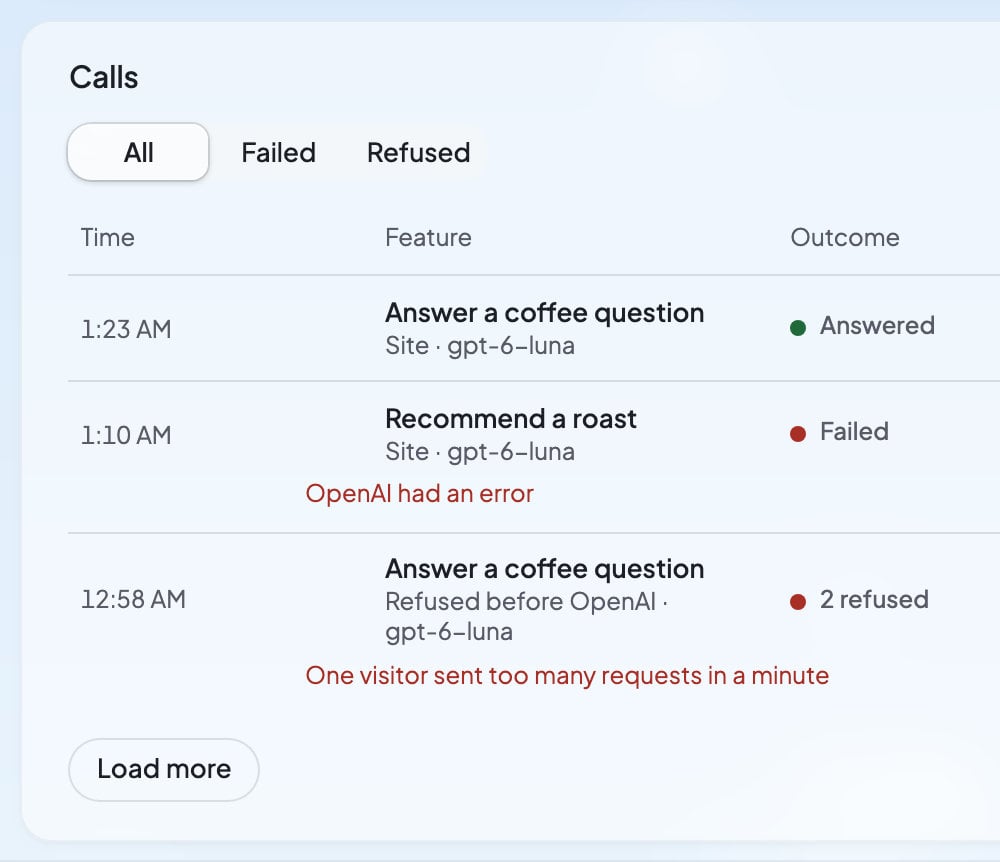
* **Calls**: every question your website asked the AI, newest first. Each shows its feature, where it came from (**Site** or **Preview**) and how it went: “Answered”, “Failed”, “Refused before OpenAI” or “Cut short”. Filter them with **All**, **Failed** and **Refused**, and press **Load more** for older ones.
* **Settings**: the **Model** your website answers on, and **Your OpenAI key**.
“No calls yet” means no one has used your website’s AI: “Calls appear when a visitor uses this website’s AI, in its preview or on its published site.”
## What the status means
| What you see | What it means | What to do |
| - | - | - |
| “On” | Your website’s AI is answering. | Nothing. |
| “Paused for today” | “Not enough daily allowance for another call. Resumes at” a time it shows. | Wait, or raise the daily limit. |
| “Limit too low” | One answer needs more than your whole daily limit, so none get through. | “Raise the daily limit or choose a cheaper model to resume AI.” |
| “Out of credits” | Your credits ran out, so the AI is paused. | “Add credits in Settings to resume AI.” See [Plans and credits](/account/plans-and-credits). |
| “Switched off” | Foundable switched off your website’s AI. | “Contact support to turn AI back on.” See [Get help](/help/get-help). |
| “Your own key” | Your website uses your own OpenAI key. | Nothing. “OpenAI bills your key directly; those calls aren’t included here.” |
While your website’s AI is paused, visitors who use it see: “This feature is taking a short break. Please try again later.”
## Set a daily limit
The daily limit is the most your website’s AI may spend in one day. A new website starts with a limit already set. To change it, press the **Daily limit** button and pick another limit, or **No limit**.
The limit resets every day at midnight UTC. AI shows that moment in your own time (“Resets at …”).
Calls from your website’s preview count too. Trying your website’s AI while you build uses the same limit and credits as your visitors do.
## Choose the model
The model is the AI that writes your website’s answers. **Settings** says which model your website answers on, and whether it’s “Foundable’s default” or “your pick”. Press **Change model** to pick another. Each model shows about how many credits a typical answer costs.
A new model “Applies to this website’s next answer. No rebuild needed.”
When OpenAI retires a model, AI tells you the day. It also names the model OpenAI picked in its place, which your website then answers on.
## Use your own OpenAI key
If you have your own OpenAI account, your websites can use it instead of credits.
In AI, press **Manage OpenAI key in Security**. Security’s **Secrets** opens.
Press **Add secret**, name it `OPENAI_API_KEY`, paste your OpenAI key into **Value**, and press **Save**.
The status then reads “Your own key”. OpenAI bills you directly, and those calls don’t show in AI or use your credits. Your website’s code picks the model: “Your website calls OpenAI with your own key, so its code picks the model.” Secrets are shared by all your foundable’s websites, so they all use your key. See [Security and secrets](/build/security#secrets).
## Why a call was refused
Press **Refused** in **Calls** to see the calls the AI didn’t answer, each with its reason:
| Reason | What to do |
| - | - |
| “Paused: not enough of today’s limit was left” | Wait for the reset, or raise the daily limit. |
| “Paused: not enough credits were left” | Add credits. |
| “Too big for this website’s daily limit” | Raise the daily limit, or choose a cheaper model. |
| “One visitor sent too many requests in a minute” | Nothing. Foundable turned away the extra requests from that one visitor. |
| “Asked for a model Foundable AI doesn’t offer: …”, “Sent a setting Foundable AI doesn’t take: …” or “The request was too large” | Ask Ted to fix the feature on your website. |
| “Switched off by Foundable” | Contact support. |
## Keep an eye on spending
* [Home](/get-started/home) shows a notice when your website’s AI is paused (“AI on … is paused”) or “Your credits are running low”, with **Add credits** or **Change the limit**.
* In **Settings** › **Plans & credit usage**, your website’s AI has its own category, **Website AI**. In **Credit activity**, each charge reads “AI on” and your website’s name. See [Plans and credits](/account/plans-and-credits).
* Ted can read your website’s AI usage and change its daily limit and model for you. Adding credits stays yours.
## FAQ
No. Foundable AI needs no account or key. Your website’s AI is paid from your credits. You can [use your own OpenAI key](#use-your-own-openai-key) if you prefer.
Yes. Calls from your website’s preview count with your live website’s, against the same daily limit and credits.
Check the status in **Today**. It may be paused for today, the limit may be too low for one answer, or your credits may have run out. See [What the status means](#what-the-status-means).
“This feature is taking a short break. Please try again later.”
Yes. Ask him in the chat. Only the owner and admins can change them in AI themselves.
## Related
See what your website’s AI spent, and add credits.
Keep your own OpenAI key in Secrets.
Everything that runs behind your website.
Ask Ted for an AI feature on your website.
This documentation is built and hosted on [Mintlify](https://mintlify.com), a developer documentation platform.
In Build, press **Tools**, then **AI**.
The **Today** card shows whether the AI is on, how many answers it gave today, and the credits they used.
Press the **Daily limit** button and pick a limit from the list, or **No limit**.
Under **Settings**, press **Change model** and pick another.
Only the owner and admins can change the limit and the model. Everyone else sees “Only the owner or an admin can change this limit.”
## What you’ll see
* **Today**: the AI’s status, today’s **Answers** and **Credits**, and your **Daily limit** with the time it resets (“Resets at …”), in your own time.
* **Credits per day**: the credits your website’s AI used each day for the last 7 days.
* **Calls**: every question your website asked the AI, newest first. Each shows its feature, where it came from (**Site** or **Preview**) and how it went: “Answered”, “Failed”, “Refused before OpenAI” or “Cut short”. Filter them with **All**, **Failed** and **Refused**, and press **Load more** for older ones.
* **Settings**: the **Model** your website answers on, and **Your OpenAI key**.
“No calls yet” means no one has used your website’s AI: “Calls appear when a visitor uses this website’s AI, in its preview or on its published site.”
## What the status means
| What you see | What it means | What to do |
| - | - | - |
| “On” | Your website’s AI is answering. | Nothing. |
| “Paused for today” | “Not enough daily allowance for another call. Resumes at” a time it shows. | Wait, or raise the daily limit. |
| “Limit too low” | One answer needs more than your whole daily limit, so none get through. | “Raise the daily limit or choose a cheaper model to resume AI.” |
| “Out of credits” | Your credits ran out, so the AI is paused. | “Add credits in Settings to resume AI.” See [Plans and credits](/account/plans-and-credits). |
| “Switched off” | Foundable switched off your website’s AI. | “Contact support to turn AI back on.” See [Get help](/help/get-help). |
| “Your own key” | Your website uses your own OpenAI key. | Nothing. “OpenAI bills your key directly; those calls aren’t included here.” |
While your website’s AI is paused, visitors who use it see: “This feature is taking a short break. Please try again later.”
## Set a daily limit
The daily limit is the most your website’s AI may spend in one day. A new website starts with a limit already set. To change it, press the **Daily limit** button and pick another limit, or **No limit**.
The limit resets every day at midnight UTC. AI shows that moment in your own time (“Resets at …”).
Calls from your website’s preview count too. Trying your website’s AI while you build uses the same limit and credits as your visitors do.
## Choose the model
The model is the AI that writes your website’s answers. **Settings** says which model your website answers on, and whether it’s “Foundable’s default” or “your pick”. Press **Change model** to pick another. Each model shows about how many credits a typical answer costs.
A new model “Applies to this website’s next answer. No rebuild needed.”
When OpenAI retires a model, AI tells you the day. It also names the model OpenAI picked in its place, which your website then answers on.
## Use your own OpenAI key
If you have your own OpenAI account, your websites can use it instead of credits.
In AI, press **Manage OpenAI key in Security**. Security’s **Secrets** opens.
Press **Add secret**, name it `OPENAI_API_KEY`, paste your OpenAI key into **Value**, and press **Save**.
The status then reads “Your own key”. OpenAI bills you directly, and those calls don’t show in AI or use your credits. Your website’s code picks the model: “Your website calls OpenAI with your own key, so its code picks the model.” Secrets are shared by all your foundable’s websites, so they all use your key. See [Security and secrets](/build/security#secrets).
## Why a call was refused
Press **Refused** in **Calls** to see the calls the AI didn’t answer, each with its reason:
| Reason | What to do |
| - | - |
| “Paused: not enough of today’s limit was left” | Wait for the reset, or raise the daily limit. |
| “Paused: not enough credits were left” | Add credits. |
| “Too big for this website’s daily limit” | Raise the daily limit, or choose a cheaper model. |
| “One visitor sent too many requests in a minute” | Nothing. Foundable turned away the extra requests from that one visitor. |
| “Asked for a model Foundable AI doesn’t offer: …”, “Sent a setting Foundable AI doesn’t take: …” or “The request was too large” | Ask Ted to fix the feature on your website. |
| “Switched off by Foundable” | Contact support. |
## Keep an eye on spending
* [Home](/get-started/home) shows a notice when your website’s AI is paused (“AI on … is paused”) or “Your credits are running low”, with **Add credits** or **Change the limit**.
* In **Settings** › **Plans & credit usage**, your website’s AI has its own category, **Website AI**. In **Credit activity**, each charge reads “AI on” and your website’s name. See [Plans and credits](/account/plans-and-credits).
* Ted can read your website’s AI usage and change its daily limit and model for you. Adding credits stays yours.
## FAQ
No. Foundable AI needs no account or key. Your website’s AI is paid from your credits. You can [use your own OpenAI key](#use-your-own-openai-key) if you prefer.
Yes. Calls from your website’s preview count with your live website’s, against the same daily limit and credits.
Check the status in **Today**. It may be paused for today, the limit may be too low for one answer, or your credits may have run out. See [What the status means](#what-the-status-means).
“This feature is taking a short break. Please try again later.”
Yes. Ask him in the chat. Only the owner and admins can change them in AI themselves.
## Related
See what your website’s AI spent, and add credits.
Keep your own OpenAI key in Secrets.
Everything that runs behind your website.
Ask Ted for an AI feature on your website.
This documentation is built and hosted on [Mintlify](https://mintlify.com), a developer documentation platform.