> ## Documentation Index
> Fetch the complete documentation index at: https://docs.foundable.com/llms.txt
> Use this file to discover all available pages before exploring further.
# Manage your domains
> See every domain across your foundables, keep each one renewing, and change its DNS records or nameservers.
You look after your domains in two places in Settings:
* **Domains** shows the foundable you have open: the names you bought, under **Your domains**, and the ones you connected, under **Custom domains**.
* **All domains** is your own list of every domain across the foundables you own: “Every domain across your foundables.” Open a domain there to renew it, change its DNS settings or move it.
To open either one, open the account menu (your initial or photo at the top right), choose **Settings**, then **Domains** or **All domains**.
## All domains
**All domains** lists your domains newest first, each with its foundable, its status and the day it was added. Type in “Search your domains” to find one by its name or its foundable’s. Press a domain to open its page, and **Back to all domains** to return.
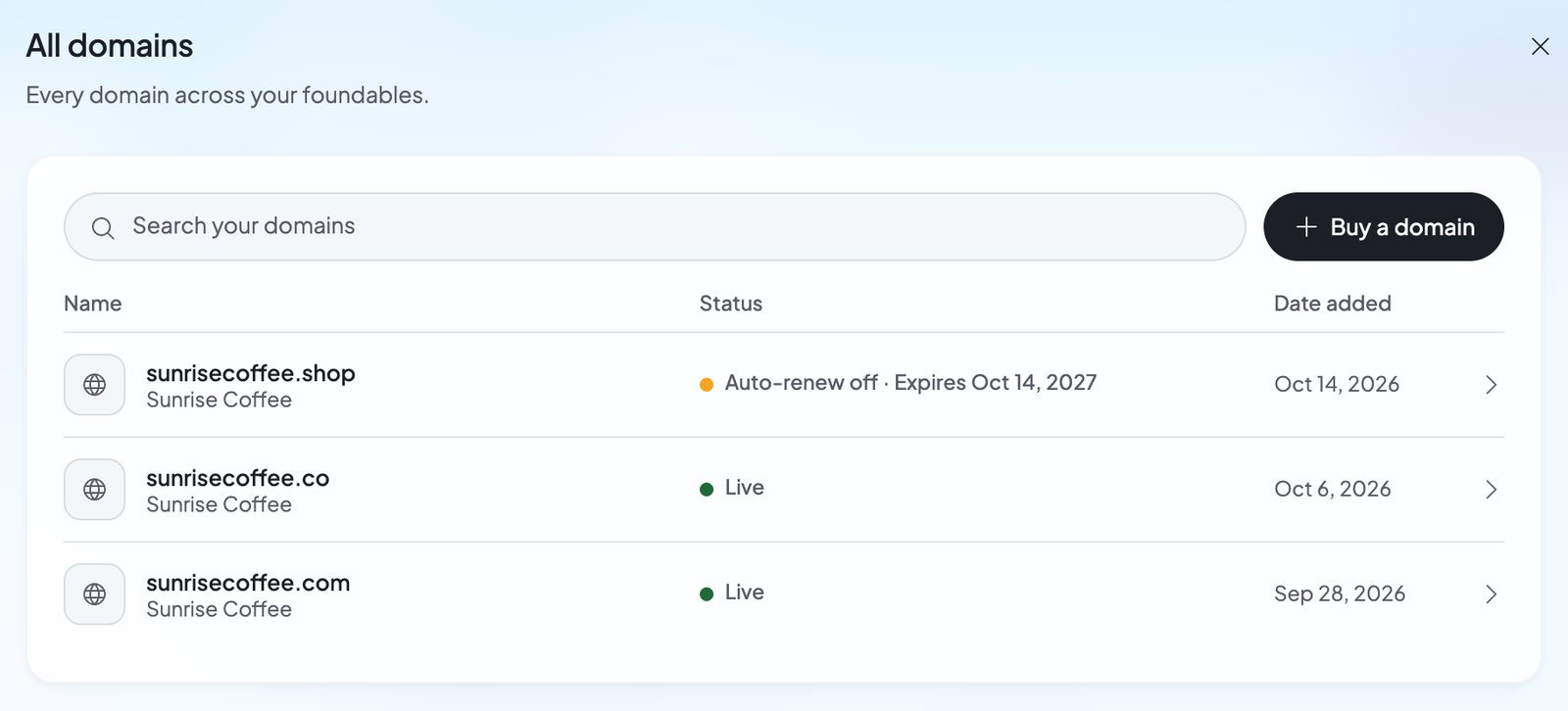 It shows only the foundables you own. Teammates see a foundable’s domains in its **Domains** section instead.
| Status | What it means |
| - | - |
| “Live” | The domain shows your website. |
| “Setting up” | Foundable is still setting it up. |
| “Needs a fix” | Something stopped partway, like its setup or a nameserver change. Open the domain to see why. |
| “Not connected” | The domain doesn’t show a website right now. |
| “Auto-renew off” | It won’t renew. The row says when it expires. |
| “Renewing” | Foundable is renewing it now. |
| “Review needed” | A renewal is waiting for the registry. |
| “Payment failed” | Automatic renewal didn’t go through. |
| “Expired” | Its paid year ended and it wasn’t renewed. |
| “Custom nameservers” | Another DNS company runs this domain’s DNS. |
| “Deleted” | Its foundable was deleted. See [If you delete your foundable](#if-you-delete-your-foundable-or-account). |
A domain you bought through Foundable has a page with its **Registration** card (“Foundable manages registration” / “Foundable holds this domain for you.”), then **DNS records** and **Nameservers**. The Registration card shows when the domain was registered, when it renews or expires, its yearly price and its **Auto-renew** switch. Its **…** menu, **More domain actions**, holds **Renew domain**, **Move domain** and **Transfer out**.
A domain you connected shows the same card it has in Custom domains. See [Connect a domain you own](/domains/connect-your-domain#what-the-labels-mean).
## Keep your domain renewing
**Auto-renew** is on for every domain you buy. While it’s on, Foundable renews the domain for one more year before it expires, using your [credits](/help/glossary#credit). Its row in **Your domains** shows the day it renews from your credits.
To stop renewing, turn off the **Auto-renew** switch next to the domain in **Your domains**, or on its page in All domains. The domain then expires at the end of the year you paid for.
If your credits can’t cover a renewal, the domain isn’t renewed. Foundable doesn’t renew a domain after it expires, so keep enough credits before the renewal date.
### Renew early
In **All domains**, press the domain.
On the **Registration** card, open the **…** menu and choose **Renew domain**: “Add one more year to” your domain. It shows the price and the date the domain will stay registered until.
Press the **Renew for** button, which names the credits it spends. Under it, Foundable notes that you agree to the Domain Holding Agreement and that “Renewals are non-refundable.”
| What you see | What it means | What to do |
| - | - | - |
| “Processing renewal…” | Foundable is renewing the domain. | Wait a little. |
| “Domain renewed” | Done. It shows the new date. | Nothing. |
| “Renewal needs manual review” | The registry hasn’t confirmed the renewal yet. Your credits are held, not charged. | Wait, or [contact support](/help/get-help) with questions. |
| “Already registered for the maximum period” | The domain is registered as far ahead as the registry allows. It says the day you can renew from. | Renew again from that day. |
| “Auto-renew failed” | “Automatic renewal didn’t complete. Please try manual renewal.” | Use **Renew domain** before the domain expires. |
| “Domain has expired” | Its year ended without a renewal. Foundable can’t renew it now. | [Contact support](/help/get-help) with questions. |
## DNS records
A domain you bought through Foundable uses Foundable’s DNS, so you change its records on its page. The **DNS records** card says what they’re for: “Point parts of your domain at other services, like a shop, a calendar or Google’s site check.”
* Press **Add record**, fill in **Type**, **Host**, **Value**, **TTL** and, for MX and SRV records, **Priority**, then press **Save**. You can add A, AAAA, CNAME, MX, TXT, SRV and NS records.
* Records with a lock are Foundable’s, like “Foundable manages this record so your site loads on this domain.” Records for email on your domain are locked too. Point at a lock to see why it’s there.
* To change or delete one of your own records, open its ⋮ menu. Deleting asks “Delete this record?” first.
Your website uses two hosts: “Foundable uses @ and www for your site, so they can’t take an A, AAAA, CNAME or NS record.”
## Nameservers
Nameservers decide which company runs a domain’s DNS. The **Nameservers** card shows **Foundable** or **Custom**, with the nameservers in use. Keep Foundable unless you want another DNS company to run your domain.
To use another company, press **Edit** on the **Nameservers** card. The **Edit nameservers** dialog warns: “Foundable will stop managing this domain’s DNS”. Enter the nameservers that company gives you (press **Add nameserver** for more), then press **Save nameservers**.
If your website uses the domain, Foundable asks once more: “This domain is connected to a foundable”. Changing nameservers stops Foundable from managing its DNS, so your site “and any email there stop working until you reset to Foundable.” Press **Change anyway** only if that’s what you want.
While the nameservers are custom, the domain reads “Custom nameservers”, and its DNS records are listed here but can’t be changed. Press **Reset** on the card, or **Reset to Foundable** in the dialog, to bring them back.
If the registry turns your nameservers down, you see “The registry refused the nameservers you entered. Check them with your DNS provider, then edit them again.”
## Move a domain to another foundable
On a domain’s page in **All domains**, the **…** menu has **Move domain**. Its dialog says your domain “and its renewal move to another of your foundables”. You pick the foundable under **Move to**, then press **Move domain**.
Read the dialog’s warning first. Moving “disconnects it from” the foundable it’s in now: “its site and its email there stop at once.”
## Transfer a domain to another registrar
To move a domain away from Foundable, open its page, then the **…** menu, and choose **Transfer out**.
* A new domain can’t leave yet: “ICANN requires a 60-day lock on new domains, which Foundable can’t override. Transfers will be available once the period ends.”
* After that, turn off **Lock domain transfers**.
* Press **Reveal authorization code** and copy the code. The button waits until the lock is off: “Transfer lock needs to be disabled to reveal.”
* Give the code to your new registrar, which starts the transfer from its side.
Need help with a transfer? [Contact support](/help/get-help).
## If you delete your foundable or account
* **Deleting a foundable** keeps its domains registered. All domains lists them marked “Deleted”: “This domain isn’t renewed or connected to a site until you move it to one of your foundables.” Moving it is the only thing you can do with it.
* **Deleting your account** stops every domain renewing: “A domain you bought through Foundable stays registered until the year you paid for ends, then lapses.” See [Privacy and deleting your data](/account/privacy-and-deletion).
## FAQ
The domain isn’t renewed. All domains shows “Payment failed”, and the domain’s page says “Auto-renew failed”. Once you have enough credits again, use **Renew domain** before the domain expires. See [Plans and credits](/account/plans-and-credits).
Each **Renew domain** adds one year, and you can renew again. When the domain is registered as far ahead as the registry allows, you see “Already registered for the maximum period”.
Open the domain’s page in **All domains**, press **Add record** in **DNS records**, and copy in the type, host and value the service gives you.
Its nameservers may point to another DNS company, so the records live there. Change them at that company, or press **Reset to Foundable** to manage them here again. A domain you connected, rather than bought, keeps its records at your domain company too.
All domains shows only the foundables you own, so renewing, DNS records, nameservers, moves and transfers are yours. Teammates see a foundable’s domains in its **Domains** section, and admins can buy new ones there.
## Related
Find a name and buy it with credits.
Add the DNS records and go live on it.
Keep enough credits for renewals.
Buying, connecting and your primary domain.
This documentation is built and hosted on [Mintlify](https://mintlify.com), a developer documentation platform.
It shows only the foundables you own. Teammates see a foundable’s domains in its **Domains** section instead.
| Status | What it means |
| - | - |
| “Live” | The domain shows your website. |
| “Setting up” | Foundable is still setting it up. |
| “Needs a fix” | Something stopped partway, like its setup or a nameserver change. Open the domain to see why. |
| “Not connected” | The domain doesn’t show a website right now. |
| “Auto-renew off” | It won’t renew. The row says when it expires. |
| “Renewing” | Foundable is renewing it now. |
| “Review needed” | A renewal is waiting for the registry. |
| “Payment failed” | Automatic renewal didn’t go through. |
| “Expired” | Its paid year ended and it wasn’t renewed. |
| “Custom nameservers” | Another DNS company runs this domain’s DNS. |
| “Deleted” | Its foundable was deleted. See [If you delete your foundable](#if-you-delete-your-foundable-or-account). |
A domain you bought through Foundable has a page with its **Registration** card (“Foundable manages registration” / “Foundable holds this domain for you.”), then **DNS records** and **Nameservers**. The Registration card shows when the domain was registered, when it renews or expires, its yearly price and its **Auto-renew** switch. Its **…** menu, **More domain actions**, holds **Renew domain**, **Move domain** and **Transfer out**.
A domain you connected shows the same card it has in Custom domains. See [Connect a domain you own](/domains/connect-your-domain#what-the-labels-mean).
## Keep your domain renewing
**Auto-renew** is on for every domain you buy. While it’s on, Foundable renews the domain for one more year before it expires, using your [credits](/help/glossary#credit). Its row in **Your domains** shows the day it renews from your credits.
To stop renewing, turn off the **Auto-renew** switch next to the domain in **Your domains**, or on its page in All domains. The domain then expires at the end of the year you paid for.
If your credits can’t cover a renewal, the domain isn’t renewed. Foundable doesn’t renew a domain after it expires, so keep enough credits before the renewal date.
### Renew early
In **All domains**, press the domain.
On the **Registration** card, open the **…** menu and choose **Renew domain**: “Add one more year to” your domain. It shows the price and the date the domain will stay registered until.
Press the **Renew for** button, which names the credits it spends. Under it, Foundable notes that you agree to the Domain Holding Agreement and that “Renewals are non-refundable.”
| What you see | What it means | What to do |
| - | - | - |
| “Processing renewal…” | Foundable is renewing the domain. | Wait a little. |
| “Domain renewed” | Done. It shows the new date. | Nothing. |
| “Renewal needs manual review” | The registry hasn’t confirmed the renewal yet. Your credits are held, not charged. | Wait, or [contact support](/help/get-help) with questions. |
| “Already registered for the maximum period” | The domain is registered as far ahead as the registry allows. It says the day you can renew from. | Renew again from that day. |
| “Auto-renew failed” | “Automatic renewal didn’t complete. Please try manual renewal.” | Use **Renew domain** before the domain expires. |
| “Domain has expired” | Its year ended without a renewal. Foundable can’t renew it now. | [Contact support](/help/get-help) with questions. |
## DNS records
A domain you bought through Foundable uses Foundable’s DNS, so you change its records on its page. The **DNS records** card says what they’re for: “Point parts of your domain at other services, like a shop, a calendar or Google’s site check.”
* Press **Add record**, fill in **Type**, **Host**, **Value**, **TTL** and, for MX and SRV records, **Priority**, then press **Save**. You can add A, AAAA, CNAME, MX, TXT, SRV and NS records.
* Records with a lock are Foundable’s, like “Foundable manages this record so your site loads on this domain.” Records for email on your domain are locked too. Point at a lock to see why it’s there.
* To change or delete one of your own records, open its ⋮ menu. Deleting asks “Delete this record?” first.
Your website uses two hosts: “Foundable uses @ and www for your site, so they can’t take an A, AAAA, CNAME or NS record.”
## Nameservers
Nameservers decide which company runs a domain’s DNS. The **Nameservers** card shows **Foundable** or **Custom**, with the nameservers in use. Keep Foundable unless you want another DNS company to run your domain.
To use another company, press **Edit** on the **Nameservers** card. The **Edit nameservers** dialog warns: “Foundable will stop managing this domain’s DNS”. Enter the nameservers that company gives you (press **Add nameserver** for more), then press **Save nameservers**.
If your website uses the domain, Foundable asks once more: “This domain is connected to a foundable”. Changing nameservers stops Foundable from managing its DNS, so your site “and any email there stop working until you reset to Foundable.” Press **Change anyway** only if that’s what you want.
While the nameservers are custom, the domain reads “Custom nameservers”, and its DNS records are listed here but can’t be changed. Press **Reset** on the card, or **Reset to Foundable** in the dialog, to bring them back.
If the registry turns your nameservers down, you see “The registry refused the nameservers you entered. Check them with your DNS provider, then edit them again.”
## Move a domain to another foundable
On a domain’s page in **All domains**, the **…** menu has **Move domain**. Its dialog says your domain “and its renewal move to another of your foundables”. You pick the foundable under **Move to**, then press **Move domain**.
Read the dialog’s warning first. Moving “disconnects it from” the foundable it’s in now: “its site and its email there stop at once.”
## Transfer a domain to another registrar
To move a domain away from Foundable, open its page, then the **…** menu, and choose **Transfer out**.
* A new domain can’t leave yet: “ICANN requires a 60-day lock on new domains, which Foundable can’t override. Transfers will be available once the period ends.”
* After that, turn off **Lock domain transfers**.
* Press **Reveal authorization code** and copy the code. The button waits until the lock is off: “Transfer lock needs to be disabled to reveal.”
* Give the code to your new registrar, which starts the transfer from its side.
Need help with a transfer? [Contact support](/help/get-help).
## If you delete your foundable or account
* **Deleting a foundable** keeps its domains registered. All domains lists them marked “Deleted”: “This domain isn’t renewed or connected to a site until you move it to one of your foundables.” Moving it is the only thing you can do with it.
* **Deleting your account** stops every domain renewing: “A domain you bought through Foundable stays registered until the year you paid for ends, then lapses.” See [Privacy and deleting your data](/account/privacy-and-deletion).
## FAQ
The domain isn’t renewed. All domains shows “Payment failed”, and the domain’s page says “Auto-renew failed”. Once you have enough credits again, use **Renew domain** before the domain expires. See [Plans and credits](/account/plans-and-credits).
Each **Renew domain** adds one year, and you can renew again. When the domain is registered as far ahead as the registry allows, you see “Already registered for the maximum period”.
Open the domain’s page in **All domains**, press **Add record** in **DNS records**, and copy in the type, host and value the service gives you.
Its nameservers may point to another DNS company, so the records live there. Change them at that company, or press **Reset to Foundable** to manage them here again. A domain you connected, rather than bought, keeps its records at your domain company too.
All domains shows only the foundables you own, so renewing, DNS records, nameservers, moves and transfers are yours. Teammates see a foundable’s domains in its **Domains** section, and admins can buy new ones there.
## Related
Find a name and buy it with credits.
Add the DNS records and go live on it.
Keep enough credits for renewals.
Buying, connecting and your primary domain.
This documentation is built and hosted on [Mintlify](https://mintlify.com), a developer documentation platform.