> ## Documentation Index
> Fetch the complete documentation index at: https://docs.foundable.com/llms.txt
> Use this file to discover all available pages before exploring further.
# Create your account
> Sign up with Google, Apple or a code we email you. See what happens while you wait in line, and how to log in, join a team or log out.
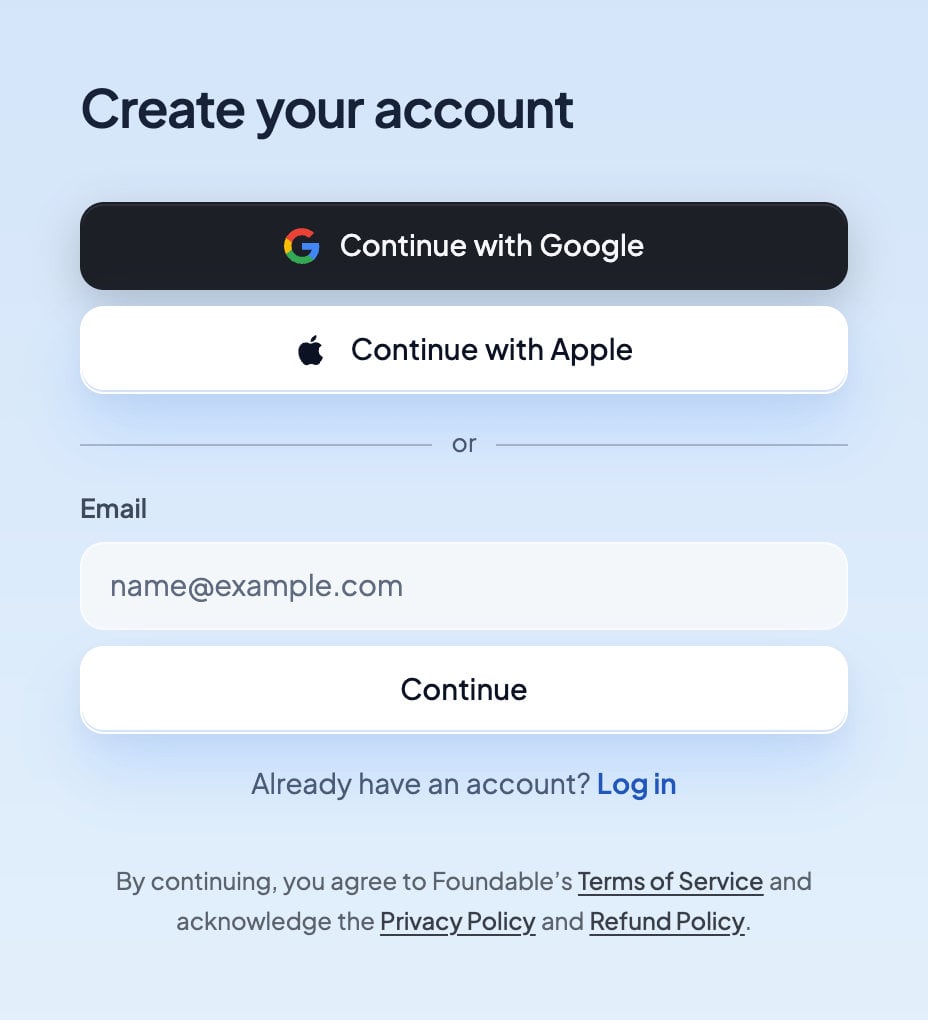
Your Foundable account is how you log in. You sign up with Google, with Apple, or with a six-digit code we email you, so there’s no password to remember.
New accounts start on the waitlist. When it’s your turn, you’re let in, and Ted is ready to start your business with you.
Go to [foundable.com/sign-up](https://foundable.com/sign-up). Or, on [foundable.com](https://foundable.com), choose **Get Early Access**. A window titled “Continue to Foundable” opens with the same choices.
Choose **Continue with Google** or **Continue with Apple**, and follow their steps. Or type your email under **Email** and choose **Continue**.
 If you used your email, you’ll see “Check your email”. Type the six-digit code from the email. When you type the last digit, Foundable checks it by itself, so there’s nothing else to press.
You’ll see “You’re on the waitlist” and your place in line. Ted asks “What should I call you?” Type your first name and choose **Continue**.
Under the sign-up choices, you’ll see that continuing means you agree to Foundable’s [Terms of Service](https://foundable.com/terms) and acknowledge the [Privacy Policy](https://foundable.com/privacy) and [Refund Policy](https://foundable.com/refund-policy).
## Your login code
The email’s subject starts with your code, and its heading reads “Your login code”. You can type the code, or select **Log in to Foundable** in the email. The email says how many minutes the code and the button work.
* **In the same browser** where you asked for the code, the button opens “Confirm sign-in”. Choose **Continue as …** (it shows your email) to log in.
* **In another browser or device**, it opens “Use verification code to continue” and shows your code. Choose **Copy code** and type it where you started, or choose **Sign in here instead**.
* **No email yet?** Choose **Resend code** (it may count down a few seconds first), and you’ll see “A new code is on its way.” Then use the code in the newest email. To use another address, choose **Use a different email**.
**Open Gmail** or **Open Outlook** opens your mail in a new tab. Sometimes Foundable shows “One quick check before we send your code.” That’s a short check that you’re a person. And after Google or Apple, Foundable may ask you to confirm your email with a six-digit code.
## While you wait in line
Your account waits on the waitlist until the Foundable team lets you in. In the meantime:
* **See your spot.** “Your spot in line” shows your place and how far you moved today. **How the line works** explains the rest.
* **Tell Ted your idea.** Choose **Chat with Ted**. He asks “What’s your idea?” and starts shaping it now.
* **Link your phone.** Choose **Text Ted** to text him from your phone.
If you try to open Foundable before your turn, you’ll see “You’re still in line. We’ll let you know the moment it’s your turn.” Choose **See your spot in line** to go back.
## When it’s your turn
You’ll get an email, and a text if you linked your phone. If your spot in line is open in your browser, it moves you on by itself. Your chat with Ted, and a phone you linked, carry over into your first foundable.
Then you’ll see “Let’s create your business.” See [Start your business with Ted](/get-started/start-your-business) for what to pick.
## Log in again later
Go to [foundable.com/sign-in](https://foundable.com/sign-in), or choose **Log in** on foundable.com. Use the same Google account, Apple ID or email address you signed up with.
If you open a link to a page in Foundable while you’re logged out, you log in first and then land on that page.
## Join a teammate’s foundable
Someone who runs a foundable can invite you to work on it with them and Ted.
In the email “… invited you to … on Foundable”, choose **Accept invite**. Or open the invite link they sent you.
On “You’re invited”, choose **Log in** or **Create an account**. If your invite came by email, use that address.
The page tells you your role, like “You’ll join as a member”. Choose **Join** with the foundable’s name, and you land in it.
Invites expire in 7 days. The page shows the email you’re logged in with, followed by **Not you?** in case it’s the wrong one. When you work in someone else’s foundable, Ted’s work there uses the owner’s credits. To learn what each role can do, see [Invite your team](/account/team).
## Log out
Open your account menu (your initial, at the top right) and choose **Log out**. On a phone, tap **More**, then **Log out**. You’ll see “You’re logged out”.
Logging out also clears any message you typed to Ted but didn’t send, in that browser.
## If you can’t log in
| What you see | What it means | What to do |
| - | - | - |
| “That code didn’t work. Check the six digits or request a new code.” | The code was mistyped, or a newer one replaced it. | Check the newest email, or choose **Resend code**. |
| “Too many attempts. Wait a few minutes before trying again.” | There were too many tries in a row. | Wait a few minutes, then try again. |
| “We can’t send another code right now. …” | Codes were asked for too often. | Use the code you already have, or try again later. |
| “We couldn’t sign you in with this email. Try Google or Apple instead.” | A code can’t log you in with this address. | Choose **Continue with Google** or **Continue with Apple**. |
| “Human verification didn’t finish. If it keeps happening, switch browsers or networks.” | The quick check didn’t finish. | Try again, or use another browser or network. |
| “…’s browser couldn’t complete the security check. Use Safari or Chrome.” | You opened Foundable inside another app, like Instagram or TikTok. | Open foundable.com in Safari or Chrome. |
| “This link has expired” or “This link has already been used” | The email’s button is too old, or it was used already. | Ask for a new code. If it keeps happening, contact support. |
| “Your session has expired. Please log in again.” | You were logged out. | Log in again. |
Still stuck? Email [support@foundable.com](mailto:support@foundable.com), or see [Get help](/help/get-help).
## FAQ
No. You log in with Google, with Apple, or with a six-digit code we email you each time.
You don’t need one. When you type the sixth digit, Foundable checks the code by itself.
You opened it in a different browser or device from the one where you asked for the code. Choose **Copy code** and type it where you started, or choose **Sign in here instead**.
Your account is on the waitlist until the Foundable team lets you in. Choose **See your spot in line** to check your place, and chat with Ted about your idea while you wait.
You’ll get an email, and a text if you linked your phone. If your spot in line is open, it moves you on by itself.
You’ll see “This invite was sent to … Log in with that address to join.” Log out, then log in with the address the invite was sent to.
## Related
Your first choice once you’re in: your idea, Ted’s ideas, or a surprise.
From a new account to your first live website.
Roles, invites and invite links.
Chat with the Foundable team or report a bug.
This documentation is built and hosted on [Mintlify](https://mintlify.com), a developer documentation platform.
If you used your email, you’ll see “Check your email”. Type the six-digit code from the email. When you type the last digit, Foundable checks it by itself, so there’s nothing else to press.
You’ll see “You’re on the waitlist” and your place in line. Ted asks “What should I call you?” Type your first name and choose **Continue**.
Under the sign-up choices, you’ll see that continuing means you agree to Foundable’s [Terms of Service](https://foundable.com/terms) and acknowledge the [Privacy Policy](https://foundable.com/privacy) and [Refund Policy](https://foundable.com/refund-policy).
## Your login code
The email’s subject starts with your code, and its heading reads “Your login code”. You can type the code, or select **Log in to Foundable** in the email. The email says how many minutes the code and the button work.
* **In the same browser** where you asked for the code, the button opens “Confirm sign-in”. Choose **Continue as …** (it shows your email) to log in.
* **In another browser or device**, it opens “Use verification code to continue” and shows your code. Choose **Copy code** and type it where you started, or choose **Sign in here instead**.
* **No email yet?** Choose **Resend code** (it may count down a few seconds first), and you’ll see “A new code is on its way.” Then use the code in the newest email. To use another address, choose **Use a different email**.
**Open Gmail** or **Open Outlook** opens your mail in a new tab. Sometimes Foundable shows “One quick check before we send your code.” That’s a short check that you’re a person. And after Google or Apple, Foundable may ask you to confirm your email with a six-digit code.
## While you wait in line
Your account waits on the waitlist until the Foundable team lets you in. In the meantime:
* **See your spot.** “Your spot in line” shows your place and how far you moved today. **How the line works** explains the rest.
* **Tell Ted your idea.** Choose **Chat with Ted**. He asks “What’s your idea?” and starts shaping it now.
* **Link your phone.** Choose **Text Ted** to text him from your phone.
If you try to open Foundable before your turn, you’ll see “You’re still in line. We’ll let you know the moment it’s your turn.” Choose **See your spot in line** to go back.
## When it’s your turn
You’ll get an email, and a text if you linked your phone. If your spot in line is open in your browser, it moves you on by itself. Your chat with Ted, and a phone you linked, carry over into your first foundable.
Then you’ll see “Let’s create your business.” See [Start your business with Ted](/get-started/start-your-business) for what to pick.
## Log in again later
Go to [foundable.com/sign-in](https://foundable.com/sign-in), or choose **Log in** on foundable.com. Use the same Google account, Apple ID or email address you signed up with.
If you open a link to a page in Foundable while you’re logged out, you log in first and then land on that page.
## Join a teammate’s foundable
Someone who runs a foundable can invite you to work on it with them and Ted.
In the email “… invited you to … on Foundable”, choose **Accept invite**. Or open the invite link they sent you.
On “You’re invited”, choose **Log in** or **Create an account**. If your invite came by email, use that address.
The page tells you your role, like “You’ll join as a member”. Choose **Join** with the foundable’s name, and you land in it.
Invites expire in 7 days. The page shows the email you’re logged in with, followed by **Not you?** in case it’s the wrong one. When you work in someone else’s foundable, Ted’s work there uses the owner’s credits. To learn what each role can do, see [Invite your team](/account/team).
## Log out
Open your account menu (your initial, at the top right) and choose **Log out**. On a phone, tap **More**, then **Log out**. You’ll see “You’re logged out”.
Logging out also clears any message you typed to Ted but didn’t send, in that browser.
## If you can’t log in
| What you see | What it means | What to do |
| - | - | - |
| “That code didn’t work. Check the six digits or request a new code.” | The code was mistyped, or a newer one replaced it. | Check the newest email, or choose **Resend code**. |
| “Too many attempts. Wait a few minutes before trying again.” | There were too many tries in a row. | Wait a few minutes, then try again. |
| “We can’t send another code right now. …” | Codes were asked for too often. | Use the code you already have, or try again later. |
| “We couldn’t sign you in with this email. Try Google or Apple instead.” | A code can’t log you in with this address. | Choose **Continue with Google** or **Continue with Apple**. |
| “Human verification didn’t finish. If it keeps happening, switch browsers or networks.” | The quick check didn’t finish. | Try again, or use another browser or network. |
| “…’s browser couldn’t complete the security check. Use Safari or Chrome.” | You opened Foundable inside another app, like Instagram or TikTok. | Open foundable.com in Safari or Chrome. |
| “This link has expired” or “This link has already been used” | The email’s button is too old, or it was used already. | Ask for a new code. If it keeps happening, contact support. |
| “Your session has expired. Please log in again.” | You were logged out. | Log in again. |
Still stuck? Email [support@foundable.com](mailto:support@foundable.com), or see [Get help](/help/get-help).
## FAQ
No. You log in with Google, with Apple, or with a six-digit code we email you each time.
You don’t need one. When you type the sixth digit, Foundable checks the code by itself.
You opened it in a different browser or device from the one where you asked for the code. Choose **Copy code** and type it where you started, or choose **Sign in here instead**.
Your account is on the waitlist until the Foundable team lets you in. Choose **See your spot in line** to check your place, and chat with Ted about your idea while you wait.
You’ll get an email, and a text if you linked your phone. If your spot in line is open, it moves you on by itself.
You’ll see “This invite was sent to … Log in with that address to join.” Log out, then log in with the address the invite was sent to.
## Related
Your first choice once you’re in: your idea, Ted’s ideas, or a surprise.
From a new account to your first live website.
Roles, invites and invite links.
Chat with the Foundable team or report a bug.
This documentation is built and hosted on [Mintlify](https://mintlify.com), a developer documentation platform.