> ## Documentation Index
> Fetch the complete documentation index at: https://docs.foundable.com/llms.txt
> Use this file to discover all available pages before exploring further.
# Write and reply to email
> Send a new email from your foundable’s address, answer the mail you get, and let Ted write the words. See what each sending step means.
You can write and answer email from your foundable’s own address, right in the [Inbox](/inbox/overview). Ted can write the words for you. Nothing goes out until you press **Send**.
## Write a new email
In the Inbox, press **Compose**. A “New email” sheet opens.
Type the address in **To:**. To copy someone in, press **Cc/Bcc, From:** and fill in **Cc:** or **Bcc:**.
Type a **Subject:** and your message. Or press **Write with Ted** and say what the email is for.
Press **Send**, the arrow at the top right. The sheet closes, and the Inbox shows how sending goes.
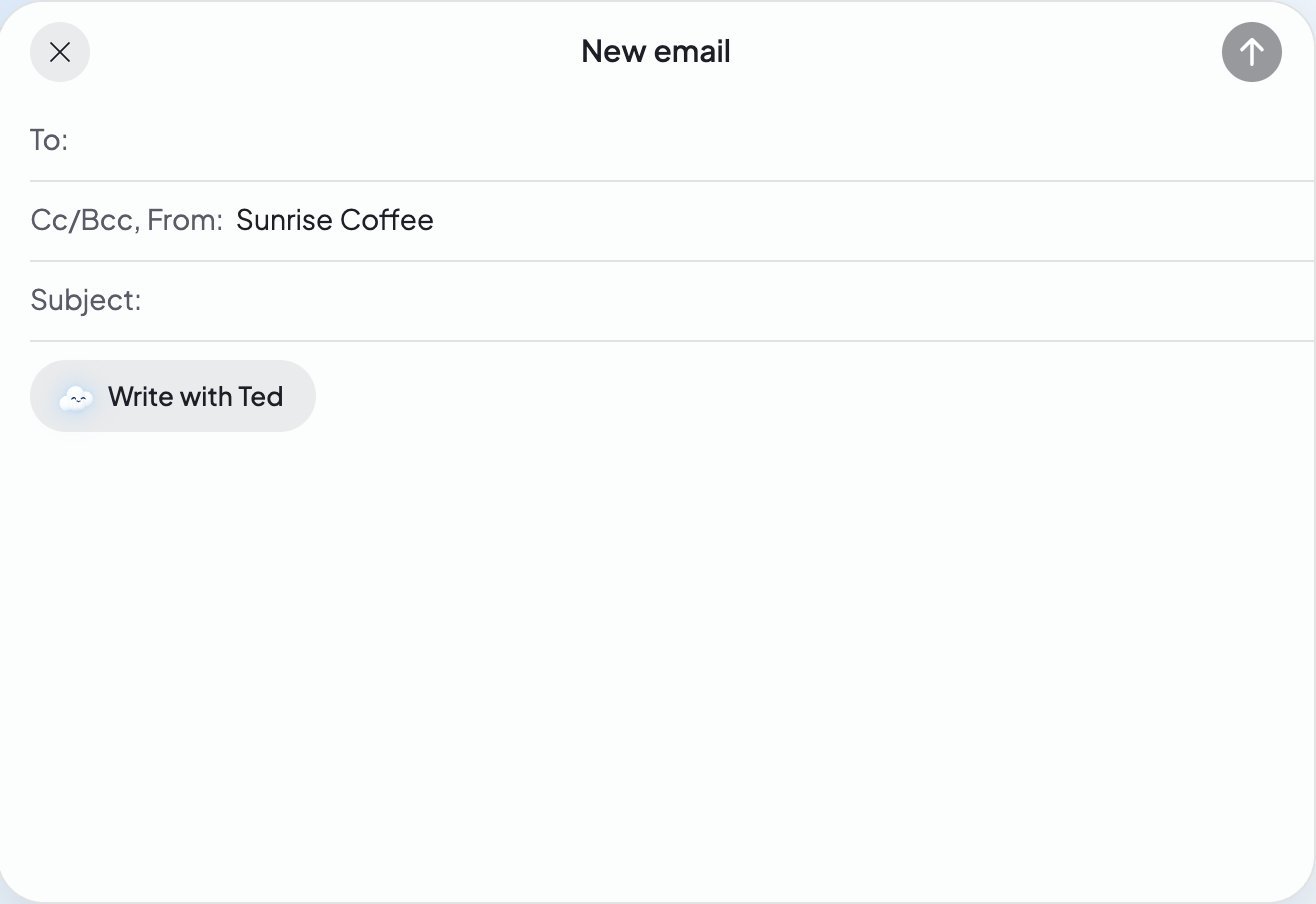 To leave without sending, press the **×**. If you typed something, the Inbox asks “Discard unsaved changes?” Press **Keep editing** to go back, or **Discard changes** to close it.
## Let Ted write it
It sits over the message of a new, empty email.
Type one line in “What’s this email for?”, like “Thank Sam for the order and ask for a review.”
Or press Enter. It says “Writing…”, then Ted fills in the subject and the message, with “Ted wrote this email.”
Change anything you like, then press **Send**.
Ted knows only your line and what your business says about itself. He doesn’t see who the email goes to. Where he needs a detail you didn’t give him, he leaves a blank in square brackets for you to fill in. A subject you typed first stays as you wrote it.
Nothing is saved or sent until you press **Send**. Each email Ted writes uses [credits](/help/glossary#credit).
| What you see | What to do |
| - | - |
| “Not enough credits for Ted to write this email.” | Add credits, or write it yourself. See [Plans and credits](/account/plans-and-credits). |
| “Writing with Ted needs an active plan.” | Choose a plan, or write it yourself. |
| “Your account is on hold, so Ted can’t write emails. Contact support.” | [Contact support](/help/get-help). |
| “Ted couldn’t write this just now. Try again.” | Press **Write** again. |
## Before it sends: the address check
When you press **Send** on a new email, Foundable first checks each address: “Checking the address…”. If it can’t find a mailbox, it warns you: “We couldn’t find a mailbox at …, so this email probably won’t arrive.”
* Press **Edit** to fix the address.
* Press **Send anyway** to send it as it is.
The sheet also stops you before sending when:
* an address isn’t complete (“… is not an email address.”)
* there’s no one to send to (“Add at least one recipient.”)
* one email goes to more people than it can
## After you press Send
The Inbox shows how sending goes, with who the email is to and its subject. When it goes, you’ll see “Sent to …”, and the email moves to **Sent**.
| What you see | What it means | What to do |
| - | - | - |
| “Sending…” | Your email is on its way. | Nothing. |
| “Still sending…” | It’s taking longer than usual. | Wait. |
| “Not sent yet” | “Your email hasn’t been sent yet. It will go out as soon as mail service resumes.” | Wait, or press **Check again**. To stop it, press **Cancel send**. |
| “Still sending” | “The mail service has this email; it may already have gone out. Check again in a moment.” | Press **Check again**. |
| “Failed” | “The mail provider rejected this message.” | Check the addresses and send it again. |
| “Unconfirmed” | “We couldn’t confirm this email was sent.” | Look in **Sent** before you send it again. |
| “Can’t reach the server.” | Your connection dropped. | Check your internet connection. |
If you press **Cancel send**, you’ll see “Sending was prevented.” when it stopped in time. “Cancellation does not confirm recall. Check for later provider updates.” means it may already have gone.
“Sent” means the mail service took your email. If it later can’t reach someone, its row in **Sent** says “Not delivered”, with why. See [Blocked and undelivered emails](/inbox/teds-emails#blocked-and-undelivered-emails).
Each foundable can email a limited number of people a day. If you reach it, the Inbox tells you, and you can send again later.
## Reply to an email
Press its row in the Inbox.
The sheet opens with “Replying to:”, “From:” and “Subject:” filled in, with “Re:” before the subject.
Type your answer and press **Send**.
**Reply** answers the latest message someone sent. When a conversation has several, each message’s **…** menu has its own **Reply** and **Reply with Ted**. On a phone, **Reply** and **Reply with Ted** wait at the bottom of the conversation. Cc and Bcc are only for new emails.
## Reply with Ted
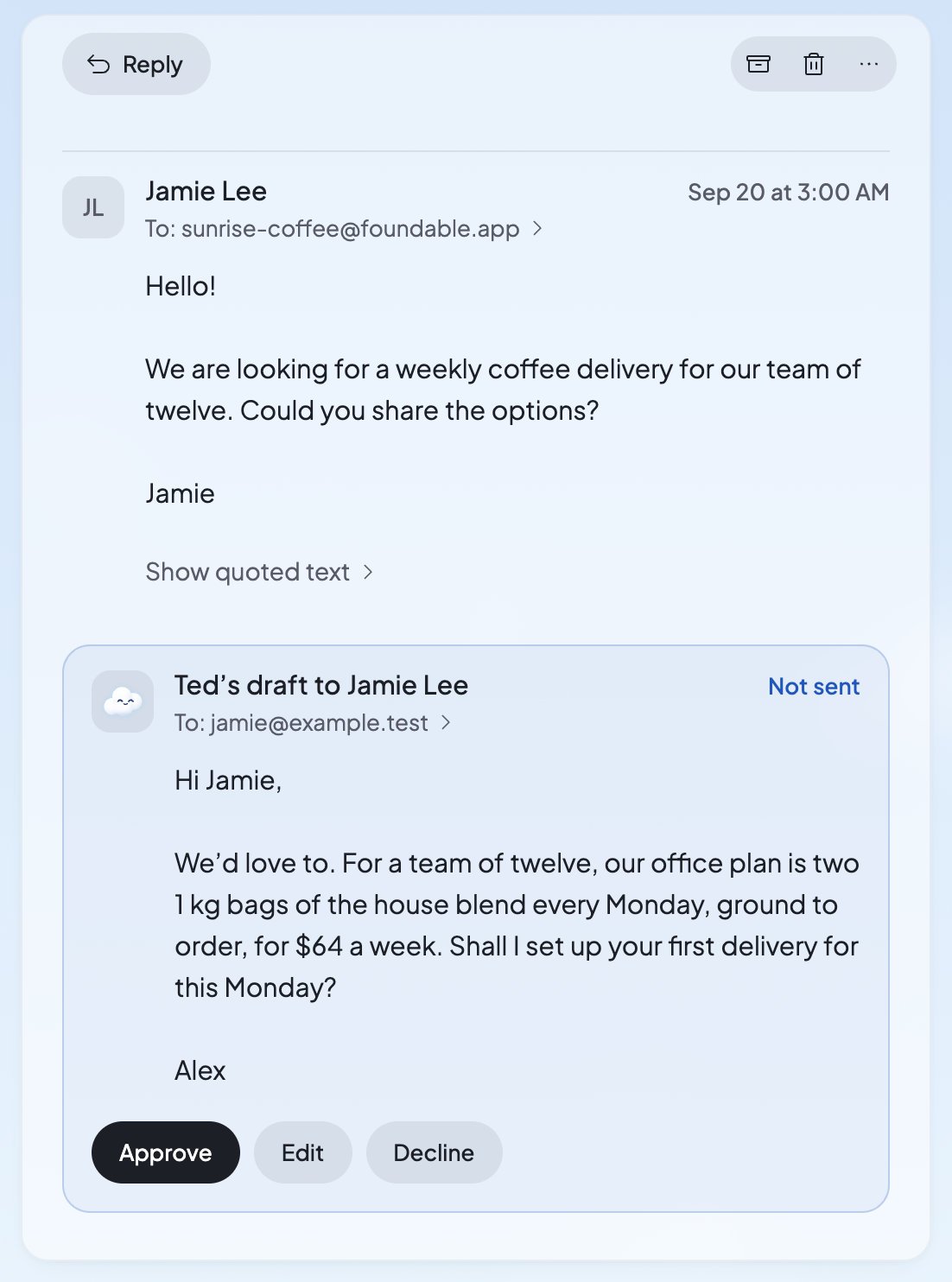
1. Open the conversation and press **Reply with Ted**. You’ll see “Drafting your reply…”.
2. Ted’s reply appears at the end of the conversation, headed “Ted’s draft” with “To:” and “Not sent”.
3. Press **Approve** to send it, **Edit** to change it first, or **Decline** if you don’t want it.
Each reply Ted drafts uses credits. While one of his replies waits on a conversation, **Reply with Ted** isn’t offered there.
To leave without sending, press the **×**. If you typed something, the Inbox asks “Discard unsaved changes?” Press **Keep editing** to go back, or **Discard changes** to close it.
## Let Ted write it
It sits over the message of a new, empty email.
Type one line in “What’s this email for?”, like “Thank Sam for the order and ask for a review.”
Or press Enter. It says “Writing…”, then Ted fills in the subject and the message, with “Ted wrote this email.”
Change anything you like, then press **Send**.
Ted knows only your line and what your business says about itself. He doesn’t see who the email goes to. Where he needs a detail you didn’t give him, he leaves a blank in square brackets for you to fill in. A subject you typed first stays as you wrote it.
Nothing is saved or sent until you press **Send**. Each email Ted writes uses [credits](/help/glossary#credit).
| What you see | What to do |
| - | - |
| “Not enough credits for Ted to write this email.” | Add credits, or write it yourself. See [Plans and credits](/account/plans-and-credits). |
| “Writing with Ted needs an active plan.” | Choose a plan, or write it yourself. |
| “Your account is on hold, so Ted can’t write emails. Contact support.” | [Contact support](/help/get-help). |
| “Ted couldn’t write this just now. Try again.” | Press **Write** again. |
## Before it sends: the address check
When you press **Send** on a new email, Foundable first checks each address: “Checking the address…”. If it can’t find a mailbox, it warns you: “We couldn’t find a mailbox at …, so this email probably won’t arrive.”
* Press **Edit** to fix the address.
* Press **Send anyway** to send it as it is.
The sheet also stops you before sending when:
* an address isn’t complete (“… is not an email address.”)
* there’s no one to send to (“Add at least one recipient.”)
* one email goes to more people than it can
## After you press Send
The Inbox shows how sending goes, with who the email is to and its subject. When it goes, you’ll see “Sent to …”, and the email moves to **Sent**.
| What you see | What it means | What to do |
| - | - | - |
| “Sending…” | Your email is on its way. | Nothing. |
| “Still sending…” | It’s taking longer than usual. | Wait. |
| “Not sent yet” | “Your email hasn’t been sent yet. It will go out as soon as mail service resumes.” | Wait, or press **Check again**. To stop it, press **Cancel send**. |
| “Still sending” | “The mail service has this email; it may already have gone out. Check again in a moment.” | Press **Check again**. |
| “Failed” | “The mail provider rejected this message.” | Check the addresses and send it again. |
| “Unconfirmed” | “We couldn’t confirm this email was sent.” | Look in **Sent** before you send it again. |
| “Can’t reach the server.” | Your connection dropped. | Check your internet connection. |
If you press **Cancel send**, you’ll see “Sending was prevented.” when it stopped in time. “Cancellation does not confirm recall. Check for later provider updates.” means it may already have gone.
“Sent” means the mail service took your email. If it later can’t reach someone, its row in **Sent** says “Not delivered”, with why. See [Blocked and undelivered emails](/inbox/teds-emails#blocked-and-undelivered-emails).
Each foundable can email a limited number of people a day. If you reach it, the Inbox tells you, and you can send again later.
## Reply to an email
Press its row in the Inbox.
The sheet opens with “Replying to:”, “From:” and “Subject:” filled in, with “Re:” before the subject.
Type your answer and press **Send**.
**Reply** answers the latest message someone sent. When a conversation has several, each message’s **…** menu has its own **Reply** and **Reply with Ted**. On a phone, **Reply** and **Reply with Ted** wait at the bottom of the conversation. Cc and Bcc are only for new emails.
## Reply with Ted
1. Open the conversation and press **Reply with Ted**. You’ll see “Drafting your reply…”.
2. Ted’s reply appears at the end of the conversation, headed “Ted’s draft” with “To:” and “Not sent”.
3. Press **Approve** to send it, **Edit** to change it first, or **Decline** if you don’t want it.
Each reply Ted drafts uses credits. While one of his replies waits on a conversation, **Reply with Ted** isn’t offered there.
 | What you see | What to do |
| - | - |
| “Not enough credits to draft a reply.” | Add credits, or write the reply yourself. |
| “Drafting replies needs an active plan.” | Choose a plan, or write the reply yourself. |
| “Your account is on hold, so Ted can’t draft replies. Contact support.” | [Contact support](/help/get-help). |
## Who can write and send
| Role | They can |
| - | - |
| Owner and admin | Write, reply, use **Write with Ted** and **Reply with Ted**, and send. |
| Member | Press **Reply with Ted**. The draft waits for an owner or admin to send it. Members see “Only the owner or an admin can send email.” |
| View only | Read only. |
## FAQ
Not from the Inbox. Emails you send from it are plain text with no files, and a reply goes back only to whoever sent the message.
Foundable checked the address and found no mailbox there. Check for a typo and press **Edit**, or press **Send anyway** if you’re sure.
Only while it’s still sending: press **Cancel send**. Once the mail service has it, it may already be on its way.
No. He sees your line and what your business says about itself. Read his email before you send it.
They’re in **Sent**, and they stand in your Inbox list at the time they went.
## Related
Approve, edit or decline the emails Ted drafts.
Change the name people see, or use your own domain.
Find your way around your mail.
See your credits and what Ted’s writing uses.
This documentation is built and hosted on [Mintlify](https://mintlify.com), a developer documentation platform.
| What you see | What to do |
| - | - |
| “Not enough credits to draft a reply.” | Add credits, or write the reply yourself. |
| “Drafting replies needs an active plan.” | Choose a plan, or write the reply yourself. |
| “Your account is on hold, so Ted can’t draft replies. Contact support.” | [Contact support](/help/get-help). |
## Who can write and send
| Role | They can |
| - | - |
| Owner and admin | Write, reply, use **Write with Ted** and **Reply with Ted**, and send. |
| Member | Press **Reply with Ted**. The draft waits for an owner or admin to send it. Members see “Only the owner or an admin can send email.” |
| View only | Read only. |
## FAQ
Not from the Inbox. Emails you send from it are plain text with no files, and a reply goes back only to whoever sent the message.
Foundable checked the address and found no mailbox there. Check for a typo and press **Edit**, or press **Send anyway** if you’re sure.
Only while it’s still sending: press **Cancel send**. Once the mail service has it, it may already be on its way.
No. He sees your line and what your business says about itself. Read his email before you send it.
They’re in **Sent**, and they stand in your Inbox list at the time they went.
## Related
Approve, edit or decline the emails Ted drafts.
Change the name people see, or use your own domain.
Find your way around your mail.
See your credits and what Ted’s writing uses.
This documentation is built and hosted on [Mintlify](https://mintlify.com), a developer documentation platform.