> ## Documentation Index
> Fetch the complete documentation index at: https://docs.foundable.com/llms.txt
> Use this file to discover all available pages before exploring further.
# Get paid with Payments
> Take payments on your website with Stripe. Ted adds what you sell, and the money goes into your own Stripe account.
**Payments** lets your website take payments. A customer presses a Buy button on your website and pays on Stripe’s checkout page. The money goes into your own Stripe account, and Stripe pays it out to your bank account.
Payments lives in [Build](/build/overview), under [Tools](/build/tools). Ted does most of the work: he makes the products you want to sell and adds their Buy buttons to your website. Connecting Stripe, confirming what you sell and publishing your website are yours.
 Ask Ted for a product and put its Buy button on your website.
See what sold, refund a sale and ship orders.
Buy from your website’s preview with a test card. No money moves.
## How Payments works
Payments is powered by Stripe. When you set it up, Stripe makes a payment account for your [foundable](/help/glossary#foundable) and checks your business details. After that, Stripe takes your customers’ payments and pays the money out to you.
A product goes on sale when three things are true:
* Stripe has approved your account.
* Your website is [published](/build/publish).
* The product’s Buy button is on your live website. Ted adds it when you ask.
You can start before all three are true. Ted can make products first, and you can [test a purchase](/payments/test-mode) in your website’s preview before you’re set up.
## Before you start
* **The owner or an admin starts setup.** Only the owner can finish it with Stripe.
* **Have your business details and bank account ready.** Stripe asks for them.
* **You sell on a published website.** You can set up Payments before you publish, but customers can only buy on your live website.
## Set up Payments
In **Build**, press **Tools**, then **Payments**. The card says “Ready to make your first sale?”
On [Home](/get-started/home), the next step “Start accepting payments” opens the same place.
Ask Ted for a product and put its Buy button on your website.
See what sold, refund a sale and ship orders.
Buy from your website’s preview with a test card. No money moves.
## How Payments works
Payments is powered by Stripe. When you set it up, Stripe makes a payment account for your [foundable](/help/glossary#foundable) and checks your business details. After that, Stripe takes your customers’ payments and pays the money out to you.
A product goes on sale when three things are true:
* Stripe has approved your account.
* Your website is [published](/build/publish).
* The product’s Buy button is on your live website. Ted adds it when you ask.
You can start before all three are true. Ted can make products first, and you can [test a purchase](/payments/test-mode) in your website’s preview before you’re set up.
## Before you start
* **The owner or an admin starts setup.** Only the owner can finish it with Stripe.
* **Have your business details and bank account ready.** Stripe asks for them.
* **You sell on a published website.** You can set up Payments before you publish, but customers can only buy on your live website.
## Set up Payments
In **Build**, press **Tools**, then **Payments**. The card says “Ready to make your first sale?”
On [Home](/get-started/home), the next step “Start accepting payments” opens the same place.
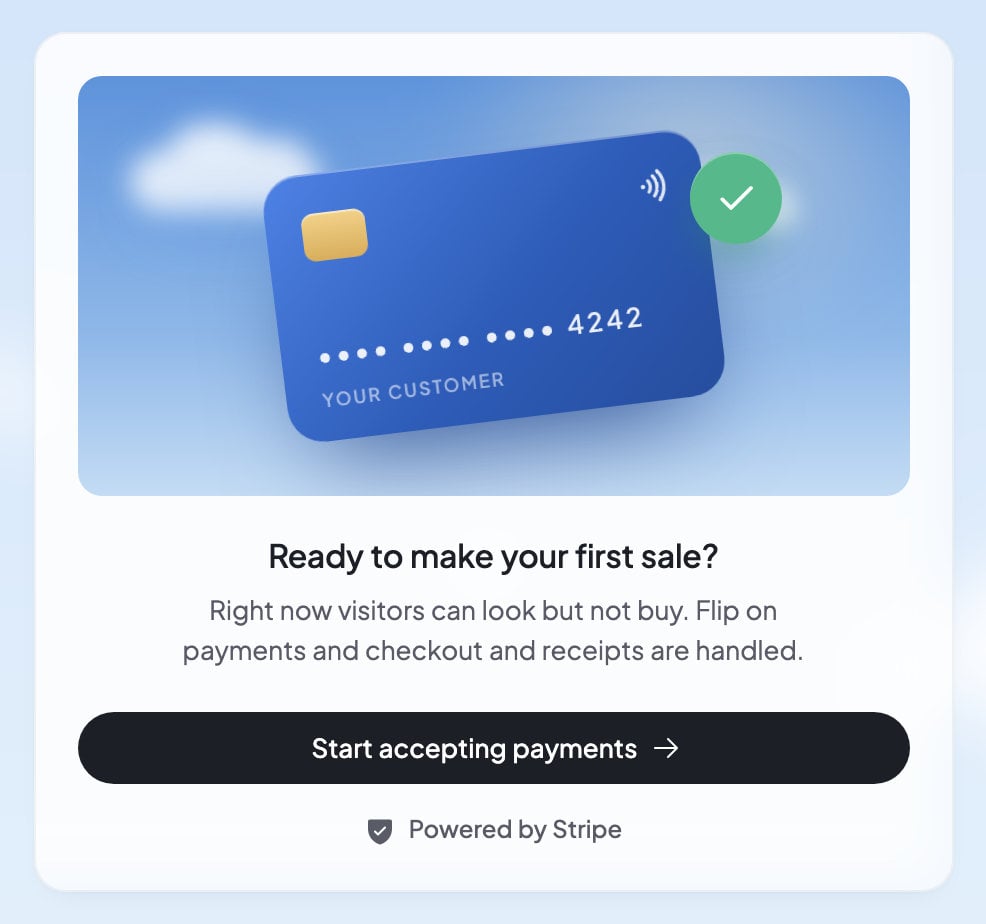 If Payments asks for your **Country** and **Currency**, pick them first. Then press **Start accepting payments**.
Foundable passes Stripe what it already knows, like your business name and your email, so you type less.
Stripe’s own pages open once your account is made. Confirm the details Foundable sent, then add the rest, like your bank account. When you’re done, Stripe sends you back to Payments.
If you leave before the end, Payments says “Finish setting up with Stripe”. Press **Continue with Stripe** to pick up where you left off. Only the owner can do this step.
Payments says “Stripe is reviewing your account”. There’s nothing to press. Payments checks again by itself and turns on once Stripe approves your details.
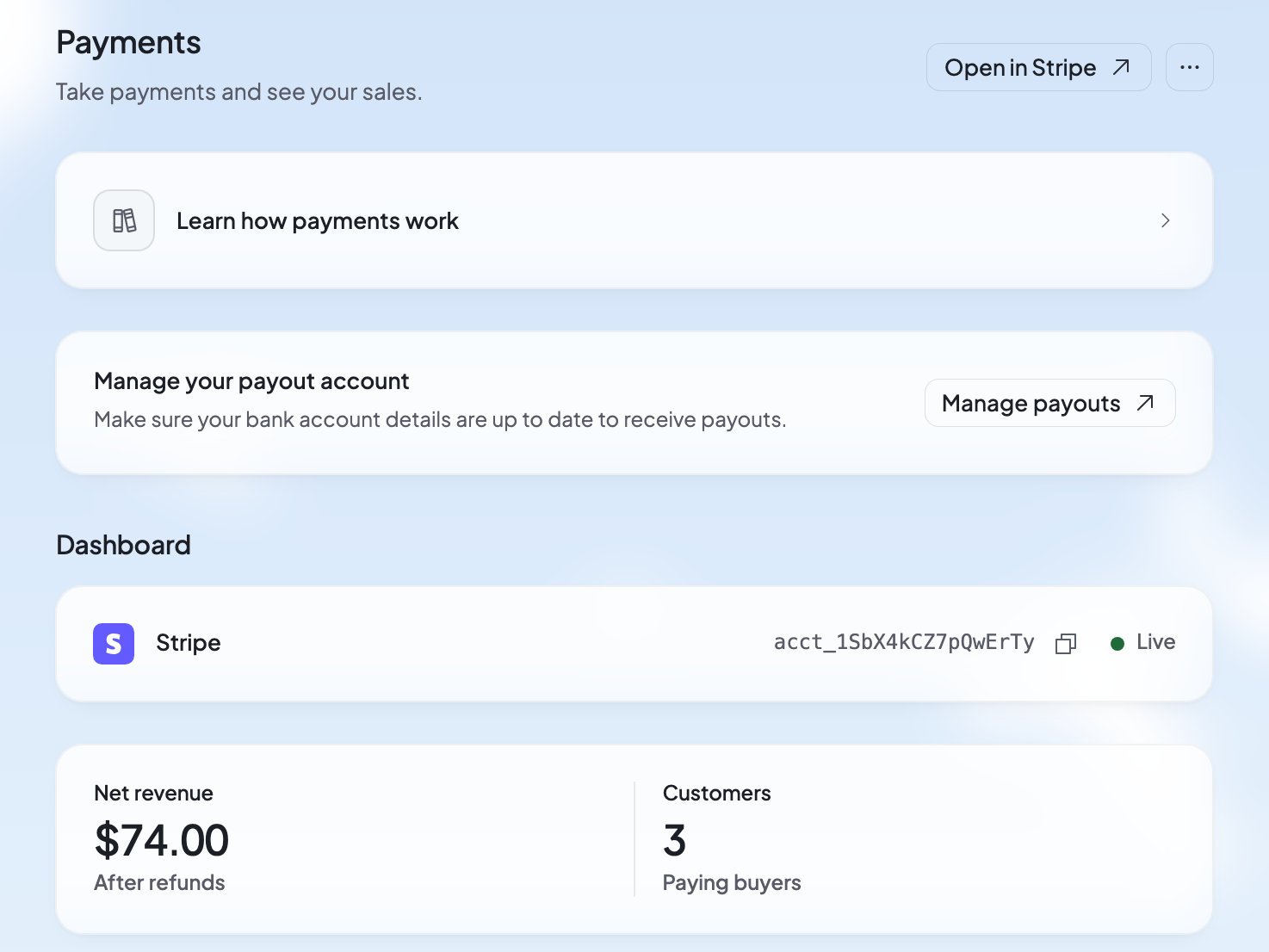
Once Stripe approves, Payments shows your sales dashboard. Ask Ted for your first product. See [Sell on your website](/payments/sell-on-your-website).
If Payments asks for your **Country** and **Currency**, pick them first. Then press **Start accepting payments**.
Foundable passes Stripe what it already knows, like your business name and your email, so you type less.
Stripe’s own pages open once your account is made. Confirm the details Foundable sent, then add the rest, like your bank account. When you’re done, Stripe sends you back to Payments.
If you leave before the end, Payments says “Finish setting up with Stripe”. Press **Continue with Stripe** to pick up where you left off. Only the owner can do this step.
Payments says “Stripe is reviewing your account”. There’s nothing to press. Payments checks again by itself and turns on once Stripe approves your details.
Once Stripe approves, Payments shows your sales dashboard. Ask Ted for your first product. See [Sell on your website](/payments/sell-on-your-website).
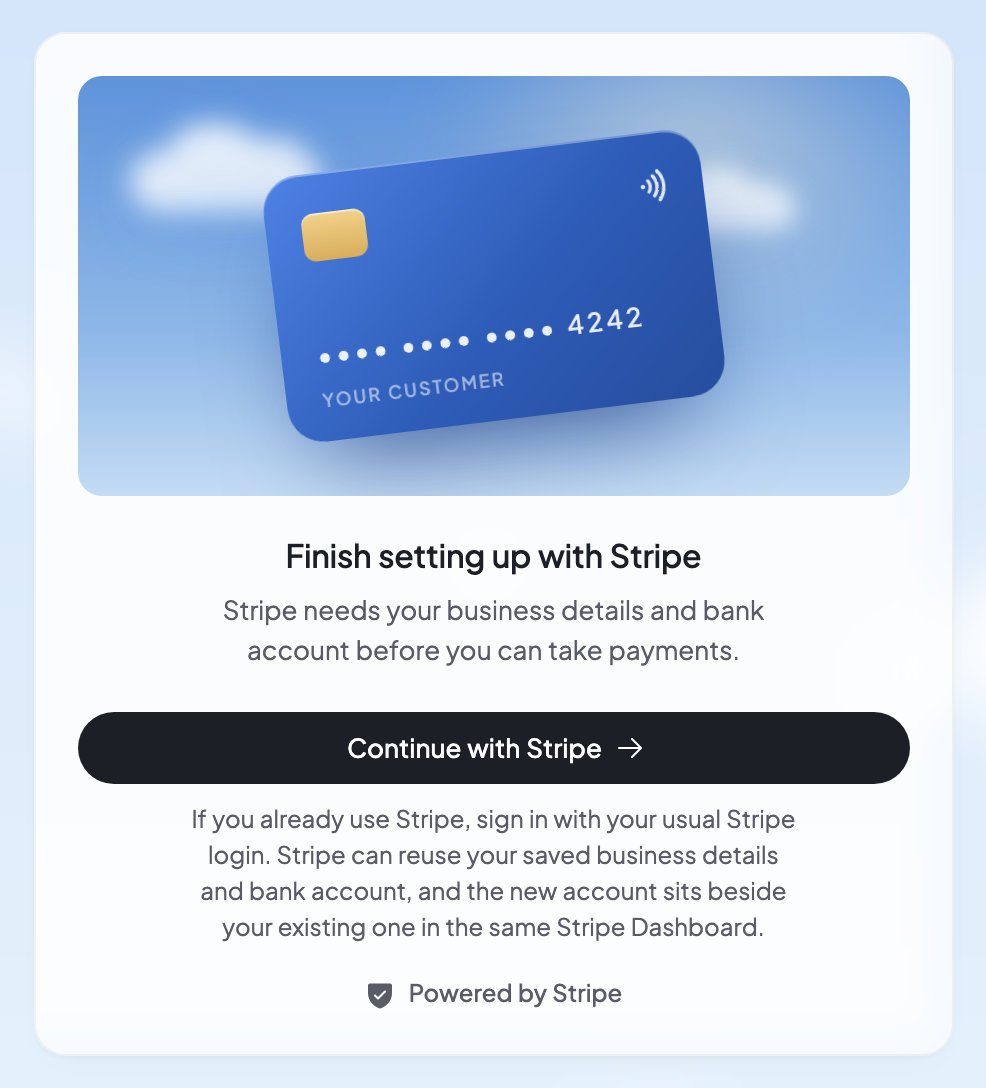 Already use Stripe? Sign in with your usual Stripe login. Stripe can reuse your saved business details and bank account. The new account sits beside your existing one in your Stripe Dashboard.
## What you’ll see while you set up
Payments always shows where your setup stands. You never need to refresh or check by hand.
| What you see | What it means | What to do |
| - | - | - |
| “Setting up your Stripe account” | Stripe is making your account. “Stripe usually answers in a few seconds.” | Wait, or leave the page. Setup keeps going in the background. |
| “Still waiting on Stripe.” | Stripe is slow to answer. Nothing is lost. | Nothing. Payments goes on once Stripe answers. |
| “This is taking longer than usual” | Stripe hasn’t confirmed your account for a while. Foundable keeps trying. | Wait, or press **Contact support** for help. |
| “Something on our side is holding up your Stripe account” | A problem on Foundable’s side, not anything you did. Nothing is lost. | Payments goes on once it’s fixed. Press **Contact support** to ask about it. |
| “Finish setting up with Stripe” | Stripe needs your business details and bank account. | The owner presses **Continue with Stripe**. |
| “Stripe is reviewing your account” | Stripe is checking your details. | Nothing to press. If Stripe needs anything else, it shows here. |
| “Stripe needs more information by” a date, or “Stripe needs more information to keep payments on.” | You can still take payments, but Stripe needs more from you. With a date, “Payments stay on until then.” | The owner presses **Continue with Stripe**. |
| “Stripe could not accept the details we sent.” | Stripe turned down the first details. “Stripe will ask you for them again.” | Press **Start accepting payments** again. |
| “Payment setup did not finish” | Stripe never confirmed your account, so nothing was set up. | Press **Start accepting payments** to try again. |
| “Payments are disconnected” | “This payment account can no longer take payments.” | Press **Start accepting payments** to set up a new account. |
| “Payments need an email address on your account.” | Setup needs an email address, and your account has none. | [Contact support](/help/get-help) to add one. |
| “Payments could not load” | Payments couldn’t read your payment account. | Press **Try again**. |
## Where your money goes
You’re the seller. When a customer pays, the money goes straight into your own Stripe account. Foundable never holds it.
* **Payouts:** in Payments’ words, “Revenue is paid out to your bank account on a regular schedule.” To check or change the bank account Stripe pays, the owner presses **Manage payouts**.
* **Fees:** “Pricing follows Stripe’s standard rates.” Your Stripe Dashboard shows your earnings, refunds and fees. The owner opens it with **Open in Stripe** at the top of Payments.
* **Refunds and disputes:** you can refund a whole sale from Payments. Partial refunds and disputes happen in your Stripe Dashboard. See [Sales and refunds](/payments/sales-and-refunds).
* **Taxes:** “Foundable does not calculate or collect tax on your sales.”
## What Ted does, and what’s yours
* Suggest a product on a card, with the name and price you gave him.
* Create the product once you say yes, or when you already told him exactly what to sell and for how much.
* Make a test product before Payments is set up.
* Add a Buy button when you ask, plus a footer with who’s selling and links to your policies.
* Find a customer’s sale and show you a refund card.
* Tell you how your sales are going.
* Press **Start accepting payments** and finish Stripe’s pages.
* Press **Create product**, or answer “yes” to Ted’s card.
* Decide when your website goes live.
* Refund a sale, on Ted’s card or in Payments.
* Handle partial refunds and disputes, in your Stripe Dashboard.
* Manage payouts and disconnect payments.
When a step is yours, Ted tells you in one sentence, with a link to it. While Ted runs your business in [Run](/run/overview), he asks you only for what he can’t do himself. Connecting payments is one of those.
## Who can do what
Everyone in your foundable can see Payments. What they can change depends on their role:
| Role | In Payments, they can |
| - | - |
| Owner | Everything, including **Continue with Stripe**, **Open in Stripe**, **Manage payouts** and **Disconnect payments**. |
| Admin | Press **Start accepting payments**, create products and change what’s for sale, refund sales and mark orders shipped. |
| Member | See everything, and [test a purchase](/payments/test-mode) in your website’s preview. |
| View only | See everything. They can’t change anything. |
Where a button isn’t yours to press, Payments says who can, like “Only the owner can manage payouts.” To add people or change roles, see [Invite your team](/account/team).
## Disconnect payments
Disconnecting stops this foundable from taking payments with its Stripe account. Only the owner can do it.
In Payments, press **…** (More options) at the top right.
It’s under “Danger zone”.
Type **DISCONNECT** in the box, then press **Disconnect**. Payments says “Payments disconnected”.
Disconnecting is permanent. You can’t reconnect the same Stripe account to this foundable, and past payments aren’t refunded automatically. Your Stripe account and its payment history stay yours at dashboard.stripe.com.
To sell again later, press **Start accepting payments**. Stripe makes a new account in place of the old one.
## FAQ
No. Payments isn’t one of the features that need a paid plan. Ted’s work on your website, like adding a Buy button, uses your [credits](/help/glossary#credit) as usual. See [Plans and credits](/account/plans-and-credits).
Your prices are in your shop’s currency, the one your Stripe account uses. If you ask Ted for a price in another currency, he tells you so instead of converting it.
Yes. Everyone in your foundable sees your sales, including each buyer’s email address. Only the owner and admins can change what’s for sale or refund a sale.
Foundable deletes that foundable’s Payments records with it. Your Stripe account stays yours at Stripe. See [Your foundables](/account/foundables).
## Related
Ask Ted for a product and add its Buy button.
Put your website online so customers can buy.
Payments and the other tools behind your website.
Add people and choose what each one can do.
This documentation is built and hosted on [Mintlify](https://mintlify.com), a developer documentation platform.
Already use Stripe? Sign in with your usual Stripe login. Stripe can reuse your saved business details and bank account. The new account sits beside your existing one in your Stripe Dashboard.
## What you’ll see while you set up
Payments always shows where your setup stands. You never need to refresh or check by hand.
| What you see | What it means | What to do |
| - | - | - |
| “Setting up your Stripe account” | Stripe is making your account. “Stripe usually answers in a few seconds.” | Wait, or leave the page. Setup keeps going in the background. |
| “Still waiting on Stripe.” | Stripe is slow to answer. Nothing is lost. | Nothing. Payments goes on once Stripe answers. |
| “This is taking longer than usual” | Stripe hasn’t confirmed your account for a while. Foundable keeps trying. | Wait, or press **Contact support** for help. |
| “Something on our side is holding up your Stripe account” | A problem on Foundable’s side, not anything you did. Nothing is lost. | Payments goes on once it’s fixed. Press **Contact support** to ask about it. |
| “Finish setting up with Stripe” | Stripe needs your business details and bank account. | The owner presses **Continue with Stripe**. |
| “Stripe is reviewing your account” | Stripe is checking your details. | Nothing to press. If Stripe needs anything else, it shows here. |
| “Stripe needs more information by” a date, or “Stripe needs more information to keep payments on.” | You can still take payments, but Stripe needs more from you. With a date, “Payments stay on until then.” | The owner presses **Continue with Stripe**. |
| “Stripe could not accept the details we sent.” | Stripe turned down the first details. “Stripe will ask you for them again.” | Press **Start accepting payments** again. |
| “Payment setup did not finish” | Stripe never confirmed your account, so nothing was set up. | Press **Start accepting payments** to try again. |
| “Payments are disconnected” | “This payment account can no longer take payments.” | Press **Start accepting payments** to set up a new account. |
| “Payments need an email address on your account.” | Setup needs an email address, and your account has none. | [Contact support](/help/get-help) to add one. |
| “Payments could not load” | Payments couldn’t read your payment account. | Press **Try again**. |
## Where your money goes
You’re the seller. When a customer pays, the money goes straight into your own Stripe account. Foundable never holds it.
* **Payouts:** in Payments’ words, “Revenue is paid out to your bank account on a regular schedule.” To check or change the bank account Stripe pays, the owner presses **Manage payouts**.
* **Fees:** “Pricing follows Stripe’s standard rates.” Your Stripe Dashboard shows your earnings, refunds and fees. The owner opens it with **Open in Stripe** at the top of Payments.
* **Refunds and disputes:** you can refund a whole sale from Payments. Partial refunds and disputes happen in your Stripe Dashboard. See [Sales and refunds](/payments/sales-and-refunds).
* **Taxes:** “Foundable does not calculate or collect tax on your sales.”
## What Ted does, and what’s yours
* Suggest a product on a card, with the name and price you gave him.
* Create the product once you say yes, or when you already told him exactly what to sell and for how much.
* Make a test product before Payments is set up.
* Add a Buy button when you ask, plus a footer with who’s selling and links to your policies.
* Find a customer’s sale and show you a refund card.
* Tell you how your sales are going.
* Press **Start accepting payments** and finish Stripe’s pages.
* Press **Create product**, or answer “yes” to Ted’s card.
* Decide when your website goes live.
* Refund a sale, on Ted’s card or in Payments.
* Handle partial refunds and disputes, in your Stripe Dashboard.
* Manage payouts and disconnect payments.
When a step is yours, Ted tells you in one sentence, with a link to it. While Ted runs your business in [Run](/run/overview), he asks you only for what he can’t do himself. Connecting payments is one of those.
## Who can do what
Everyone in your foundable can see Payments. What they can change depends on their role:
| Role | In Payments, they can |
| - | - |
| Owner | Everything, including **Continue with Stripe**, **Open in Stripe**, **Manage payouts** and **Disconnect payments**. |
| Admin | Press **Start accepting payments**, create products and change what’s for sale, refund sales and mark orders shipped. |
| Member | See everything, and [test a purchase](/payments/test-mode) in your website’s preview. |
| View only | See everything. They can’t change anything. |
Where a button isn’t yours to press, Payments says who can, like “Only the owner can manage payouts.” To add people or change roles, see [Invite your team](/account/team).
## Disconnect payments
Disconnecting stops this foundable from taking payments with its Stripe account. Only the owner can do it.
In Payments, press **…** (More options) at the top right.
It’s under “Danger zone”.
Type **DISCONNECT** in the box, then press **Disconnect**. Payments says “Payments disconnected”.
Disconnecting is permanent. You can’t reconnect the same Stripe account to this foundable, and past payments aren’t refunded automatically. Your Stripe account and its payment history stay yours at dashboard.stripe.com.
To sell again later, press **Start accepting payments**. Stripe makes a new account in place of the old one.
## FAQ
No. Payments isn’t one of the features that need a paid plan. Ted’s work on your website, like adding a Buy button, uses your [credits](/help/glossary#credit) as usual. See [Plans and credits](/account/plans-and-credits).
Your prices are in your shop’s currency, the one your Stripe account uses. If you ask Ted for a price in another currency, he tells you so instead of converting it.
Yes. Everyone in your foundable sees your sales, including each buyer’s email address. Only the owner and admins can change what’s for sale or refund a sale.
Foundable deletes that foundable’s Payments records with it. Your Stripe account stays yours at Stripe. See [Your foundables](/account/foundables).
## Related
Ask Ted for a product and add its Buy button.
Put your website online so customers can buy.
Payments and the other tools behind your website.
Add people and choose what each one can do.
This documentation is built and hosted on [Mintlify](https://mintlify.com), a developer documentation platform.