> ## Documentation Index
> Fetch the complete documentation index at: https://docs.foundable.com/llms.txt
> Use this file to discover all available pages before exploring further.
# Sales and refunds
> See what sold in Payments, refund a sale yourself or with Ted, follow disputes in Stripe, and ship orders from your website’s cart.
Once Stripe approves your account, Payments becomes your sales dashboard. It shows what you earned, who bought what, and every refund and dispute. You can refund a sale right there, or [ask Ted](/ted/chat) to find it for you.
To open it, go to **Build**, press **Tools**, then **Payments**.
 ## What the dashboard shows
From top to bottom:
| Part | What it shows |
| - | - |
| **Open in Stripe** | Opens your Stripe Dashboard. Only the owner sees it. |
| **Learn how payments work** | Short notes on refunds and disputes, payouts, and taxes. |
| “Manage your payout account” | **Manage payouts** opens your payout settings in Stripe, where your bank account is. Only the owner can use it. |
| **Dashboard** | Your Stripe account, marked “Live”, with **Copy account ID**. |
| Figures and charts | Your revenue, your paying buyers and your paid sales over the period you pick. |
| **Recent transactions** | Every paid sale, newest first. |
| **Recent adjustments** | Refunds and disputes. |
| **Orders** | Paid orders to ship, from a website with its own cart. |
| **Products** | What the selected website sells. See [Your products in Payments](/payments/sell-on-your-website#your-products-in-payments). |
### Revenue and buyers
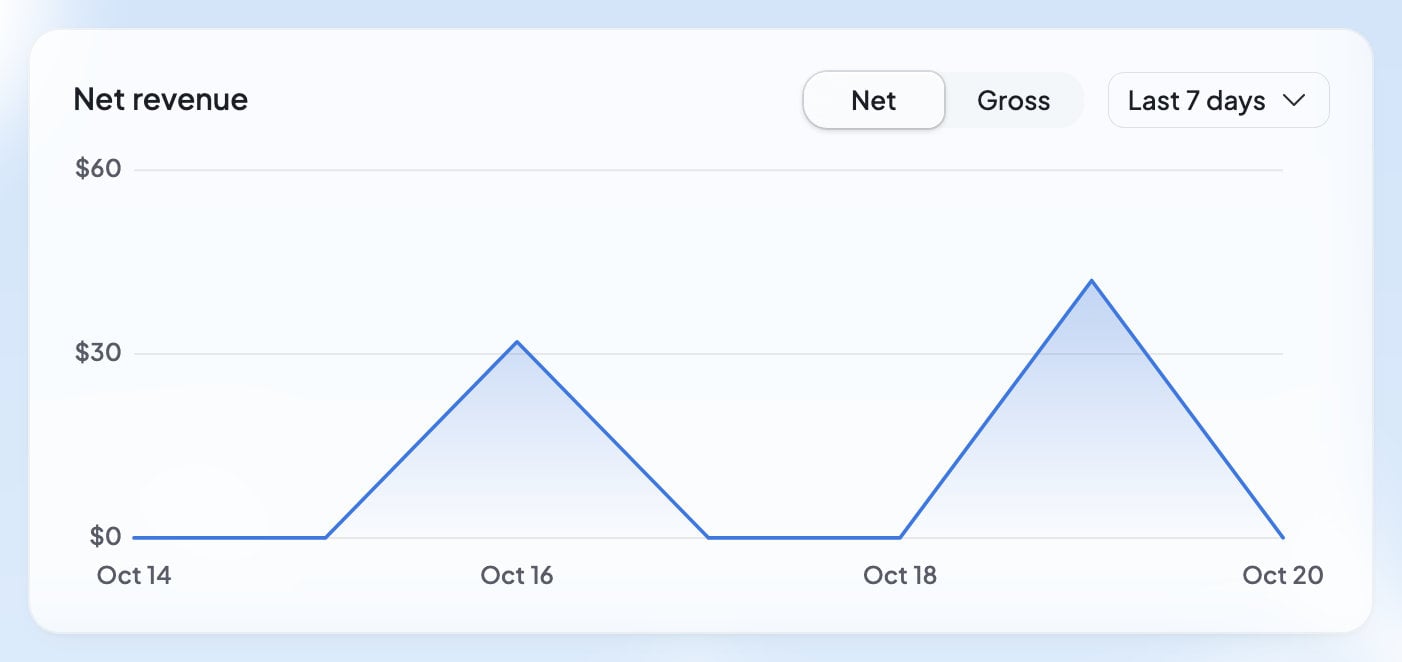
Pick a **Time period**: **Last 7 days**, **Last 30 days** or **Last 90 days**. The **Net** and **Gross** switch changes the revenue figure and its chart:
* “Net revenue”, “After refunds”: what customers paid, minus refunds.
* “Gross revenue”, “Total charged”: everything customers paid.
* “Customers”: how many “Paying buyers” you had.
The “Paid transactions” chart shows how many sales you made each day.
### Recent transactions
Each sale shows what was bought, the buyer’s email, their account on your website, the amount and the date. The amount is what you kept after any refund. “N/A” means there’s nothing to show, for example a buyer who wasn’t signed in on your website.
## What the dashboard shows
From top to bottom:
| Part | What it shows |
| - | - |
| **Open in Stripe** | Opens your Stripe Dashboard. Only the owner sees it. |
| **Learn how payments work** | Short notes on refunds and disputes, payouts, and taxes. |
| “Manage your payout account” | **Manage payouts** opens your payout settings in Stripe, where your bank account is. Only the owner can use it. |
| **Dashboard** | Your Stripe account, marked “Live”, with **Copy account ID**. |
| Figures and charts | Your revenue, your paying buyers and your paid sales over the period you pick. |
| **Recent transactions** | Every paid sale, newest first. |
| **Recent adjustments** | Refunds and disputes. |
| **Orders** | Paid orders to ship, from a website with its own cart. |
| **Products** | What the selected website sells. See [Your products in Payments](/payments/sell-on-your-website#your-products-in-payments). |
### Revenue and buyers
Pick a **Time period**: **Last 7 days**, **Last 30 days** or **Last 90 days**. The **Net** and **Gross** switch changes the revenue figure and its chart:
* “Net revenue”, “After refunds”: what customers paid, minus refunds.
* “Gross revenue”, “Total charged”: everything customers paid.
* “Customers”: how many “Paying buyers” you had.
The “Paid transactions” chart shows how many sales you made each day.
### Recent transactions
Each sale shows what was bought, the buyer’s email, their account on your website, the amount and the date. The amount is what you kept after any refund. “N/A” means there’s nothing to show, for example a buyer who wasn’t signed in on your website.
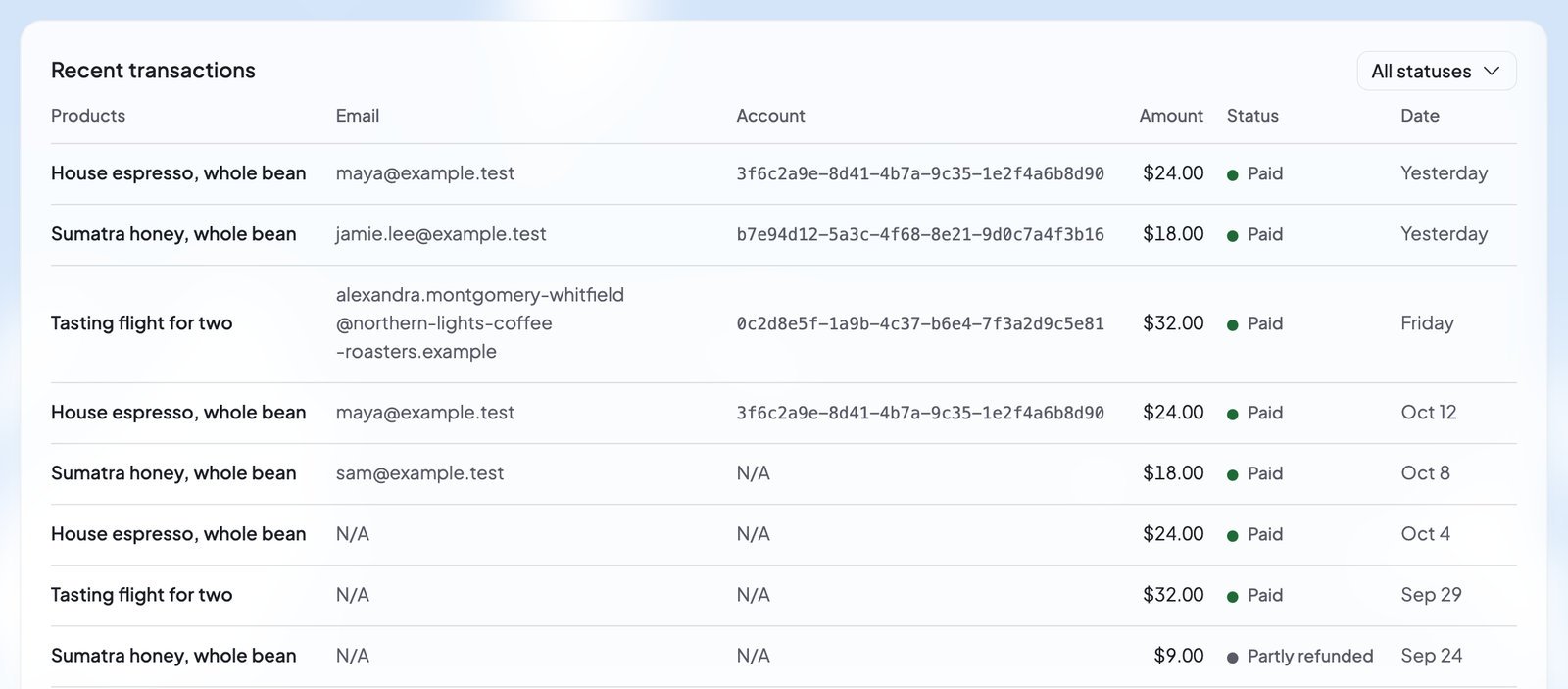 A sale’s status is “Paid”, “Partly refunded” or “Refunded”. To see only some statuses, use the **All statuses** filter. **Load more** shows older sales.
### Recent adjustments
Refunds and disputes show here, newest first, with the amount, Stripe’s reason and Stripe’s status. A dispute, shown as “Chargeback”, means a customer asked their bank to take the payment back. You answer disputes in your Stripe Dashboard, not in Foundable.
## Refund a sale
A refund from Payments returns the whole sale, or what’s left of it after an earlier partial refund. Only the owner or an admin can refund.
In **Recent transactions**, find the sale. Use **All statuses** or **Load more** if you need to.
Press **…** at the end of the sale’s row, then choose **Refund**.
“Refund this sale?” shows the amount and the buyer. The money goes back “from your Stripe balance, and they lose access to what they bought. This can’t be undone.”
A sale’s status is “Paid”, “Partly refunded” or “Refunded”. To see only some statuses, use the **All statuses** filter. **Load more** shows older sales.
### Recent adjustments
Refunds and disputes show here, newest first, with the amount, Stripe’s reason and Stripe’s status. A dispute, shown as “Chargeback”, means a customer asked their bank to take the payment back. You answer disputes in your Stripe Dashboard, not in Foundable.
## Refund a sale
A refund from Payments returns the whole sale, or what’s left of it after an earlier partial refund. Only the owner or an admin can refund.
In **Recent transactions**, find the sale. Use **All statuses** or **Load more** if you need to.
Press **…** at the end of the sale’s row, then choose **Refund**.
“Refund this sale?” shows the amount and the buyer. The money goes back “from your Stripe balance, and they lose access to what they bought. This can’t be undone.”
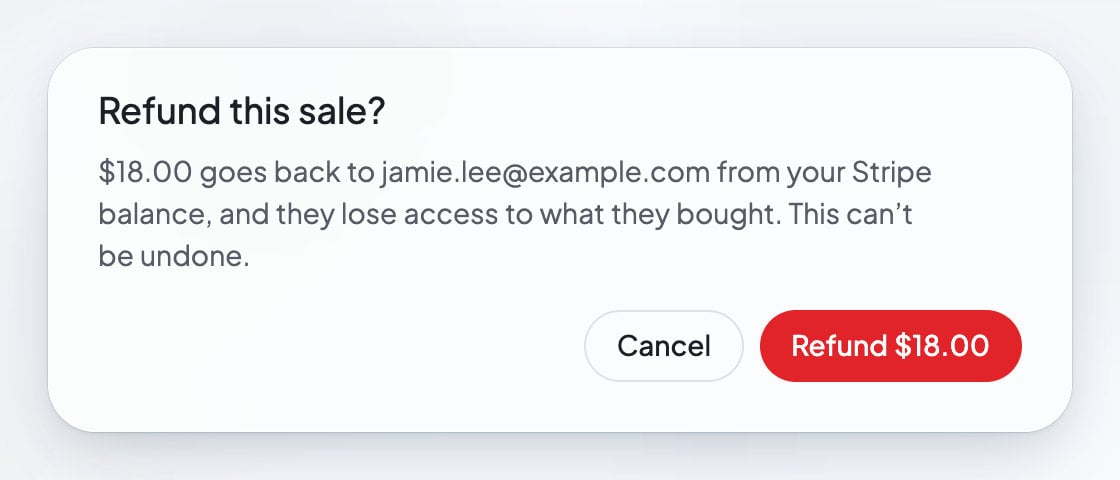 Press the button with the amount, like **Refund \$18.00**. The sale then says “Refund on its way”. Payments adds: “Stripe usually returns it to the buyer’s card in 5 to 10 business days.”
To refund part of a sale, use your Stripe Dashboard. Payments then shows the sale as “Partly refunded”.
### Ask Ted to refund
You can also ask in the chat, for example: “Refund Maya’s order.” Ted looks for that customer’s sales and shows a refund card:
* **One sale found:** the card says “Refund this sale?” with the amount, and “Payments matched” the name “to this sale. Check the email before refunding.” Press the refund button with the amount.
* **Several sales found:** the card asks “Refund which sale?” and lists them. Pick one. **Search these by email** narrows the list, and **Pick another** takes you back to it.
* **None found:** Ted asks for the customer’s email or the day they paid, then tries again.
Nothing is refunded until the owner or an admin presses the card’s refund button, or answers “yes” in their next message. When the card lists several sales, say which one, like “yes, the second one”.
### If a refund doesn’t go through
| What you see | What to do |
| - | - |
| “Your Stripe balance is too low to pay this refund. Add funds in your Stripe Dashboard, then try again.” | Add money to your Stripe balance, then refund again. |
| “Stripe won’t refund a sale with a dispute open. Respond to the dispute in your Stripe Dashboard.” | Answer the dispute in Stripe. |
| “Stripe says this sale is already refunded in full.” | Nothing to do. The buyer already has all their money back. |
| “Stripe declined this refund. Your Stripe Dashboard says why.” | Open your Stripe Dashboard to see Stripe’s reason. |
| “This sale can’t be refunded now. It may be refunded or disputed already, or have a refund on its way.” | Check **Recent adjustments** for that sale. |
| “Failed to refund. Try again.” | Try again. |
## Ship orders
If your website has its own cart, like one Ted built for you, its paid orders show in **Orders**. Sales from Buy buttons stay in **Recent transactions**.
* **To ship** lists paid orders waiting to go out, with how many. **Shipped** lists the ones you marked.
* Each order shows its number, the items, where it ships to (“Ship to”) and its total.
* An order’s **…** menu has **Copy address** and **Print packing slip** for everyone, and **Mark shipped** for the owner and admins.
* **Mark shipped** asks for the **Carrier** and an optional tracking number, then you press **Mark shipped**. A shipped order’s menu has **Edit tracking** and **Mark not shipped**.
An order that was disputed or partly refunded is marked “Disputed” or “Partly refunded”, so you don’t ship it by mistake. With nothing waiting, the card says “Nothing to ship. Paid orders show here.”
## Your sales on Home
Home’s **Insights** card shows revenue and customers from the same sales. See [Home](/get-started/home).
## FAQ
No. Net revenue is what customers paid minus refunds. Stripe’s fees and taxes aren’t taken off. Your Stripe Dashboard shows your fees.
No. Purchases made with a test card show only in Payments’ **Test** view, never in your live sales or figures. See [Test a purchase](/payments/test-mode).
Yes. Ask him in the chat. He reads your sales, products and test purchases, and answers from them.
Everyone in your foundable, view only included, sees your sales and each buyer’s email. Only the owner and admins can refund or mark orders shipped. See [Who can do what](/payments/overview#who-can-do-what).
## Related
Set up Payments, payouts and who can do what.
Add products and their Buy buttons.
Try your checkout with a test card.
Ask Ted about sales or a refund.
This documentation is built and hosted on [Mintlify](https://mintlify.com), a developer documentation platform.
Press the button with the amount, like **Refund \$18.00**. The sale then says “Refund on its way”. Payments adds: “Stripe usually returns it to the buyer’s card in 5 to 10 business days.”
To refund part of a sale, use your Stripe Dashboard. Payments then shows the sale as “Partly refunded”.
### Ask Ted to refund
You can also ask in the chat, for example: “Refund Maya’s order.” Ted looks for that customer’s sales and shows a refund card:
* **One sale found:** the card says “Refund this sale?” with the amount, and “Payments matched” the name “to this sale. Check the email before refunding.” Press the refund button with the amount.
* **Several sales found:** the card asks “Refund which sale?” and lists them. Pick one. **Search these by email** narrows the list, and **Pick another** takes you back to it.
* **None found:** Ted asks for the customer’s email or the day they paid, then tries again.
Nothing is refunded until the owner or an admin presses the card’s refund button, or answers “yes” in their next message. When the card lists several sales, say which one, like “yes, the second one”.
### If a refund doesn’t go through
| What you see | What to do |
| - | - |
| “Your Stripe balance is too low to pay this refund. Add funds in your Stripe Dashboard, then try again.” | Add money to your Stripe balance, then refund again. |
| “Stripe won’t refund a sale with a dispute open. Respond to the dispute in your Stripe Dashboard.” | Answer the dispute in Stripe. |
| “Stripe says this sale is already refunded in full.” | Nothing to do. The buyer already has all their money back. |
| “Stripe declined this refund. Your Stripe Dashboard says why.” | Open your Stripe Dashboard to see Stripe’s reason. |
| “This sale can’t be refunded now. It may be refunded or disputed already, or have a refund on its way.” | Check **Recent adjustments** for that sale. |
| “Failed to refund. Try again.” | Try again. |
## Ship orders
If your website has its own cart, like one Ted built for you, its paid orders show in **Orders**. Sales from Buy buttons stay in **Recent transactions**.
* **To ship** lists paid orders waiting to go out, with how many. **Shipped** lists the ones you marked.
* Each order shows its number, the items, where it ships to (“Ship to”) and its total.
* An order’s **…** menu has **Copy address** and **Print packing slip** for everyone, and **Mark shipped** for the owner and admins.
* **Mark shipped** asks for the **Carrier** and an optional tracking number, then you press **Mark shipped**. A shipped order’s menu has **Edit tracking** and **Mark not shipped**.
An order that was disputed or partly refunded is marked “Disputed” or “Partly refunded”, so you don’t ship it by mistake. With nothing waiting, the card says “Nothing to ship. Paid orders show here.”
## Your sales on Home
Home’s **Insights** card shows revenue and customers from the same sales. See [Home](/get-started/home).
## FAQ
No. Net revenue is what customers paid minus refunds. Stripe’s fees and taxes aren’t taken off. Your Stripe Dashboard shows your fees.
No. Purchases made with a test card show only in Payments’ **Test** view, never in your live sales or figures. See [Test a purchase](/payments/test-mode).
Yes. Ask him in the chat. He reads your sales, products and test purchases, and answers from them.
Everyone in your foundable, view only included, sees your sales and each buyer’s email. Only the owner and admins can refund or mark orders shipped. See [Who can do what](/payments/overview#who-can-do-what).
## Related
Set up Payments, payouts and who can do what.
Add products and their Buy buttons.
Try your checkout with a test card.
Ask Ted about sales or a refund.
This documentation is built and hosted on [Mintlify](https://mintlify.com), a developer documentation platform.