> ## Documentation Index
> Fetch the complete documentation index at: https://docs.foundable.com/llms.txt
> Use this file to discover all available pages before exploring further.
# Sell on your website
> Ask Ted to sell something, confirm his card, and put its Buy button on your website. Customers pay on Stripe’s checkout page.
Ted makes your products and puts their Buy buttons on your website. You tell him what to sell and the price, confirm [his card](/ted/approvals), and [publish](/build/publish). Each product has a name and one price, and the customer pays once: Ted’s card calls it a “One-time purchase”.
 ## Before you start
* **To sell for real,** [set up Payments](/payments/overview#set-up-payments) and [publish your website](/build/publish).
* **Not set up yet?** Ask Ted anyway. Until Payments is ready and your website is published, his card makes a test product. You can [try it in your website’s preview](/payments/test-mode), and it goes on sale for real once both are done.
* **Only the owner or an admin** can create products and change what’s for sale.
## Sell something
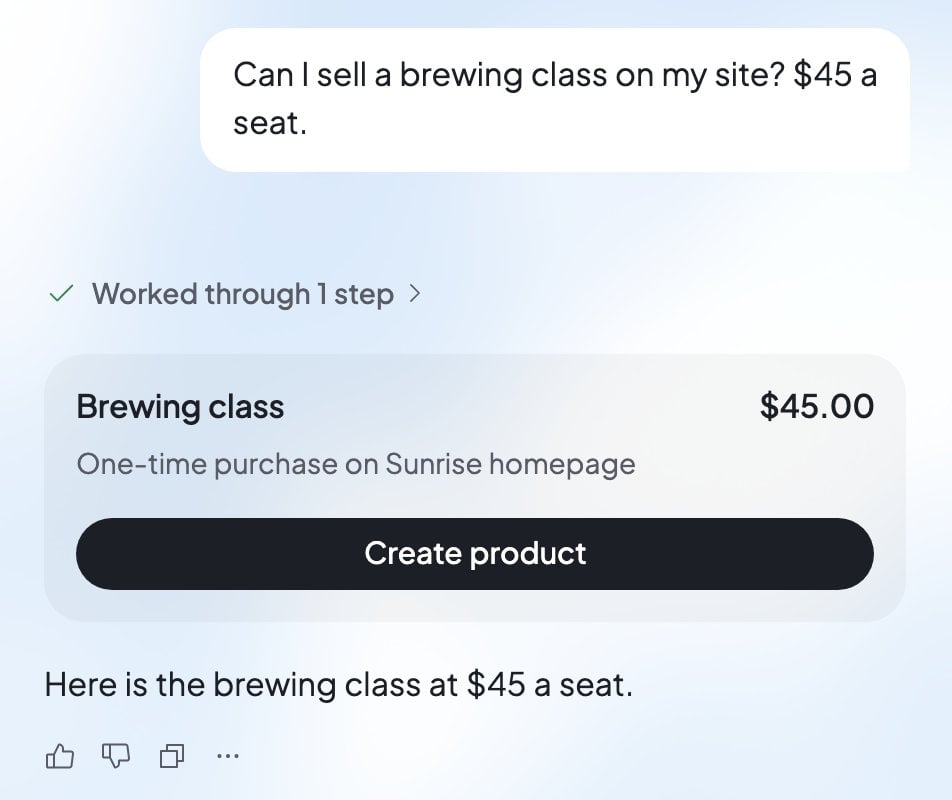
Say what you want to sell and the price. For example: “Sell a brewing class on my website for \$45 a seat.” If the price isn’t clear, Ted asks you for it.
Ted shows a card with the product’s name, its price and “One-time purchase on” your website. Check both closely: a product’s name and price can’t be changed later.
Press **Create product**, or answer “yes” in your next message. The card then says where the product stands.
Ted’s message box fills with a request for the product’s Buy button. It also asks for a small footer on every page. The footer has your business name, a contact email, and links to a refund policy, terms and a privacy page. Ted drafts any of those pages your website doesn’t have yet, for you to review. Read the request, change anything you like, then press Send.
When Ted has saved the change, look it over in the preview and [publish](/build/publish) your website. The Buy button goes live, and in Payments the product shows “On” and your website’s name.
Already told Ted exactly what to sell and the price, and asked him to sell it? If you’re the owner or an admin, he can create the product and add its Buy button without a card. You still publish the change.
## What Ted’s card says
| What the card says | What it means | What to do |
| - | - | - |
| It starts as a test product | Payments isn’t ready yet, or your website isn’t published. | Press **Create product**, then [test it in the preview](/payments/test-mode). It sells for real once Payments is set up and your website is published. |
| “Ready to sell. It goes on sale once its Buy button is on” your website. | The product exists, but your live website has no Buy button for it yet. | Press **Add to my site**, send the request, then publish. |
| “On sale on” your website | Customers can buy it. | Nothing. |
| “Being created on” your website “from your reply.” | You answered “yes”, so the product is being made. | Wait. The card updates by itself. |
| It “is switched off on” your website | You stopped selling it. | Press **Turn on sales** to sell it again. |
| “Start accepting payments to sell this.” or “Finish setting up payments to sell this.” | Payments isn’t set up yet. | Press the card’s button: **Start accepting payments** or **Continue with Stripe**. |
| “Stripe is reviewing your account. You can sell this once Stripe approves it.” | Stripe is still checking your details. | Nothing. It sells once Stripe approves. |
| Your website “already sells” it “at this price.” | You already have this product. | “Ask Ted for another name or price.” |
| A price Stripe won’t take | Stripe has a smallest and a largest amount it takes in one payment. | “Ask Ted for another price.” |
| “Only the owner or an admin can sell this.” | Your role can’t create products. | Ask the owner or an admin to confirm it. |
## Your products in Payments
The **Products** card in Payments lists what one website sells: the one picked at the top of Build. To see another website’s products, pick it there.
| What you see | What it means |
| - | - |
| “On” and your website’s name | It’s on sale. Its Buy button is on your live website. |
| “Not on your site yet” | It’s switched on, but your live website has no Buy button for it. |
| “Off” | It isn’t for sale. |
| “Archived in your Stripe Dashboard. Switch it on to sell it again.” | It was archived in Stripe. |
| “Publish” your website “to start selling on it.” | The website isn’t live yet. |
## Before you start
* **To sell for real,** [set up Payments](/payments/overview#set-up-payments) and [publish your website](/build/publish).
* **Not set up yet?** Ask Ted anyway. Until Payments is ready and your website is published, his card makes a test product. You can [try it in your website’s preview](/payments/test-mode), and it goes on sale for real once both are done.
* **Only the owner or an admin** can create products and change what’s for sale.
## Sell something
Say what you want to sell and the price. For example: “Sell a brewing class on my website for \$45 a seat.” If the price isn’t clear, Ted asks you for it.
Ted shows a card with the product’s name, its price and “One-time purchase on” your website. Check both closely: a product’s name and price can’t be changed later.
Press **Create product**, or answer “yes” in your next message. The card then says where the product stands.
Ted’s message box fills with a request for the product’s Buy button. It also asks for a small footer on every page. The footer has your business name, a contact email, and links to a refund policy, terms and a privacy page. Ted drafts any of those pages your website doesn’t have yet, for you to review. Read the request, change anything you like, then press Send.
When Ted has saved the change, look it over in the preview and [publish](/build/publish) your website. The Buy button goes live, and in Payments the product shows “On” and your website’s name.
Already told Ted exactly what to sell and the price, and asked him to sell it? If you’re the owner or an admin, he can create the product and add its Buy button without a card. You still publish the change.
## What Ted’s card says
| What the card says | What it means | What to do |
| - | - | - |
| It starts as a test product | Payments isn’t ready yet, or your website isn’t published. | Press **Create product**, then [test it in the preview](/payments/test-mode). It sells for real once Payments is set up and your website is published. |
| “Ready to sell. It goes on sale once its Buy button is on” your website. | The product exists, but your live website has no Buy button for it yet. | Press **Add to my site**, send the request, then publish. |
| “On sale on” your website | Customers can buy it. | Nothing. |
| “Being created on” your website “from your reply.” | You answered “yes”, so the product is being made. | Wait. The card updates by itself. |
| It “is switched off on” your website | You stopped selling it. | Press **Turn on sales** to sell it again. |
| “Start accepting payments to sell this.” or “Finish setting up payments to sell this.” | Payments isn’t set up yet. | Press the card’s button: **Start accepting payments** or **Continue with Stripe**. |
| “Stripe is reviewing your account. You can sell this once Stripe approves it.” | Stripe is still checking your details. | Nothing. It sells once Stripe approves. |
| Your website “already sells” it “at this price.” | You already have this product. | “Ask Ted for another name or price.” |
| A price Stripe won’t take | Stripe has a smallest and a largest amount it takes in one payment. | “Ask Ted for another price.” |
| “Only the owner or an admin can sell this.” | Your role can’t create products. | Ask the owner or an admin to confirm it. |
## Your products in Payments
The **Products** card in Payments lists what one website sells: the one picked at the top of Build. To see another website’s products, pick it there.
| What you see | What it means |
| - | - |
| “On” and your website’s name | It’s on sale. Its Buy button is on your live website. |
| “Not on your site yet” | It’s switched on, but your live website has no Buy button for it. |
| “Off” | It isn’t for sale. |
| “Archived in your Stripe Dashboard. Switch it on to sell it again.” | It was archived in Stripe. |
| “Publish” your website “to start selling on it.” | The website isn’t live yet. |
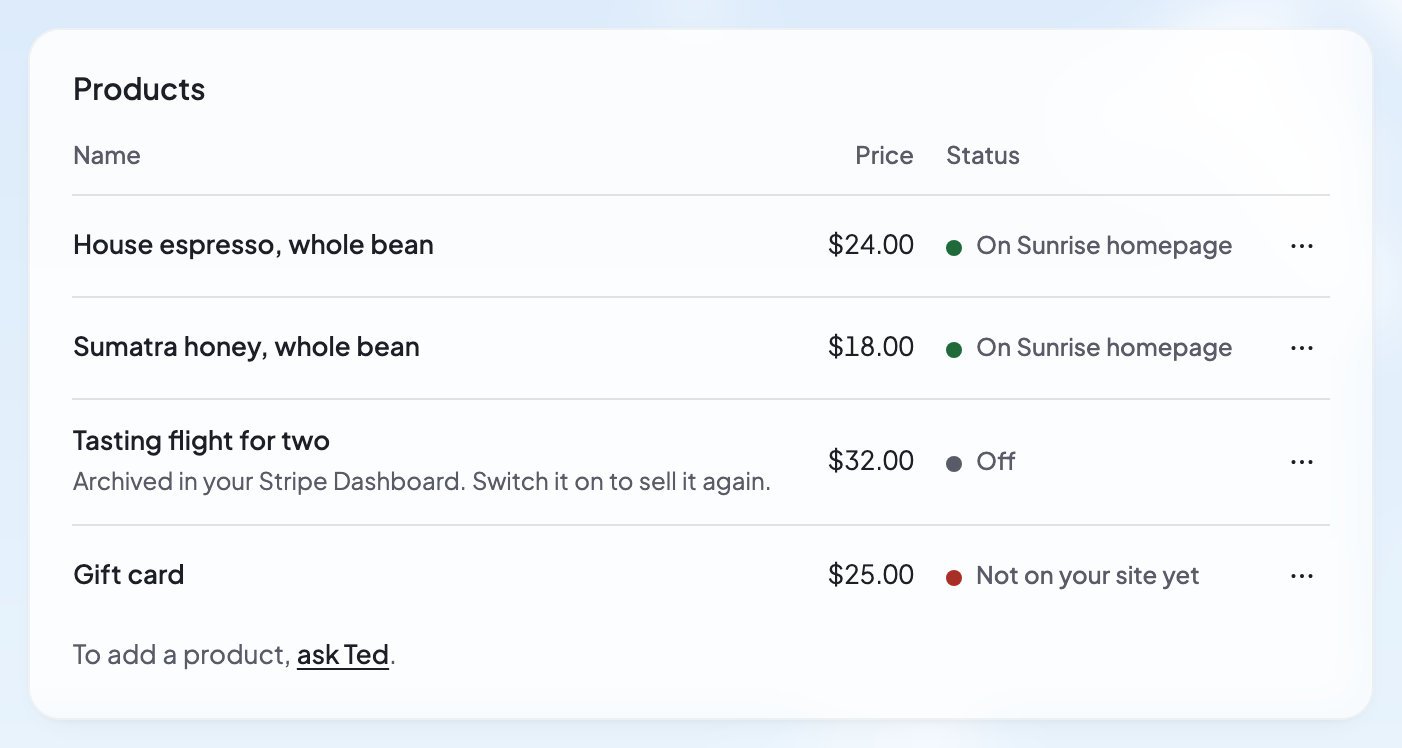 Owners and admins can switch a product off and on, or use **Stop selling** and **Sell again** in its **…** menu. While a product isn’t on your website, the same menu has **Add to my site**. A website with nothing for sale yet says “No products yet”, with **Ask Ted to add**. Otherwise the card ends with “To add a product, ask Ted.”
## What your customers see
When a customer presses a Buy button on your live website, Stripe’s checkout page opens with your product and price. They pay there, then come back to your website, which says how it went:
* “Thank you! Your payment went through.”
* “We’re confirming your payment.” and “It can take a moment.”
* “Your payment didn’t go through.”
* “Checkout canceled.” when they leave Stripe’s page without paying.
Customers don’t need an account on your website to buy. If your website has sign-in, Ted can tie a purchase to the customer’s account. That can open pages only buyers see.
Each sale then shows in Payments. See [Sales and refunds](/payments/sales-and-refunds).
## FAQ
No. Once a product is made, its name and price stay as they are. You can stop selling it, and ask Ted for another product with the new name or price.
Payments looks at your live website for the product’s Buy button and didn’t find one. Open the product’s **…** menu in Payments, choose **Add to my site**, send Ted the request, then publish the change.
No. When you duplicate a website, the copy starts with nothing for sale: “The copy has no products yet; add them in Payments.”
Because your website takes payments, the request asks that every page show who’s selling and how to reach you. Ted only drafts the pages. Check them in the preview, and ask him for any changes, before you publish.
## Related
Try your Buy button in the preview. No money moves.
See what sold and refund a sale.
Put your changes online for customers.
Ask Ted for products, buttons and pages.
This documentation is built and hosted on [Mintlify](https://mintlify.com), a developer documentation platform.
Owners and admins can switch a product off and on, or use **Stop selling** and **Sell again** in its **…** menu. While a product isn’t on your website, the same menu has **Add to my site**. A website with nothing for sale yet says “No products yet”, with **Ask Ted to add**. Otherwise the card ends with “To add a product, ask Ted.”
## What your customers see
When a customer presses a Buy button on your live website, Stripe’s checkout page opens with your product and price. They pay there, then come back to your website, which says how it went:
* “Thank you! Your payment went through.”
* “We’re confirming your payment.” and “It can take a moment.”
* “Your payment didn’t go through.”
* “Checkout canceled.” when they leave Stripe’s page without paying.
Customers don’t need an account on your website to buy. If your website has sign-in, Ted can tie a purchase to the customer’s account. That can open pages only buyers see.
Each sale then shows in Payments. See [Sales and refunds](/payments/sales-and-refunds).
## FAQ
No. Once a product is made, its name and price stay as they are. You can stop selling it, and ask Ted for another product with the new name or price.
Payments looks at your live website for the product’s Buy button and didn’t find one. Open the product’s **…** menu in Payments, choose **Add to my site**, send Ted the request, then publish the change.
No. When you duplicate a website, the copy starts with nothing for sale: “The copy has no products yet; add them in Payments.”
Because your website takes payments, the request asks that every page show who’s selling and how to reach you. Ted only drafts the pages. Check them in the preview, and ask him for any changes, before you publish.
## Related
Try your Buy button in the preview. No money moves.
See what sold and refund a sale.
Put your changes online for customers.
Ask Ted for products, buttons and pages.
This documentation is built and hosted on [Mintlify](https://mintlify.com), a developer documentation platform.