> ## Documentation Index
> Fetch the complete documentation index at: https://docs.foundable.com/llms.txt
> Use this file to discover all available pages before exploring further.
# Test a purchase
> Buy from your website’s preview with Stripe’s test card to check your checkout works. No money moves, and you can start before Stripe approves you.
Before customers buy for real, buy from your own website in [Build’s preview](/build/preview-and-edit). You go through the same checkout a customer would, but you pay with Stripe’s test card, so no money moves.
You can test before Payments is set up and before your website is published. Ted’s products start as test products until both are done.
 ## Make a test purchase
Ask Ted for a product and press **Create product** on his card. Until Payments is ready and your website is published, it’s a test product. See [Sell on your website](/payments/sell-on-your-website). Products you already sell can be tested too.
Press **Add to my site** on Ted’s card and send the request. Ted adds the Buy button to your website. You don’t need to publish to test it.
In **Build**, open your website and press its Buy button. Stripe’s test checkout opens, either right in the preview or in a new tab.
## Make a test purchase
Ask Ted for a product and press **Create product** on his card. Until Payments is ready and your website is published, it’s a test product. See [Sell on your website](/payments/sell-on-your-website). Products you already sell can be tested too.
Press **Add to my site** on Ted’s card and send the request. Ted adds the Buy button to your website. You don’t need to publish to test it.
In **Build**, open your website and press its Buy button. Stripe’s test checkout opens, either right in the preview or in a new tab.
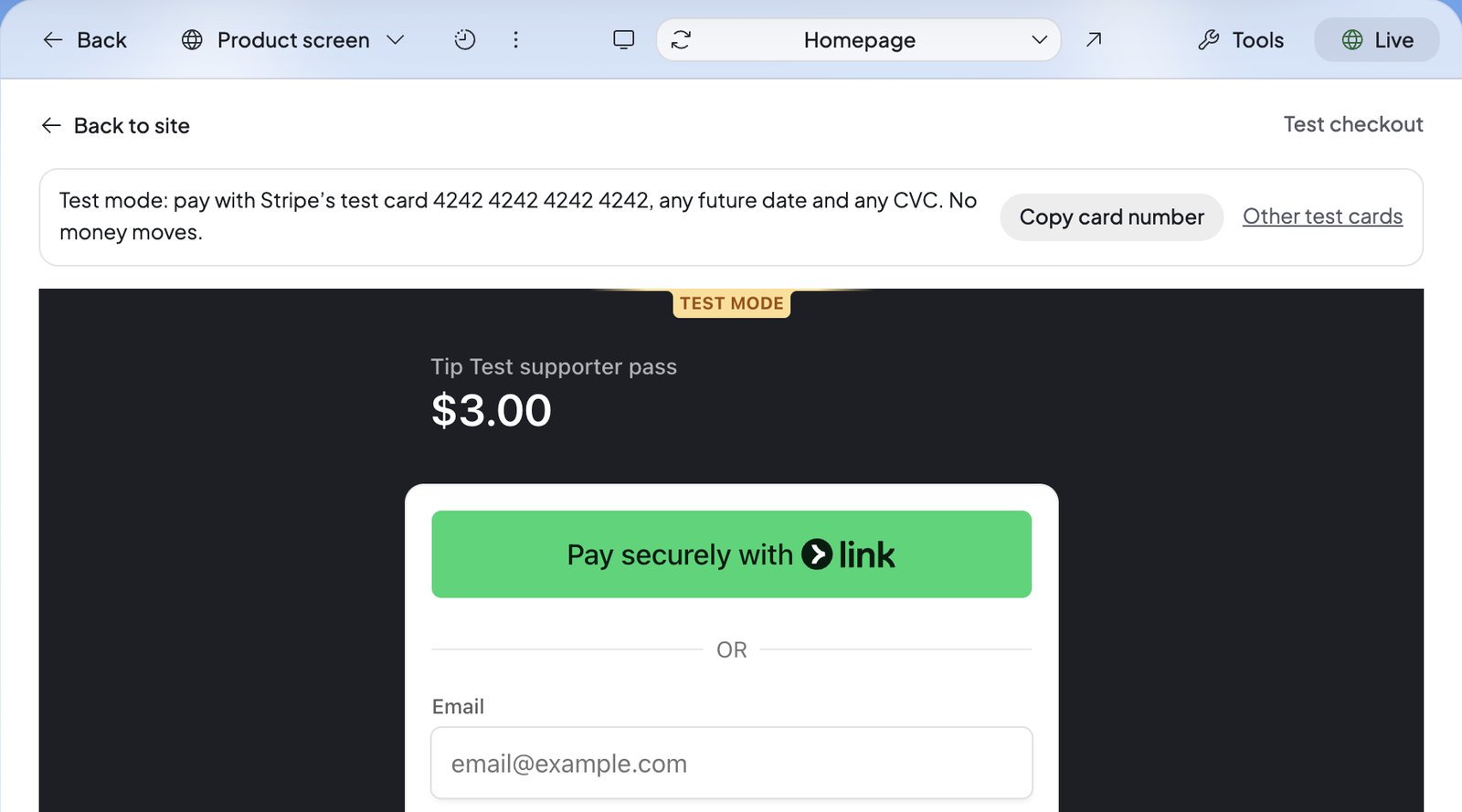 Use card number 4242 4242 4242 4242, any future date and any CVC. If the checkout opens in the preview, **Copy card number** copies the number. **Back to site** takes you back to your website.
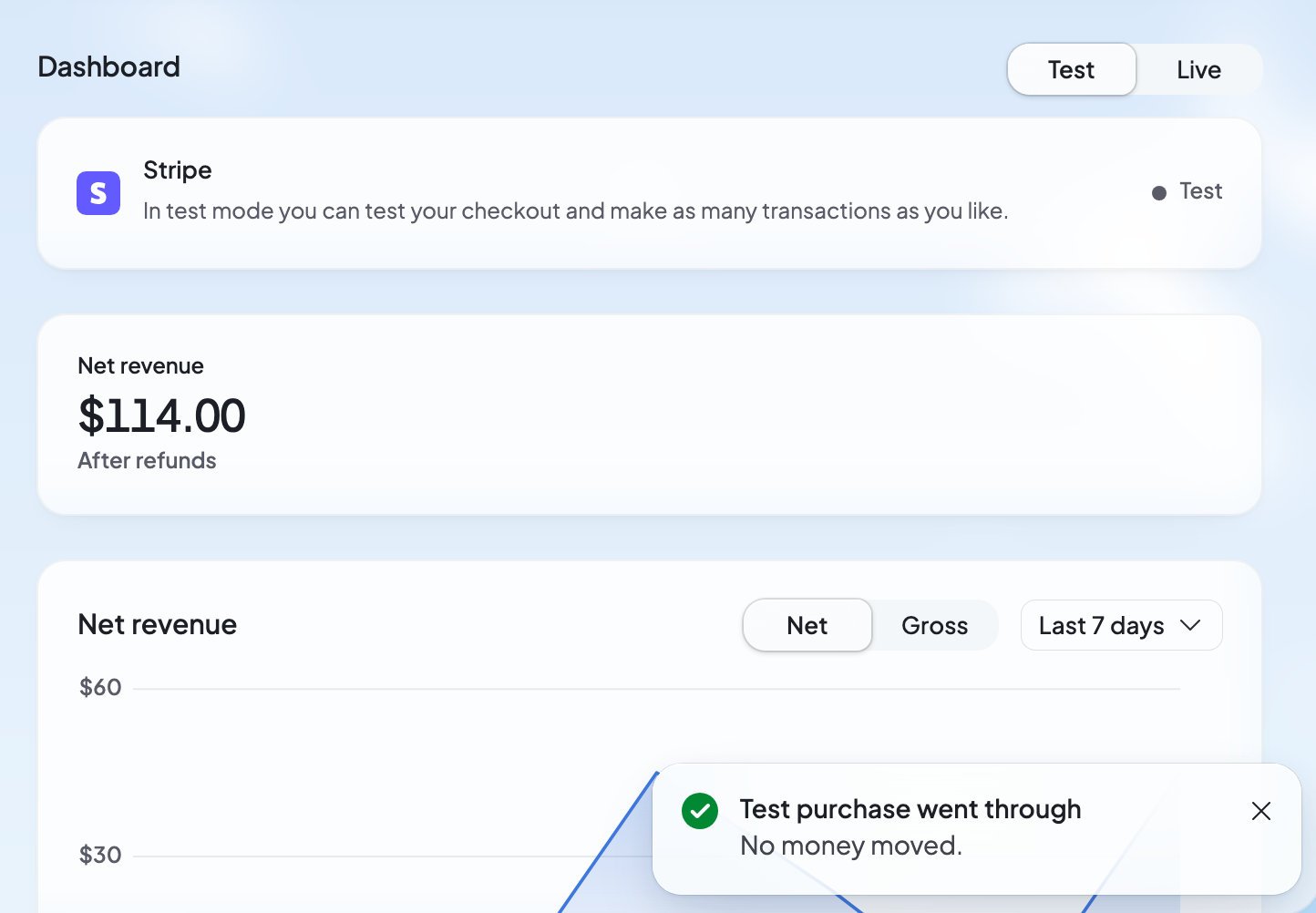
Payments opens on **Test** and says “Test purchase went through” and “No money moved.” Your test purchase is first in the list.
Test only in Build’s preview. On your live website, the Buy button takes real payments with real cards.
## What you’ll see
| What you see | What it means | What to do |
| - | - | - |
| “Test purchase went through” and “No money moved.” | The test payment worked. | Look it over in the **Test** view. |
| “Test checkout canceled” | You left Stripe’s page without paying. | Press the Buy button again when you’re ready. |
| “We’re confirming your payment.” and “It can take a moment.” | Stripe hasn’t confirmed the payment yet. | Wait a moment. |
| “Your payment didn’t go through.” | The test payment didn’t work. | Try again with the test card. |
| “Your test checkout is ready” with **Open test checkout** | Your browser stopped the new tab from opening. | Press **Open test checkout**. |
| “The test checkout didn’t load.” | Stripe’s form couldn’t open in the preview. | Press **Try again**. |
| “Too many tries. Please wait a moment and try again.” | You started a lot of test checkouts in a short time. | Wait a little, then try again. |
| “This item isn’t for sale right now.” | Nothing is for sale on that button. The product may be switched off. | Check the product in Payments. |
## The Test view
Payments has a **Test** and **Live** switch. It sits at the end of the **Dashboard** row, or in a row of its own before Stripe approves your account. **Live** is your real sales. **Test** shows only your test purchases:
* The account row says “In test mode you can test your checkout and make as many transactions as you like.”
* Revenue and charts count your paid test purchases.
* Each test purchase is listed without a buyer email.
* **Products** lists your website’s test products, with **Add to my site** in their **…** menu.
Use card number 4242 4242 4242 4242, any future date and any CVC. If the checkout opens in the preview, **Copy card number** copies the number. **Back to site** takes you back to your website.
Payments opens on **Test** and says “Test purchase went through” and “No money moved.” Your test purchase is first in the list.
Test only in Build’s preview. On your live website, the Buy button takes real payments with real cards.
## What you’ll see
| What you see | What it means | What to do |
| - | - | - |
| “Test purchase went through” and “No money moved.” | The test payment worked. | Look it over in the **Test** view. |
| “Test checkout canceled” | You left Stripe’s page without paying. | Press the Buy button again when you’re ready. |
| “We’re confirming your payment.” and “It can take a moment.” | Stripe hasn’t confirmed the payment yet. | Wait a moment. |
| “Your payment didn’t go through.” | The test payment didn’t work. | Try again with the test card. |
| “Your test checkout is ready” with **Open test checkout** | Your browser stopped the new tab from opening. | Press **Open test checkout**. |
| “The test checkout didn’t load.” | Stripe’s form couldn’t open in the preview. | Press **Try again**. |
| “Too many tries. Please wait a moment and try again.” | You started a lot of test checkouts in a short time. | Wait a little, then try again. |
| “This item isn’t for sale right now.” | Nothing is for sale on that button. The product may be switched off. | Check the product in Payments. |
## The Test view
Payments has a **Test** and **Live** switch. It sits at the end of the **Dashboard** row, or in a row of its own before Stripe approves your account. **Live** is your real sales. **Test** shows only your test purchases:
* The account row says “In test mode you can test your checkout and make as many transactions as you like.”
* Revenue and charts count your paid test purchases.
* Each test purchase is listed without a buyer email.
* **Products** lists your website’s test products, with **Add to my site** in their **…** menu.
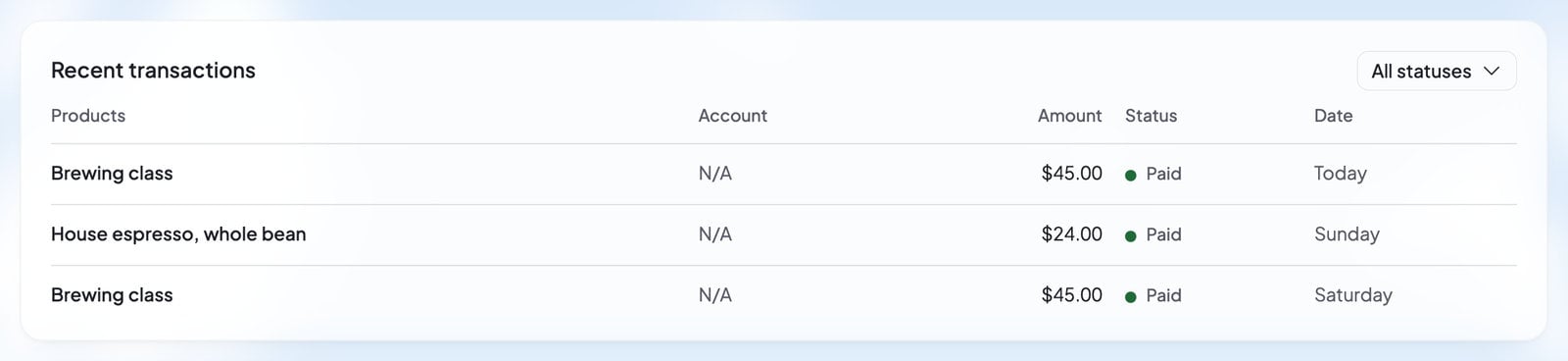 The Test view has no refunds or disputes, because nothing was charged. Test purchases never show in your live sales.
## When your test products go live
A test product goes on sale for real by itself once Stripe approves your account and your website is published. You don’t need to make it again: the same Buy button then takes real payments on your live website.
## Who can test
Everyone in your foundable can look at the **Test** view. The owner, admins and members can buy in the preview. Only the owner or an admin can create a test product.
## FAQ
No. Test purchases run on Stripe’s test system, never on your own Stripe account, so no money moves and nothing is charged.
Yes. When the test checkout opens in the preview, **Other test cards** opens Stripe’s page of test cards, with more numbers to try.
No. A Buy button pressed in Build’s preview always opens a test checkout, even after your website takes real payments.
## Related
Ask Ted for a product and add its Buy button.
Set up Payments with Stripe.
Look at your website before anyone else does.
See your real sales once you go live.
This documentation is built and hosted on [Mintlify](https://mintlify.com), a developer documentation platform.
The Test view has no refunds or disputes, because nothing was charged. Test purchases never show in your live sales.
## When your test products go live
A test product goes on sale for real by itself once Stripe approves your account and your website is published. You don’t need to make it again: the same Buy button then takes real payments on your live website.
## Who can test
Everyone in your foundable can look at the **Test** view. The owner, admins and members can buy in the preview. Only the owner or an admin can create a test product.
## FAQ
No. Test purchases run on Stripe’s test system, never on your own Stripe account, so no money moves and nothing is charged.
Yes. When the test checkout opens in the preview, **Other test cards** opens Stripe’s page of test cards, with more numbers to try.
No. A Buy button pressed in Build’s preview always opens a test checkout, even after your website takes real payments.
## Related
Ask Ted for a product and add its Buy button.
Set up Payments with Stripe.
Look at your website before anyone else does.
See your real sales once you go live.
This documentation is built and hosted on [Mintlify](https://mintlify.com), a developer documentation platform.