> ## Documentation Index
> Fetch the complete documentation index at: https://docs.foundable.com/llms.txt
> Use this file to discover all available pages before exploring further.
# Scheduled tasks
> Have Ted do a job for you at set times, or each time something happens, like a paid sale or a new email. See every run and what Ted did.
A scheduled task is a job Ted does for you again and again. It can run at set times, like every weekday at 9 AM, or each time something happens, like a paid sale or a new email. You write what Ted should do once, and he does it every time.
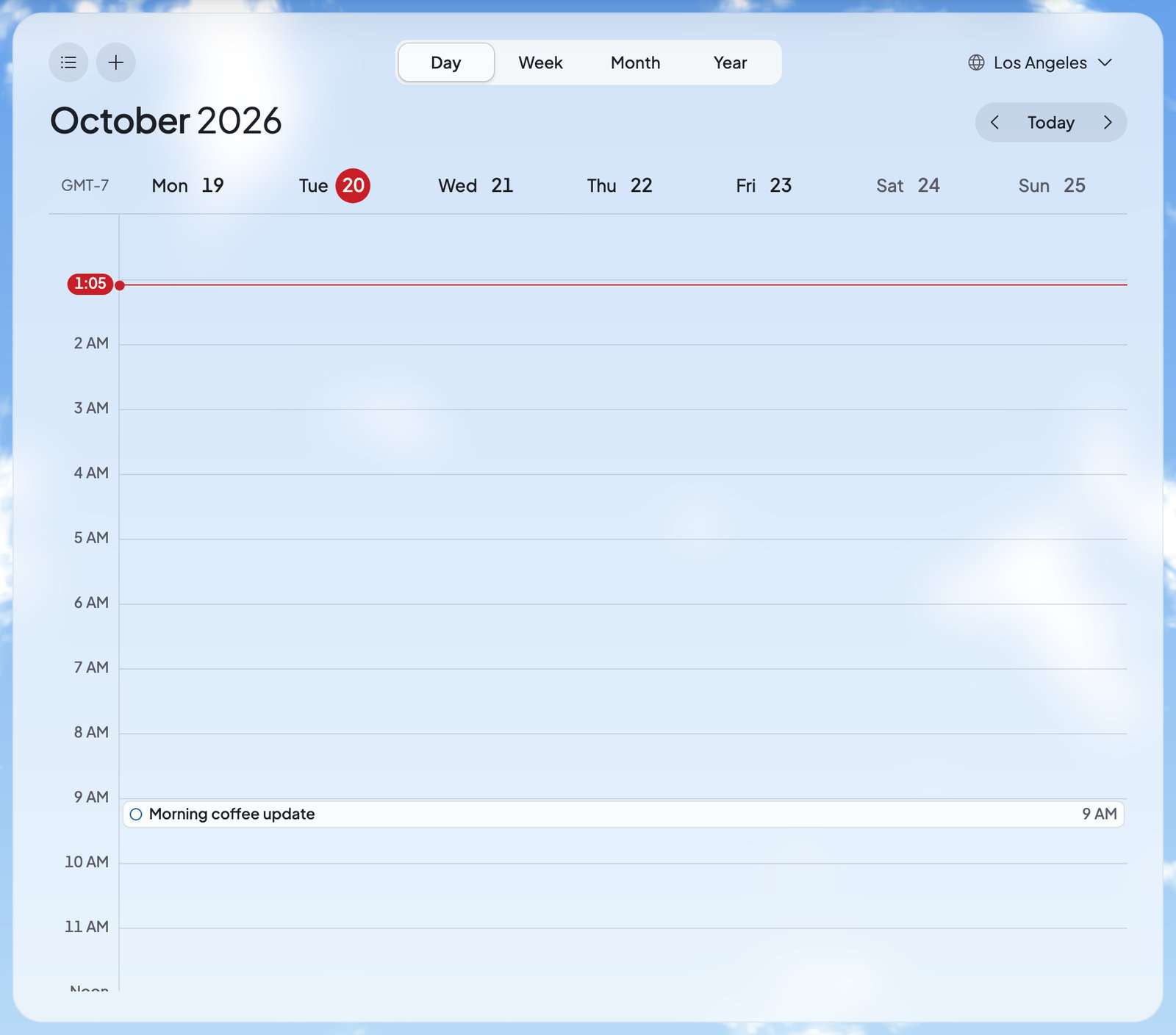
**Schedule** shows your tasks on a calendar. Each time a task runs, you can see what Ted did, and anything he drafted waits for your OK.
 Once, or on repeat: daily, on weekdays, weekly, monthly, or every so many minutes or hours.
When a sale is paid, when an email arrives, or when something happens in an app you connected.
## Open Schedule
* On a computer or tablet, press **Schedule** (the calendar) in the top bar.
* On a phone, press **More**, then **Schedule**.
A dot on **Schedule** means Ted set up a new task you haven’t opened yet.
## Set up a task
There are two ways: ask Ted, or make it yourself.
### Ask Ted
Tell Ted [in the chat](/ted/chat) what you want done, and when. For example: “Every Monday at 8 AM, look at last week’s sales and tell me what stood out.” When the owner asks, Ted sets the task up himself, with no card to approve. He can also set one up while he works in [Run](/run/overview).
A task Ted made says “Set up by Ted”, or “Set up by Ted during your run” with **Open Run**. It’s marked “New” until you open it.
### Make it yourself
Only the owner can make a task in Schedule.
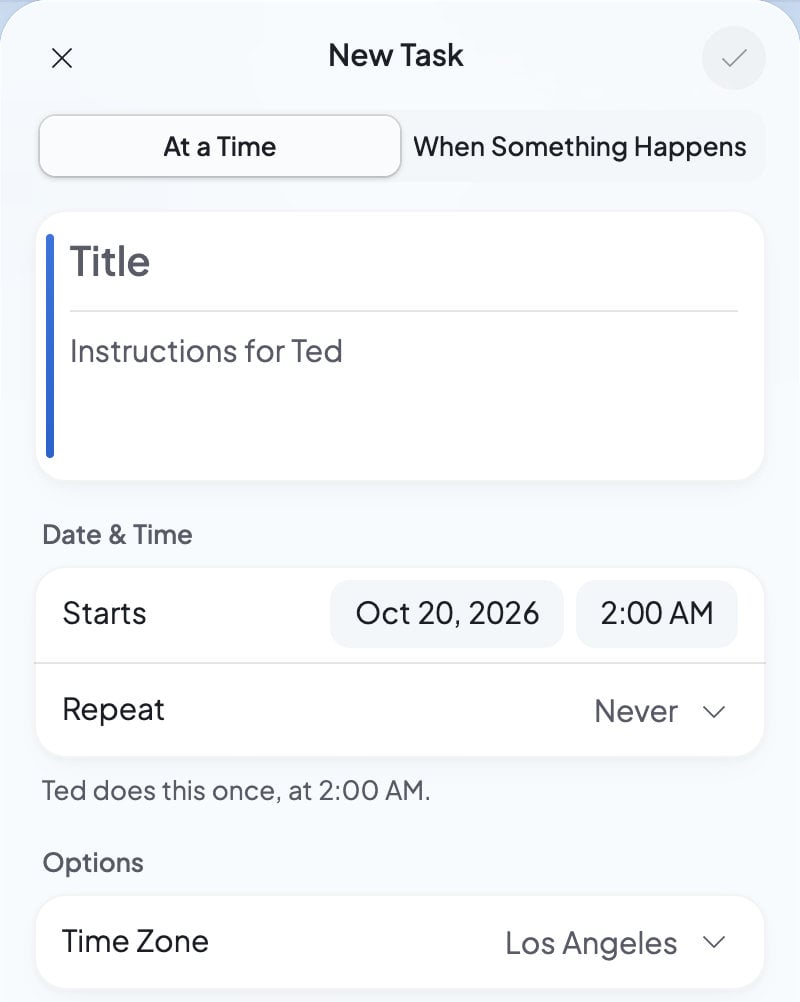
In Schedule, press **New task** (the **+**). The “New Task” sheet opens.
Pick **At a Time** or **When Something Happens**.
Type a **Title**, then the instructions under “Instructions for Ted”.
For **At a Time**, set **Starts** and **Repeat**. For **When Something Happens**, choose **What happens** and **When to run**. Both are explained below.
Check the **Time Zone**, then press the **✓** at the top. It turns on once the task has a title and instructions.
To leave without saving, press the **×**. If you made changes, you’ll see “Are you sure you want to discard this new task?” with **Discard Changes** and **Keep Editing**.
Once, or on repeat: daily, on weekdays, weekly, monthly, or every so many minutes or hours.
When a sale is paid, when an email arrives, or when something happens in an app you connected.
## Open Schedule
* On a computer or tablet, press **Schedule** (the calendar) in the top bar.
* On a phone, press **More**, then **Schedule**.
A dot on **Schedule** means Ted set up a new task you haven’t opened yet.
## Set up a task
There are two ways: ask Ted, or make it yourself.
### Ask Ted
Tell Ted [in the chat](/ted/chat) what you want done, and when. For example: “Every Monday at 8 AM, look at last week’s sales and tell me what stood out.” When the owner asks, Ted sets the task up himself, with no card to approve. He can also set one up while he works in [Run](/run/overview).
A task Ted made says “Set up by Ted”, or “Set up by Ted during your run” with **Open Run**. It’s marked “New” until you open it.
### Make it yourself
Only the owner can make a task in Schedule.
In Schedule, press **New task** (the **+**). The “New Task” sheet opens.
Pick **At a Time** or **When Something Happens**.
Type a **Title**, then the instructions under “Instructions for Ted”.
For **At a Time**, set **Starts** and **Repeat**. For **When Something Happens**, choose **What happens** and **When to run**. Both are explained below.
Check the **Time Zone**, then press the **✓** at the top. It turns on once the task has a title and instructions.
To leave without saving, press the **×**. If you made changes, you’ll see “Are you sure you want to discard this new task?” with **Discard Changes** and **Keep Editing**.
 ## Choose when it runs
### At a time
**Starts** sets the date and time of the first run. **Repeat** sets how often it comes back:
| Repeat | Ted does it |
| - | - |
| **Never** | Once, at the time you set. |
| **Daily** | Every day at that time. |
| **Weekdays** | Monday to Friday at that time. |
| **Weekly** | Every week, on the weekday of the date you set. |
| **Monthly** | Every month, on the day of the date you set. |
| **Custom** | On your own rule. Under **Frequency**, pick **Daily**, **Weekly** on the days you choose, **Monthly** on the day you choose, or **Hourly**: every so many **Minutes** or **Hours** through the day, with an optional **Until** time. |
Under it, the sheet says the rule in words, like “Ted does this every weekday, at 9:00 AM.” A one-time task needs a time that hasn’t passed. **Time Zone** sets whose clock the task follows, picked by city.
### When something happens
Under **What happens**, choose what starts the task:
* **A sale is paid**: any sale, or **Only sales of at least** an **Amount** in a **Currency**.
* **An email arrives**: from **Anyone**, or from **These addresses**. Turn on **Only replies to your emails** to start it only when someone answers an email you sent.
* **Something happens in an app**: pick the **App** and its **Event**. This shows for apps you’ve [connected](/account/integrations) that offer events.
Under **When to run**, choose **As each one arrives**, or **Together, at set times** to handle several at once. As the sheet says, “Each run uses credits, so handling them together at set times costs less.”
When an email starts a task, Ted reads each email first. Spam and automatic mail are passed over. A simple question can get a quick reply, which waits for your OK like any draft. Everything else goes to Ted.
## The calendar
| Control | What it does |
| - | - |
| **Day**, **Week**, **Month**, **Year** | Changes how much of the calendar you see. |
| ‹ **Today** › | Moves back or forward, or returns to today. |
| **All tasks** | Lists every task, grouped “At a Time”, “Through the Day” and “When Something Happens”. |
| **New task** | Makes a task (owner only). |
| The globe | Names the city whose time the calendar shows. |
A time that has passed shows what happened: “Started”, “Starting”, “Skipped” or “Failed”. A task that repeats through the day shows as one all-day line. When a day has more than fits, it says something like “+2 more”: press it to open the day. Tasks that start only when something happens aren’t on the calendar. Find them under **All tasks**.
On a phone, the month shows as a list: tap a day to see its tasks. On a computer, press T for today, D, W, M or Y to switch views, N or P to move forward or back, and C to make a new task.
## A task’s card
Press a task to open its card.
* **Edit** turns the card into the “Edit Task” sheet. Press the **✓** to save.
* The card shows the task’s rule, like “Repeats every weekday”, and its “Instructions”. “Next: …” says when it runs next. A paused task says “Paused”.
* “Recent Runs” lists the newest runs. Press **Show All** for more. The owner can press a run to see Ted’s steps.
* “Ted’s Last Reply” shows what Ted said last time.
* **Run Now** runs it right away: “Starting the task…”, then “Started. Ted’s reply appears here once he answers.”
* **Pause Task** stops it from running until you press **Resume Task**.
* **Delete Task** asks “Are you sure you want to delete this task?” Press **Delete Task** again to confirm.
A task that starts when something happens also lists its “Events”. Each one reads “Waiting”, “Ted is reading it”, “Handled” or “Passed over”, with why. It also says how Ted handled it (“Quick reply”, “Handled by Ted” or “Ted saw nothing to do”) and the credits it used.
## Why a task didn’t run
| What you see | What it means | What to do |
| - | - | - |
| “No credits left” | You were out of credits, so Ted skipped it. | Add credits. See [Plans and credits](/account/plans-and-credits). |
| “Missed while Foundable was down” | Foundable wasn’t running at that time. | Press **Run Now** if you still need it. |
| “Paused before it started” | The task was paused. | Press **Resume Task** to start it again. |
| “Ted was busy with another task.” | Ted was working on another task. | Press **Run Now**, or wait for the next time. |
| “Ted could not start this task.”, “The scheduled run could not be started.” | Something stopped the run. | Press **Run Now** to try again. |
If **Run Now** says “You’re out of credits. See your plan in Settings to run this task.”, add credits first.
While you’re out of credits, Ted skips every task, not only one. They run again once you have credits.
## What Ted does in a task
Each run is Ted working on your instructions by himself. Every draft a task makes, like an email or a post, waits for your OK. You’ll find them on [Home](/get-started/home) under “Needs your OK”, and emails in your [Inbox](/inbox/teds-emails) too. When he has news, he can send you an update, which shows in From Ted as a “Task update”.
Tasks follow your choice in Run. With **Ask first**, Ted only drafts in a task. With **Runs on its own**, he can also send or post by himself in a task, where you allow it, as he does in Run. See [Ask first or Runs on its own](/run/ask-first-or-on-its-own).
## Emails about your tasks
Foundable emails you when a scheduled task needs you:
| Email | When |
| - | - |
| “… is ready for your OK” | A task drafted something. Its button opens the drafts for your review. |
| “… didn’t run” or “… didn’t finish” | A run didn’t start, or stopped partway. It says why, and when the next try is. |
| “I skipped …: no credits left” | You ran out of credits. Its button is **Add credits**. |
| “Done: …” | Ted finished a task and has an update for you. |
There’s no email when you press **Run Now** or pause a task yourself. To stop these emails, turn off **Scheduled tasks** in [Notifications](/account/notifications), or use the unsubscribe link in any of them.
## Who can do what
Everyone in your foundable can see Schedule and its tasks.
| Role | They can |
| - | - |
| Owner | Make tasks, resume paused ones, see Ted’s steps in a run, and everything an admin can. |
| Admin | Edit, run now, pause and delete tasks. |
| Member, View only | See tasks and their runs. |
An admin who opens a paused task sees “Only the owner can resume this task.”
## FAQ
No. Ted skips it and marks it “No credits left”. You get one email about it, and your tasks run again once you have credits.
Not one time on its own. Pause the task, then resume it when you want it back.
No. **Repeat** offers **Never**, **Daily**, **Weekdays**, **Weekly**, **Monthly** and **Custom**.
Drafts wait for you on Home under “Needs your OK”, and emails wait in your Inbox too. The “ready for your OK” email’s button opens them.
Yes. Ask him in the chat, and he can set up or change a task for you, as far as your role allows. Only the owner can resume a paused task.
## Related
Approve the emails a task drafts.
Ask Ted to set up a task for you.
Choose which emails Foundable sends you.
Keep credits ready so your tasks keep running.
This documentation is built and hosted on [Mintlify](https://mintlify.com), a developer documentation platform.
## Choose when it runs
### At a time
**Starts** sets the date and time of the first run. **Repeat** sets how often it comes back:
| Repeat | Ted does it |
| - | - |
| **Never** | Once, at the time you set. |
| **Daily** | Every day at that time. |
| **Weekdays** | Monday to Friday at that time. |
| **Weekly** | Every week, on the weekday of the date you set. |
| **Monthly** | Every month, on the day of the date you set. |
| **Custom** | On your own rule. Under **Frequency**, pick **Daily**, **Weekly** on the days you choose, **Monthly** on the day you choose, or **Hourly**: every so many **Minutes** or **Hours** through the day, with an optional **Until** time. |
Under it, the sheet says the rule in words, like “Ted does this every weekday, at 9:00 AM.” A one-time task needs a time that hasn’t passed. **Time Zone** sets whose clock the task follows, picked by city.
### When something happens
Under **What happens**, choose what starts the task:
* **A sale is paid**: any sale, or **Only sales of at least** an **Amount** in a **Currency**.
* **An email arrives**: from **Anyone**, or from **These addresses**. Turn on **Only replies to your emails** to start it only when someone answers an email you sent.
* **Something happens in an app**: pick the **App** and its **Event**. This shows for apps you’ve [connected](/account/integrations) that offer events.
Under **When to run**, choose **As each one arrives**, or **Together, at set times** to handle several at once. As the sheet says, “Each run uses credits, so handling them together at set times costs less.”
When an email starts a task, Ted reads each email first. Spam and automatic mail are passed over. A simple question can get a quick reply, which waits for your OK like any draft. Everything else goes to Ted.
## The calendar
| Control | What it does |
| - | - |
| **Day**, **Week**, **Month**, **Year** | Changes how much of the calendar you see. |
| ‹ **Today** › | Moves back or forward, or returns to today. |
| **All tasks** | Lists every task, grouped “At a Time”, “Through the Day” and “When Something Happens”. |
| **New task** | Makes a task (owner only). |
| The globe | Names the city whose time the calendar shows. |
A time that has passed shows what happened: “Started”, “Starting”, “Skipped” or “Failed”. A task that repeats through the day shows as one all-day line. When a day has more than fits, it says something like “+2 more”: press it to open the day. Tasks that start only when something happens aren’t on the calendar. Find them under **All tasks**.
On a phone, the month shows as a list: tap a day to see its tasks. On a computer, press T for today, D, W, M or Y to switch views, N or P to move forward or back, and C to make a new task.
## A task’s card
Press a task to open its card.
* **Edit** turns the card into the “Edit Task” sheet. Press the **✓** to save.
* The card shows the task’s rule, like “Repeats every weekday”, and its “Instructions”. “Next: …” says when it runs next. A paused task says “Paused”.
* “Recent Runs” lists the newest runs. Press **Show All** for more. The owner can press a run to see Ted’s steps.
* “Ted’s Last Reply” shows what Ted said last time.
* **Run Now** runs it right away: “Starting the task…”, then “Started. Ted’s reply appears here once he answers.”
* **Pause Task** stops it from running until you press **Resume Task**.
* **Delete Task** asks “Are you sure you want to delete this task?” Press **Delete Task** again to confirm.
A task that starts when something happens also lists its “Events”. Each one reads “Waiting”, “Ted is reading it”, “Handled” or “Passed over”, with why. It also says how Ted handled it (“Quick reply”, “Handled by Ted” or “Ted saw nothing to do”) and the credits it used.
## Why a task didn’t run
| What you see | What it means | What to do |
| - | - | - |
| “No credits left” | You were out of credits, so Ted skipped it. | Add credits. See [Plans and credits](/account/plans-and-credits). |
| “Missed while Foundable was down” | Foundable wasn’t running at that time. | Press **Run Now** if you still need it. |
| “Paused before it started” | The task was paused. | Press **Resume Task** to start it again. |
| “Ted was busy with another task.” | Ted was working on another task. | Press **Run Now**, or wait for the next time. |
| “Ted could not start this task.”, “The scheduled run could not be started.” | Something stopped the run. | Press **Run Now** to try again. |
If **Run Now** says “You’re out of credits. See your plan in Settings to run this task.”, add credits first.
While you’re out of credits, Ted skips every task, not only one. They run again once you have credits.
## What Ted does in a task
Each run is Ted working on your instructions by himself. Every draft a task makes, like an email or a post, waits for your OK. You’ll find them on [Home](/get-started/home) under “Needs your OK”, and emails in your [Inbox](/inbox/teds-emails) too. When he has news, he can send you an update, which shows in From Ted as a “Task update”.
Tasks follow your choice in Run. With **Ask first**, Ted only drafts in a task. With **Runs on its own**, he can also send or post by himself in a task, where you allow it, as he does in Run. See [Ask first or Runs on its own](/run/ask-first-or-on-its-own).
## Emails about your tasks
Foundable emails you when a scheduled task needs you:
| Email | When |
| - | - |
| “… is ready for your OK” | A task drafted something. Its button opens the drafts for your review. |
| “… didn’t run” or “… didn’t finish” | A run didn’t start, or stopped partway. It says why, and when the next try is. |
| “I skipped …: no credits left” | You ran out of credits. Its button is **Add credits**. |
| “Done: …” | Ted finished a task and has an update for you. |
There’s no email when you press **Run Now** or pause a task yourself. To stop these emails, turn off **Scheduled tasks** in [Notifications](/account/notifications), or use the unsubscribe link in any of them.
## Who can do what
Everyone in your foundable can see Schedule and its tasks.
| Role | They can |
| - | - |
| Owner | Make tasks, resume paused ones, see Ted’s steps in a run, and everything an admin can. |
| Admin | Edit, run now, pause and delete tasks. |
| Member, View only | See tasks and their runs. |
An admin who opens a paused task sees “Only the owner can resume this task.”
## FAQ
No. Ted skips it and marks it “No credits left”. You get one email about it, and your tasks run again once you have credits.
Not one time on its own. Pause the task, then resume it when you want it back.
No. **Repeat** offers **Never**, **Daily**, **Weekdays**, **Weekly**, **Monthly** and **Custom**.
Drafts wait for you on Home under “Needs your OK”, and emails wait in your Inbox too. The “ready for your OK” email’s button opens them.
Yes. Ask him in the chat, and he can set up or change a task for you, as far as your role allows. Only the owner can resume a paused task.
## Related
Approve the emails a task drafts.
Ask Ted to set up a task for you.
Choose which emails Foundable sends you.
Keep credits ready so your tasks keep running.
This documentation is built and hosted on [Mintlify](https://mintlify.com), a developer documentation platform.