

Open Settings
- Computer
- Phone
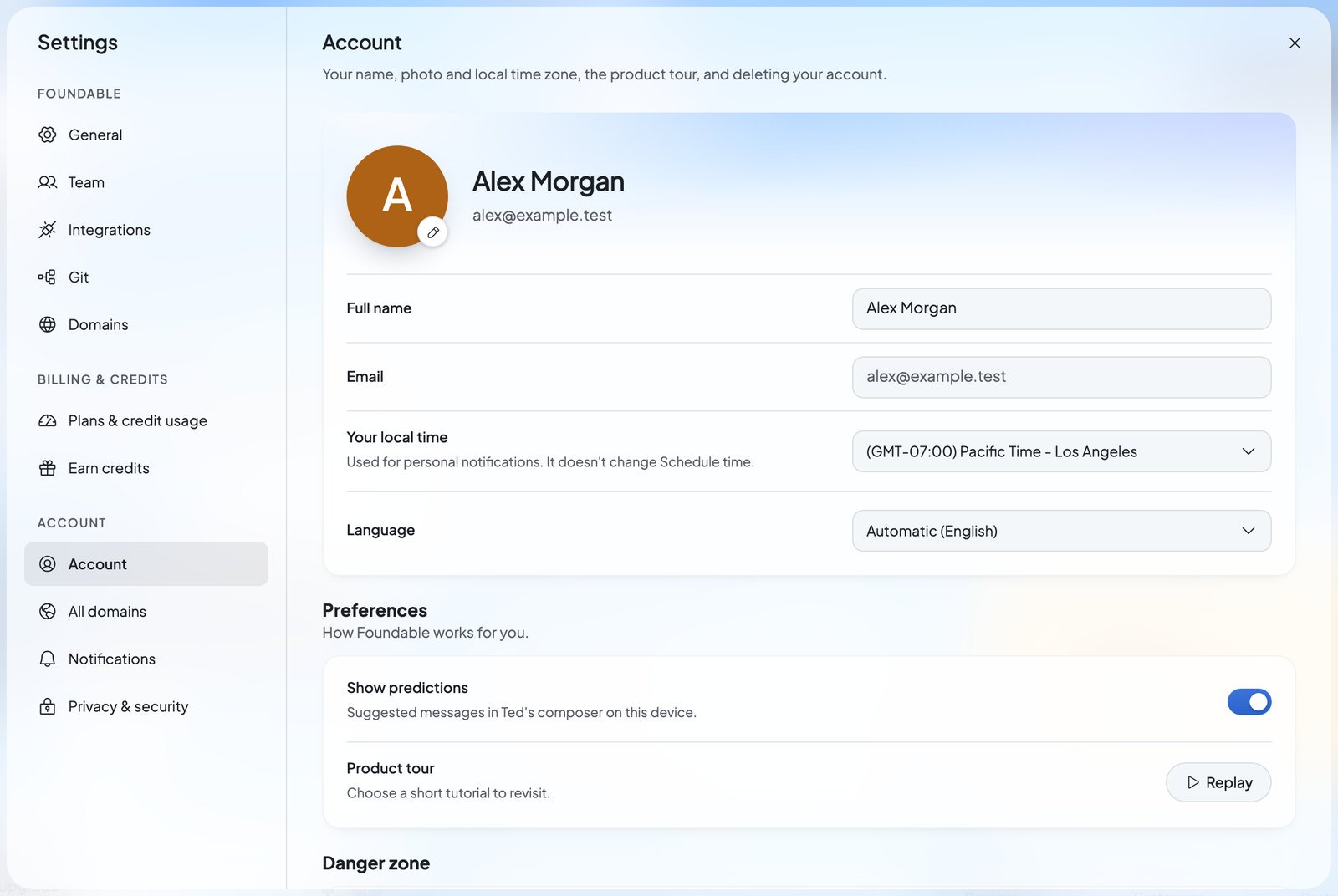
- Press your initial or photo at the top right to open the account menu, then choose Settings. Settings opens on Account.
- Or press your foundable’s name at the top left, then Settings. Settings opens on General.
What’s in Settings
Settings has three groups. Each section shows a short line under its heading that says what it’s for.Foundable
These sections are about the foundable you have open.Billing & credits
Account
These sections are yours, whichever foundable you have open.Your account
Account holds what’s about you, not your business.
Under Danger zone, Delete account deletes your account and every foundable you own. See Privacy and deleting your data.
Your local time and Foundable time
There are two clocks, and they do different jobs:- Your local time, in Account, is yours. It’s used for your personal notifications, and it doesn’t change the time Schedule uses.
- Foundable time, in General, belongs to the business: “The local time for this foundable’s briefs and schedules.” Only the owner can change it.
Language, light and dark
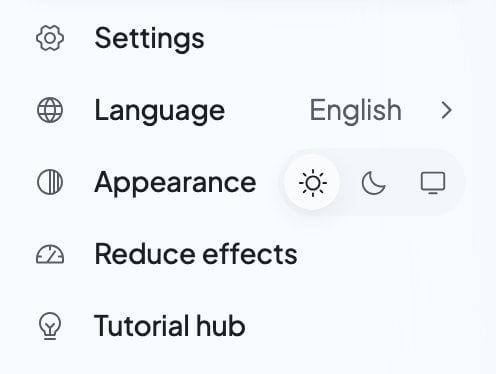
- Language: choose it in Account, or from Language in the account menu. The first choice, Automatic, shows in brackets the language it’s using now. After it, every language Foundable comes in is listed by its own name. Your choice is saved to your account, and the page reloads in that language.
- Appearance: in the account menu, choose Light, Dark or System (which follows your device). This choice is for this device only. Foundable shows Light until you pick one.
- Reduce effects: in the account menu, it holds decorative motion still on this device.
Save your changes
General, Account and Notifications share one Save changes bar. It shows only while you have a change that isn’t saved yet. Your logo and photo save on their own when you press Save after cropping.Who can change what
Everyone in your foundable can open Settings. What they can change depends on their role:
Someone with view-only access can look at a foundable’s settings but can’t change them. Where a control isn’t yours to use, the app says “Only the owner or an admin” or “Only the owner”. To learn about roles, see Invite your team.
Let Ted change settings for you
Ask Ted in the chat, and he can suggest a change for you. It can be your foundable’s name, tagline or time zone, your own name or time zone, any Notifications setting, or this device’s appearance. He shows the change on a card titled Change your settings or Change your foundable’s settings. It says “Nothing changes until you confirm. You can change it back in Settings.” Press Confirm to make the change, or Decline to leave everything as it is. Saying yes in your next message works too.FAQ
How do I change my name or photo?
How do I change my name or photo?
Open Settings, then Account. Change Full name and press Save changes. For your picture, press it and choose Upload a photo.
Can I change the email I sign in with?
Can I change the email I sign in with?
Not in Settings. Account shows the email from your sign-in, but you can’t edit it there. If you need help with it, contact support.
How do I turn on dark mode?
How do I turn on dark mode?
Open the account menu (your initial or photo at the top right), then pick Dark next to Appearance. It changes this device only.
Why can’t I change my foundable’s time zone?
Why can’t I change my foundable’s time zone?
Only the owner can change Foundable time or delete the foundable. Admins and members can still change the name, tagline and logo.
How do I log out?
How do I log out?
Open the account menu and choose Log out. On a phone, it’s at the bottom of More. Logging out also clears any unsent chat messages this browser was keeping.
How do I watch the tour again?
How do I watch the tour again?
Open Settings, then Account, and press Replay next to Product tour. Or choose Tutorial hub in the account menu.
Related

Your foundables
Switch, create, rename and delete your foundables.

Invite your team
Bring in people to work with you and Ted.

Plans and credits
See your credits, change your plan and manage billing.

Notifications and emails
Choose the alerts, texts and emails you get.