

Link your phone
- On a computer
- On a phone
1
Open Text Ted
Press Text Ted at the top of the chat, or choose Text Ted in your account menu.
2
Scan the code
The dialog says “Scan with your phone’s camera.” Point your phone’s camera at the QR code. It opens Messages on your phone, ready to text Ted.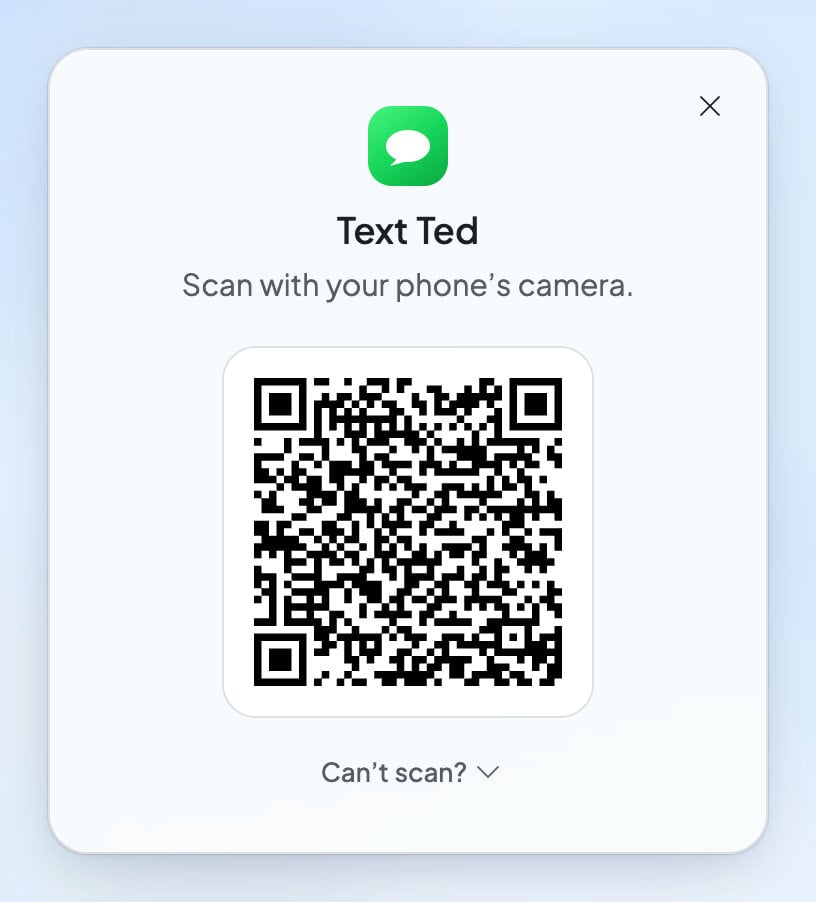
3
Send the text
Send it. Ted texts back that you’re linked: “Linked! I’m your Ted for”, then your foundable’s name.
Text Ted
Write to Ted the way you would in the chat. For example:- Plain, short answers. Ted keeps his texts short. A long answer ends with “The rest is in Foundable:” and a link.
- Choices come numbered. When Ted offers you options, reply with the number alone.
- Decisions open in Foundable. Anything you need to decide, like a draft to approve, comes as a link: “Open it in Foundable:”. A “yes” by text doesn’t approve it, so open the link and decide there. See Approve Ted’s work.
- Words only. Ted doesn’t read photos you text. He replies: “Text Ted reads text only here; describe it in a message.”
- Credits, as in the chat. Ted’s replies by text use credits, the same as in the chat.
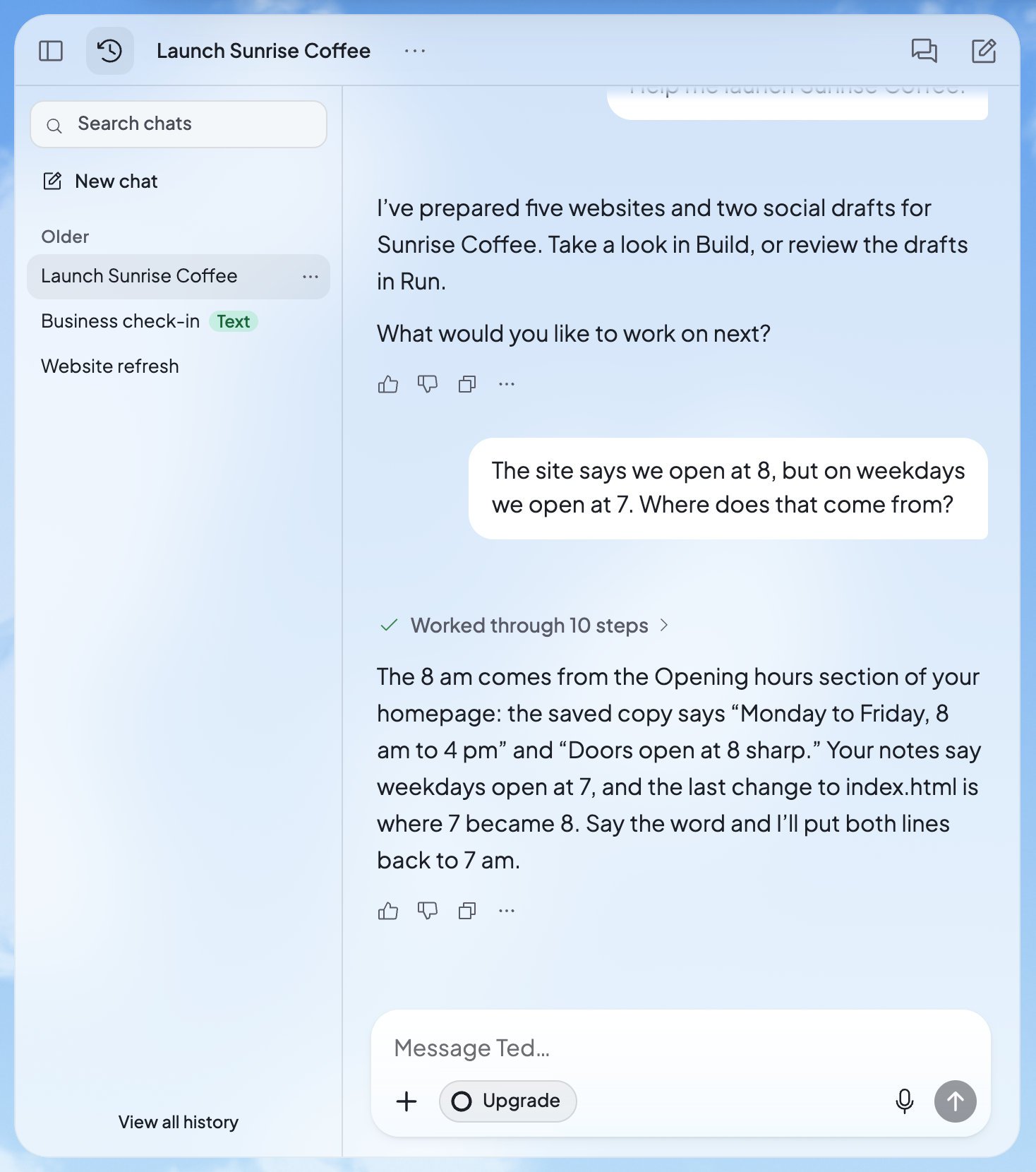
- A chat of its own. Your texts land in one chat in Foundable, marked “Text” in Chat history. See Chat with Ted.
Text commands
Send one of these as a text of its own:A text that’s only “stop”, “cancel”, “quit” or “unsubscribe” pauses Text Ted too. Reply START to turn it back on.
Pause or disconnect your phone
- Pause. Text
STOP. Text Ted in Foundable then says “Paused”, with “Text START to resume.” - Disconnect. Open Text Ted in Foundable and press Disconnect phone. It asks “Disconnect your phone?”: press Disconnect. Or text
/unlink.
Who can text Ted
Everyone on your team who can work with Ted can link their own phone and text him, each in their own chat. View-only teammates can’t use Text Ted. A phone texts one foundable at a time. If your phone is linked to more than one, text/foundables to see them and /switch to change which one answers. See Your foundables.
What you’ll see
FAQ
Does Text Ted cost extra?
Does Text Ted cost extra?
No. Text Ted is on every plan, Free included. Ted’s replies use credits, the same as in the chat.
Can I approve a draft by text?
Can I approve a draft by text?
Not by replying “yes”. Ted texts you a link instead. Open it, and approve or decline in Foundable.
Can I send Ted a photo?
Can I send Ted a photo?
Not by text. Ted reads text only there. To show him a photo, add it in the chat in Foundable with +, then Add photos & files.
Where do I see my texts in Foundable?
Where do I see my texts in Foundable?
In Chat history: your texts and Ted’s replies are in the chat marked “Text”.
How do I stop getting texts from Ted?
How do I stop getting texts from Ted?
Text
STOP to pause him, or /unlink to disconnect your phone. You can also press Disconnect phone in Text Ted in Foundable.Related

Chat with Ted
The full chat, with files, history and cards.

Approve Ted’s work
Decide on what Ted texts you a link to.

Meet Ted
What Ted can do for your business.

Invite your team
Give teammates a role that can work with Ted.