

Where you’ll find them
It’s the same draft everywhere. Decide in one place, and it’s done in all of them.
Check and send an email from Ted
1
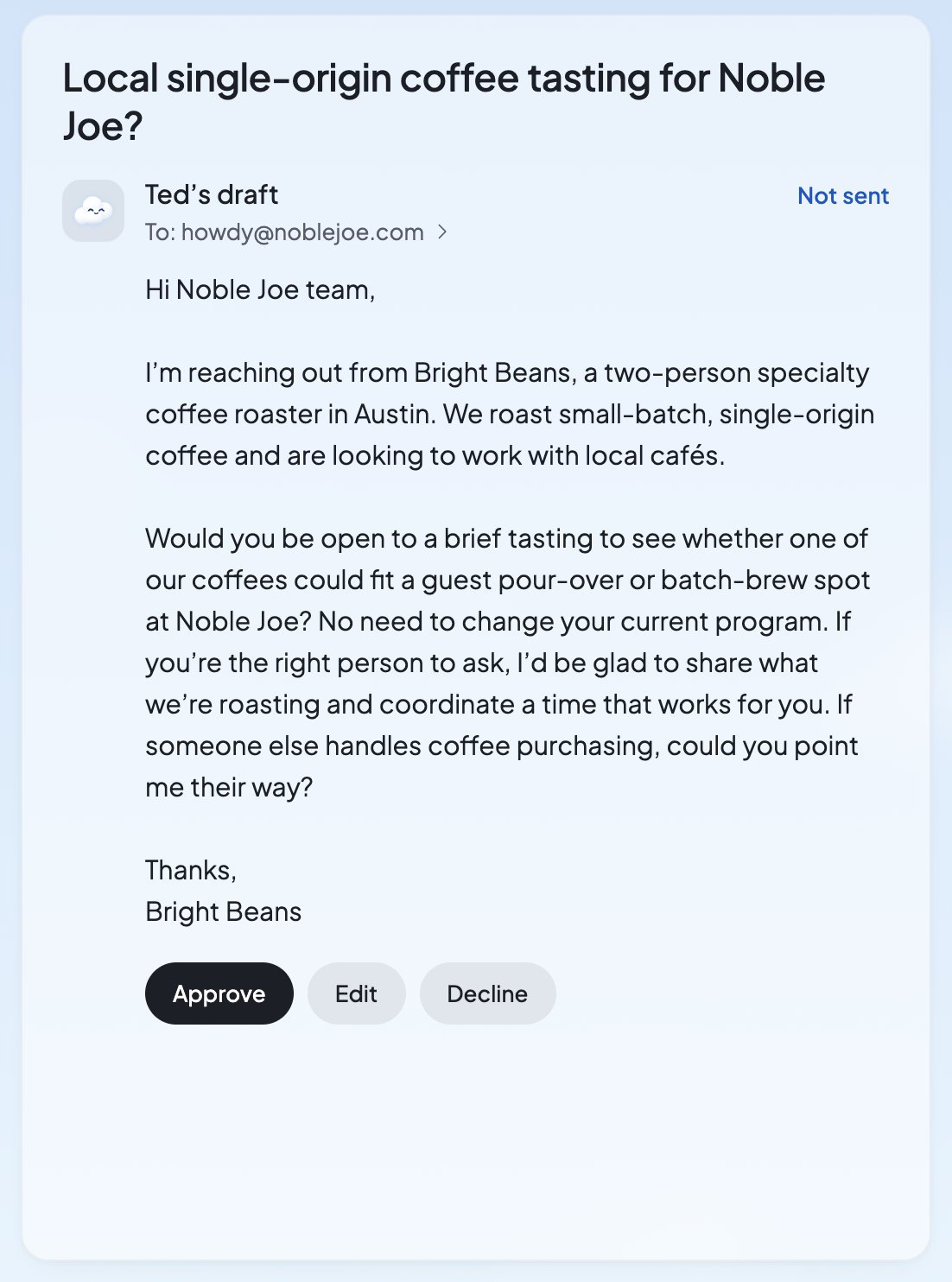
Open the draft
In the Inbox, press it under “Needs your OK”. On Home, press Review.
2
Read it
It’s headed “Ted’s draft”, with who it’s for (“To: …”) and “Not sent”.
3
Decide
Press Approve to send it. Press Edit to change it first. Press Decline if you don’t want it sent.
What you’ll see
In the Inbox, a draft that waits says “Not sent”. On Home, in Run and in the chat, each email of Ted’s says where it stands:Change an email before it goes
- In the Inbox, press Edit. The email opens in the compose sheet as it stands. Change anything, then press Send.
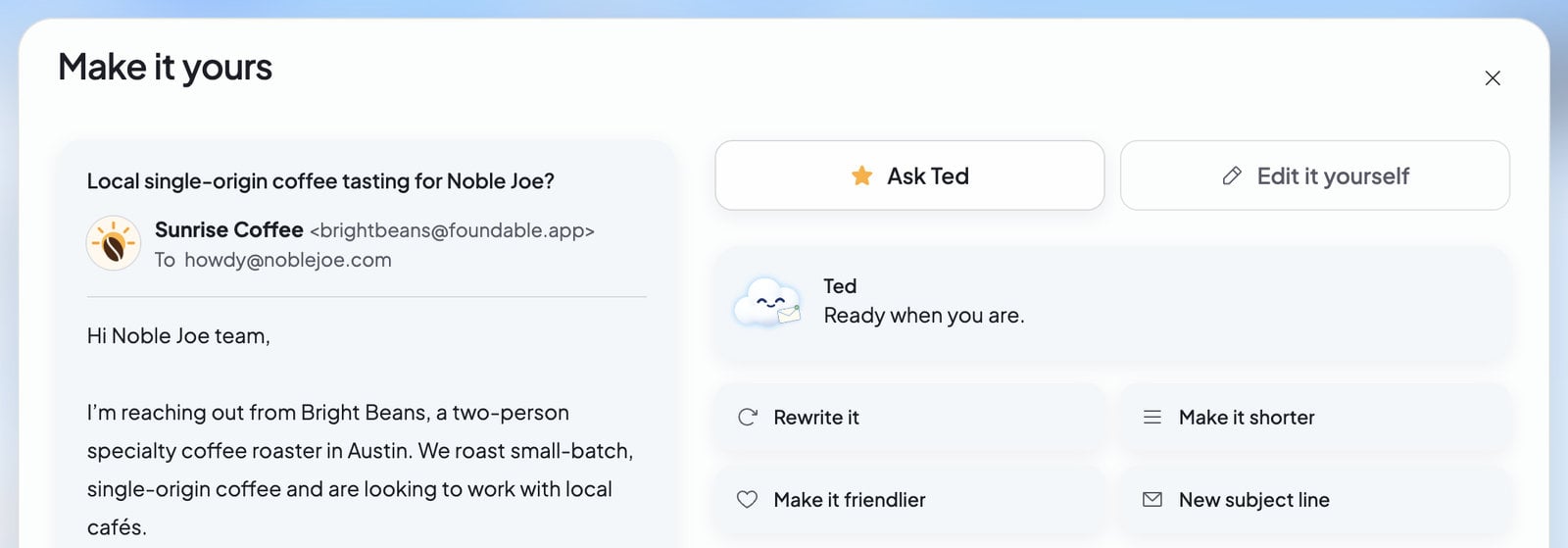
- On Home, press Review, then Edit. “Make it yours” opens with two tabs:
- Edit it yourself: change the email’s words. Press Send to send your version, or Back to return with your changes kept.
- Ask Ted: pick Rewrite it, Make it shorter, Make it friendlier or New subject line, or type what to change under “What would you change?”, then press Ask Ted. You’ll see “Rewriting the email…”, then Ted’s version. Show what changed marks what he rewrote.
Answer in the chat
When Ted shows an email card in the chat, you can answer it in words. Type “yes” to approve and send it, or “no” to decline it. This works in the chat, not by text: when you text Ted, he sends you a link to decide in Foundable. See Approve Ted’s work.When Ted sends on his own
Ted asks before he sends. Every email he drafts waits for an owner or admin to approve it, whether he wrote it in the chat, while working in Run, in a scheduled task or in your free first run. He sends an email himself in only two cases:- You ask him to. When the owner or an admin clearly asks Ted, in the chat or by text, to send an email, he can send it right away.
- Run runs on its own. While Run is set to Runs on its own and Email’s Send outreach emails is on, Ted may send emails himself. The tasks Ted runs on a schedule follow the same choice. This needs a paid plan. See Ask first or Runs on its own.
Blocked and undelivered emails
“Can’t be sent” means someone on the draft can’t get email, so Foundable won’t send it. The draft says why:
Decline the draft, or press Edit and take that person off. If you try to send to one of these addresses, you’ll see “Someone on this email can’t receive email, so it wasn’t sent. Remove them, then send.” Foundable keeps one list of these addresses for everyone who uses it, so an address can be on it even if you’ve never written to it.
“Not delivered” shows on an email in Sent, and in its conversation, when the mail service later says it didn’t reach someone. It says why: the address “doesn’t exist or won’t take email”, their mail server “kept refusing it”, or their mail server “didn’t take it”. Home and Ted’s card still say “Sent”, because the email did go out. Ted hears about it too.
Who can decide
FAQ
Does Ted send emails without asking me?
Does Ted send emails without asking me?
Not the ones he drafts: those wait for an owner or admin. He sends one himself only when you clearly ask him to, or while Run runs on its own with Send outreach emails on. See When Ted sends on his own.
Why does Home say “Sent” when the Inbox says “Not delivered”?
Why does Home say “Sent” when the Inbox says “Not delivered”?
The email went out, so it stays “Sent” on Home. Later the mail service said it didn’t reach someone, and the Inbox shows that, with the reason.
What happens when I decline an email?
What happens when I decline an email?
It won’t be sent. It leaves your waiting list and says “Declined”.
Can I change Ted’s email before it goes?
Can I change Ted’s email before it goes?
Yes. Press Edit in the Inbox, or Review and then Edit on Home. You can change it yourself or ask Ted to rewrite it.
Do emails from my free first run go out by themselves?
Do emails from my free first run go out by themselves?
No. Ted writes one outreach email in your free first run, and it waits under “Needs your OK” for you. See Your free first run.
Related

Approve Ted’s work
Posts, website changes and everything else that waits for your OK.

Ask first or Runs on its own
Choose what Ted may do by himself in Run.

Write and reply
Write your own emails, or have Ted draft a reply.

Decisions and website changes
What waits for you while Run is on.