

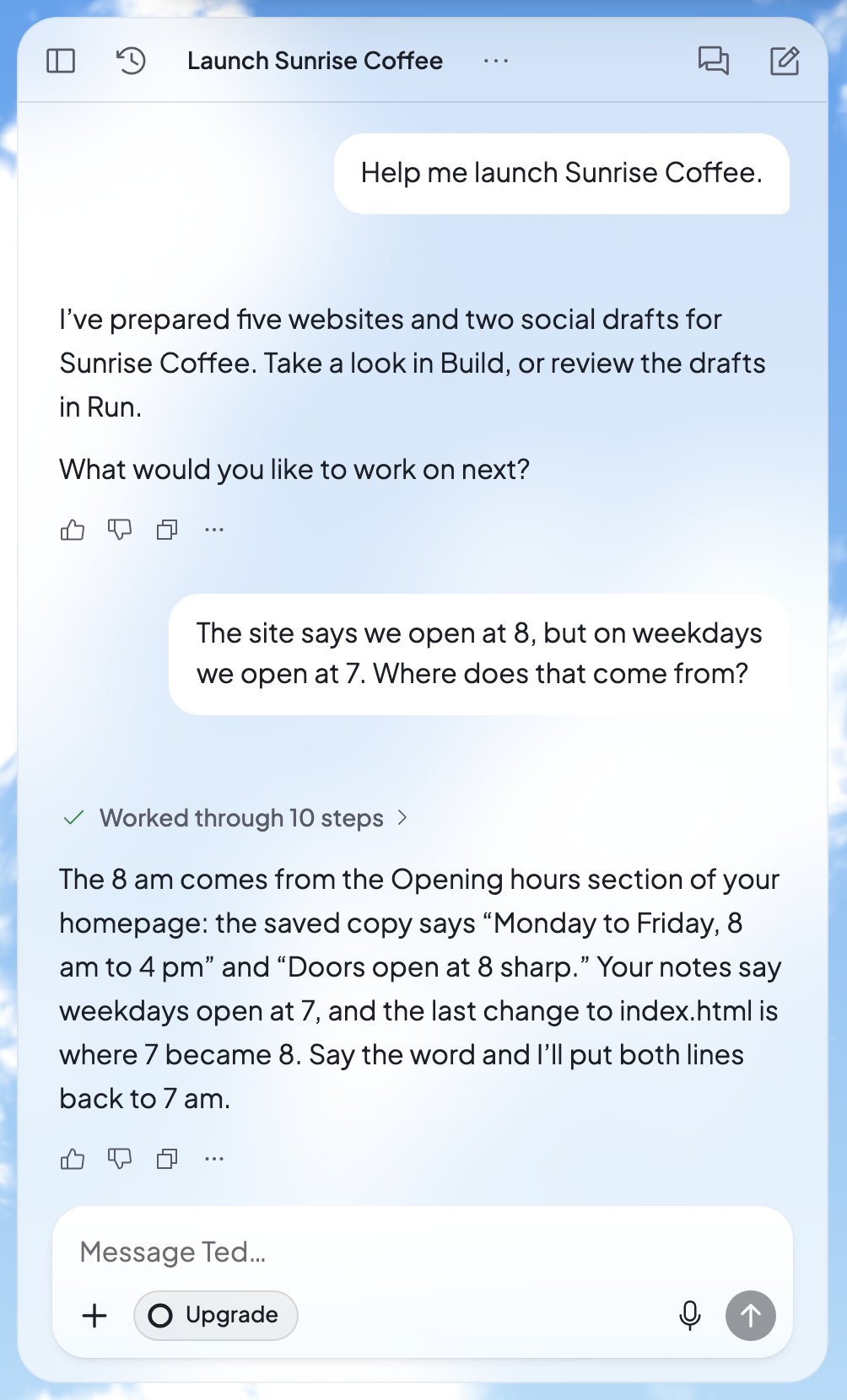
The chat, with its header at the top and the message box at the bottom
1
Open the chat
On a computer, the chat is the column on the left of every page except Run. If it’s folded away, press Show chat. On a phone, tap Chat at the bottom.
2
Write your message
Click the box that says Message Ted… and type what you want.
3
Send it
Press Enter, or the arrow (Send message). On a phone, tap the arrow.
4
Follow his work
“Thinking”, then “Working”, show that Ted is on it. His answer appears under your message.
5
Answer if he asks
If Ted shows a card with a question or a draft, pick an answer or press its button. You can also answer in your own words, like “yes” or “the second one”.
The message box
Cmd+Enter or Ctrl+Enter sends too. On a touch screen, Return starts a new line, so tap the arrow to send. Connect apps opens your apps in Settings, and GitHub opens your website’s GitHub tool.
Add photos and files
Press +, then Add photos & files (“Pictures, PDFs and documents”). Or drag files onto the chat, which says “Drop photos and files to add them”. Each file shows above your message as it uploads, and you can press a picture to see it full size. Ted reads what you add along with your words. Each plan has a largest file size. If a file is too big, Foundable says so and suggests a smaller copy. The person who pays for the plan is also offered an upgrade for bigger files.Paste long text
A long paste turns into a card, like “Pasted text”, so your message stays easy to read. Ted still gets every word. Press Show in text field to put it back in the box. If a paste is “Too long to send”, open it and press Save as file. Ted then reads it from the file.Talk instead of typing
Press the microphone (Dictate) and speak. While it listens, you see “Recording”, with Cancel dictation and Finish dictation. Your words land in the box, ready for you to check and send.Suggestions
- Starters. A new chat asks “What should I work on?” and offers up to three ideas, like “Publish my site” or “Find my first customers”.
- Next steps. After Ted builds or changes something, he suggests what to do next, as buttons above the box. Hide suggestions folds them away.
- Predictions. In an empty box, a suggested message may show in gray. Press Tab to take it (“Press Tab to accept”), or tap it on a phone (“Tap to accept”).
While Ted works
You don’t have to wait for Ted to finish.- Keep typing. Messages you send while Ted works wait at the end of the chat. Ted reads them at his next step and keeps the work he’s done. A few requests, like a fix you send from Build, wait their turn instead, marked “Runs after the current task”.
- Change a waiting message. Press the pencil on it to edit it, or press Remove.
- Change course now. Press Interrupt and run all pending messages to have Ted stop his current step and take your waiting messages.
- Stop him. Press Stop response. It also stops a website build this chat started. On a computer, you can press Esc twice: the first press shows “Press Esc again to stop”.
Ted’s replies
What a reply shows
- His words, with headings, lists and tables where they help. Code comes in a box with Copy code.
- Links. A link to a place in Foundable opens right there. Other links open in a new tab.
- His steps. Press “Worked through” and the number of steps to see each one. “Sources” lists the web pages he read.
- Your website. When Ted changes your website, his reply follows the build. When it’s saved, you see “Build saved” and Open website.
- Cards. Questions, drafts and choices come as cards with their own buttons. See Approve Ted’s work.
Under each reply
Replies whose changes you went back past fold under “Reverted messages”. Press Show to see them. For every saved version of your website, see Version history.
Your own messages
Hover over a message you sent, or tap it on a phone, for Copy message and Edit message. Its check marks show “Sent”, then “Read by Ted” once he starts his reply. Edit message lets you ask again in other words. It opens “Revert and resend message?”: “Your message will be updated, and the conversation continues from here. Changes after this point stay in the chat and can be reapplied anytime.” Your website goes back to how it was before that message, then Ted answers your new words. It works on messages of words alone, once Ted has finished working.When a reply stops early
Files Ted makes
When Ted writes something for you, like a business plan, a list or a spreadsheet, it comes as a card in his reply. Open it to read it beside the chat. On a phone, it fills the screen. From there, you can Download it, Copy text, or press Talk to Ted to ask him about it. What Ted makes for you also shows under From Ted, on Home and under the bell at the top. The owner can edit Ted’s documents, lists and spreadsheets right there. If Ted changes one while you’re editing it, you choose Keep my version or Use Ted’s version.Your chats
Each chat is one conversation with Ted, and you can have as many as you like.- New chat, the pencil at the top right of the chat, starts a fresh one. It’s called “New chat” until Ted names it.
- Chat history, the clock at the top left, lists your chats by day: “Today”, “Yesterday”, “Previous 7 days” and “Older”. A blue dot marks a reply you haven’t read. A “Text” tag marks the chat your texts to Ted go to.
- Search chats, at the top of the list, finds a chat by its title. Once you type, “Search everything for…” also offers to look for your words inside messages, in Search.
- View all history, at the bottom of the list, opens every saved chat.
- Rename a chat by clicking its title at the top: Enter saves, Escape cancels. Or use … › Rename in the list.
- Delete a chat with … › Delete. Foundable asks “Delete chat?” first, and reminds you: “Websites and drafts it made stay.” You can’t delete a chat while a build from it is still running, or while Run is using it.
When you run out of credits
If your credits run out, your message stays in the box. A card above it says “Keep building with Foundable”, with a button such as Get more credits or Upgrade now. On the Free plan, the card also says when your free credits come back. See Plans and credits.When something goes wrong
For other problems, see Troubleshooting.
FAQ
Can I send another message while Ted is working?
Can I send another message while Ted is working?
Yes. It waits at the end of the chat, and Ted reads it at his next step, without losing what he’s done. See While Ted works.
How do I start a new line without sending?
How do I start a new line without sending?
On a computer, press Shift+Enter. On a touch screen, Return starts a new line, and you tap the arrow to send.
Does deleting a chat delete what Ted made in it?
Does deleting a chat delete what Ted made in it?
No. “Websites and drafts it made stay.” Files from it stay in your foundable too. Only the conversation goes: it leaves your history, and Ted no longer reads it.
Why can’t I send Ted messages?
Why can’t I send Ted messages?
If your box says “View only: you can read chats with Ted, not send them.”, you have view-only access to this foundable. Ask the owner for a role that can work with Ted. See Invite your team. If your credits ran out, see When you run out of credits.
How do I undo a change Ted made to my website?
How do I undo a change Ted made to my website?
Press Undo latest edit under his reply, or Revert to this version on an older one. You can also go back to any saved version in Version history.
Related

Tips for asking Ted
Ways to ask that get you what you want sooner.

Approve Ted’s work
Drafts and cards that wait for your OK.

Text Ted from your phone
Message Ted from Messages on your phone.

Preview and change your website
Point at a part of your website and tell Ted what to change.