

How a post goes out
1
2
Review it
Press Review. The post opens the way the network shows it, with a line saying what your choices do, like “Approve posts it to Instagram now. Decline sets it aside for 14 days.”
3
Decide
Press Approve to post it now, Schedule to pick a time, Edit to change it, or Decline to set it aside. See Approve Ted’s work.
4
Watch it go out
It shows “Publishing”, then “Published”. Its numbers appear under Post performance once the network measures it.
Before a post can go out
When you approve a post, Foundable checks it with the network. If something stands in the way, the review says so:
Each network takes a set number of characters in a post. When you edit a post, Foundable counts as you type and says “Too long for Instagram” (or the network you’re on) when you go over.
An Instagram post always needs a picture.
Schedule a post
Press Schedule in the review and pick a time. The post shows “Scheduled · …” and “Goes out …”, and goes out at that time. If the time is too close, you see “That time is too soon. Pick a later time and schedule it again.”What a post’s status means
Bring back a declined post
A post you decline is set aside, not deleted. To use it after all, find it in the Library under its network’s Set aside view, open it, and press Bring back to drafts. You can do this for 14 days. After that, it says “This draft expired”.When Ted asks to take a post down
Ted may ask to remove a post he published. His line in Ted’s activity opens the post, which says “Ted asks to take this down”, with Take down and Keep it. With Ask first, it waits for the owner or an admin. With Runs on its own, Ted can take his own posts down himself. If the network doesn’t remove it, you see “Instagram didn’t take it down” or “The take-down isn’t confirmed”.How your posts are doing
Open a published post in the Library to see Post performance: the numbers each network last reported for it, such as its “Lead measures”. Switch the chart between Total and Daily. These numbers aren’t live. Each network first measures a post about 15 minutes after it goes out, then about every hour while it’s new, and less often as it ages. The post says when each network last reported, like “Instagram last reported · …”. A post the network hasn’t counted yet says “Not measured yet”, and its chart starts once the network has measured it twice. Ted checks these numbers too as he works: you’ll see lines like “Checked how your Instagram post is doing” in Ted’s activity. For a summary across your posts, see Insights on Home.The Library
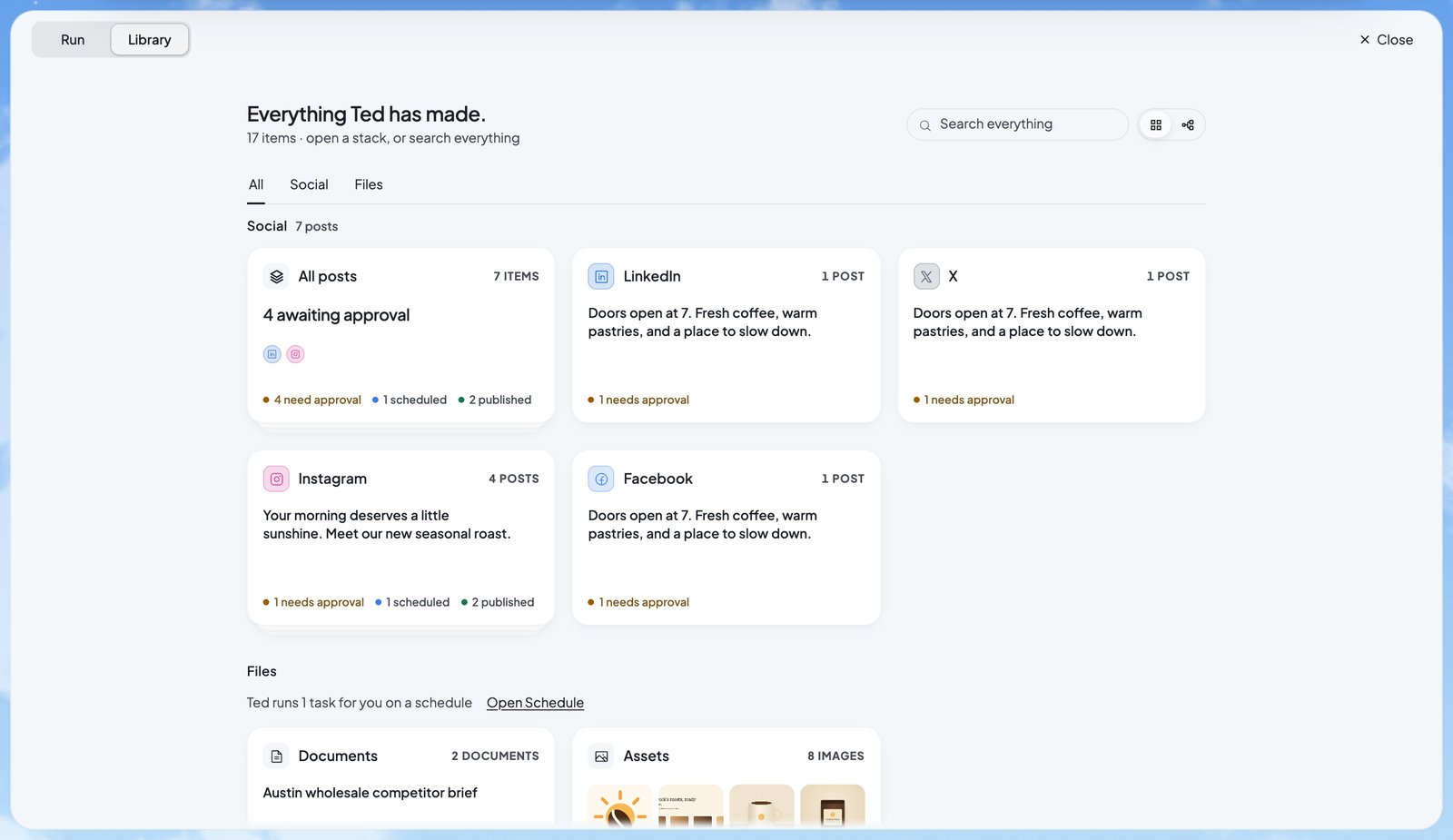
The Library keeps everything Ted has made, from every run. Press Close to go back to the canvas.
Open a network’s stack to see its posts in four views: Needs approval, Scheduled, Set aside and Completed. A post that waits for your decision opens the review. Any other post opens a read-only Post preview, with a link to the post on the network once it’s live.
Who can do what
Everyone in your foundable can open the Library. The owner and admins approve, schedule, decline and edit posts, and decide Ted’s take-down requests. Members don’t see Connect, and View only people can look but not change anything.FAQ
I declined a post by mistake. Can I get it back?
I declined a post by mistake. Can I get it back?
Yes, for 14 days. Open it from its network’s Set aside view in the Library and press Bring back to drafts.
Why does my post say “Connect Instagram”?
Why does my post say “Connect Instagram”?
Every network a post is for needs a connected account that Ted may use. Connect it in Run, then approve the post again. See Connect your social accounts.
Why are my post’s numbers out of date?
Why are my post’s numbers out of date?
They’re what the network last reported, not live counts. Networks first measure a post about 15 minutes after it goes out, then about every hour while it’s new.
Can I change the time of a scheduled post?
Can I change the time of a scheduled post?
Not in Foundable. Once a post is scheduled, it goes out at its time.
Where are the documents Ted wrote?
Where are the documents Ted wrote?
In the Library, under Files › Documents. They’re also listed under From Ted on Home.
Related

Connect your social accounts
Let Ted post to your networks.

Approve Ted’s work
Review, edit and approve Ted’s posts and emails.

Social messages and comments
Read and answer what people send your business.

Scheduled tasks
The tasks Ted runs for you at set times.