

Before you start
- A paid plan. On the Free plan, Connect domain shows the plans instead.
- Your domain company’s sign-in, so you can change the domain’s DNS settings.
- A published website for the domain to show. You can connect first: the domain waits as “Ready” until you publish.
- Not view only. Anyone else on your team can connect a domain. View-only teammates see its status.
Connect your domain
1
Open Custom domains
Open the account menu (your initial or photo at the top right), choose Settings, then Domains. Under Custom domains, find Connect existing domain and press Connect domain.
2
Type your domain
In Connect a domain, type your domain, like
yourbusiness.com or shop.yourbusiness.com. Then press Continue.3
Choose how it connects
Under Configure connection, choose Root domain or Subdomain. Check the address under Will be connected as, then press Connect domain.
4
Add the records at your domain company
The window Use your domain with Foundable lists the records to add. In another tab, sign in where you manage your domain, open its DNS settings, and add each record exactly as shown.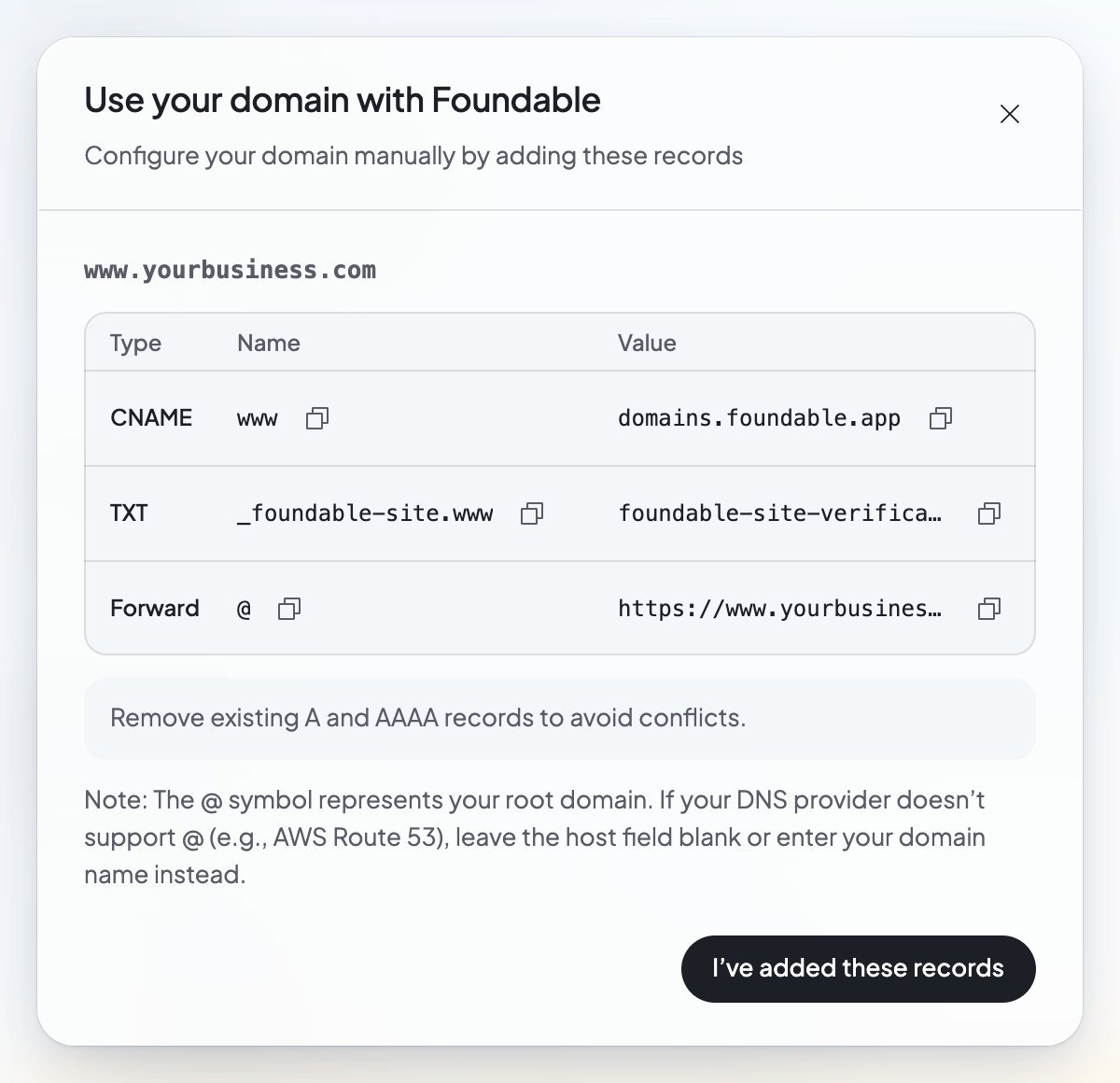
5
Tell Foundable you’re done
Back in Foundable, press I’ve added these records. Your domain reads “Verifying” while Foundable looks for the records, then “Live” once your website shows there.
Root domain or subdomain
- Root domain is for the domain itself, like
yourbusiness.com. Your website opens atwww.yourbusiness.com, and you forwardyourbusiness.comthere. - Subdomain is for an address under it, like
shop.yourbusiness.com. Your website opens at that address.
yourbusiness.com → www.yourbusiness.com” is ticked. Keep it ticked. Foundable puts your website on the www address, and the records list ends with a Forward row. Set your domain company to forward yourbusiness.com to the address that row shows, https://www.yourbusiness.com. Then both addresses reach your website.
If you untick the box, Foundable connects yourbusiness.com by itself. That needs a domain company that allows a CNAME record at @, so check before you untick it.
Under Advanced, “Uses Cloudflare or similar proxy” is only for a domain that runs through Cloudflare or a similar service. Leave it off if you’re not sure.
What the labels mean
Each domain you connect gets its own card under Custom domains, with a label that says how it’s doing. Point at the label for a short explanation.Check, fix or disconnect
- Check status checks your records now. If you press it again too soon, you see “Hold on, we just checked this”.
- Retry, Recover and Reconnect show on a card when they can help, as in the table above.
- To stop using a domain, open its … menu and choose Disconnect. Foundable asks first: “This will disconnect the domain from this site. You will need to reconfigure it if you want to use it with this site in the future.”
If something goes wrong
FAQ
How long does connecting take?
How long does connecting take?
Changes to DNS records take time to spread across the internet: “DNS settings can take up to 72 hours to propagate.” You don’t need to wait on the page. Foundable keeps checking, and the label changes by itself.
Why does my website open at www?
Why does my website open at www?
For a root domain, Foundable connects the www address, and you forward the bare domain to it at your domain company. That way
yourbusiness.com and www.yourbusiness.com both reach your website. See Root domain or subdomain.My domain still shows my old website. Why?
My domain still shows my old website. Why?
Records from your old website are probably still there. Remove the old A and AAAA records, as the setup window says, and check that each record matches what Foundable shows. Then give DNS time to update.
Can I delete the records once my domain is live?
Can I delete the records once my domain is live?
No, keep them. If they change, your domain stops showing your website, and its card says so, for example “Offline”. Press Recover to see the records you need.
What if another of my foundables already uses this domain?
What if another of my foundables already uses this domain?
When you type it, Foundable asks “Move domain?” and says: “Connected to another site. Moving will switch it here.” Press Move and connect only if you want it here instead. Only the owner can move a domain between foundables.
Can I get email on this domain too?
Can I get email on this domain too?
Yes, on a paid plan. Email has its own setup in the Inbox, with its own records to add. See Your email address.
Related

Use your own domain
Buying or connecting, and your primary domain.

Manage your domains
All domains, renewals and DNS records.

Publish your website
Put your website online so your domain can show it.

Get help
Ask the Foundable team when you’re stuck.