

1
Open History
Open your website in Build and press the clock (Show history) at the top. History opens where the chat was. On a phone, press More actions, then History.
2
Look at a version
Press any version. The preview shows your website as it was then, and the top says when that version was saved. Press Back to latest to return.
3
Revert
Press Revert to this version, at the top or on the version’s row. Build asks “Revert to this version?”. Press Revert.
4
Publish it
Reverting changes your website in Build. Visitors see it once you publish an update.
What you’ll see in History
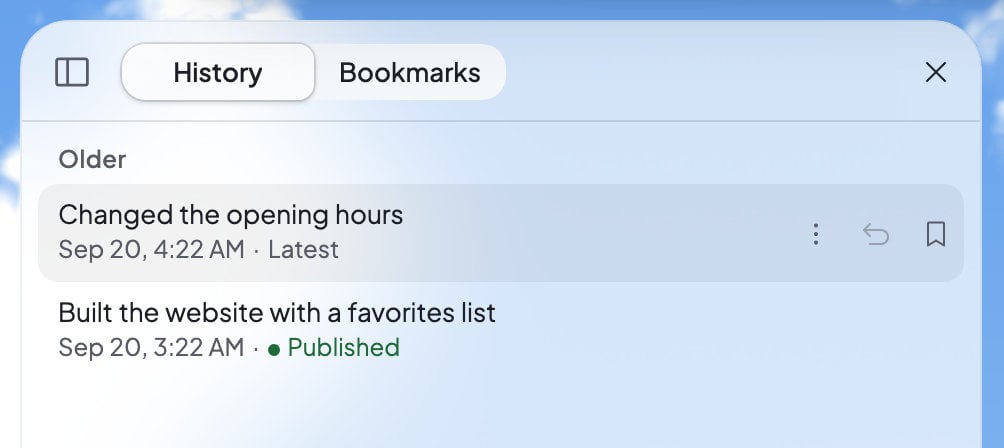
Versions are grouped by day. Each one has a title that says what changed:- Ted’s own summary of a change he built, like “Changed the opening hours”.
- “Visual edit”, for words you changed yourself with Edit text.
- “Reverted to” and a version’s title, for a revert.
- “Duplicated from” and a website’s name, for a copy.
- “Undid a text change the website couldn’t build”, when Build put your old words back.
- The first line of a commit, for a change that came from GitHub.
To see older versions, press Load more versions at the bottom of the list.
Revert to an earlier version
Reverting doesn’t delete anything. Build saves a copy of the version you picked as your newest version, and every other version stays in History. The question tells you when the version is from: “This will revert your website to how it looked on…”. Changes you made after that point stay in the chat, so you can ask Ted to make them again anytime. Press Revert to go ahead, or press Esc to cancel. You’ll see “Reverting…” while it works. The copy becomes Latest, with Undo on its row. Changed your mind? Press Undo to go back to where you were. Your live website stays as it was until you publish an update.Go back from the chat
You can also go back right from the chat. Under Ted’s reply that saved your newest change, press Undo latest edit to take that change back. Under an earlier reply, press Revert to this version to put your website back the way that reply left it. You’ll see “Reverted to message”: “Your website has been successfully reverted to this message.” The replies you went back past fold into “Reverted messages”. Press Show to see them again. To try a different request from an earlier point, press Edit message on your own message, change the words and press Revert and resend. Your website goes back to that point, and the chat continues from your new message.Bookmarks
Bookmark the versions you want to find again, like the one you’re happy with. Press the bookmark on a version’s row in History, or Bookmark in history on Ted’s build card in the chat. Your bookmarks are in History’s Bookmarks tab. Until you add one, it says “No bookmarks yet”.If you can’t go back
Who can do it
Everyone in your foundable can look at History. The owner, admins and members can revert, undo and bookmark. A teammate with view-only access can only look.FAQ
Does reverting change my live website?
Does reverting change my live website?
Not by itself. Reverting changes your website in Build. Your live website changes when you publish an update.
Do I lose anything when I revert?
Do I lose anything when I revert?
No. Every version stays in History, including the ones after the version you went back to. Those changes also stay in the chat.
How far back can I go?
How far back can I go?
All the way to your website’s first version. Every version stays in History.
Which version do my visitors see?
Which version do my visitors see?
The one marked “● Published”. If a newer version is Latest, visitors see it once you publish an update.
Related

Preview and change your website
Check a version page by page.

Publish your website
Send the version you want live.

Chat with Ted
Ask for changes and follow Ted’s work.

GitHub
Keep your website’s code in GitHub.