


1
Press Support
Press Support at the top right of Foundable. On a phone, press More, then Contact support.
2
Ask your question
A chat with the Foundable team opens. Write what you need in your own words.
3
Look for the reply
When the team answers, a dot appears on Support (“New reply from the Foundable team”). On a phone, the dot is on More. Open the chat again to read the reply.
Where to start
Chat with the team
Support opens Messenger, a chat with the Foundable team. The team answers you there. Every one of these opens the same chat:- Support in the top bar. On a narrower window it shows only the F. On a small window it moves into the … menu as Contact support.
- Contact support in the account menu (the round button at the top right).
- More, then Contact support, on a phone. It’s the first row.
- “Stuck? Contact support” on Home.
- Contact support in Payments, when Stripe setup takes longer than usual.
When Ted can’t finish
Sometimes a reply from Ted can’t finish. Then a card may ask “Send this to support?”. It shows a “Message to support” and what’s “Included with your message”. Press Send to support to send both to the team, or Not now to put the card away. Once it’s sent, the card says “Sent to support” and where the team’s reply will come.Report a bug
Something in Foundable not working the way it should? Tell the team in a few lines.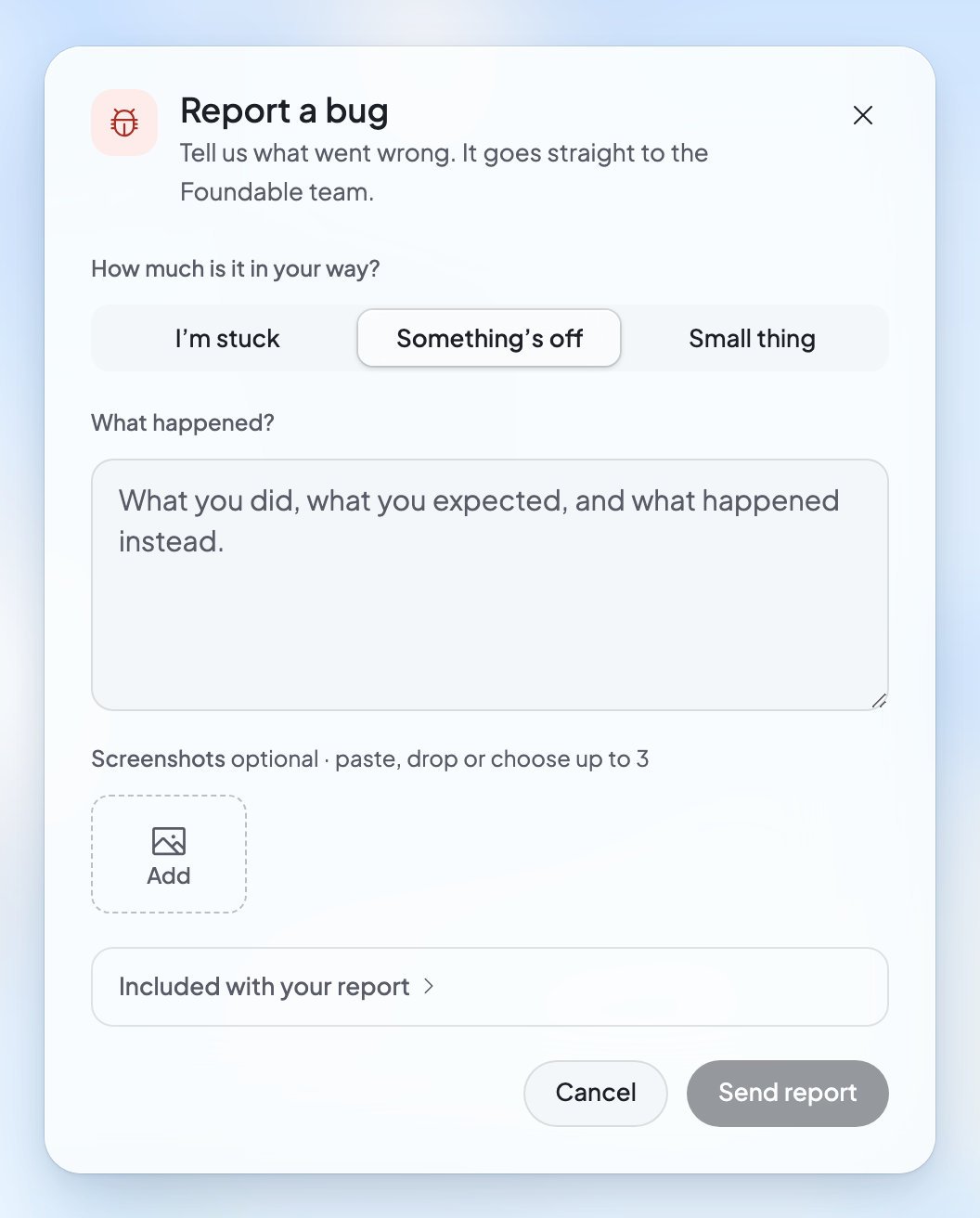
1
Open Report a bug
Press the account menu (the round button at the top right), then Report a bug. On a phone, press More, then Report a bug under Help.
2
Say how much it’s in your way
Under How much is it in your way?, pick I’m stuck, Something’s off or Small thing.
3
Tell us what happened
Under What happened?, write what you did, what you expected, and what happened instead. You can add up to 3 screenshots: paste them, drop them in, or press Add to choose them.
4
Send it
Press Send report. When you see Report sent, the team has it and will reply in Messenger.
Tell us about a reply from Ted
Under each of Ted’s replies you’ll find Helpful and Not helpful.- Not helpful opens Help us improve. Pick a reason: “Didn’t communicate well”, “Design is off”, “Functionality is broken”, “Forgot what I told it before” or “Other”. Then press Submit, or Skip. You’ll see “Thanks for your feedback!”.
- For a bigger problem, press … (More actions) on the reply, then Report a problem. It opens the same form as Report a bug, about that reply, and goes straight to the Foundable team.
Email us
Write from the email address you use for Foundable.Learn on your own
- Tutorial hub: “Pick a quick refresher. We’ll take it one step at a time.” Open the account menu, then Tutorial hub. On a phone, press More, then Tutorial hub under Help. Its lessons: “Your business at a glance”, “Your website, and how to change it”, “Your business email”, “Tasks Ted does for you” and “Work across your business”. You can also open it from Settings, then Account, under Product tour: press Replay.
- Docs: the account menu’s Docs row opens these pages in a new tab. On a phone, it’s under Help in More.
- Ted: ask him what he did and why, or about plans and prices. He answers in the chat.
Foundable’s policies
Every policy is on foundable.com. In Foundable, open Settings, then Privacy & security, and look under Legal & policies.FAQ
Do real people answer?
Do real people answer?
Yes. People on the Foundable team answer in the support chat and by email.
I can’t log in. How do I reach you?
I can’t log in. How do I reach you?
Email support@foundable.com. foundable.com’s footer has a Contact link to the same address.
Where do I find a bug report I sent?
Where do I find a bug report I sent?
Open the support chat. Your report is under Tickets in Messenger, where the team replies and you can add more.
How do I ask for a refund for my plan?
How do I ask for a refund for my plan?
Read the Refund & Dispute Policy first. To ask, email support@foundable.com from your account’s email address. To stop your plan, see Plans and credits.
Do some plans get faster help?
Do some plans get faster help?
Some paid plans include Priority support, “Answered first by our team”, and a 1:1 onboarding call to “Get set up with our team”. To see which plan has them, open Settings, then Plans & credit usage, and press Compare plans.
Related

Troubleshooting
What each message on screen means, and what to do.

FAQ
Quick answers about Foundable, Ted, plans and your account.

Glossary
The words Foundable uses, in plain English.

Find your way around
The top bar, the account menu and your phone’s tabs.