

Write a new email
1
Press Compose
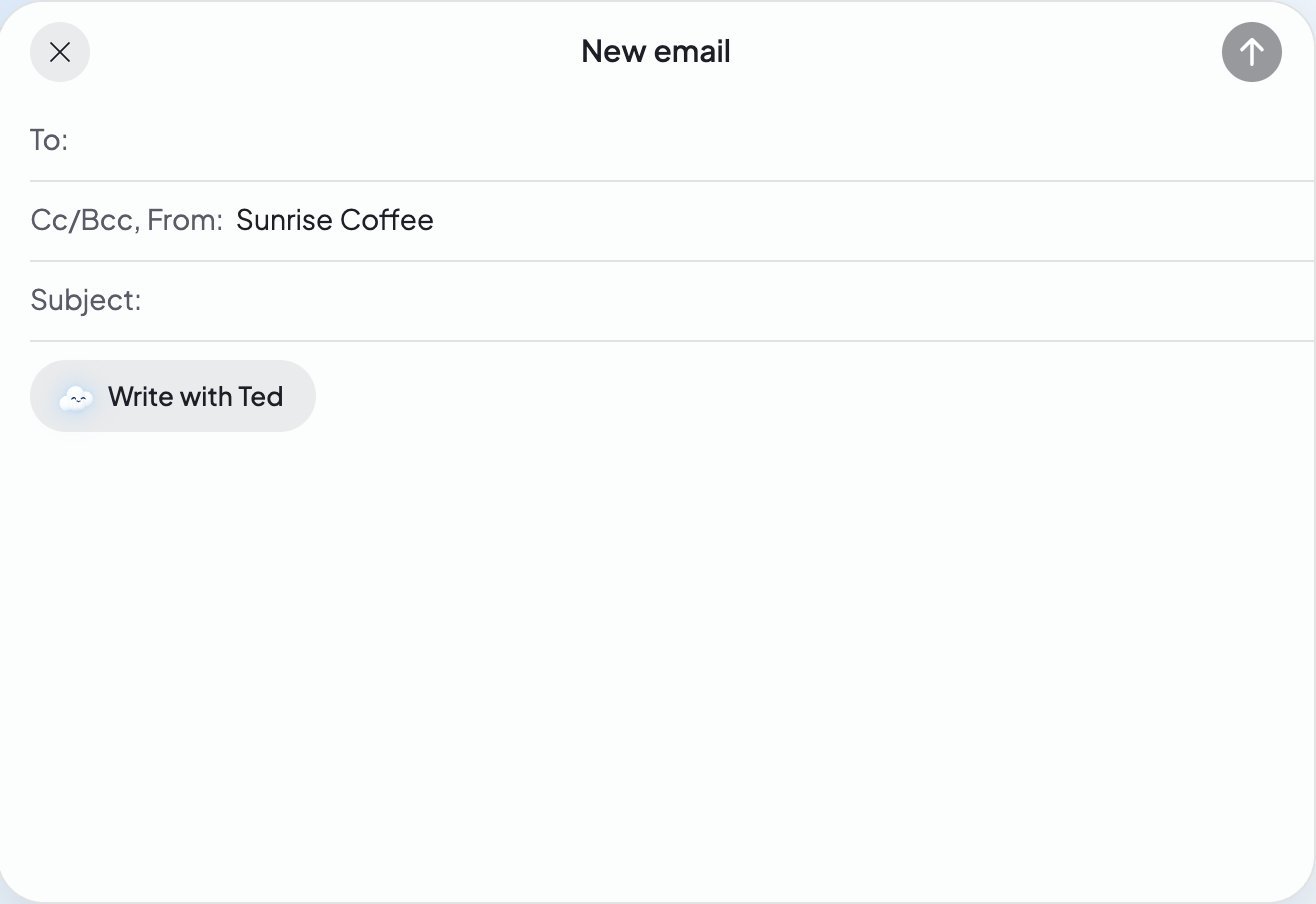
In the Inbox, press Compose. A “New email” sheet opens.
2
Add who it’s for
Type the address in To:. To copy someone in, press Cc/Bcc, From: and fill in Cc: or Bcc:.
3
Write it, or ask Ted to
Type a Subject: and your message. Or press Write with Ted and say what the email is for.
4
Press Send
Press Send, the arrow at the top right. The sheet closes, and the Inbox shows how sending goes.
Let Ted write it
1
Press Write with Ted
It sits over the message of a new, empty email.
2
Say what the email is for
Type one line in “What’s this email for?”, like “Thank Sam for the order and ask for a review.”
3
Press Write
Or press Enter. It says “Writing…”, then Ted fills in the subject and the message, with “Ted wrote this email.”
4
Read it, then send
Change anything you like, then press Send.
Before it sends: the address check
When you press Send on a new email, Foundable first checks each address: “Checking the address…”. If it can’t find a mailbox, it warns you: “We couldn’t find a mailbox at …, so this email probably won’t arrive.”- Press Edit to fix the address.
- Press Send anyway to send it as it is.
- an address isn’t complete (“… is not an email address.”)
- there’s no one to send to (“Add at least one recipient.”)
- one email goes to more people than it can
After you press Send
The Inbox shows how sending goes, with who the email is to and its subject. When it goes, you’ll see “Sent to …”, and the email moves to Sent.
If you press Cancel send, you’ll see “Sending was prevented.” when it stopped in time. “Cancellation does not confirm recall. Check for later provider updates.” means it may already have gone.
“Sent” means the mail service took your email. If it later can’t reach someone, its row in Sent says “Not delivered”, with why. See Blocked and undelivered emails.
Each foundable can email a limited number of people a day. If you reach it, the Inbox tells you, and you can send again later.
Reply to an email
1
Open the conversation
Press its row in the Inbox.
2
Press Reply
The sheet opens with “Replying to:”, “From:” and “Subject:” filled in, with “Re:” before the subject.
3
Write and send
Type your answer and press Send.
Reply with Ted
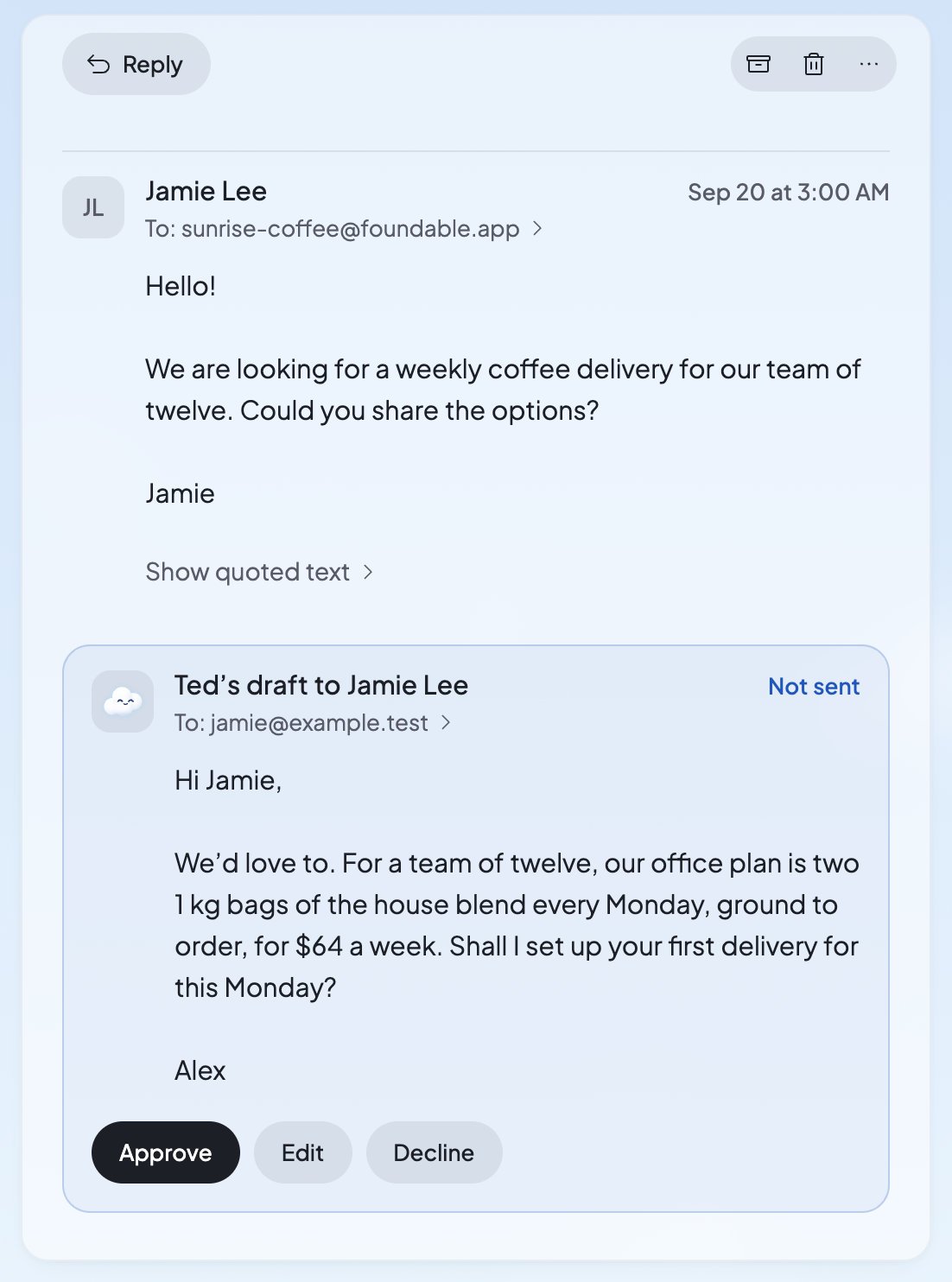
- Open the conversation and press Reply with Ted. You’ll see “Drafting your reply…”.
- Ted’s reply appears at the end of the conversation, headed “Ted’s draft” with “To:” and “Not sent”.
- Press Approve to send it, Edit to change it first, or Decline if you don’t want it.
Who can write and send
FAQ
Can I attach a file, forward an email or reply to everyone?
Can I attach a file, forward an email or reply to everyone?
Not from the Inbox. Emails you send from it are plain text with no files, and a reply goes back only to whoever sent the message.
Why does it say my email “probably won’t arrive”?
Why does it say my email “probably won’t arrive”?
Foundable checked the address and found no mailbox there. Check for a typo and press Edit, or press Send anyway if you’re sure.
Can I take back an email I sent?
Can I take back an email I sent?
Only while it’s still sending: press Cancel send. Once the mail service has it, it may already be on its way.
Does Ted see who I’m writing to when he writes an email?
Does Ted see who I’m writing to when he writes an email?
No. He sees your line and what your business says about itself. Read his email before you send it.
Where do the emails I send go?
Where do the emails I send go?
They’re in Sent, and they stand in your Inbox list at the time they went.
Related

Emails Ted writes for you
Approve, edit or decline the emails Ted drafts.

Your email address
Change the name people see, or use your own domain.

Your Inbox
Find your way around your mail.

Plans and credits
See your credits and what Ted’s writing uses.