

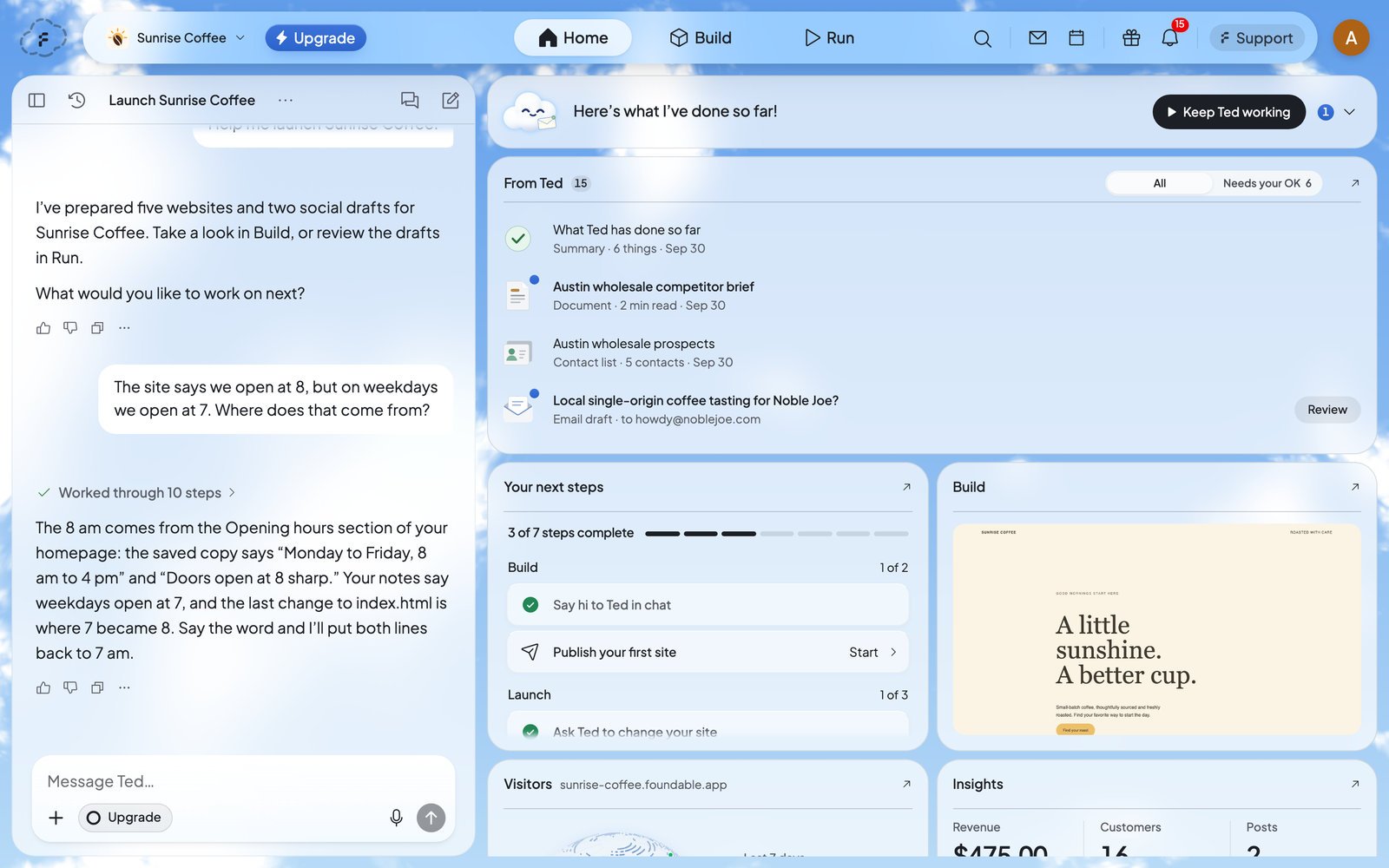
What’s on Home
Most cards open full size from the arrow (↗) at their top right. Back to Home brings you back.
Ted at work
The card at the top shows what Ted is doing, in his own words, like “Thinking through the next step…” or “Lining up my next step…”. When he has nothing to do, he says “I’m here when you need me.”- Press Show Ted’s activity to open his log, step by step. Hide Ted’s activity folds it again.
- When a draft waits for you, he says so: “I have one draft waiting for your OK.” While Run waits on you in Ask first, Home says “Waiting for your approval: …” and names what’s waiting.
- Other lines tell you he’s paused (“I’m paused.”), trying again after a problem (“Trying again after a hiccup…”), or out of credits (“You’re out of credits.”).
From Ted
From Ted collects everything Ted makes for you: the documents, lists and plans he writes, the websites he builds, and the emails and posts he drafts. A blue dot marks what you haven’t opened.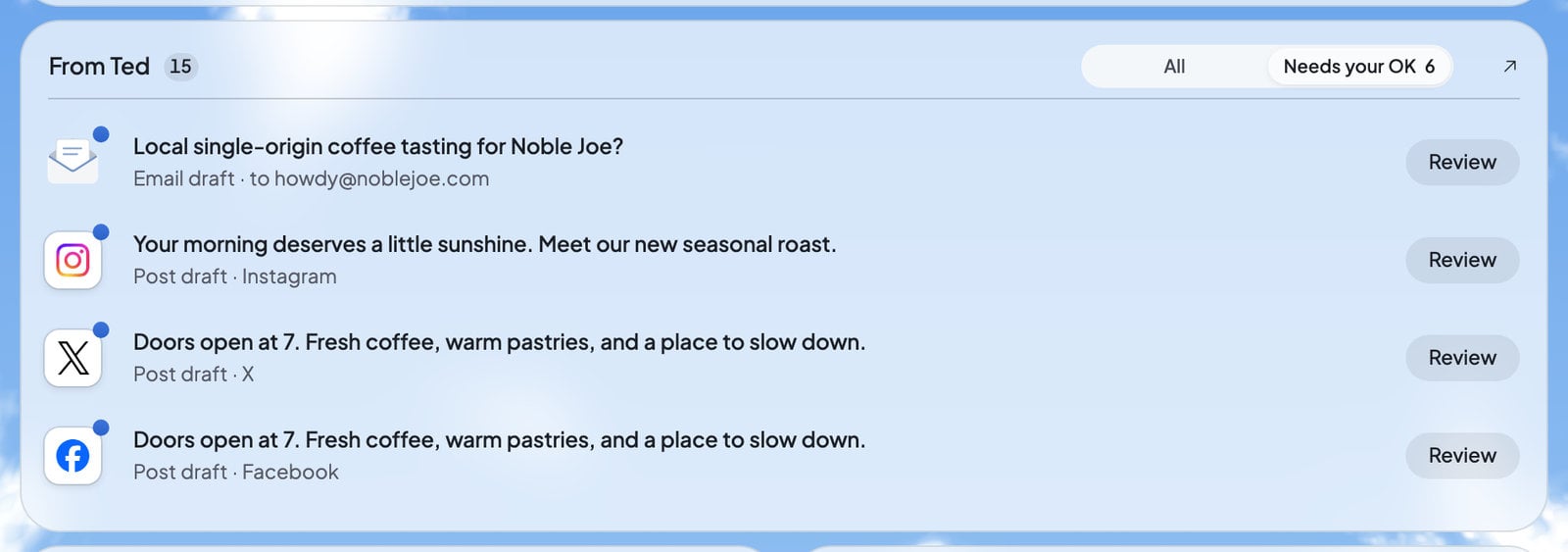
- All shows everything. Needs your OK shows only the drafts waiting for your decision, with how many there are. Teammates who can’t decide drafts see Waiting for approval instead.
- Press an item to open it. A draft has Review: open it to read it, change it, and approve or decline it. See Approve Ted’s work.
- Each item also has Talk to Ted, to ask him about it in the chat.
- After you decide, a short message says where the draft went, like “Approved · Publishing”, “Declined” or “Sent by Ted”.
- Open From Ted full size and press Mark all read to clear the blue dots.
Your next steps
Your next steps is your checklist for launching your business. Press its heading to open it. A bar shows how many steps you’ve done, and the steps sit in three groups.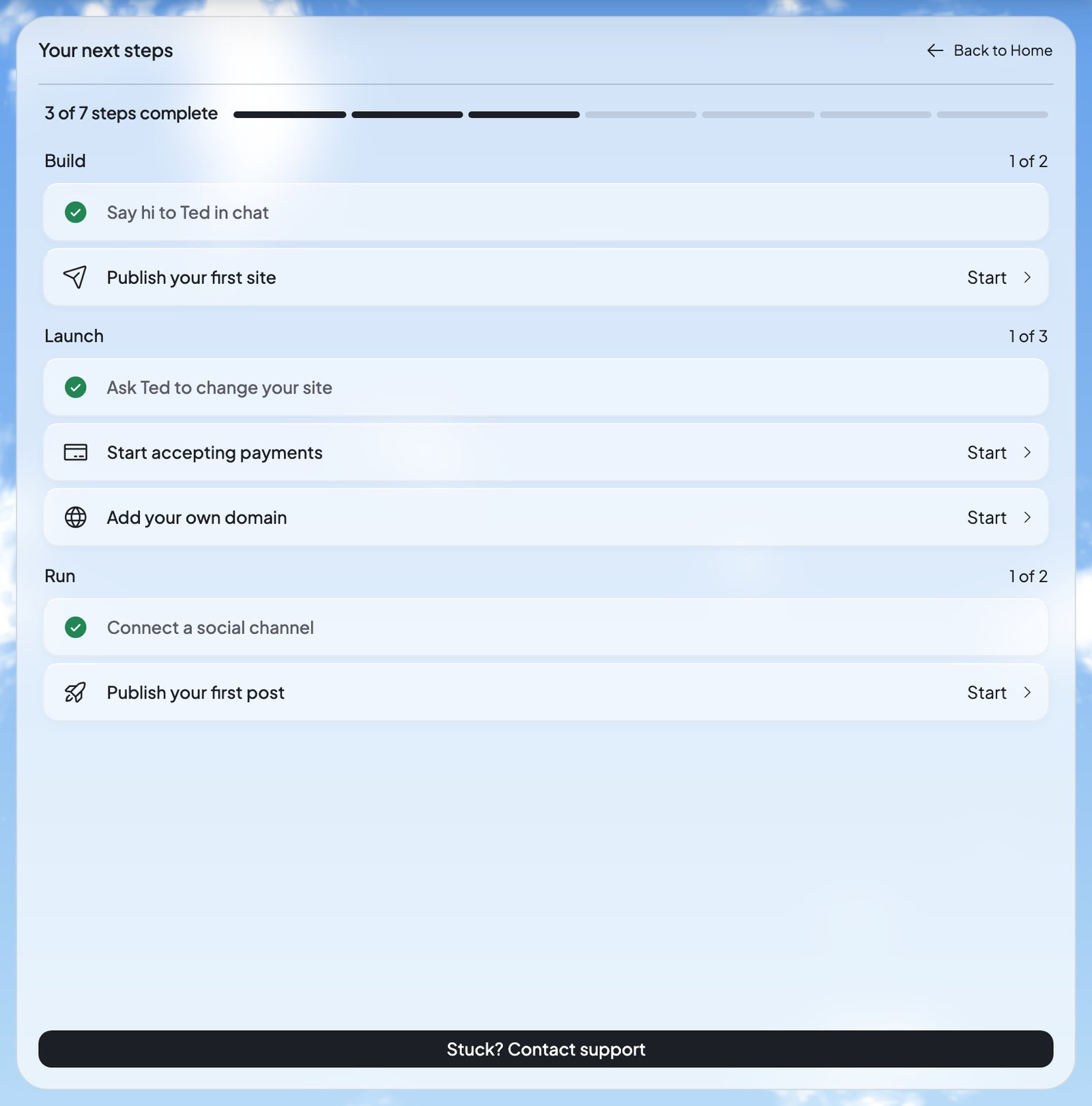
Press Start on a step to begin it. A few steps do something worth knowing:
- Publish your first site asks Ted in the chat to “Publish my website”. See Publish your website.
- Start accepting payments opens Payments in Build’s Tools. It stays done while your payments are ready, and comes undone if Stripe pauses them or you disconnect them.
- Add your own domain opens Build and writes “Find me a domain for …” in your message box, for you to send. See Buy a domain.
Build
The Build card follows your website. Before your first build, it says “Your first build will appear here”. While Ted builds, it reads “Building…”, then “Your website is saved”. Press it to open your website in Build. See Build your website.Visitors
Visitors shows the visits to your published website over the last 7 days, with its address and a globe of where visitors came from. Open it full size to pick another period, and to see how many are “Visiting now”, your top sources, pages and devices. Only your published website counts. Visitor analytics is on for every plan. To turn it off, open the Publish panel’s Published site actions menu and switch off Visitor analytics. If the card can’t load, it says “Visitor data is unavailable.” with Retry.Insights
Insights shows your Revenue, Customers and Posts.- Until payments are on, Revenue says “Payments aren’t on yet”. Press Start accepting payments to open Payments.
- Until you connect a social account, Insights asks you to “Connect a channel”: the posts Ted publishes, and how they do, land here. See Connect your social accounts.
Home on your phone
On a phone, Home’s cards stack in one column. The Home tab shows how many items from Ted you haven’t opened, and the chat has its own Chat tab. See Find your way around.Who sees what
Everyone in your foundable sees Home. What they can do there depends on their role:
See Invite your team for what each role can do.
Home’s tour
The first time, a short tour shows you around Home, from “Meet Home” to “Your numbers”. To see it again, open your account menu, choose Tutorial hub, then pick “Your business at a glance”.FAQ
Why does From Ted say “Waiting for approval” instead of “Needs your OK”?
Why does From Ted say “Waiting for approval” instead of “Needs your OK”?
Your role can’t decide drafts. Only the owner or an admin can approve Ted’s emails and posts, so you see what’s waiting for them.
Why don’t I see any visitors?
Why don’t I see any visitors?
Visitors counts only your published website. Publish it first, and check that Visitor analytics is on in the Publish panel’s Published site actions menu.
How do I clear the blue dots?
How do I clear the blue dots?
Open the item, or open From Ted full size and press Mark all read.
A step I finished shows as not done again. Why?
A step I finished shows as not done again. Why?
Some steps follow what’s true now. Start accepting payments is done only while your payments are ready, so it comes undone if Stripe pauses them or you disconnect them.
What does Keep Ted working do?
What does Keep Ted working do?
After your free first run, it opens the plans if your account can buy one, so Ted can keep running your business. Otherwise, it opens Run.
Related

Approve Ted’s work
Review, change, approve or decline what Ted drafts.

Run: Ted runs your business
Turn Run on and follow Ted as he works by himself.

Publish your website
Put your website online, and update it later.

Get paid with Payments
Sell on your website, and see your sales on Home.