


The top bar on a computer.
The top bar
In a narrower window, some tools fold into a … menu, and Support shows only Foundable’s F. When there’s no room for the gift, Earn credits moves into your account menu.
Home, Build and Run

Home
What Ted is doing and has made, your next steps, and your website’s visitors and insights.

Build
Design, change and publish your websites. Their Tools hold Payments and more.

Run
Turn Run on and follow Ted as he runs your business: his thinking, and the decisions waiting for you.
- Inbox: your foundable’s email and social messages, and drafts waiting for approval.
- Schedule: the tasks Ted runs on a schedule, on a calendar.
- Library: everything Ted made for your business, like posts, to review and post. It opens inside Run, from its Run | Library switch. See Posts and the Library.
Chat with Ted
The chat sits on the left of every page except Run. Type in the Message Ted… box and send.- Hide chat folds the chat into a slim strip, and Show chat brings it back. While it’s hidden, a dot on Show chat tells you “Ted is working” or “Ted replied”.
- Drag the chat’s edge to make it wider or narrower.
- Chat history lists your chats, and New chat starts another one.
Search
Press ⌘K on a Mac or Ctrl+K on Windows, or press the magnifying glass in the top bar. On a phone, tap More, then Search.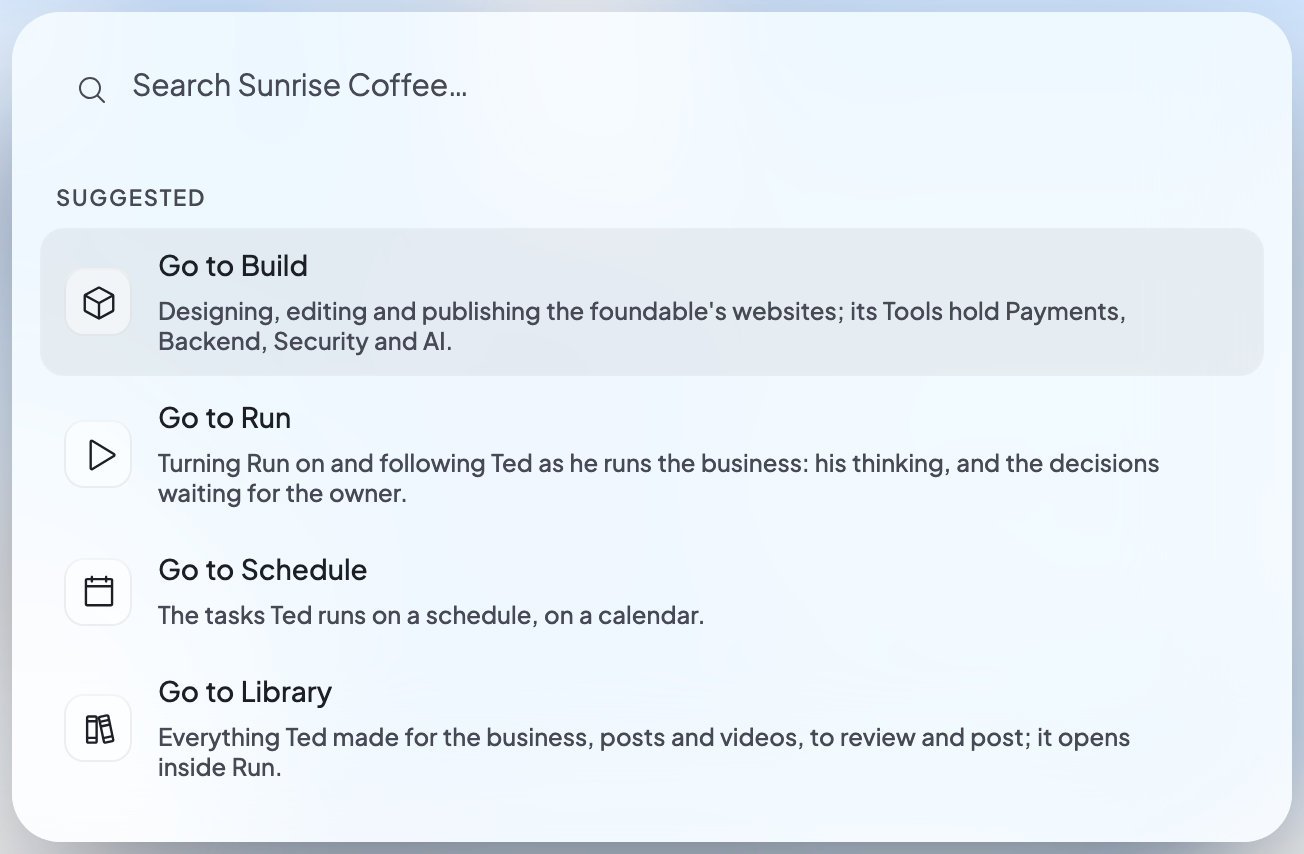
- Before you type, Search shows Recent items and Suggested places.
- As you type, it finds matches in your chats, documents, websites, files, posts, emails, email drafts, tasks, connected apps, settings and these help pages. Help results open in a new tab.
- It can take you places: Go to Home, Go to Build, Go to Run, Go to Inbox, Go to Schedule and Go to Library, plus Text Ted and Settings.
- Nothing found? Choose “Ask Ted: …” to send your words to Ted in the chat you have open.
From Ted
The bell at the top right collects what Ted made for you, on every page. A red number counts what you haven’t opened. Press the bell to open the From Ted panel, where each item offers Review or Talk to Ted. Until Ted makes something, it says “What Ted makes for you will appear here.” On a phone, the count sits on the Home tab instead. See From Ted on Home.Your account menu
Press your initial at the top right. From top to bottom, the menu holds: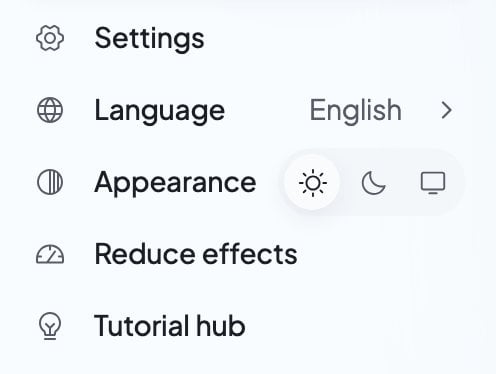
Your foundables
Press your foundable’s name at the top left to open Your foundables:- Every foundable you’re in is listed, with a check on the open one. Press another to switch.
- Settings opens the open foundable’s General settings.
- Invite people opens Team, if your role can invite.
- Create foundable starts a new business. The Free plan includes one foundable.
On your phone
On a phone, five tabs sit along the bottom: Home, Chat, Build, Run and More.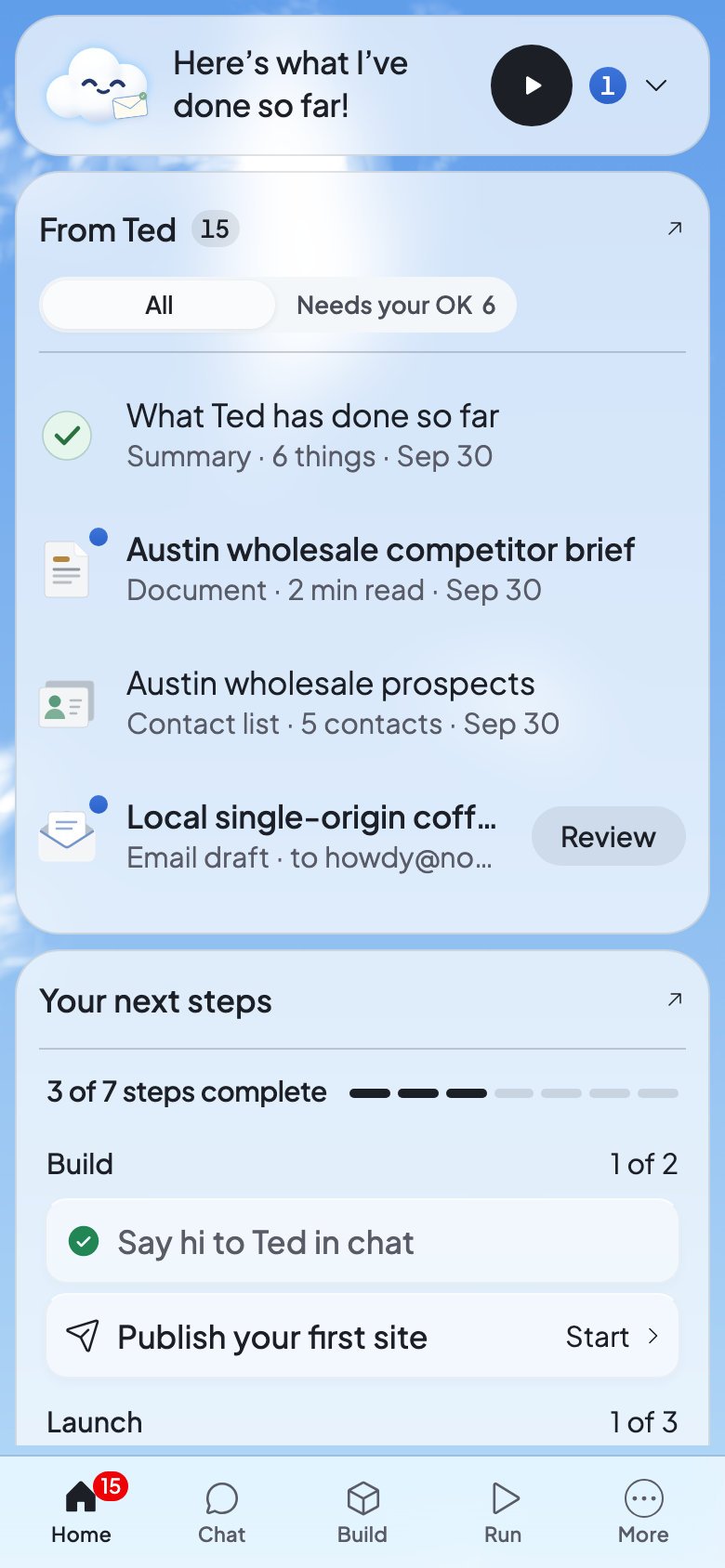
Home, with the tabs along the bottom.
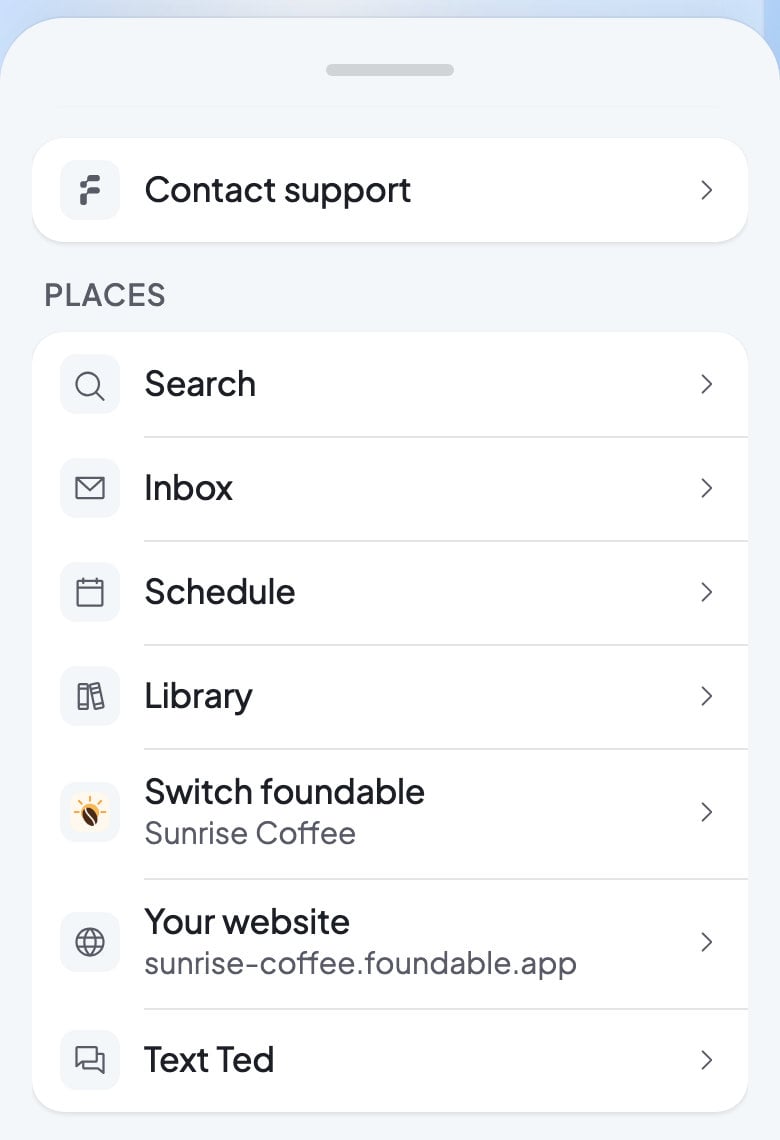
The More sheet’s Places.
- Home shows the count of items from Ted you haven’t opened.
- Chat opens your chat with Ted. Its dot tells you “Ted is working” or “Ted replied”.
- More holds everything else: Contact support first, then Places (Search, Inbox, Schedule, Library, Switch foundable, Your website and Text Ted), Account (Settings, Language, Appearance and Reduce effects), Help (Tutorial hub, Docs and Report a bug), and Log out. Your website shows only while you have a live website.
Keyboard shortcuts
If you have view-only access
A teammate with view-only access sees View only after the foundable’s name: “You can see this foundable, but not change it or ask Ted for work.” They can read chats with Ted, but not send them. See Invite your team.FAQ
How do I get back to Home?
How do I get back to Home?
Press Ted’s mark at the top left, or the Home tab.
Where is the Library?
Where is the Library?
It opens inside Run, from its Run | Library switch. You can also choose Go to Library in Search, or tap More, then Library, on a phone.
Why is there a dot on the Run tab?
Why is there a dot on the Run tab?
It means “Ted needs you”: a decision is waiting for you in Run.
I can’t find Earn credits.
I can’t find Earn credits.
In a narrower window, the gift leaves the top bar. Open your account menu and choose Earn credits.
How do I switch to dark mode?
How do I switch to dark mode?
Open your account menu and choose Dark next to Appearance. The choice is for this device only, so set it on each device you use.
Can I use Foundable on an iPad?
Can I use Foundable on an iPad?
Yes. On an iPad, Foundable shows the same layout as on a computer.
Related
Home
Your business at a glance, every time you open Foundable.

Chat with Ted
How to talk to Ted and follow his work.

Settings
Your foundable, your account, your team and your plan.

Get help
Chat with the Foundable team or report a bug.