

Before you start
- A paid plan. Connecting accounts needs an active plan, whoever connects them. See Plans and credits.
- The right role. The owner or an admin connects accounts. Members don’t see Connect.
- Your login for the network. You sign in to the network yourself to allow access.
Connect a network
1
Open Run
Press Run at the top of the screen.
2
Find the network
Instagram is in the Social box already. For another network, press + on the Social box, then + beside the network to add it.
3
Press Connect
Press the network on the canvas to open it, then press Connect Instagram (or the network you picked). You leave Foundable to sign in to the network.
4
Allow access
Sign in and allow access. You come back to the network in Run, with “Instagram is connected. Choose the accounts Ted may use.”
5
Choose the account
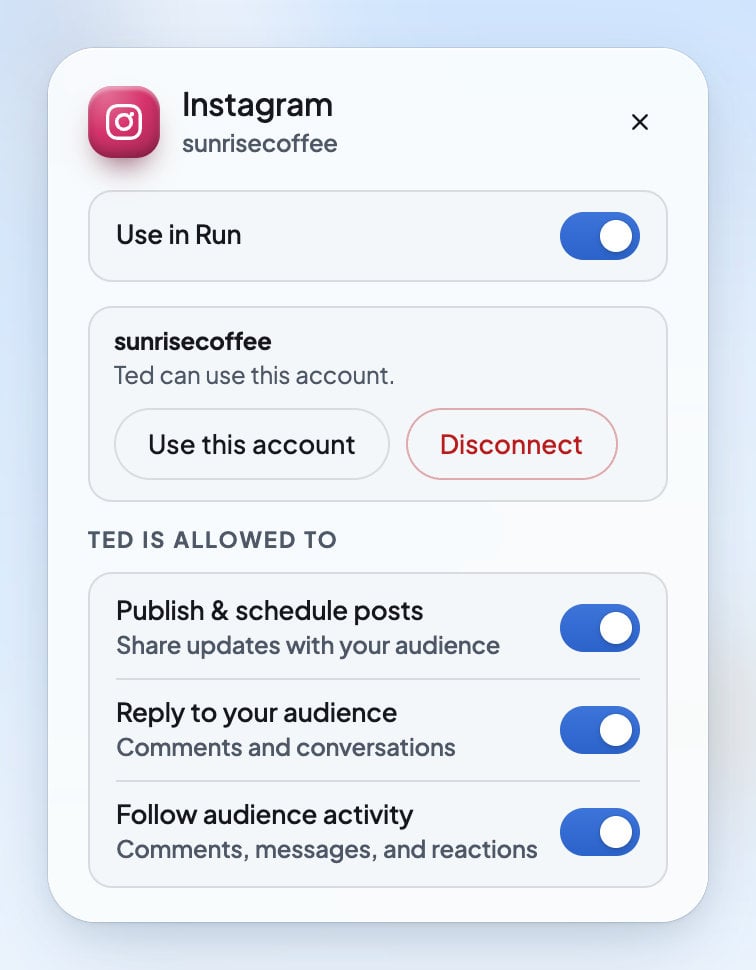
Press Use this account on the account Ted should use. It then says “Ted can use this account.”
6
Check what Ted may do
Make sure Use in Run is on at the top, and set the switches under Ted is allowed to.
Which networks Ted uses
What Ted is allowed to do
Open a network on the canvas to see its switches under Ted is allowed to:
Reply to your audience and Follow audience activity show only on networks whose messages and comments come into Foundable. See Social messages and comments.
Email, in the Outreach box, has switches of its own: Send outreach emails (“Start conversations with new customers”) and Reply to emails (“Continue conversations in your inbox”). It uses your foundable’s own address. See Your email address.
To decide how much Ted does without asking, see Ask first or Runs on its own.
Use in Run and your accounts
- Use in Run, at the top of a network, puts it in Run. Turn it off, and Ted leaves that network alone, even while it’s connected.
- When a network has more than one account, Ted uses only the ones you pick with Use this account. The others say “Ted does not use this account yet.”
- There’s no refresh button. Foundable keeps your accounts in step with the network by itself.
Disconnect an account
Open the network on the canvas and press Disconnect on the account. Foundable asks first: “Disconnect … from Run? You can reconnect anytime.” Once you confirm, Ted stops using that account. If the network hasn’t confirmed it yet, you see “The provider has not confirmed the disconnect.”What you’ll see
FAQ
Which networks can Ted post to?
Which networks can Ted post to?
Instagram, Facebook, LinkedIn, X and Threads. You can also connect TikTok, YouTube, Reddit, Google Business and WhatsApp, but Ted doesn’t post or send there.
Will Ted start posting as soon as I connect?
Will Ted start posting as soon as I connect?
Not without you. With Ask first, every post waits for your OK. With Runs on its own, Ted posts himself only where Publish & schedule posts is on.
Why don’t I see Connect?
Why don’t I see Connect?
Only the owner or an admin can connect accounts, and connecting needs a paid plan. Ask the owner, or see Invite your team for what each role can do.
Where do comments and messages show up?
Where do comments and messages show up?
In your Inbox, under Social. See Social messages and comments.
How do I stop Ted posting on one network?
How do I stop Ted posting on one network?
Open the network in Run and turn off Publish & schedule posts, or turn off Use in Run to keep Ted away from it altogether.
Related

Posts and the Library
See Ted’s posts and how they’re doing.

Social messages and comments
Read and answer what people send you.

Ask first or Runs on its own
Choose whether each post waits for your OK.

Plans and credits
Connecting accounts needs a paid plan.