


Preview and change
See each page on a computer, tablet or phone, and point Ted at what to change.

Publish
Put your website online at its own address.

Version history
Look at any earlier version and go back to it.
How a website gets made
You never build a website by hand. You describe it to Ted, and he makes it. Your first website starts from a plan Ted writes with you:1
Tell Ted about your business
Chat with Ted in your own words. He turns what you tell him into a plan and saves it.
2
Press Start build
When the plan is saved, the chat offers Start build. Only the owner can start the first build.
3
Watch Ted build it
A card appears on your board, marked “Starting”, then “Building”. It says “Ted is building your website” and shows about how long it usually takes. If it runs long, it says “Taking longer than usual”, and Ted keeps working.
4
Look at your new website
When Ted saves it, your website opens in the preview. The first time, a short tour shows you around Build.
Changes and new websites
After that, ask Ted in the chat for whatever you want: new words, another page, a different look, or a whole new website. Before Foundable saves any change, it checks that the website works. Each saved change becomes a new version, and Ted’s reply says “Build saved” with Open website. Nothing you or Ted change reaches visitors until you say so: you publish it yourself, or approve a change Ted hands you.If a build doesn’t finish
Your website is safe when a build stops. Ted’s reply tells you what happened:Your board
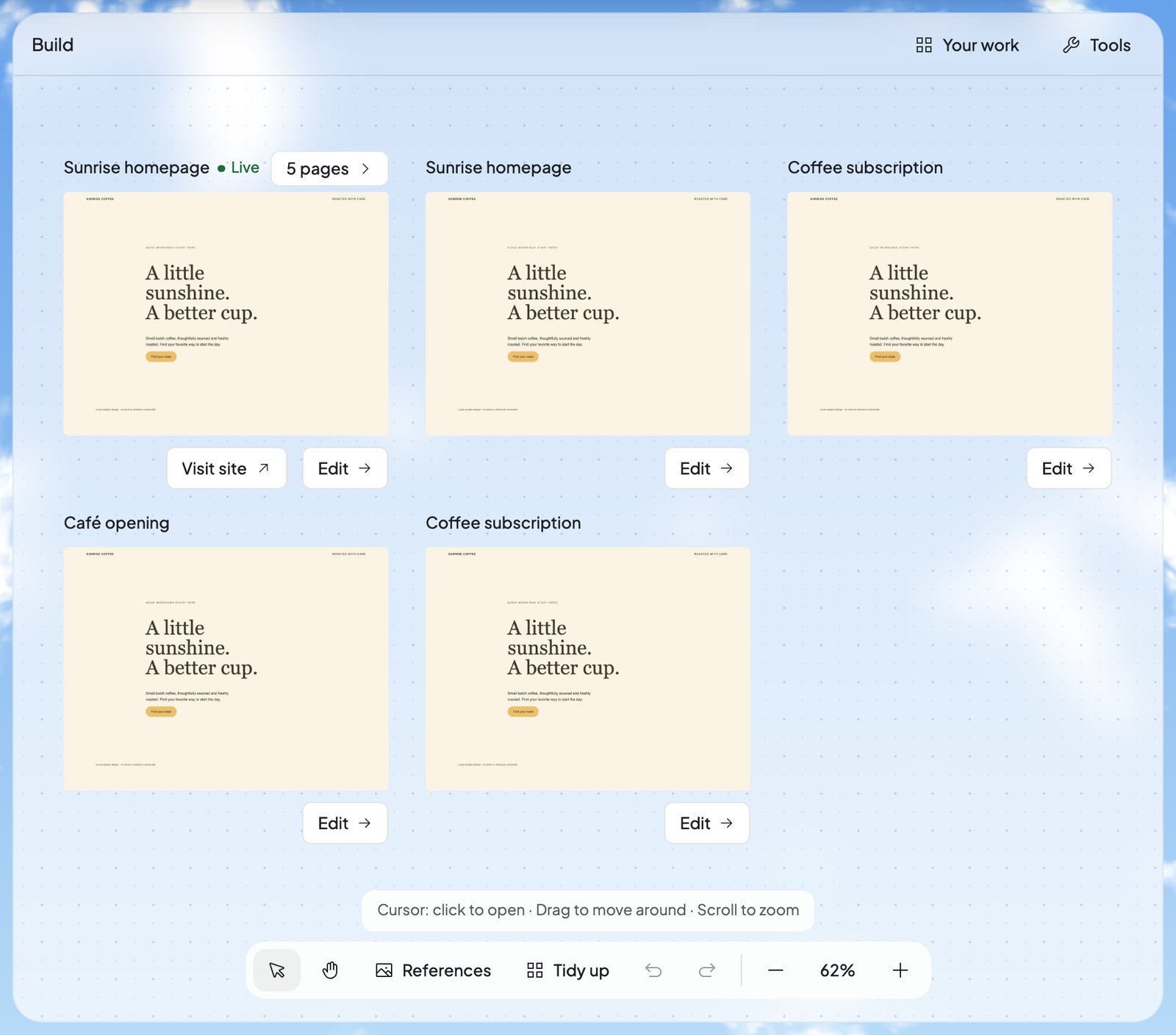
Every website you have is a card on the board, with a picture of the website and its name.
Right-click a card for Edit, Visit site and Show in chat.
Move around the board
The toolbar at the bottom of the board arranges your cards. It never changes your websites.
Scroll to zoom and drag to move around. Right-click an empty spot for Tidy up, Undo, Redo, Sort by (Default order, Name, Newest or Oldest), Zoom to fit and Zoom to 100%. On a phone, the toolbar keeps References, Tidy up, Undo, Redo and zoom to fit.
The board’s arrangement resets when you reload the page. Your websites stay exactly as they are.
Your work
Your work, at the top right of the board, lists every website with the date it was last edited. Type in “Search your work…” to find one by name. A website Ted hasn’t saved yet reads “Not saved yet”.Rename, duplicate or delete a website
Open the website, then press ⋮ (Website actions) at the top of the preview.- Rename: type a new name under “Website name” and press Save. To change its web address instead, see Your web address.
- Duplicate: makes a copy with “copy” added to its name, and opens it. A copy of a website that sells starts with no products: “The copy has no products yet; add them in Payments.” You can’t duplicate a website before it’s saved, or while its database is being set up (“This website can’t be duplicated yet.”).
- Delete: asks “Delete website?” first. The website leaves Build. A website linked to GitHub keeps its repository there.
References
Press References in the board’s toolbar to give Ted pictures to follow.- Explore shows example websites in families like “Food & hospitality” and “Local services”. Pick one and press Use for new website: Ted will use that layout for your next new website. Foundable prepares the message in the chat: “Nothing starts until you press Send.”
- Your uploads holds your own screenshots and photos. Press Upload image to add a PNG, JPEG or WebP picture from your computer. Then press Use as reference, and it guides Ted on your next message.
Tools and Publish
- Tools, at the top right of the board and of every open website, holds what runs behind your website: Payments, Database, Security, GitHub, AI and Emails. See Tools.
- Publish, at the top right of an open website, puts it online. See Publish your website.
Who can do what
Everyone in your foundable can see Build. What they can change depends on their role:
To add people, see Invite your team.
FAQ
Can visitors see my website while Ted is building it?
Can visitors see my website while Ted is building it?
No. Visitors see only what you publish. Your website stays out of public view until you press Publish, and later changes wait until you publish an update.
Can I have more than one website?
Can I have more than one website?
Yes. Describe a new website to Ted in the chat, and it appears on your board. Only one website is live at a time, though: publishing another one replaces it. See One live website at a time.
Do I need to save my work?
Do I need to save my work?
No. Every change Ted saves becomes a new version, and every version stays in Version history.
Does Ted change my website without asking?
Does Ted change my website without asking?
In the chat, Ted works on your website when you ask him. While Run is on, he can also work on it by himself, but he never publishes. A change to your live website waits on its card until you press Approve or Deny. See Decisions and website changes.
What if I run out of credits during a change?
What if I run out of credits during a change?
The change pauses and says “Paused — out of credits”. Press Get credits, then Continue, and Ted finishes it. Your first website’s build never pauses for credits. See Plans and credits.
How do I see the Build tour again?
How do I see the Build tour again?
Open the account menu, choose Tutorial hub, then pick “Your website, and how to change it”.
Related

Tools
Payments, your database, security, GitHub, AI and emails.

Chat with Ted
Ask Ted for changes and follow his work.

Get paid with Payments
Sell from your website.

Use your own domain
Give your website an address like yourbusiness.com.