


Your email address
See your address, change the name people see, or send from your own domain.

Write and reply
Send a new email or answer one, with or without Ted’s help.

Emails Ted writes for you
Check Ted’s drafts, then approve, edit or decline each one.

Social messages and comments
Answer messages, comments and reviews from your social accounts.
Open your Inbox
- On a computer or tablet, press Inbox (the envelope) in the top bar.
- On a phone, press More, then Inbox.
What’s on the screen
On a phone, Search, Filter, Refresh and Compose sit together at the top of the screen.
The list
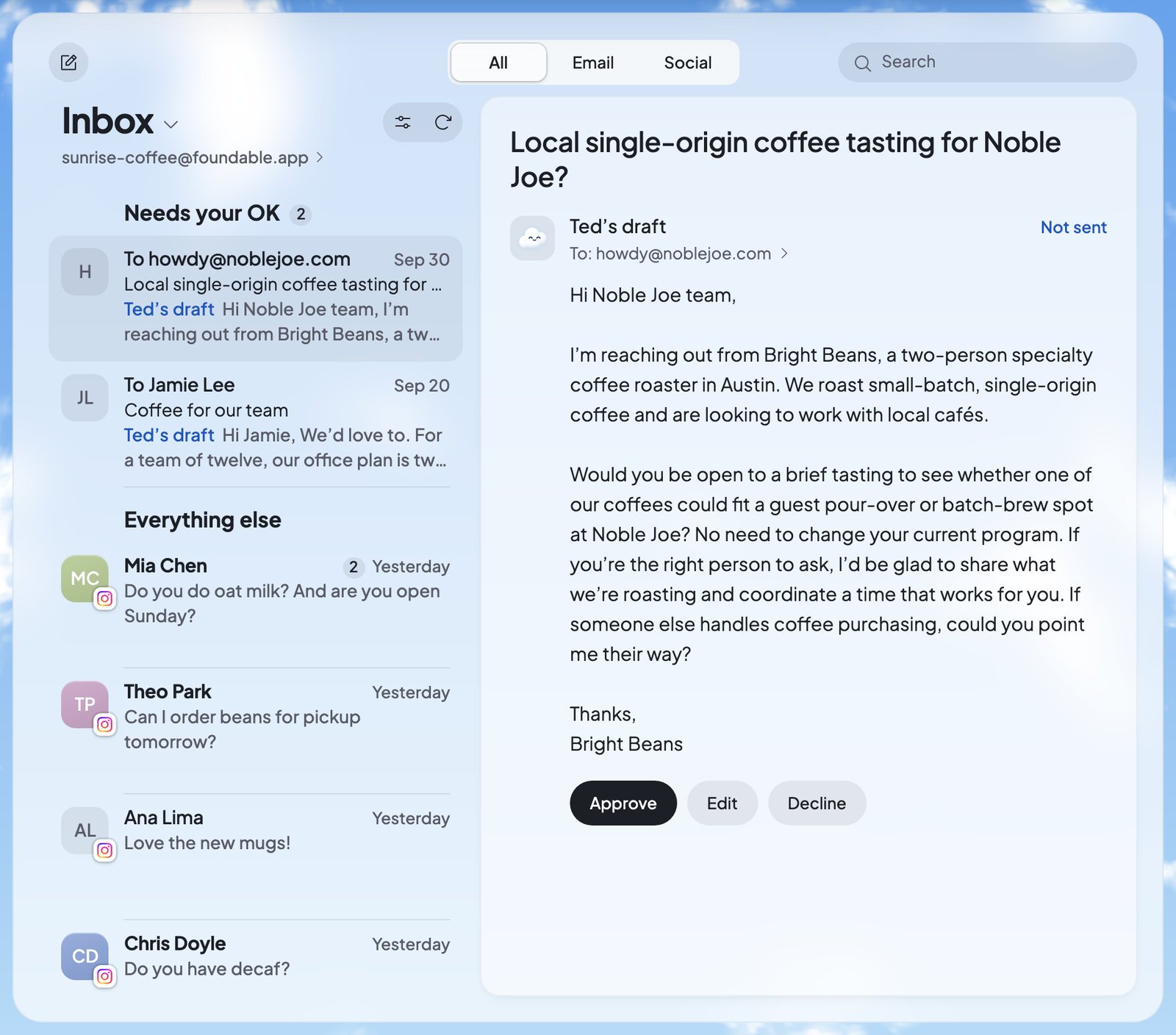
The list starts with what waits for you:- “Needs your OK” holds the emails Ted wrote that wait for your approval, with how many there are. Teammates who can’t send email see this group as “Waiting for approval”.
- “Everything else” holds your conversations, newest first. Each conversation is one row, with its subject and the start of its latest message.
Your folders
Press the Inbox title to switch folders.Read a conversation
Press a row to open the whole conversation beside the list. On a phone, or in a narrow window, it opens in the list’s place. Press Back to Inbox to return.- New and latest messages open in full. Older messages you’ve read fold to one line. Press one to open it.
- An email with its own design shows the way the sender made it. Its links open in a new tab.
- A long email says “This long email is only partly shown.” Press Read full message to see all of it.
- Press Show quoted text to see the earlier emails a reply quotes.
- Files sent with an email show under it. Press one to download it.
- Press the “To:” line under the sender’s name to see who it’s from, who it went to and when.
Keep your Inbox tidy
The bar above an open conversation, and the … menus, hold these:Who can do what
Everyone in your foundable can read its mail.
To add people and choose their roles, see Invite your team.
If something doesn’t load
FAQ
Do I need to set up email?
Do I need to set up email?
No. Every foundable gets its own address by itself once it has a name. See Your email address.
Can I search all of my mail?
Can I search all of my mail?
Search mail looks through the conversations in the list. To search your whole mailbox, use Search in the top bar (⌘K on a Mac, Ctrl+K on Windows).
Where do the emails Ted writes go?
Where do the emails Ted writes go?
They wait under “Needs your OK” at the top of the Inbox, and in Drafts. Nothing goes out until an owner or admin approves it. See Emails Ted writes for you.
Does archiving delete an email?
Does archiving delete an email?
No. It moves the conversation to Archived, where you can still read it.
Are the emails my website sends here too?
Are the emails my website sends here too?
No. The emails your website sends by itself, like confirmations and welcomes, are in Build’s Tools, under Emails. See Your website’s emails.
Why are Instagram messages in my Inbox?
Why are Instagram messages in my Inbox?
Under All, the Inbox shows your email and your social messages together. Press Email to see only email, or Social to see only social messages. See Social messages and comments.
Related
Write and reply
Send email from your foundable’s address.

Approve Ted’s work
Everything Ted makes that waits for your OK.

Scheduled tasks
Have Ted do a job at set times, or each time an email arrives.

Notifications and emails
Choose the emails Foundable sends you.