

1
Open Build
Press Build in the top bar.
2
Press Tools
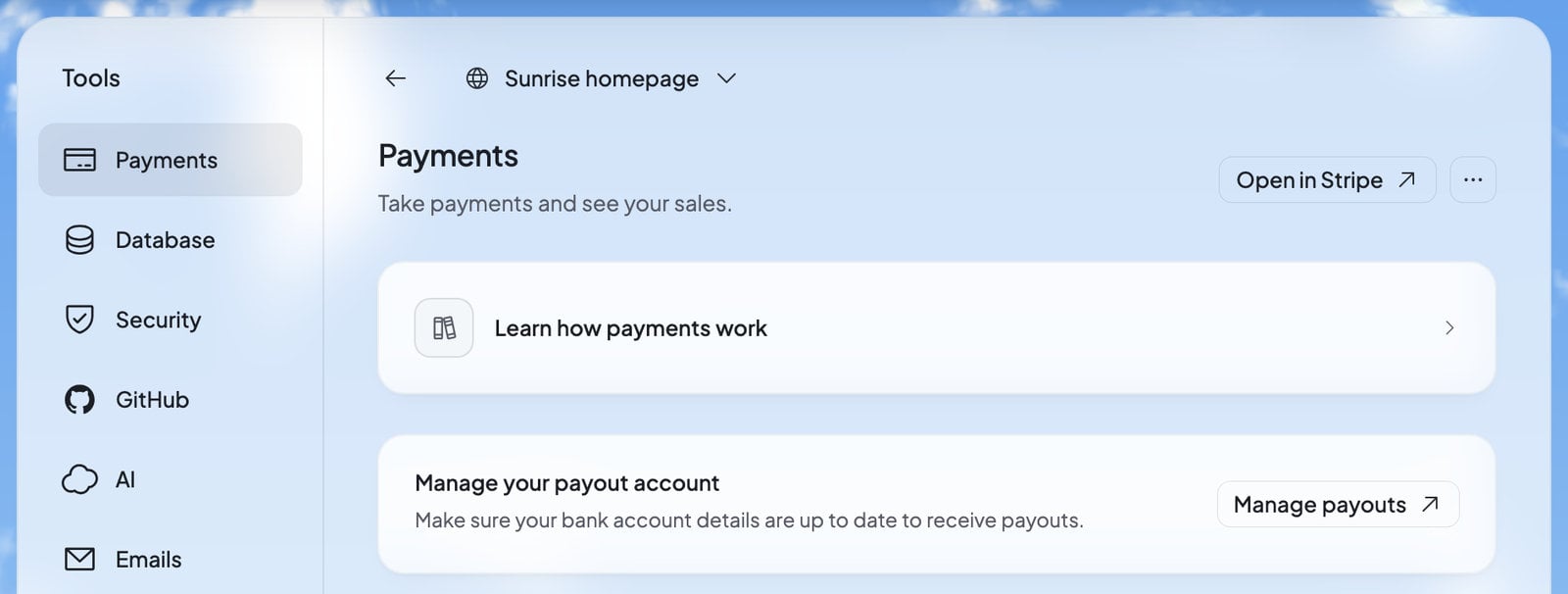
Tools sits at the top right of the board, and of every open website. It opens on the website you looked at last.
3
Pick a tool
Choose one from the list on the left: Payments, Database, Security, GitHub, AI or Emails.
4
Switch websites if you need to
Each tool shows one website. To see another, press the website’s name at the top and pick it from the list.
What each tool does

Payments
Take payments on your website and see your sales.

Database
The information your website keeps, and the people who signed up.

Security
Scan for leaked keys, and keep the secret keys your website uses.

GitHub
Keep your website’s code in a GitHub repository you own.

AI
See what your website’s AI answers and spends, and set a daily limit.

Emails
See the emails your website sends, and send yourself a test.
Payments
With Payments, your website can sell. Setting it up starts with one press, then Stripe’s own pages ask for your business and bank details. Once Stripe approves them, Payments shows your sales. See Get paid with Payments.Your own domain
A domain, like yourbusiness.com, isn’t one of the Tools. You buy one or connect one you already own in Settings › Domains, or from the Domains row of the Publish panel. See Use your own domain.Logs
Logs isn’t in the list. It opens when something goes wrong. If your website runs into an error in the preview, a card says “The website encountered an error”. Press Show logs on it to open Server logs. Server logs list your website’s requests and errors, from its preview and its published site. They’re kept 7 days, and your secrets show as[secret NAME], never their values. In Server logs you can:
- Pick a time range, from Last hour to Custom range…
- Show only the Errors
- Search events
- Download them as a file (“Download logs as a JSON file”)
- Press Try to fix on an error to ask Ted to fix it
Who sees which tool
Everyone in your foundable can open Tools. Some tools show only for some roles:
What someone can change inside a tool also depends on their role, and each tool’s page says who can do what. Where a teammate can’t make a change, the tool tells them who can, for example “Only the owner or an admin can add or change them.”
When a tool has nothing to show
Tools on a phone
On a phone, Tools opens as a list. Press a tool to open it, and press Back to tools to return to the list.Ted and your tools
Ted works with your tools too, so you rarely set things up by hand:- Your website’s database is set up by itself when Build creates the website, and Ted changes its tables when your website needs it.
- When your website needs a key from another service, Ted asks you for it on a card, and it’s kept in Security’s Secrets.
- Ted can connect a website to GitHub from the chat.
- Ted can read your website’s AI usage and change its daily limit and model.
- Ted writes newsletters for your website’s subscribers. Each one waits for an owner’s or admin’s OK before it goes out.
FAQ
Why don’t I see GitHub or Emails?
Why don’t I see GitHub or Emails?
Your role decides. Emails shows only for the owner and admins, because it shows who each email went to. GitHub shows for everyone but view-only teammates.
Where do I find Logs?
Where do I find Logs?
Logs opens from an error. When your website runs into one in the preview, press Show logs on the error card. See Logs.
Do the tools cost anything?
Do the tools cost anything?
Every new website gets its database, on every plan. Your website’s AI is paid from your credits, and shows as “Website AI” in your usage. Two things need a paid plan. One is sending your website’s emails to your customers: on Free, they go only to you. The other is Download code in the GitHub tool.
Do I need my own email service or AI account?
Do I need my own email service or AI account?
No. Foundable sends your website’s emails for you, and your website’s AI needs no key of its own. If you’d rather pay OpenAI yourself, you can add your own OpenAI key. See Use your own OpenAI key.
Related

Build your website
Your websites, the board and the preview.
Your website’s database
See and change what your website keeps.
Security and secrets
Scan your website and keep its keys safe.
Get paid with Payments
Sell from your website.