

These aren’t the emails in your Inbox. Your Inbox is your foundable’s own mailbox, where you and Ted write to people. See Your Inbox.
1
Open Emails
In Build, press Tools, then Emails.
2
Read the list
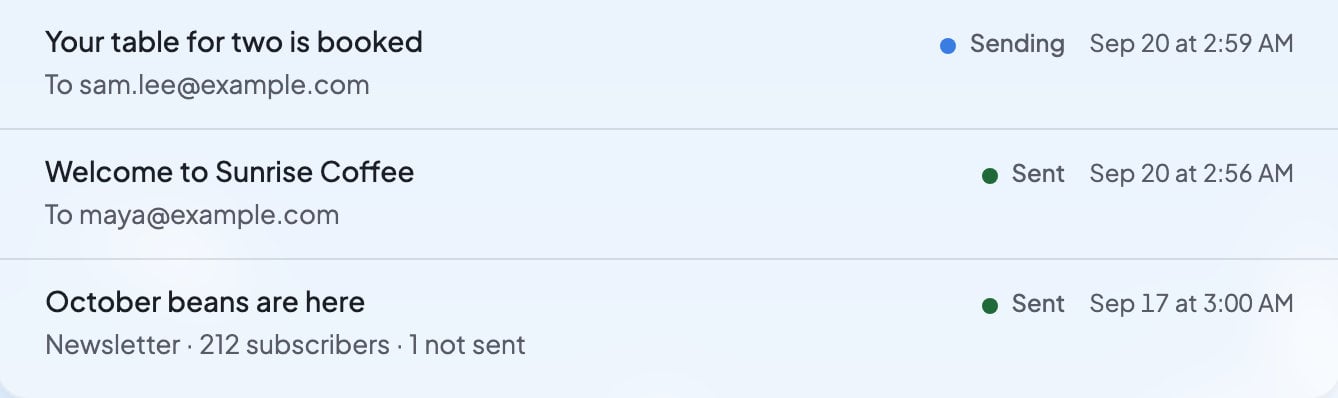
Sent emails lists your website’s emails, newest first. Each row shows the subject, who it went to, where it stands and when it was sent.
3
Send yourself a test
Press Send test. You see “Test email sent”, and the test reaches your own email address in a moment. Open it to see what your customers get.
What each status means
A row for an email to one person reads “To” and their address. A newsletter’s row reads “Newsletter” with the number of subscribers it went to.
Who gets your website’s emails
On the Free plan, your website’s emails go only to you. Emails says “On Free, your website’s emails go only to you.” Press Upgrade beside it to choose a plan. On every paid plan, your website emails your customers: “Confirmations, welcomes and newsletters”. Send test works on every plan. See Plans and credits.Newsletters Ted writes
Ted can write a newsletter for the people who subscribed on your website. It never goes out until an owner or admin approves it.1
Ted prepares the newsletter
A card titled “Newsletter” appears in the chat. It shows the subject, how many subscribers it goes to, and the words your subscribers will get. People who unsubscribed are left out, and the card says how many.
2
Read it
Check the words. If you want changes, tell Ted in the chat.
3
Approve or decline
Press Approve to send it, or Decline to stop it: “Declined. This newsletter won’t be sent.”
4
Watch it go out
The card counts the emails as they go out (“Sending…”), then says “Sent to” and the number of subscribers.
When sending pauses
If too many of your website’s recent emails bounce or are marked as spam, Foundable pauses its emails for a while. Emails shows “Emails are paused” and why:- “Too many of this website’s recent emails bounced. Sending starts again on its own on” a date it shows.
- “Too many of this website’s recent emails were marked as spam. Sending starts again on its own on” a date it shows.
Who can see Emails
Only the owner and admins see Emails in Tools, because it shows who each email went to. Anyone else who opens it sees “Only an owner or admin can see emails”. Only the owner and admins can approve a newsletter. Others see “Only the owner or an admin can send it.”What you’ll see
FAQ
Why do my website’s emails only reach me?
Why do my website’s emails only reach me?
On the Free plan, your website’s emails go only to you. Sending them to your customers needs a paid plan. Press Upgrade in Emails to choose one.
Do I need my own email service or key?
Do I need my own email service or key?
No. Foundable sends your website’s emails for you.
Why did my website stop sending emails?
Why did my website stop sending emails?
Too many recent emails bounced or were marked as spam. Emails shows “Emails are paused” and the date sending starts again on its own.
Is this the same as my Inbox?
Is this the same as my Inbox?
No. Emails shows what your website sends by itself. Your Inbox is your foundable’s mailbox, where you and Ted write to people and get their replies.
Related

Approve Ted’s work
Newsletters and other drafts that wait for your OK.

Your Inbox
Your foundable’s own mailbox.

Plans and credits
Send your website’s emails to customers on a paid plan.

Tools
Everything that runs behind your website.