

1
Open Database
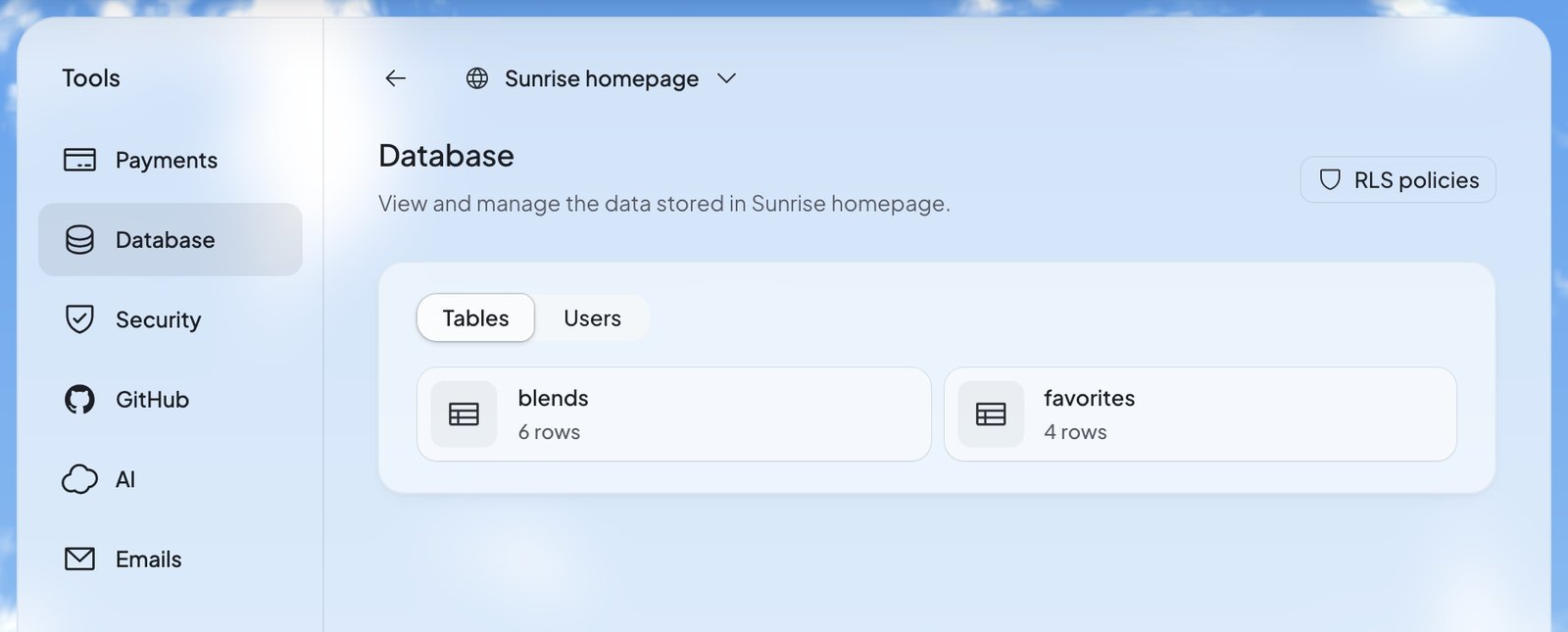
In Build, press Tools, then Database. You see your website’s Tables, each with its number of rows.
2
Open a table
Press a table to see its rows.
3
Change a value
Double-click a value, change it, and press Save.
Look through a table
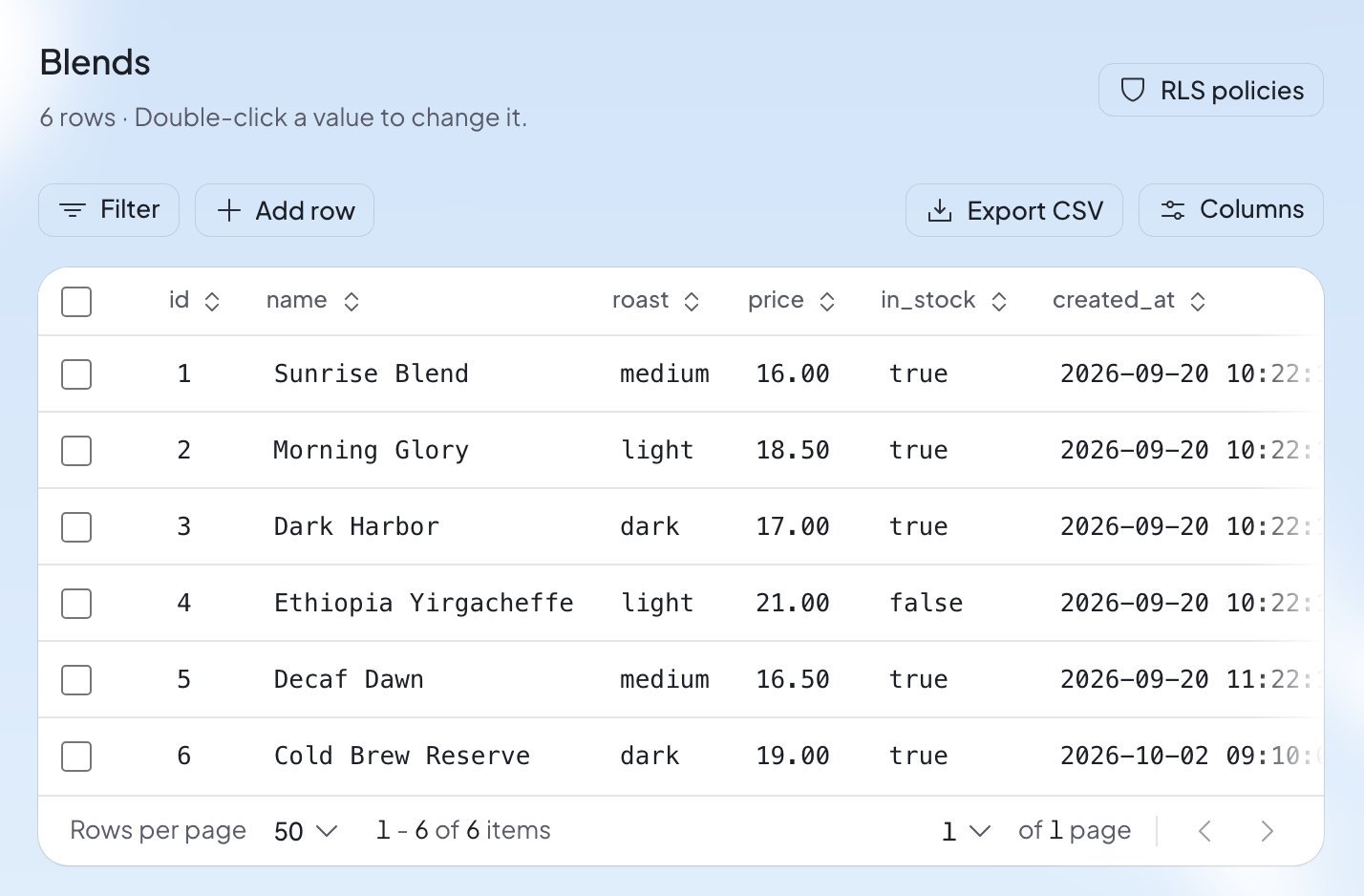
A table opens with its name, its number of rows and the reminder “Double-click a value to change it.” Above the rows:
A filter checks what you type. You may see “Must be a valid number”, “Must be a valid date (YYYY-MM-DD)” or “Must be true or false”.
Change, add or delete rows
- Change one value: double-click it, change it, and press Save.
- Change a whole row: press the pencil beside it (Edit row), make your changes, and press Save.
- Add a row: press Add row, fill in the values, and press Save.
- Delete rows: tick the boxes beside them, then press Delete with the number of rows, like Delete 2 rows. Foundable asks: “Are you sure you want to delete 2 rows? This action cannot be undone.”
- A table marked “A view, read only.” is built from other tables. You can look, but not change it.
- A table that says “It has no primary key, so its rows can be added here but not changed.” takes new rows only. If you need to change its rows, ask Ted.
Change the tables themselves
Database changes what’s in your tables, not how they’re built. There’s no button to add a table or a column here. Ask Ted instead, in your own words, like “Add a phone number to the sign-up form and keep it in the database.” He changes the tables for you.Who can see what: RLS policies
Press RLS policies at the top right to see your database’s rules. In the app’s words, “Row level security (RLS) controls which data users can access across your database, storage, and realtime.” Each table shows whether its rules are on (“RLS enabled”). Each rule says what it allows, like reading or adding rows, and who it applies to. You can read the rules here. To change one, ask Ted. Security’s quick scan also checks these rules for you. See Security and secrets.The people who signed up
Press Users to see who signed up to your website, and to add test users who let you try it as someone else. You see:- Signups: a chart of new sign-ups over the last 7, 30 or 90 days.
- A search box, “Email or name”.
- Everyone who signed up, with when they last signed in, or “Never signed in”.
You can’t delete someone while your website’s data still points to them. Foundable says “This user is still linked to data in your website’s database. Remove or update the records that reference them, then try again.”
Try your website as someone else
A test user is a pretend account for checking what your website looks like to someone who signed in. “A test user signs in to your website through Viewing as or Preview as.”1
Press Add test user
In Users, press Add test user.
2
Add a password if you want one
The Password is optional. Add one if you want to sign in as the test user on your website’s own email and password sign-in too. It needs at least 8 characters, with at least one number.
3
Add it
Press Add test user. The test user appears in the list, marked “Test user”, with an address like
tester1@example.com.4
Preview as the test user
Press … beside the test user, then Preview as. Or use Viewing as in the preview. See Preview and change your website.
What you’ll see
FAQ
Do I pay for my website’s database?
Do I pay for my website’s database?
No. Every new website gets one, on every plan. If an older website has none, press Set up database in Database.
Can I add a column or a table?
Can I add a column or a table?
Not in Database. Ask Ted what you need, and he changes your website’s tables. See Change the tables themselves.
Can I get deleted rows back?
Can I get deleted rows back?
No. Deleting rows “cannot be undone”, so check the rows you ticked before you confirm.
I forgot a test user’s password. Can I see it?
I forgot a test user’s password. Can I see it?
No. Foundable doesn’t show a test user’s password again or reset it. Delete the test user and add a new one.
Can my teammates see my website’s data?
Can my teammates see my website’s data?
Admins can. Members and view-only teammates can’t: they see “Only the owner or an admin can see this website’s data.” To change someone’s role, see Invite your team.
Related

Security and secrets
Check your database rules and keep your keys safe.

Preview and change your website
See your website signed in as you or as a test user.

Tools
Everything that runs behind your website.

Chat with Ted
Ask Ted to change your website and its tables.