

1
Open Security
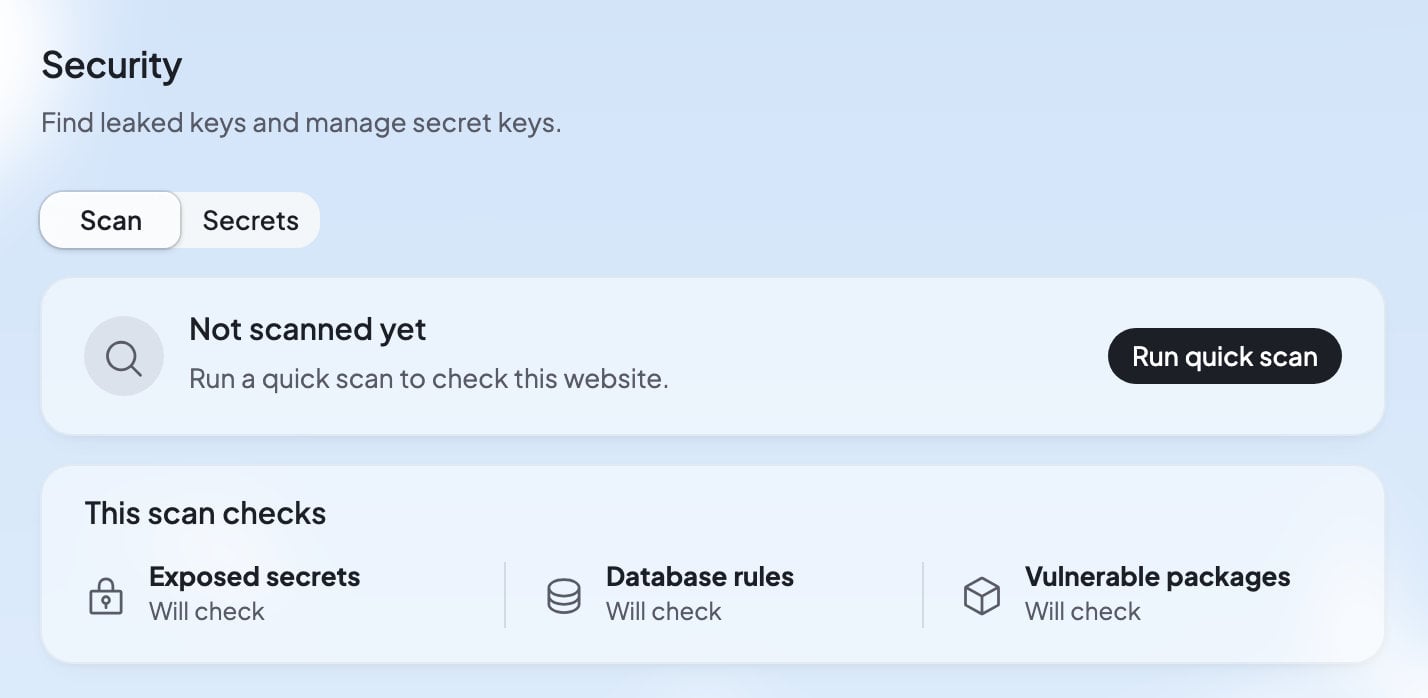
In Build, press Tools, then Security. Scan is selected.
2
Run a scan
Press Run quick scan. It says “Running quick scan…” while it works.
3
Read the result
You see “No issues found”, or a list of findings.
4
Fix or ignore each finding
Press Try to fix and Ted fixes it, or ignore a finding you’re sure about.
What the quick scan checks
If the scan couldn’t check one of these, it says so, like “Couldn’t check database rules this time.” Run the scan again later.
When scans run
Foundable scans every version you publish, Ted’s included. The scan card says “Up to date · Runs every time you publish”. Publishing never waits for the scan. The Security row in the Publish panel shows how the latest scan went: “Not scanned”, “Scanning”, “No issues”, or the number of issues. You can also scan any time with Run quick scan.Read a finding
Each finding has a title that says what’s wrong, like “Database key exposed to visitors”, and a severity:
Open a finding to see What could happen, in plain words, and Technical details, which say where the problem is.
Fix or ignore a finding
- Try to fix: Ted fixes the problem in your website. This can use one of your free fixes. When it does, the receipt under Ted’s reply reads “Free”.
- … › Reference in chat: puts “About this security issue in my website: …” in your message to Ted, so you can ask about it. Nothing is sent until you press send.
- … › Ignore finding: pick why, “This is intended”, “I accept this risk”, “This is wrong” or Custom. The finding moves to Ignored findings. To bring it back, open it there and press Unignore finding.
Secrets
A secret is a private value your website’s server code uses, like the API key for an email or map service. Your website reads each secret by its name, and its value stays hidden: “Your websites read these by name. Saved values are never shown again.” Secrets are “Shared across this foundable’s websites”. Press Secrets at the top of Security to see them. Each row shows the secret’s name, its value as dots with its last few characters (“Ends in …”), and when it was updated.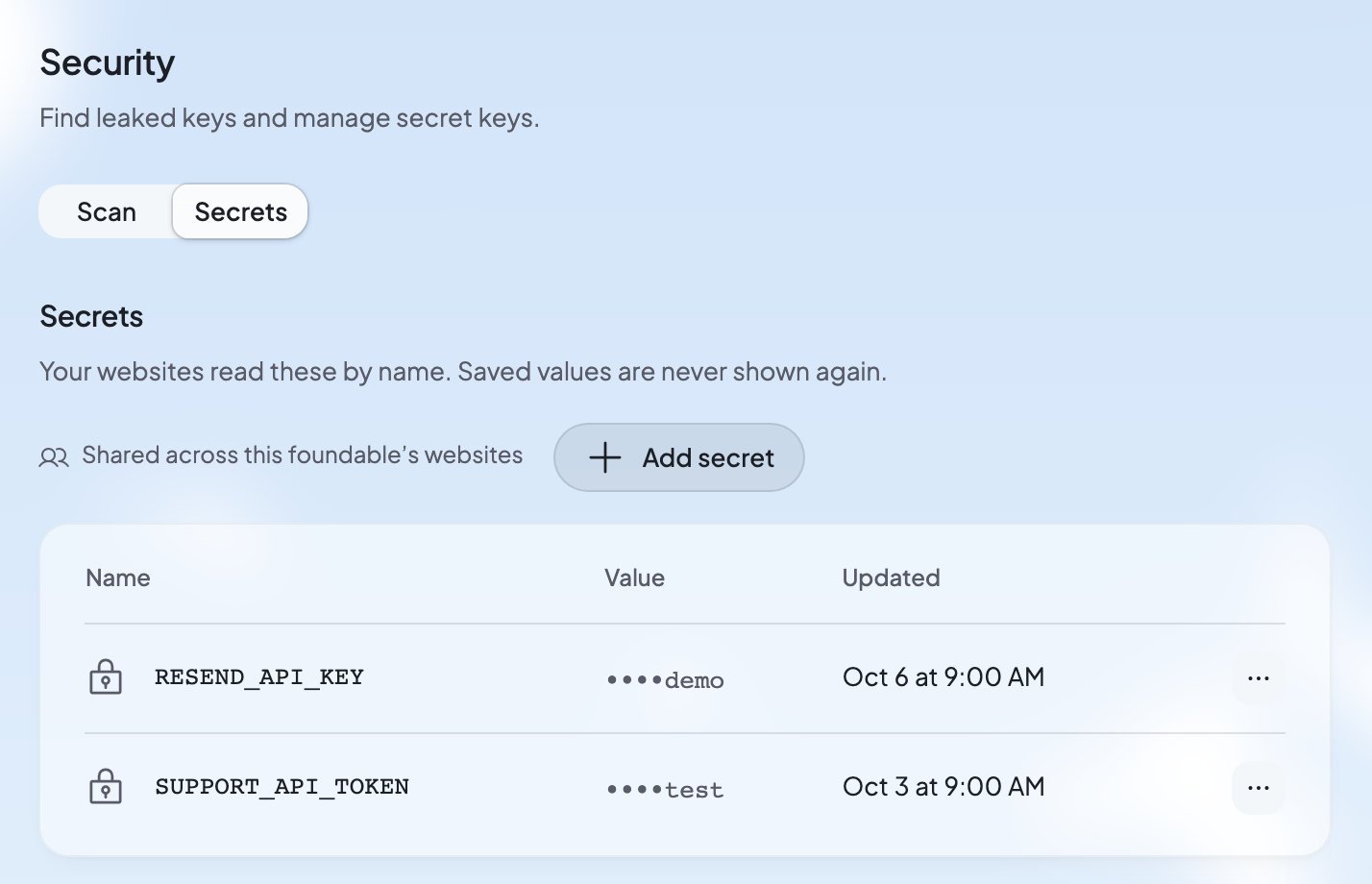
When Ted asks for a key
Usually, you don’t add secrets yourself. When a feature needs a key, Ted asks for it on a card, “Secrets Ted asked for”. Type the value and press Set (or Replace for one you saved before). The card says: “Only your websites’ server code can read these. Ted and Build see the names, never the values.” When Ted needs a key while he works in Run, he asks under Ted needs you in Run instead, and you add the key here. See Decisions and website changes.Add a secret yourself
1
Open Secrets
In Build, press Tools, then Security, then Secrets.
2
Press Add secret
A new row opens with Name and Value.
3
Name it and paste the value
Use the name your website’s code expects, like
RESEND_API_KEY. Paste the key into Value.4
Press Save
“Your websites use it from their next request, the preview included.”
_ or $, and can’t start with a digit.
Change or delete a secret
Press … beside a secret:- Replace saves a new value under the same name.
- Delete asks first: “Delete RESEND_API_KEY? This can’t be undone.”
Secrets marked Foundable
“Foundable sets the ones marked Foundable for this website.” They connect your website to its database:SUPABASE_URL, SUPABASE_PUBLISHABLE_KEY and SUPABASE_SERVICE_ROLE_KEY. You can’t use these names for secrets of your own.
The server key has Rotate, which makes a new key. It asks first: “Foundable makes a new key, this website’s server code uses it from its next request, and the old key stops working.” If a rotation doesn’t finish, the old key keeps working and Security tells you to rotate it again.
Use your own OpenAI key
Your website’s AI runs on your credits. To have OpenAI bill you instead, add a secret namedOPENAI_API_KEY. See Use your own OpenAI key.
Who can do what
What you’ll see
FAQ
Can anyone see my secret values?
Can anyone see my secret values?
No. Once saved, a value is never shown again, to you, your team or Ted. Security shows only its name and its last few characters. Only your websites’ server code reads it.
Why can’t I save my Stripe key?
Why can’t I save my Stripe key?
Payments handles Stripe for you, so your website never needs a Stripe key. See Get paid with Payments.
When does a changed secret take effect?
When does a changed secret take effect?
On your website’s next request, in the preview and on your live website. Nothing needs to be rebuilt or published again.
Does a scan stop me from publishing?
Does a scan stop me from publishing?
No. Publishing never waits for the scan. Check the Security row in the Publish panel, and fix what it finds.
Does a clean scan mean my website is safe?
Does a clean scan mean my website is safe?
It means none of the three checks found a problem: exposed secrets, database rules and vulnerable packages. The quick scan looks for these common problems, not every possible one.
Related

Your website’s database
See the data and rules the scan checks.

Your website’s AI
Use Foundable AI, or your own OpenAI key.

Publish your website
Every publish runs a scan.

Tools
Everything that runs behind your website.