

1
Open Search
Press ⌘K on a Mac or Ctrl+K on Windows, or press the magnifying glass in the top bar. On a phone, press More, then Search.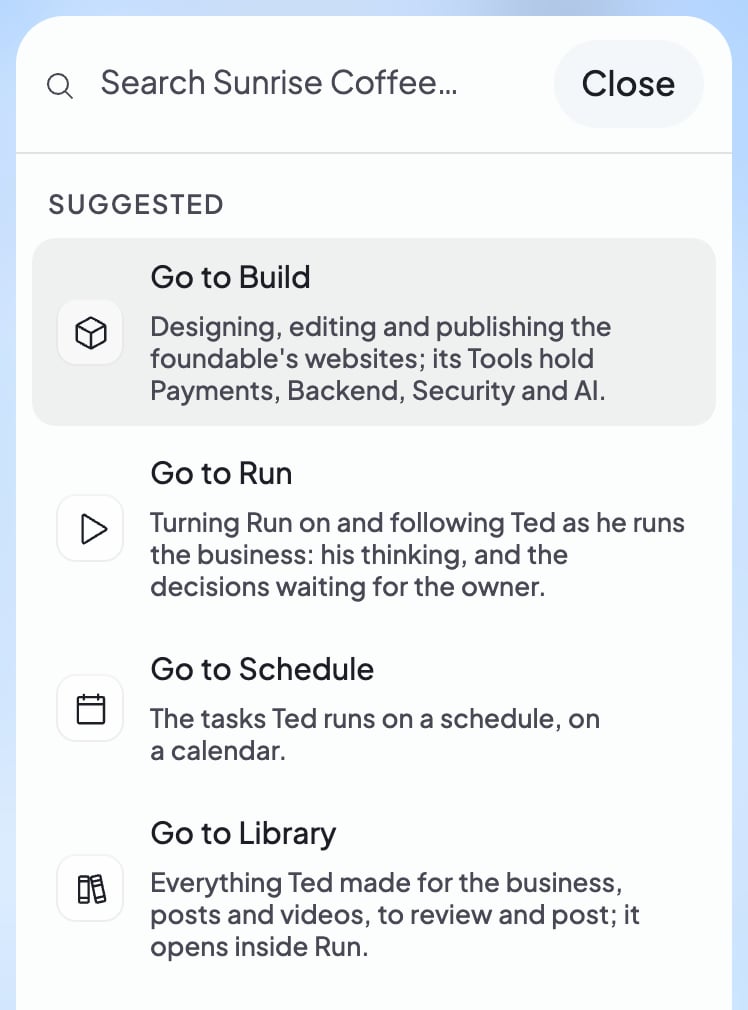
2
Type what you’re looking for
Search looks through your chats, documents, websites, files, posts, emails, email drafts and tasks. It also finds your settings and apps like Gmail. Its Help results are Foundable’s policies, like the Terms of Service.
3
Open a result
Press a result, or press Enter to open the top one. The arrow keys move between results.
Check that it worked
Search closes, and the result opens where it lives. A chat opens in the chat, an email in your Inbox and a task in Schedule. A policy opens in a new tab.If something goes wrong
“No matches in … for …”
“No matches in … for …”
Nothing in your foundable matched your words. Choose Ask Ted: … at the bottom to send them to Ted in the chat you have open.
“… couldn’t be searched”
“… couldn’t be searched”
Search couldn’t look through your foundable. Press that row to try again.
“Couldn’t open it. Try again”
“Couldn’t open it. Try again”
The result didn’t open. Press it again.
Related

Find your way around
The top bar, your account menu and Foundable on your phone.

Find and manage your chats
Your chat history, newest first.