

1
Open the conversation
In the Inbox, press its row.
2
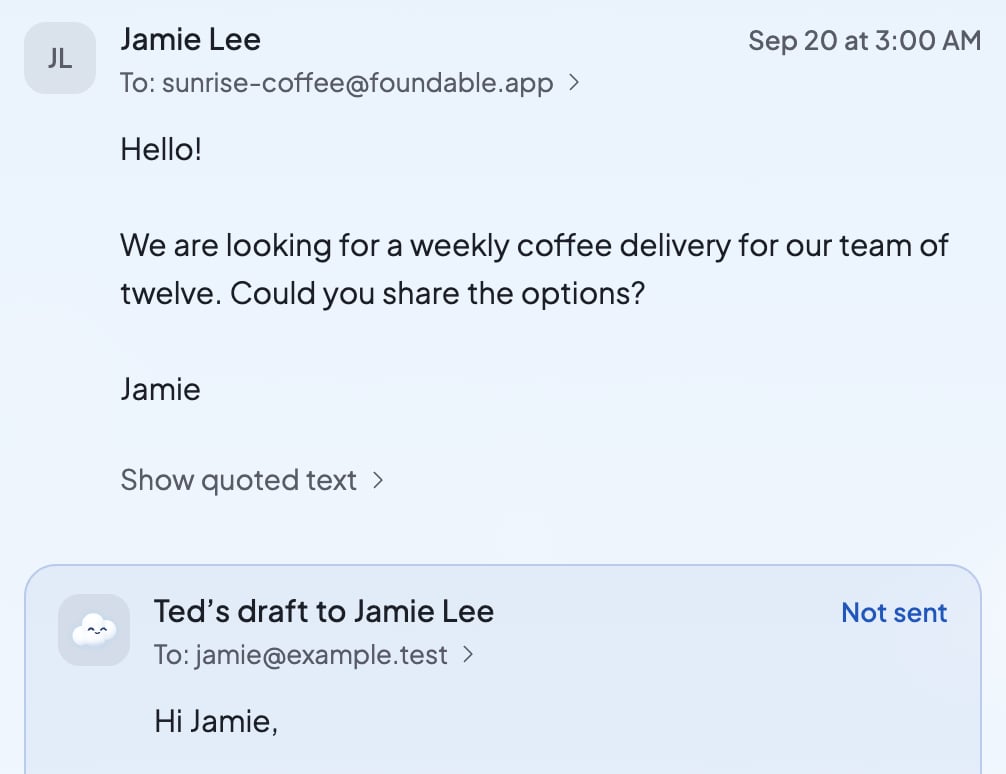
Press Reply, or Reply with Ted
Reply opens your answer with who you’re replying to, your address and the subject filled in, with Re: in front. Reply with Ted drafts it first, then opens it with Ted’s words in it.
3
Write it, then send
Write your answer, or change anything in Ted’s, then press Send. Nothing goes out until you do.
Check that it worked
The sheet closes. When your reply goes, a note says who it went to, and the reply moves to Sent. To follow a reply that takes a while, see Write and send an email.If something goes wrong
“Not enough credits to draft a reply.”
“Not enough credits to draft a reply.”
Your credits don’t cover a reply from Ted. Add credits, or write the reply yourself. See Get more credits when you run out.
“Drafting replies needs an active plan.”
“Drafting replies needs an active plan.”
Ted drafts replies only with an active plan. Choose a plan, or write the reply yourself. See Choose, change or cancel your plan.
“Your account is on hold, so Ted can’t draft replies. Contact support.”
“Your account is on hold, so Ted can’t draft replies. Contact support.”
Your account is on hold. Contact support.
FAQ
Can I reply to everyone on an email?
Can I reply to everyone on an email?
No. A reply goes back only to whoever sent the message, and Cc and Bcc are only for new emails. See Write and send an email.
Can I attach a file to my reply?
Can I attach a file to my reply?
No. Emails you send from the Inbox are plain text with no files.
Related

Write and send an email
Start a new email, with or without Ted.

Check and send the emails Ted writes
Approve, edit or decline the emails Ted drafts.

Your Inbox
Find your way around your mail.