

1
Open the Library
In Run, press Library at the top left. Its heading says how many items it holds. Press Close to go back to Run.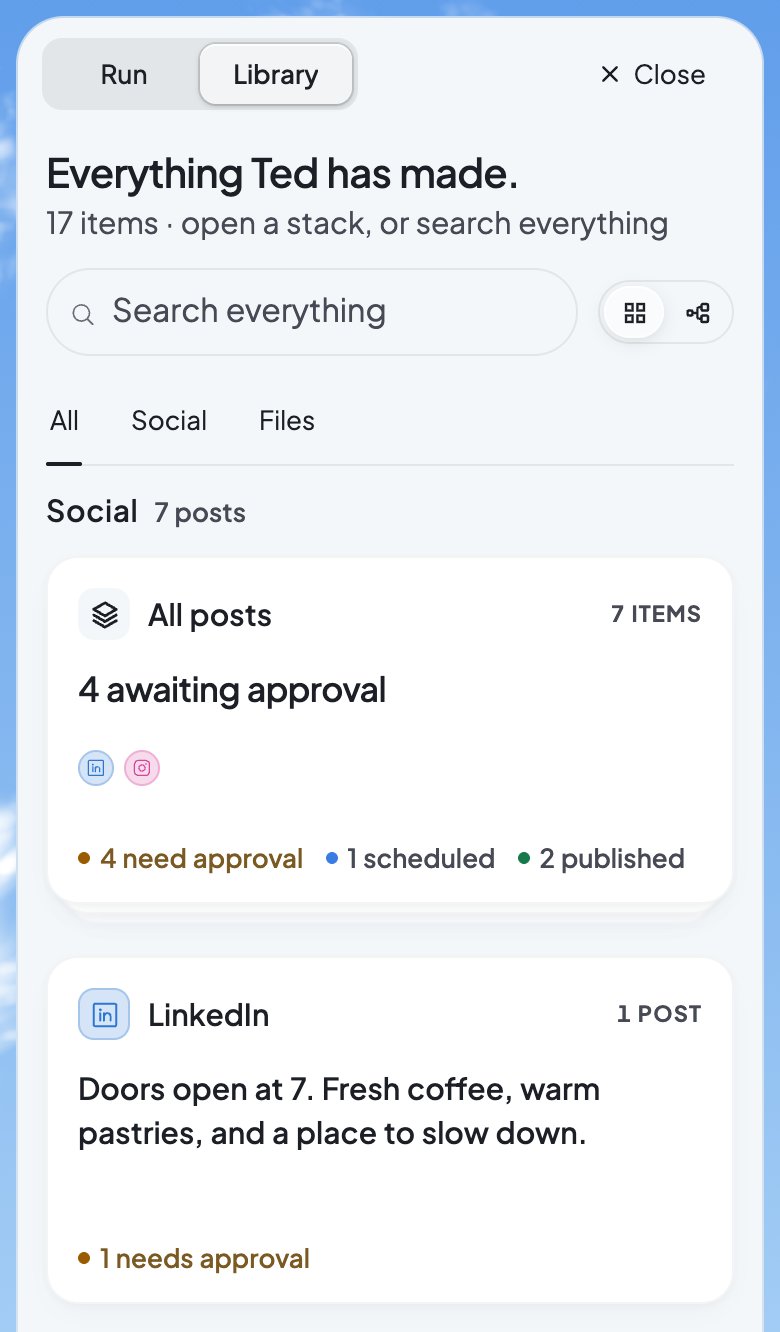
2
Pick a tab
All shows your posts and files together. Social has All posts and a stack for each network. Each stack counts what needs approval, what’s scheduled and what’s published.Files has Documents, with the documents, lists and files Ted saved. It also has Assets, with pictures such as your logo.
3
Find something
Type in Search everything to find posts, documents and pictures by their words. The two buttons beside it change the layout: the grid shows cards, and the tree shows a compact list.
4
Open a network’s stack
Its posts sit in four views: Needs approval, Scheduled, Set aside and Completed. Set aside also holds posts that failed or are on hold, and cancelled ones. Each says why.
5
Open a post
A post that waits for your OK opens its review. Any other post opens a read-only Post preview. Once the post is live, the preview links to it on the network.
See how a post is doing
Open a published post to see Post performance. It shows the numbers each network last reported, its lead measures first. Switch the chart between Total and Daily. These numbers aren’t live. Each network first measures a post about 15 minutes after it goes out. Then it checks about every hour while the post is new, and less often as it ages. The post says when each network last reported. Until a network counts it, the post says so. Its chart starts once the network has measured it twice. Ted checks these numbers too as he works, and says so in Ted’s activity. To see how all your posts are doing together, open Insights on Home. See Track your visitors and sales.If something goes wrong
“Couldn’t load your posts”
“Couldn’t load your posts”
Foundable couldn’t read your posts. Check your connection, then press Try again. The files that did load stay below, and if nothing loaded, the card names the whole Library.
“Couldn’t check how it’s doing.”
“Couldn’t check how it’s doing.”
Foundable couldn’t get the post’s numbers from its network. It asks once each time you open the post, so close the post and open it again.
FAQ
Where are the documents Ted wrote?
Where are the documents Ted wrote?
In the Library, under Files › Documents. They’re also under From Ted on Home. See Open the files Ted makes.
Related

Approve and schedule Ted’s posts
Post, schedule or decline what Ted writes.

Open the files Ted makes
Open, download or change Ted’s documents.

Connect your social accounts
Let Ted post to your networks.