

Approve or deny a change
1
Open the change
In Run, it’s under Ted needs you. Or press Review beside the website change in Ted’s activity, or open it under From Ted on Home.
2
Compare before and after
The card shows what Ted changed and on which page, like your home page. Switch the picture between Now and After to see the difference. Open your home page shows the page in Build.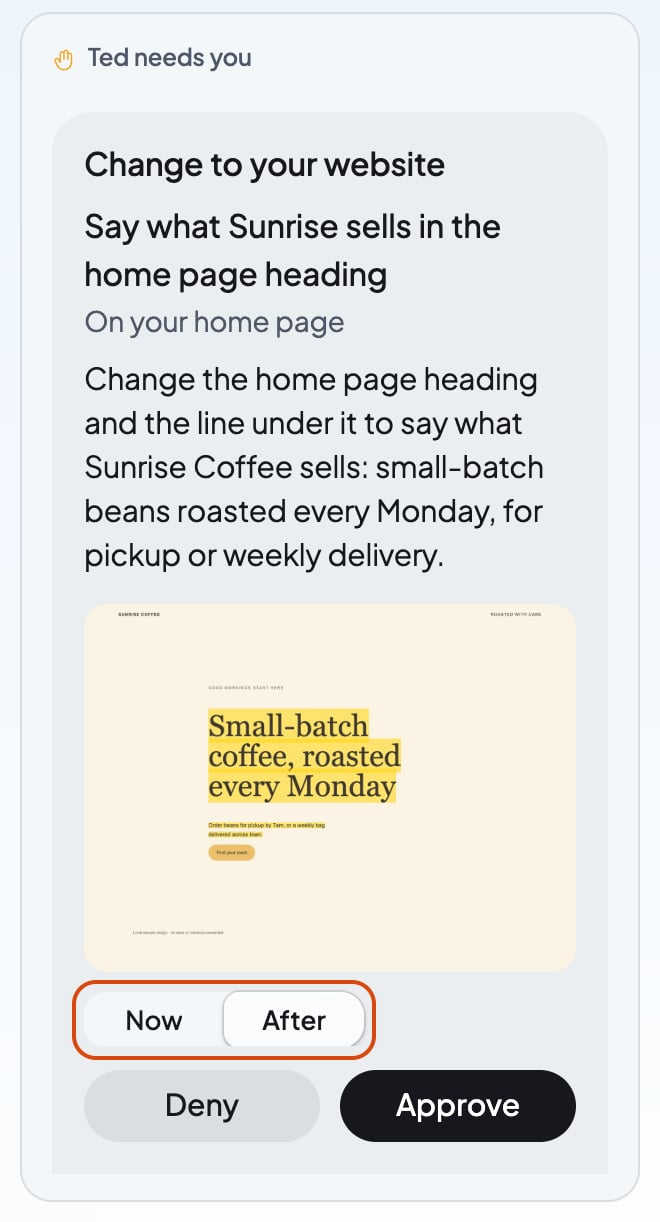
3
Decide
Press Approve to put the change live, or Deny to leave your website as it is. When the card lists more than one change, Approve puts them all live together.
How Ted works on your website
- He builds on a change that waits. With On its own, Ted can keep working on your website while a change waits for you. His next change joins the same card.
- He waits for your own changes. While your website has changes you haven’t published, or while it’s publishing, he leaves your live website alone. When his work needs it, Run asks you under Ted needs you to publish or discard them: press Open Build, then Update and Publish changes. The question clears by itself once they’re live or gone.
- New things stay unpublished. Ted saves a new page or website he makes for you to look at. Publish it yourself when you’re ready.
- It counts toward Power. Ted’s website work in a run comes out of the credits its Power allows.
If something goes wrong
“Replaced by a newer version”
“Replaced by a newer version”
A newer version of your website took this change’s place. If Ted built on this change while it waited, his newest card lists it too. Look at the newest version in Build.
“Too much of the page changed to show in one picture.”
“Too much of the page changed to show in one picture.”
The change is too big for the card’s picture. Open the page to look at it.
FAQ
Does Ted publish website changes by himself?
Does Ted publish website changes by himself?
No, in either mode. A change goes live when you press Approve, or when you publish your website yourself, since that puts its newest version online. See Publish your website.
Can I undo a change after I approve it?
Can I undo a change after I approve it?
Yes. While the change is live, press Undo. The card says it’s undoing, then marks the change undone once your website is back how it was. Any earlier version is also in Version history.
Related

Answer what Ted asks you
Ted’s questions, and everything else that waits for you in Run.

Publish your website
Put the new pages Ted makes online.

Go back to an earlier version
Look at any earlier version and go back to it.

Ask first or On its own
Choose when a run waits for you.