

1
Open Secrets
In Build, press Tools, then Security, then Secrets. Each row shows a secret’s name, the last few characters of its value, and when it last changed.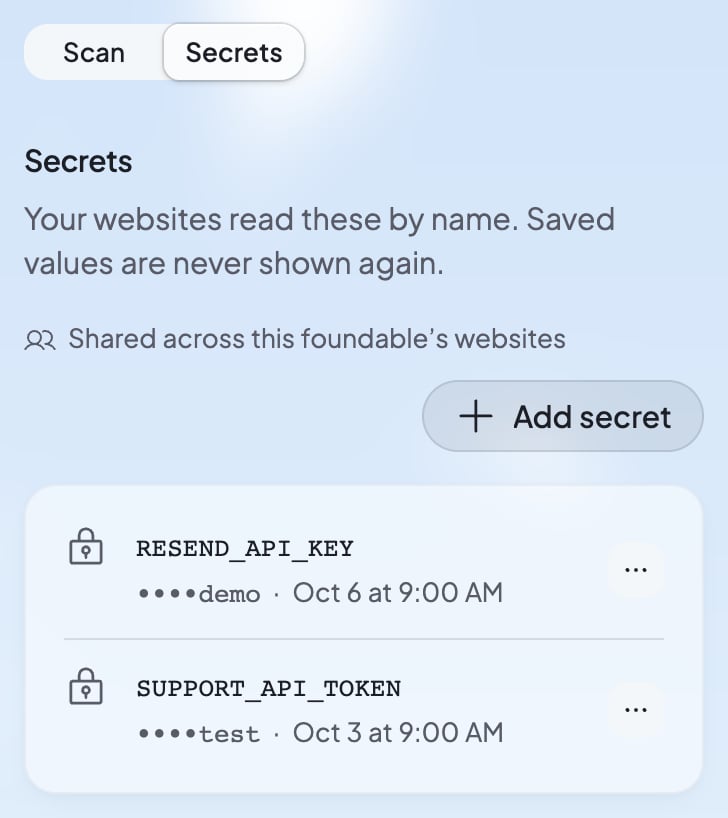
2
Press Add secret
Press Add secret. A new row opens with Name and Value.
3
Name it and paste the value
Use the name your website’s code expects, like
GOOGLE_MAPS_API_KEY. A name uses letters, digits, _ or $, and can’t start with a digit. Paste the key into Value. A Stripe secret or restricted key can’t go here: Payments takes payments for you.4
Press Save
Press Save. Your websites use the key from their next request, the preview included.
Change or delete a secret
Press … beside a secret, then Replace to save a new value under the same name, or Delete to remove it. Delete asks first, and you can’t undo it. A change reaches your websites on their next request, in the preview and on the published site, with no rebuild.Check that it worked
A note confirms you saved it, and the list shows the secret’s name.If something goes wrong
“A VITE_ name is built into the code browsers download, so it can’t be a secret.”
“A VITE_ name is built into the code browsers download, so it can’t be a secret.”
A name starting with
VITE_ would be visible to every visitor. Use a name without VITE_.“Foundable sets that name in your websites. Choose another.”
“Foundable sets that name in your websites. Choose another.”
Names that start with
SUPABASE_ or FOUNDABLE_ are Foundable’s own, and so are PUBLIC_SUPABASE_URL and PUBLIC_SUPABASE_PUBLISHABLE_KEY. Use another name.“That is more than a website can hold.”
“That is more than a website can hold.”
Your secrets are too big all together. Delete one you don’t use, or save a shorter value.
FAQ
Can anyone see my secret values?
Can anyone see my secret values?
No. Once you save a value, no one sees it again: not you, your team or Ted. Ted and Build see only the names, and only your websites’ server code reads the values.
What are the secrets marked Foundable?
What are the secrets marked Foundable?
Foundable sets them to connect your website to its database:
SUPABASE_URL, SUPABASE_PUBLISHABLE_KEY and SUPABASE_SERVICE_ROLE_KEY. To replace the server key, SUPABASE_SERVICE_ROLE_KEY, press … beside it, then Rotate. Foundable asks first, then makes a new key: your website uses it from its next request, and the old one stops working. If a rotation fails or doesn’t finish, the old key keeps working: press Rotate again.Can my website use my own OpenAI key?
Can my website use my own OpenAI key?
Yes. Your website’s AI runs on your credits. To have OpenAI bill you instead, add a secret named
OPENAI_API_KEY. See Use your own OpenAI key.Related

Find and fix security problems
Scan your website for leaked keys.

Check your website’s AI and limit its spending
Use Foundable AI, or your own OpenAI key.

Answer what Ted asks you
Add a key Ted asks for while he works in Run.