

Before you start
- Only the owner or an admin can change what’s for sale. Everyone else sees who can.
- Payments must be set up. Stop selling and Sell again show only once Stripe approves your account.
1
Open Products
In Build, press Tools, then Payments. The Products card shows what the website picked at the top of Build sells. To see another website’s products, pick it there.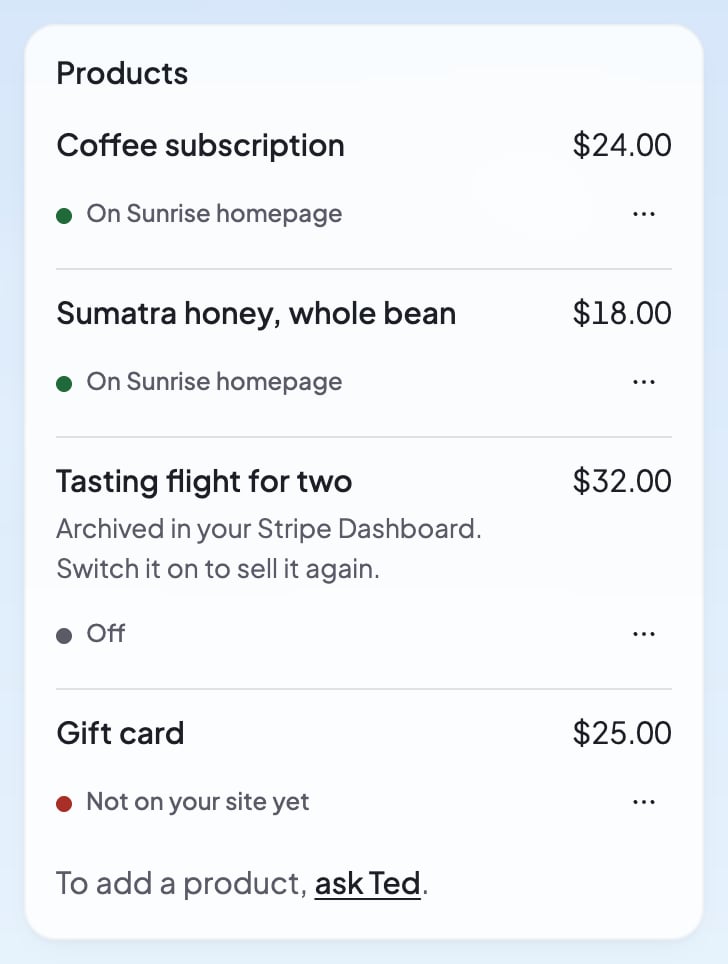
2
Open the product’s menu
Press … at the end of the product’s row.
3
Choose Stop selling or Sell again
Stop selling takes the product off sale. Sell again puts it back. If you ask Ted to sell a product that’s off, his card offers Turn on sales instead.
Check that it worked
The product’s status changes. Off means it isn’t for sale. On, with your website’s name, means its Buy button is on your live website and customers can buy it.If something goes wrong
“Not on your site yet”
“Not on your site yet”
The product is on, but your live website has no Buy button for it. In its … menu, choose Add to my site. Send Ted the request, then publish.
“Archived in your Stripe Dashboard. Switch it on to sell it again.”
“Archived in your Stripe Dashboard. Switch it on to sell it again.”
Someone archived the product in your Stripe Dashboard, so it isn’t for sale. To sell it again, choose Sell again in its … menu.
“Publish … to start selling on it.”
“Publish … to start selling on it.”
That website isn’t live yet, so nothing on it is for sale. Publish your website.
FAQ
Can I change a product’s price or name?
Can I change a product’s price or name?
No. A product’s name and price stay as they are. Stop selling it, then ask Ted for a new one. See Sell on your website.
Does a copy of my website keep its products?
Does a copy of my website keep its products?
No. A copy starts with nothing for sale, so add its products in Payments. See Rename, duplicate or delete a website.
How do I add a product?
How do I add a product?
Ask Ted: press Ask Ted to add in the Products card, or ask Ted under the list once it has products. See Sell on your website.
Related

Sell on your website
Ask Ted for a product and add its Buy button.

Track your sales and give refunds
See what sold and refund a sale.

Publish your website
Put your changes online for customers.