

1
Find the switch
Open Build. It’s beside + in the message box of the chat beside it. On a phone, press Ted while Build is open.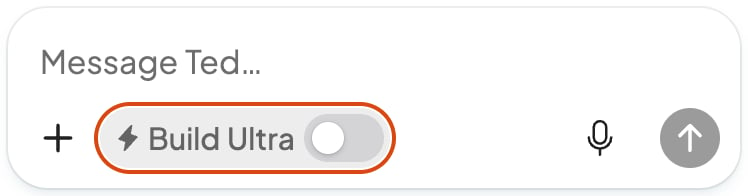
2
Press it
Build Ultra stays on for this business, in every chat, until you press the switch again. Builds that use none of your credits, like a free fix, stay on the regular builder.
Use it for Ted’s work in Run
Run has its own switch, for the website work Ted does there. Press Build in the dock on Home, and it’s at the top. On a phone, press ⤢ (Open full screen) on Home first.Check that it worked
The switch shows on, with no lock beside it.If something goes wrong
You can’t find the switch
You can’t find the switch
The chat shows it only beside Build, and only on a paid plan, never on Home or other pages. A teammate sees it there only on Pro or Max.
The switch shows a lock, and pressing it opens the plans
The switch shows a lock, and pressing it opens the plans
The business’s plan doesn’t include Build Ultra, so a teammate is asked to tell the owner. The owner chooses Pro or Max, and the welcome window’s Turn on Build Ultra turns it on. See Choose a plan.
The switch in Run won’t move
The switch in Run won’t move
Only the owner or an admin can change it. See Invite your team.
FAQ
What happens if my plan changes?
What happens if my plan changes?
Without Pro or Max, the switches turn off. Go back to one, and they’re as you left them.
Related

Build your website
How Ted builds and saves your websites.

Compare what each plan includes
What Pro and Max add.

Track your credits and spending
What used your credits.